
ምርት አልቋልview
The EWEADN C98 Wired Keyboard and Mouse Combo is designed for comfortable and efficient use with various computer systems. This set includes a wired keyboard with a detachable wrist rest, RGB backlighting, double-shot keycaps, and a multimedia knob, along with a wired mouse featuring adjustable DPI settings.
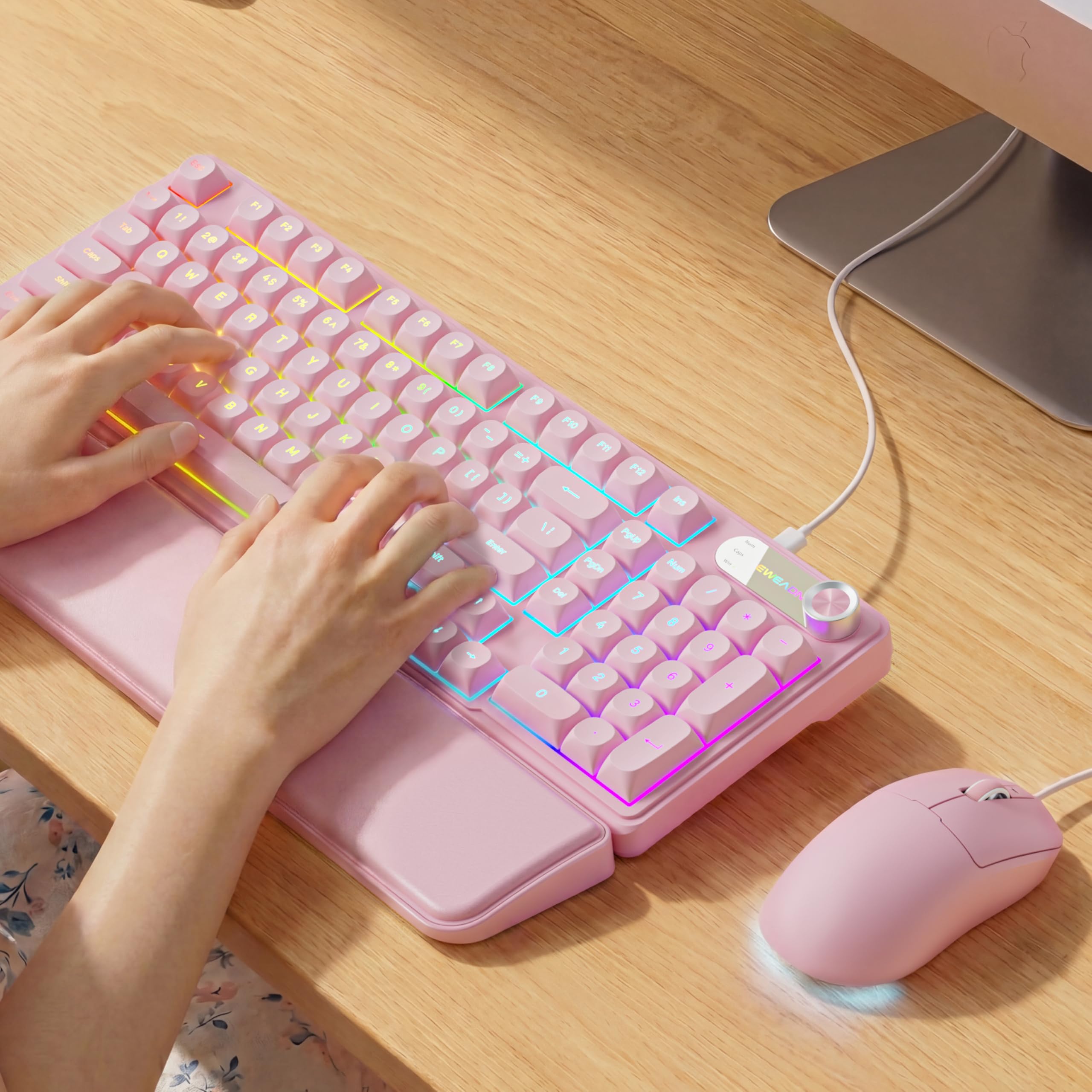
Image: EWEADN C98 Wired Keyboard and Mouse Combo in Pink. This image displays the full keyboard and mouse set, highlighting its ergonomic design and color.
የጥቅል ይዘቶች
ሁሉም እቃዎች በጥቅሉ ውስጥ መኖራቸውን ያረጋግጡ፡-
- EWEADN C98 Wired Keyboard
- ባለገመድ መዳፊት
- ሊነጣጠል የሚችል የእጅ እረፍት
- የዩኤስቢ ገመድ (የተዋሃደ)
- የተጠቃሚ መመሪያ (ይህ ሰነድ)
የማዋቀር መመሪያዎች
Follow these steps to set up your EWEADN C98 Keyboard and Mouse Combo:
- የቁልፍ ሰሌዳውን ያገናኙ; Locate an available USB-A port on your computer (Laptop, PC, Desktop, Gaming Console). Insert the USB-A connector from the keyboard into the port.
- መዳፊቱን ያገናኙ; The mouse is typically connected via the same USB cable as the keyboard or has its own integrated USB-A connector. Insert the mouse's USB-A connector into another available USB-A port on your computer.
- የእጅ አንጓውን መደገፊያ ያያይዙት፦ Align the detachable wrist rest with the front edge of the keyboard and gently attach it.
- የስርዓት እውቅና Your operating system (Windows, Linux, macOS) should automatically detect and install the necessary drivers. No additional software installation is typically required for basic functionality.
- Mac Compatibility Note: For macOS devices, a USB-A to Type-C adapter is required if your Mac only has Type-C ports. This adapter is not included with the product.

Image: Close-up of the keyboard's USB connection and the detachable wrist rest. This illustrates how the keyboard connects and the wrist rest attaches for ergonomic support.

Image: Diagram showing dual-system compatibility. The image indicates how to switch between Windows (FN + A) and Mac (FN + S) layouts for optimal functionality.
የአሠራር መመሪያዎች
የቁልፍ ሰሌዳ ተግባራት
- RGB የኋላ ብርሃን The keyboard features 12 active RGB lighting modes.
- የብርሃን ቀለም ይቀይሩ; ተጫን FN + INS to cycle through different lighting colors.
- ብሩህነትን ማስተካከል; ተጫን FN + PGUP ብሩህነትን ለመጨመር እና FN + PGDN ብሩህነትን ለመቀነስ.
- የመልቲሚዲያ ቁልፍ፡ The 2-in-1 rotary knob provides quick control over media and lighting.
- የድምጽ መቆጣጠሪያ፡- Rotate the knob to adjust system volume.
- ተግባር ድምጸ-ከል አድርግ፡ Press the knob once to mute/unmute audio.
- የመቀየሪያ ሁነታ፡ Press and hold the knob for 3 seconds to switch between volume control mode and lighting adjustment mode. In lighting mode, rotate to adjust brightness or press to switch light effects.
- Ergonomic ንድፍ; The keyboard includes a detachable PU leather wrist rest for comfortable typing posture and foldable stands to adjust the typing angle (up to 8 degrees).
- ጸጥ ያለ መተየብ; The membrane keys are designed for low-noise operation, suitable for quiet environments.
- ድርብ-ሾት ቁልፍ ቁልፎች Characters are injection molded for durability and fade resistance, allowing backlighting to shine through clearly.

Image: Illustration of RGB backlight controls. This image shows the FN + INS and FN + PGUP/PGDN key combinations for adjusting keyboard lighting.

Image: Diagram detailing the 2-in-1 multimedia knob functions. It shows how to adjust volume, mute, and switch between lighting and volume modes.
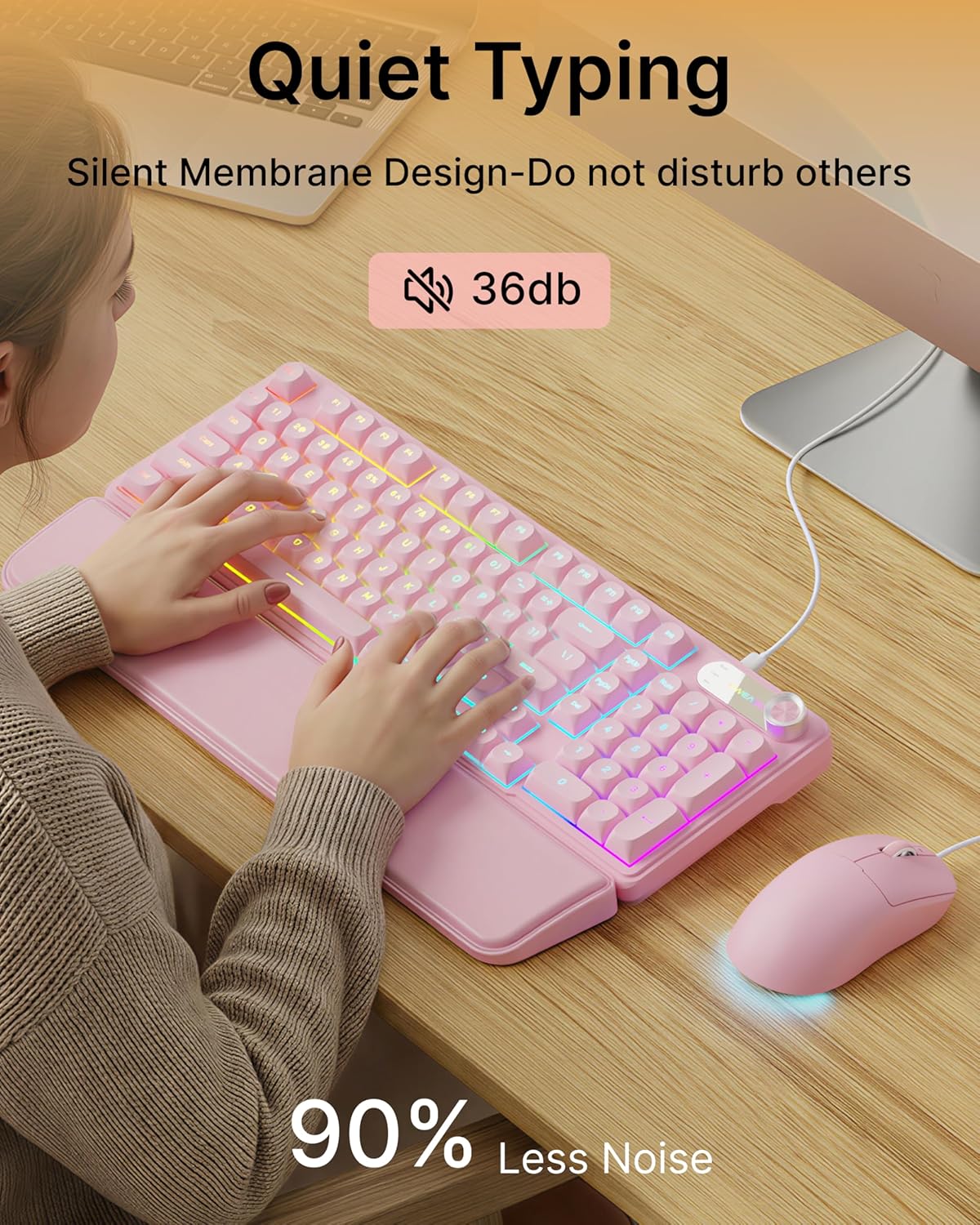
Image: Visual representation of the quiet typing feature. This image highlights the low noise level (36dB) of the keyboard during use.
የመዳፊት ተግባራት
- የሚስተካከለው ዲፒአይ፡ The mouse offers 4 adjustable DPI levels for precision control.
- DPI levels typically range from 800 to 4800.
- Press the DPI button (usually located behind the scroll wheel) to cycle through the available sensitivity settings.
- ጸጥ ያለ ጠቅታ፦ The mouse buttons are designed for quiet operation.
- Ergonomic ንድፍ; Designed for a comfortable palm grip.

Image: Diagram illustrating the 4-level DPI adjustment for the mouse. It shows the different DPI settings (800, 1600, 3200, 4800) and the ergonomic palm grip design.
ጥገና
To ensure the longevity and optimal performance of your EWEADN C98 Keyboard and Mouse Combo, follow these simple maintenance guidelines:
- ማጽዳት፡ የቁልፍ ሰሌዳውን እና የመዳፊትን ገጽታዎች ለማጽዳት ለስላሳ እና ደረቅ ጨርቅ ይጠቀሙ። ለጠንካራ ቆሻሻ፣ ትንሽ ጠጣር።ampጨርቁን በውሃ ወይም መለስተኛ፣ የማይበላሽ ማጽጃ ያድርጉ። ከመጠን በላይ እርጥበትን ያስወግዱ።
- አቧራ ማስወገድ; ከቁልፍ መክፈቻዎች መካከል አቧራ እና ፍርስራሾችን ለማስወገድ የታመቀ አየር ይጠቀሙ።
- ፈሳሾችን ያስወግዱ; While the product has some water resistance, avoid spilling liquids directly onto the keyboard or mouse. If a spill occurs, disconnect immediately and allow to dry completely before reconnecting.
- ማከማቻ፡ Store the combo in a clean, dry environment away from extreme temperatures.
መላ መፈለግ
If you encounter issues with your EWEADN C98 Keyboard and Mouse Combo, refer to the following common solutions:
- የቁልፍ ሰሌዳ ወይም መዳፊት ምላሽ የማይሰጥበት ጊዜ፦
- Ensure the USB-A connector(s) are securely plugged into your computer's USB port(s).
- Try plugging the USB connector(s) into a different USB port on your computer.
- ኮምፒተርዎን እንደገና ያስጀምሩ.
- የዩኤስቢ መገናኛ የሚጠቀሙ ከሆነ ከኮምፒዩተር ጋር በቀጥታ ለመገናኘት ይሞክሩ።
- የጀርባ ብርሃን አይሰራም;
- የቁልፍ ሰሌዳው በትክክል መገናኘቱን ያረጋግጡ።
- ተጫን FN + PGUP multiple times to increase brightness, as it might be set to the lowest level.
- ተጫን FN + INS to cycle through lighting modes, ensuring a mode with backlighting is selected.
- Multimedia Knob Not Functioning:
- የቁልፍ ሰሌዳው በትክክል መገናኘቱን ያረጋግጡ።
- Press and hold the knob for 3 seconds to switch between volume and lighting modes. Verify you are in the desired mode.
- Mouse Cursor Movement is Erratic or Slow:
- Clean the mouse sensor on the underside with a soft cloth.
- አይጤውን ተስማሚ በሆነ ገጽ ላይ እየተጠቀሙ መሆንዎን ያረጋግጡ (ለምሳሌ የመዳፊት ፓድ)።
- Press the DPI button to adjust the sensitivity.
- የማክ ተኳኋኝነት፡ If using with a Mac and experiencing connection issues, confirm you are using a USB-A to Type-C adapter if your Mac lacks standard USB-A ports.
ዝርዝሮች
| የምርት ስም | EWEADN |
| የሞዴል ቁጥር | C98 |
| የግንኙነት ቴክኖሎጂ | ዩኤስቢ-ኤ (ገመድ) |
| ተስማሚ መሣሪያዎች | Laptop, PC, Desktop, Windows, Linux, Gaming Consoles |
| የቁልፍ ሰሌዳ መግለጫ | Membrane, 98-key layout |
| ልዩ ባህሪያት | RGB Backlit, Ergonomic, Detachable Wrist Rest, Multimedia Knob, Double-Shot Keycaps, Quiet Typing |
| የቁልፍ ሰሌዳ የጀርባ ብርሃን ቀለም ድጋፍ | RGB (12 ሁነታዎች) |
| የመዳፊት ዲፒአይ ደረጃዎች | 4 adjustable levels (up to 4800 DPI) |
| ቁሳቁስ | Plastic (Keyboard), PU Leather (Wrist Rest) |
| የውሃ መቋቋም ደረጃ | Waterproof (general resistance, not submersible) |
| ቀለም | ሮዝ |

Image: Detailed dimensions of the EWEADN C98 keyboard, mouse, and wrist rest. This image provides measurements in inches for each component.
ዋስትና እና ድጋፍ
Specific warranty details are not provided in the product information. For warranty claims or technical support, please refer to the retailer's return policy or contact EWEADN customer service directly through their official channels. Typically, products purchased through Amazon.sg may be subject to a 30-day return policy.


