
BOSGAME P4 Ultra
BOSGAME P4 Ultra Mini PC Ryzen 7 7730U Instruction Manual
ሞዴል: P4 Ultra
1. መግቢያ
This manual provides detailed instructions for setting up, operating, and maintaining your BOSGAME P4 Ultra Mini PC. Please read this manual thoroughly before using the device to ensure optimal performance and longevity.
2. በሳጥኑ ውስጥ ያለው
Upon unboxing your BOSGAME P4 Ultra Mini PC, you should find the following items:
- 1 × P4 Ultra Mini PC
- 1 × ኤችዲኤምአይ ገመድ
- 1 × የኃይል አስማሚ
- 1 × VESA Mount & Screws
- 1 × የተጠቃሚ መመሪያ (ይህ ሰነድ)


3. የማዋቀር መመሪያ
3.1 የመጀመሪያ ግንኙነት
- Place the Mini PC on a stable surface or mount it using the provided VESA mount.
- Connect your monitor(s) to the Mini PC using the HDMI, DisplayPort, or USB Type-C ports.
- የቁልፍ ሰሌዳዎን እና መዳፊትዎን ከሚገኙት የዩኤስቢ ወደቦች ጋር ያገናኙ።
- Plug the power adapter into the Mini PC and then into a power outlet.
- ሚኒ ፒሲውን ለማብራት በሚኒ ፒሲው ፊት ላይ ያለውን የኃይል ቁልፍ ይጫኑ።
3.2 የክወና ስርዓት ማዋቀር (ዊንዶውስ 11 ፕሮ)
Your BOSGAME P4 Ultra Mini PC comes with Windows 11 Pro pre-installed. Follow the on-screen instructions to complete the initial setup.
- Select your country, region, and language.
- For the fastest and cleanest first-time setup, it is recommended to skip connecting to Wi-Fi during the initial setup. To do this, press ፈረቃ + F10 on your keyboard to open a command window. Type
oobe\bypassnroእና ይጫኑ አስገባ. The PC will restart. - Once restarted, you can proceed with the offline setup by selecting "I don't have internet" when prompted.
- የተጠቃሚ መለያ እና የይለፍ ቃል ይፍጠሩ።
- Adjust privacy settings as desired.
The system is 100% clean, fast, and secure, with no bloatware.
4. የአሠራር መመሪያዎች
4.1 ማብራት / ማጥፋት
- To power on, press the red power button on the front panel.
- To power off, click the Start menu in Windows and select "Power" then "Shut down." Alternatively, press and hold the power button for 5 seconds.
4.2 የሶስትዮሽ ማሳያ ማዋቀር
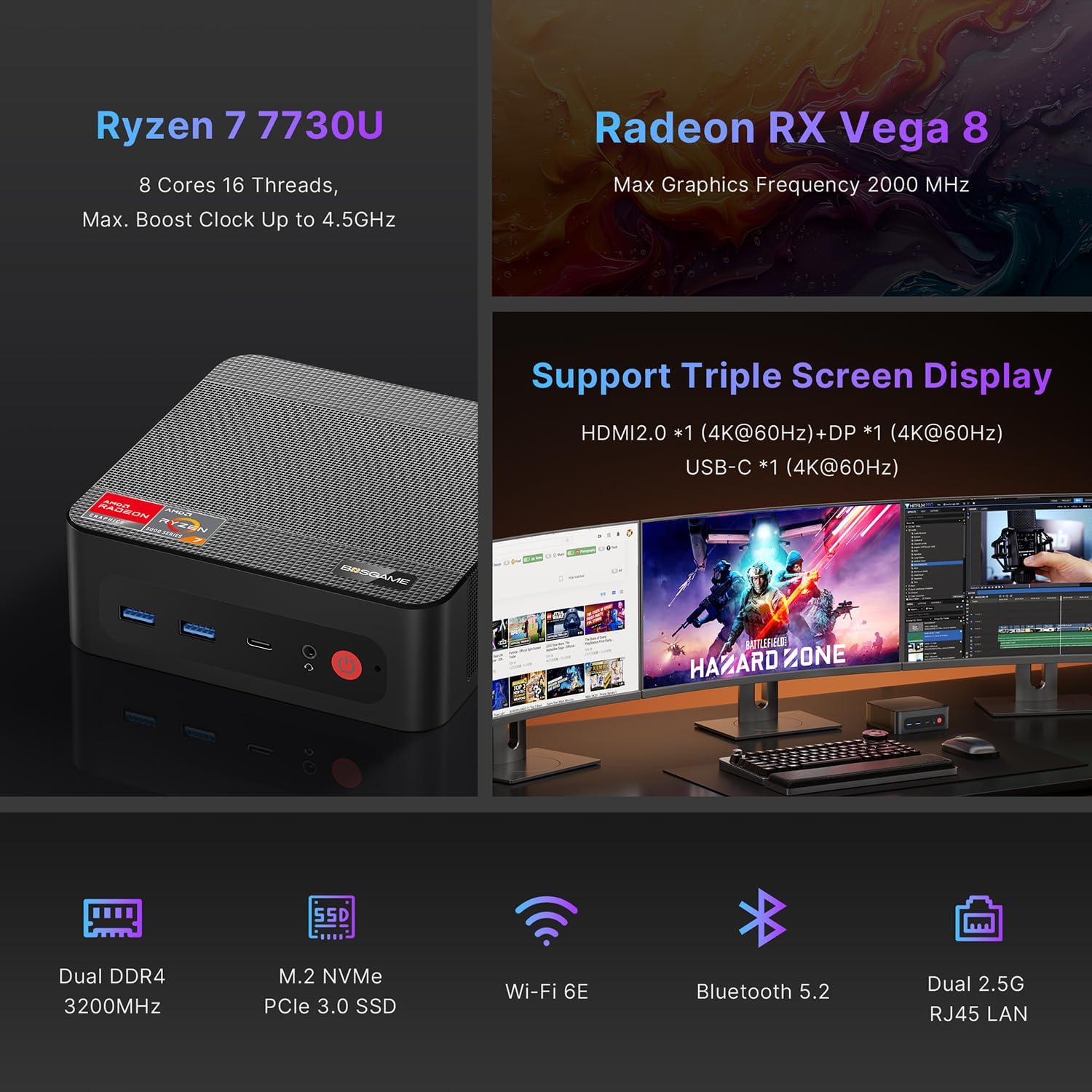
The BOSGAME P4 Ultra supports simultaneous output to three 4K monitors via HDMI 2.0, DisplayPort, and Full-Function USB Type-C.
- Connect the DisplayPort cable to the first monitor.
- Connect the HDMI cable to the second monitor.
- Connect the USB Type-C cable to the third monitor.
- Ensure all monitors are powered on and set to the correct input source.


5. ግንኙነት
5.1 ወደቦች በላይview
| በይነገጽ | ብዛት | መግለጫ |
|---|---|---|
| USB3.2 Gen2 (4K 60Hz) | 1 | Full-function USB Type-C for data, 4K video, and Power Delivery 3.0 |
| HDMI (2.0 @4K 60Hz) | 1 | ለመከታተል የቪዲዮ ውፅዓት |
| USB3.2 Gen1 | 2 | ከፍተኛ ፍጥነት የውሂብ ማስተላለፍ |
| 5.5*2.5mm DC Jack | 1 | የኃይል ግቤት |
| ዩኤስቢ2.0 | 2 | Standard USB ports |
| 3.5 ሚሜ ጥምር ጃክ | 1 | የድምጽ ግቤት/ውፅዓት |
| DP (4K 60Hz) | 1 | DisplayPort የቪዲዮ ውፅዓት |
| 2.5ጂ RJ45 LAN | 2 | Dual 2.5 Gigabit Ethernet ports |

5.2 የገመድ አልባ ግንኙነት
- ዋይ ፋይ 6ኢ፡ For high-speed, lag-free wireless internet.
- ብሉቱዝ 5.2: For instant pairing with peripherals like keyboards, mice, and headphones.

6. Performance & Expansion
The BOSGAME P4 Ultra Mini PC is powered by an AMD Ryzen 7 7730U processor, offering robust performance for various tasks.
- ፕሮሰሰር፡ AMD Ryzen 7 7730U (8 Cores, 16 Threads, Max. Boost Clock up to 4.5GHz)
- ግራፊክስ፡ Radeon RX Vega 8 (Max Graphics Frequency 2000 MHz)
- ማህደረ ትውስታ፡ 16GB DDR4 3200MHz SODIMM (expandable up to 32GB)
- ማከማቻ፡ 1TB NVMe PCIe 3.0 x4 SSD (expandable up to 4TB via additional M.2 2280 slot)

6.1 Storage and RAM Upgrade
You can upgrade the RAM and SSD to enhance performance or storage capacity.
- Remove the screws from the base plate.
- Carefully open the base plate.
- Move the system fan to access the RAM and SSD slots.
- Replace the RAM and/or SSD as needed.

6.2 Graphics Dock Expansion
The Mini PC supports graphics dock expansion via its full-featured USB Type-C port, allowing for enhanced graphics performance for demanding applications or gaming.
7. ጥገና
7.1 የማቀዝቀዣ ዘዴ
The Mini PC features an advanced thermal design and a low-noise fan system to ensure stable operation and efficient heat dissipation, even under load.


8. መላ መፈለግ
8.1 የ BIOS ቅንብሮች
To access and modify BIOS settings, press the ሰርዝ key repeatedly during boot-up.
- ራስ -ሰር ኃይል በርቷል ሂድ ወደ የላቀ → ራስ-ሰር ኃይል በርቷል. ተጫን አስገባ፣ ይምረጡ አብራ, ከዚያም ይጫኑ F4 ለማዳን.
- በ LAN ላይ መቀስቀስ; ሂድ ወደ የላቀ → በ LAN ላይ መቀስቀስ. ተጫን አስገባ፣ ይምረጡ ነቅቷል, ከዚያም ይጫኑ F4 ለማዳን.
- UMA Frame Buffer Size: ሂድ ወደ የላቀ → የ UMA ፍሬም ቋት መጠን. ተጫን አስገባ, select the desired size (e.g., 8G), ከዚያ ይጫኑ F4 to save. This allocates system memory to graphics for higher-level tasks.
- S5 RTC Wake Settings: ሂድ ወደ የላቀ → S5 RTC Wake ቅንብሮች. ተጫን አስገባ፣ ይምረጡ የተወሰነ ጊዜ or ተለዋዋጭ ጊዜ, ከዚያም ይጫኑ F4 to save. This allows the system to wake from S5 (soft off) at a scheduled time.
ጠቃሚ፡- The BIOS is locked by default, and overclocking is not recommended as it may damage the computer. Please be aware.
9. ዝርዝሮች
| ባህሪ | ዝርዝር |
|---|---|
| የምርት ስም | BOSGAME |
| የሞዴል ስም | P4 አልትራ |
| ስርዓተ ክወና | Windows 11 Pro (pre-installed), compatible with Linux |
| የሲፒዩ ሞዴል | Ryzen 7 7730U |
| የሲፒዩ ፍጥነት | 2 GHz (Base), 4.5 GHz (Max Boost) |
| የሲፒዩ ኮሮች/ክሮች | 8 ኮሮች፣ 16 ክሮች |
| የመሸጎጫ መጠን | 16 ሜባ |
| ግራፊክስ ካርድ | Integrated Radeon Graphics (Radeon RX Vega 8) |
| Graphics Frequency | 2000 ሜኸ (ከፍተኛ) |
| ማህደረ ትውስታ (ራም) | 16 GB DDR4 3200MHz SODIMM (Max 32 GB) |
| ማከማቻ | 1 TB NVMe PCIe 3.0 x4 SSD (Max 4 TB, 2x M.2 2280 slots) |
| የቪዲዮ ውፅዓት | HDMI (4K@60Hz), DisplayPort (4K@60Hz), USB Type-C (4K@60Hz) |
| LAN | Dual 2.5G RJ45 Ethernet |
| የገመድ አልባ ግንኙነት | Wi-Fi 6E፣ ብሉቱዝ 5.2 |
| የዩኤስቢ ወደቦች | 2x USB 3.2 Gen1, 2x USB 2.0, 1x USB 3.2 Gen2 Type-C (Full-function) |
| ኦዲዮ | 3.5 ሚሜ ጥምር ጃክ |
| የኃይል ፍጆታ | 15 Watts (Default TDP) |
| መጠኖች | 5.12 x 4.72 x 1.73 ኢንች (129 x 123 x 44 ሚሜ) |
| ክብደት | 514 ግራም (1.13 ፓውንድ) |
| የማቀዝቀዣ ዘዴ | አድናቂ |
| VESA ተራራ | ተካትቷል። |

10. ዋስትና እና ድጋፍ
BOSGAME is committed to quality and customer satisfaction.
- ዋስትና፡- The BOSGAME P4 Ultra Mini PC comes with a 12-month warranty for the entire machine and a 3-year warranty for parts.
- የደንበኛ አገልግሎት፡ For any questions or support regarding your purchase, please contact BOSGAME customer service.
ድጋፍን እንዴት ማግኘት እንደሚቻል፡-
- አማዞን ላይ ያግኙን፡- Log in to your Amazon buyer's account, find your order, click 'Get help'.
- Send E-mail to After-sales Support Team: You can also reach out via email for assistance.


Ask a question about this manual
Ask about setup, troubleshooting, compatibility, parts, safety, or missing instructions. Manuals+ will review the question and use this page’s manual context to help answer it.