
መግቢያ
Thank you for choosing the CORBOBO Aula F3099 Wireless Keyboard and SM802 Wireless Mouse Combo. This manual provides detailed instructions for setting up, operating, and maintaining your new peripheral devices. Please read this manual thoroughly before use to ensure optimal performance and longevity of your product.
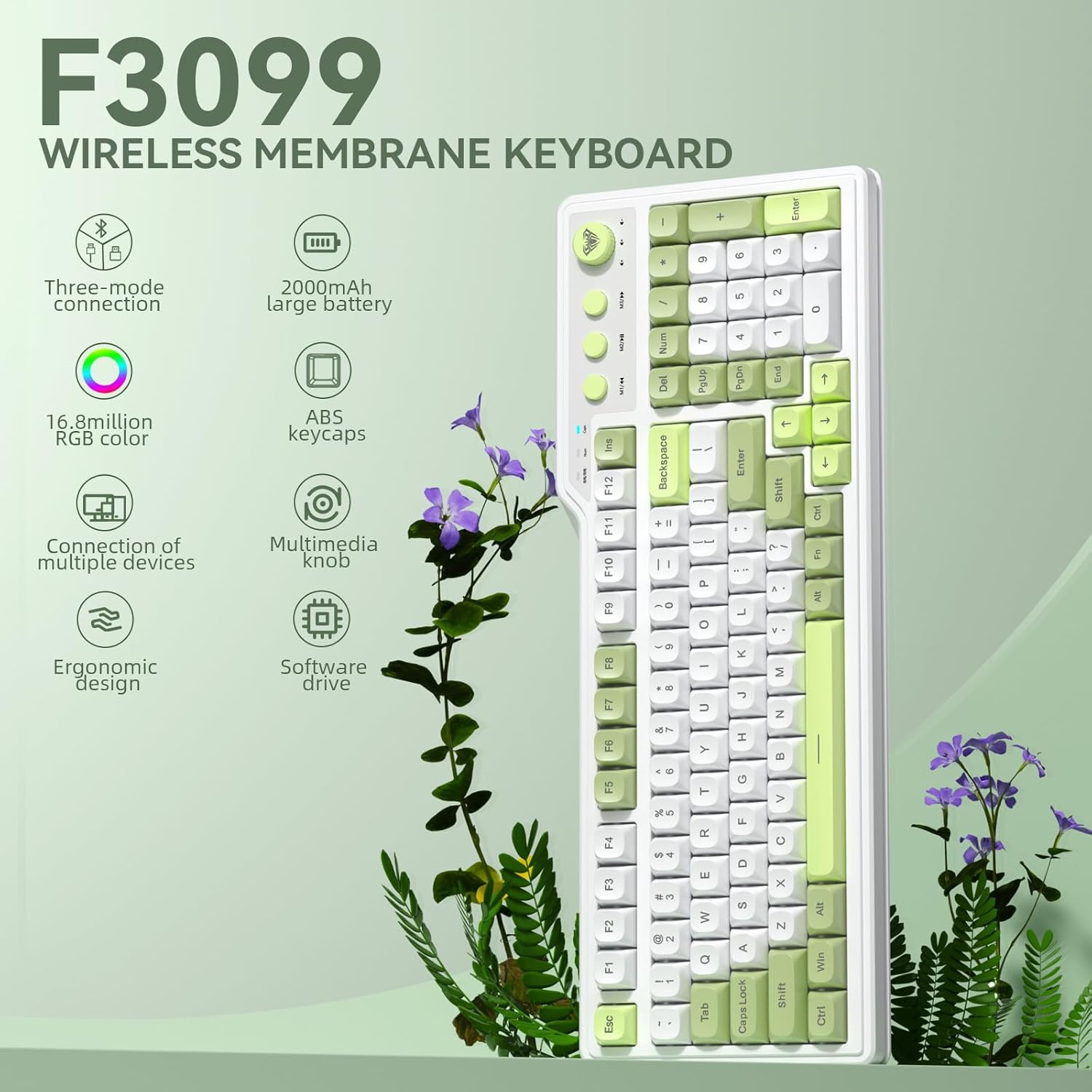
ምስል፡ አልቋልview of the Aula F3099 Wireless Keyboard and SM802 Wireless Mouse Combo.
የማዋቀር መመሪያዎች
1. Keyboard Connection (Aula F3099)
The Aula F3099 keyboard supports three connection modes: 2.4G wireless, Bluetooth, and wired USB-C.
- 2.4ጂ ገመድ አልባ ሁነታ፡- ተጫን fn + ~ to activate 2.4G wireless mode. Insert the USB receiver into an available USB port on your computer. The keyboard will automatically connect.
- የብሉቱዝ ሁኔታ ተጫን fn+1, fn+2, ወይም fn+3 to switch between three Bluetooth channels. The keyboard can store up to three Bluetooth devices. On your device (PC, laptop, mobile), search for "F3099" in the Bluetooth settings and pair.
- ባለገመድ ሁነታ ተጫን fn+4 to switch to wired mode. Connect the keyboard to your computer using the provided USB-C cable.

Image: Illustration of the Aula F3099 keyboard's tri-mode connection capabilities.
2. Mouse Connection (SM802)
The SM802 mouse also supports tri-mode connectivity: 2.4GHz wireless, Bluetooth, and wired USB.
- 2.4GHz ገመድ አልባ ሁነታ፡- Locate the mode switch on the bottom of the mouse and set it to 2.4G. Insert the USB receiver (often stored in the mouse's bottom compartment) into your computer's USB port.
- የብሉቱዝ ሁኔታ Set the mode switch on the bottom of the mouse to BT. On your device, search for "SM802" in the Bluetooth settings and pair.
- ባለገመድ ሁነታ Connect the mouse to your computer using a USB cable. The mouse will function in wired mode and charge simultaneously.
3. መሙላት
Both the Aula F3099 keyboard and SM802 mouse are rechargeable. Connect them via USB-C cable to a power source (e.g., computer USB port, USB wall adapter) to charge. An indicator light will typically show charging status.
የአሠራር መመሪያዎች
1. Aula F3099 Keyboard Operation
- የመልቲሚዲያ ቁልፍ፡ The knob has dual modes. Long-press the knob for 3 seconds to switch between Gaming Mode and Office Mode.
- የጨዋታ ሁኔታ Rotate the knob to adjust RGB backlight brightness. Press the knob to cycle through different backlight effects.
- የቢሮ ሁነታ፡ Rotate the knob to adjust computer volume. Press the knob to mute/unmute audio.
- Multimedia Hot Keys (M1/M2/M3): These keys function differently based on the knob's mode.
- የጨዋታ ሁኔታ In wired mode, M1/M2/M3 can be customized for macros. To record a macro: Press Fn + INS, then press M1/M2/M3, enter your desired key output, and press Fn + INS እንደገና ለማስቀመጥ ፡፡
- የቢሮ ሁነታ፡ M1 (Previous Song), M2 (Play/Pause), M3 (Next Song).
- RGB Backlight Adjustment:
- Fn + መጨረሻ፡ Adjust constant light mode.
- Fn + PgUp: Adjust to the next light effect.
- Fn + PgDn፡ Adjust to the last light effect.
- Fn + !: የጀርባ ብርሃን ብሩህነት ጨምር።
- Fn + -: የጀርባ ብርሃን ብሩህነት ቀንስ።
- Fn + =: የብርሃን ፍጥነትን ይጨምሩ።
- Fn + _: የብርሃን ፍጥነትን ይቀንሱ።
- Programmable Driver: The keyboard supports macro customization via a driver. The driver only operates in wired mode on Windows systems. Note that this membrane silicone keyboard does not support hot-swap functionality.

ምስል፡ ዝርዝር view of the Aula F3099 keyboard's dual-mode multimedia knob functions.
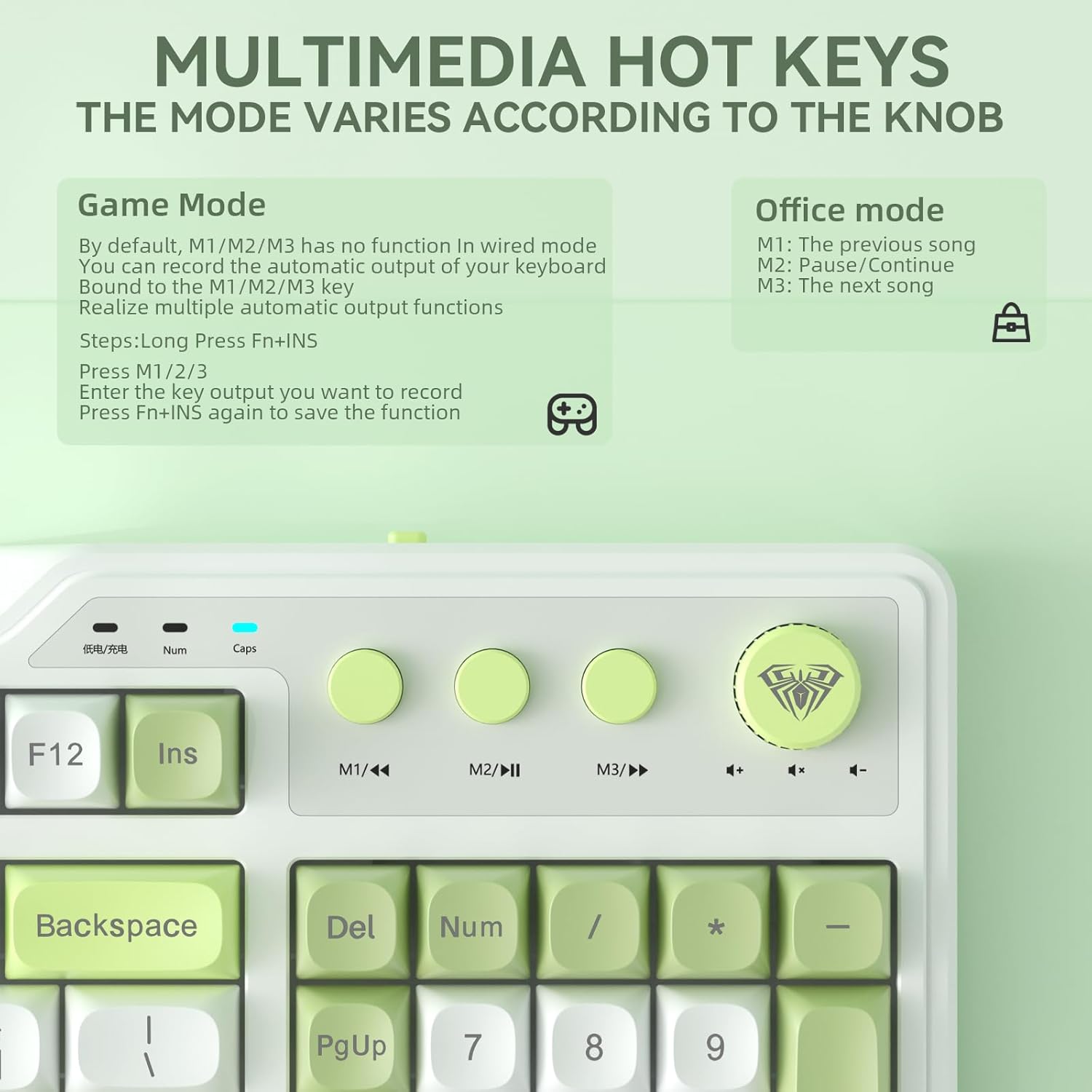
Image: Explanation of multimedia hot key functions in both game and office modes.
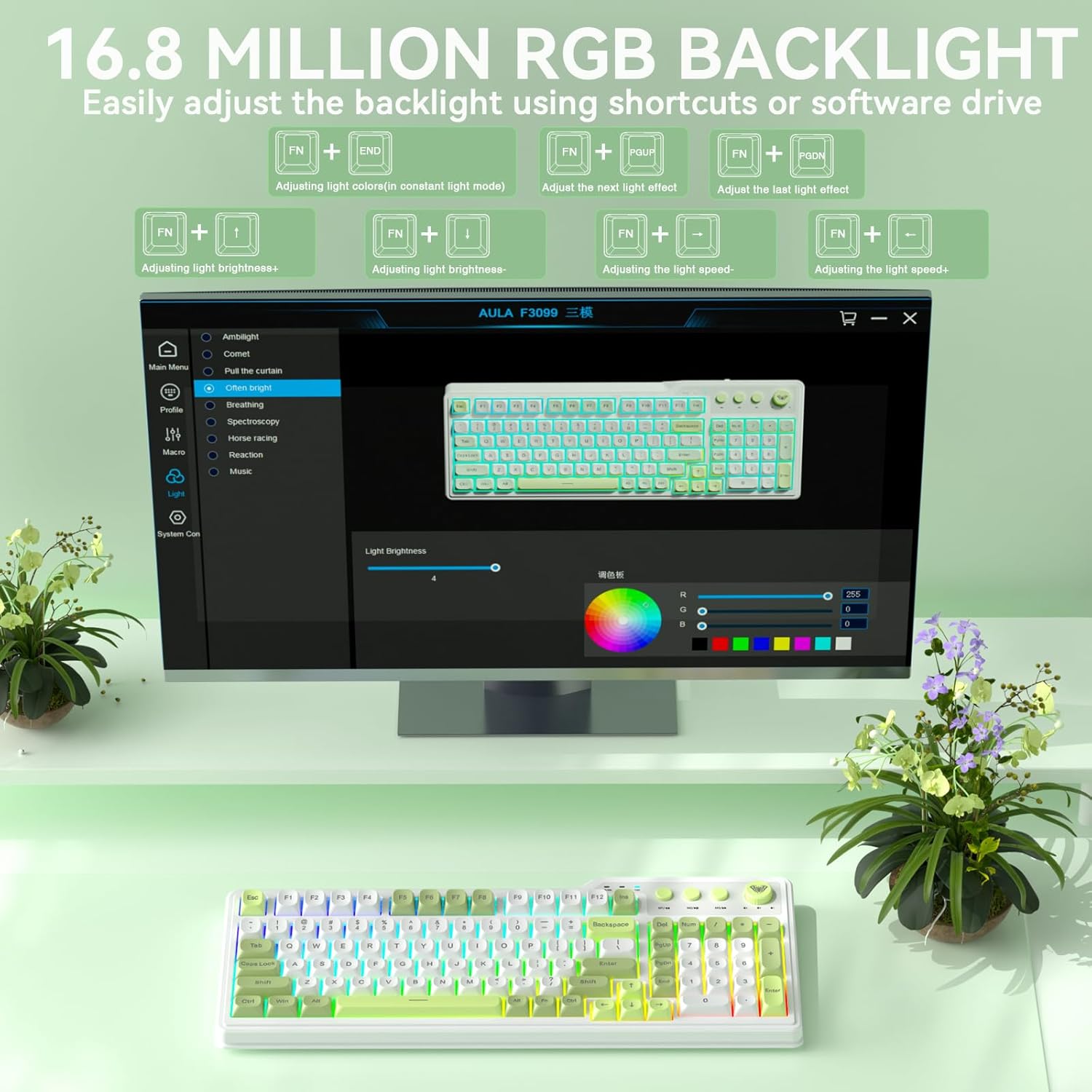
Image: Visual guide for adjusting the 16.8 million RGB backlight effects and brightness.
2. SM802 Mouse Operation

ምስል፡ አልቋልview of the SOLAKAKA SM802 Wireless Gaming Mouse, highlighting its features.
- የዲፒአይ ማስተካከያ The mouse comes with 6 preset DPI levels (1200/1600/2400/3200/6400/12800). Use the DPI switching button (located near the scroll wheel) to cycle through these levels. DPI can be adjusted up to 24,000 via the driver software.
- ፕሮግራም ሊደረጉ የሚችሉ አዝራሮች፡- The SM802 features 6 programmable buttons. These include Left, Right, Middle Click, Roller Forward, Roller Backward, Forward, and Backward buttons. Macro functions and remapping can be configured using the dedicated driver software.
- የRGB ውጤቶች፡- The mouse features multiple RGB lighting effects. These can be switched via a dedicated RGB switching button (non-programmable) or through the driver software. Available effects include turning off lighting, Wave (colorful RGB waves), and Circular Breathing (single-color breathing light).
- Interchangeable Shells: The mouse includes two interchangeable shell kits: a breathable version and a classic version. These can be swapped to change the mouse's appearance and feel. The breathable shell reduces weight to 68 grams and enhances airflow for comfort.

Image: Diagram illustrating the 6 programmable buttons on the SM802 mouse.

ምስል፡ ዘጸamples of RGB lighting effects available on the SM802 mouse.
ጥገና
- ማጽዳት፡ የቁልፍ ሰሌዳውን እና የመዳፊቱን ገጽታ ለማጽዳት ለስላሳ እና ደረቅ ጨርቅ ይጠቀሙ። ለግትር ቆሻሻ, ትንሽ መamp ለስላሳ ሳሙና ያለው ጨርቅ መጠቀም ይቻላል፣ ይህም ምንም አይነት ፈሳሽ ወደ መሳሪያው እንዳይገባ ያረጋግጣል። ጠበኛ ኬሚካሎችን ወይም ሻካራ ቁሳቁሶችን ያስወግዱ።
- የባትሪ እንክብካቤ To prolong battery life, avoid fully discharging the devices frequently. Charge them when the battery indicator is low. If storing for an extended period, charge them to about 50% and store in a cool, dry place.
- ማከማቻ፡ Store the keyboard and mouse in a clean, dry environment away from extreme temperatures, direct sunlight, and excessive dust.
መላ መፈለግ
- መሳሪያ አለመገናኘት;
- መሣሪያው መብራቱን እና ሙሉ በሙሉ መሙላቱን ያረጋግጡ።
- Verify the correct connection mode (2.4G, BT, Wired) is selected on the device.
- ለ2.4ጂ፣ የዩኤስቢ ተቀባይው ደህንነቱ በተጠበቀ ሁኔታ መሰካቱን ያረጋግጡ።
- For Bluetooth, ensure Bluetooth is enabled on your computer/device and re-attempt pairing.
- Try connecting via wired mode to rule out wireless issues.
- Backlight Not Working/Adjusting (Keyboard):
- Check if the keyboard is in Gaming Mode if you are trying to adjust effects via the knob.
- Ensure you are using the correct Fn key combinations for backlight adjustments.
- The backlight may be turned off or set to minimum brightness.
- የመዳፊት መከታተያ ጉዳዮች፡-
- የመዳፊት ዳሳሹ ንፁህ እና ከቆሻሻ የጸዳ መሆኑን ያረጋግጡ።
- Use the mouse on a suitable surface (e.g., mouse pad).
- Adjust DPI settings to a comfortable level.
- ባትሪው ዝቅተኛ ከሆነ መዳፊቱን እንደገና ይሙሉት።
- የአሽከርካሪ ሶፍትዌር ችግሮች፡
- Ensure the keyboard/mouse is connected in wired mode when installing or using the driver.
- The driver is compatible with Windows systems only.
- Download the latest driver from the official CORBOBO webየሚገኝ ከሆነ ጣቢያ.
ዝርዝሮች
Aula F3099 Wireless Keyboard
- ግንኙነት፡ ባለሶስት ሁነታ (2.4ጂ ገመድ አልባ፣ ብሉቱዝ 5.0፣ ዩኤስቢ-ሲ ገመድ አልባ)
- የባትሪ አቅም፡- 2000mAh
- ቁልፎች፡- የኤቢኤስ ቁሳቁስ
- የጀርባ ብርሃን፡ 16.8 ሚሊዮን አርጂቢ
- ባህሪያት፡ Multimedia knob (dual-mode), Number pad, Programmable driver (Windows, wired mode), Ergonomic design
- ተኳኋኝነት PCs, Laptops, Mobile devices (Bluetooth)
SOLAKAKA SM802 Wireless Gaming Mouse
- ግንኙነት፡ Tri-Mode (2.4GHz Wireless, Bluetooth, Wired USB)
- ዳሳሽ፡- Premium PAW3311 Optical Tracking System
- ዲፒአይ 1200/1600/2400/3200/6400/12800 (preset), up to 24,000 DPI (via driver)
- የመከታተያ ፍጥነት፡- 300 አይፒኤስ
- ማፋጠን፡ 35 ግ
- የድምጽ መስጫ መጠን፡ እስከ 1000Hz
- ክብደት፡ 68g (with breathable shell)
- አዝራሮች፡- 6 ሊዘጋጁ የሚችሉ አዝራሮች
- ባህሪያት፡ RGB Backlight, Rechargeable, Interchangeable Shells (breathable/classic)
- ተኳኋኝነት Laptop/PC/Mac