
መግቢያ
Thank you for choosing the MEETION C9990 Wireless Bluetooth Keyboard and Mouse combo. This product offers versatile connectivity options (2.4GHz USB and dual Bluetooth channels), an ergonomic design for comfort, and rechargeable batteries for extended use. This manual will guide you through the setup, operation, and maintenance of your new device.
የጥቅል ይዘቶች
- MEETION C9990 Wireless Keyboard
- የMEETION ገመድ አልባ መዳፊት
- የዩኤስቢ ተቀባይ (በአይጥ ባትሪ ክፍል ውስጥ የተከማቸ)
- የዩኤስቢ-ሲ ኃይል መሙያ ገመድ
- የተጠቃሚ መመሪያ
ምርት አልቋልview
የቁልፍ ሰሌዳ ባህሪዎች
- ባለሙሉ መጠን አቀማመጥ፡- Includes a numeric pad for comprehensive data entry.
- Low-Noise Scissor-Switch Keys: Provides a quiet and comfortable typing experience.
- የመልቲሚዲያ ቁልፎች Dedicated function keys for quick access to media controls and system functions.
- Fixed Anti-Slip Stand: Ensures stability and an ergonomic typing angle.
- እጅግ በጣም ቀጭን ንድፍ; በሚያምር ሁኔታasing and space-efficient.

Image: Close-up of the keyboard keys, illustrating the low-noise scissor-switch design for quiet and comfortable typing.

Image: The keyboard features a fixed-angle anti-slip stand for enhanced stability and typing comfort.
የመዳፊት ባህሪዎች
- Ergonomic Sculpted Design: Contoured shape supports natural wrist and hand posture.
- የሚስተካከለው ዲፒአይ፡ Four DPI settings (800-2400) for precise cursor control.
- Tilt-Scroll Wheel: Allows for horizontal and vertical scrolling.
- ሁነታ መቀየሪያ፡- Easily switch between 2.4GHz and Bluetooth modes.

Image: The mouse features an ergonomic sculpted design to provide comfort during extended use.

Image: Detailed diagram of the mouse highlighting its various components and functions, including buttons, scroll wheel, and switches.
የማዋቀር መመሪያዎች
1. መሳሪያዎቹን መሙላት
Both the keyboard and mouse are equipped with built-in rechargeable batteries. Before first use, or when the battery indicator shows low power, charge both devices using the provided USB-C cable.
- Connect the USB-C end of the charging cable to the charging port on the keyboard and mouse.
- የኃይል መሙያ ገመዱን የዩኤስቢ-ኤ ጫፍ ከዩኤስቢ የኃይል ምንጭ (ለምሳሌ፣ የኮምፒውተር ዩኤስቢ ወደብ፣ የዩኤስቢ ግድግዳ አስማሚ) ጋር ያገናኙ።
- የኃይል መሙያ አመልካች መብራቱ በሚሞላበት ጊዜ ያበራል እና ሙሉ በሙሉ ሲሞላ ይጠፋል።
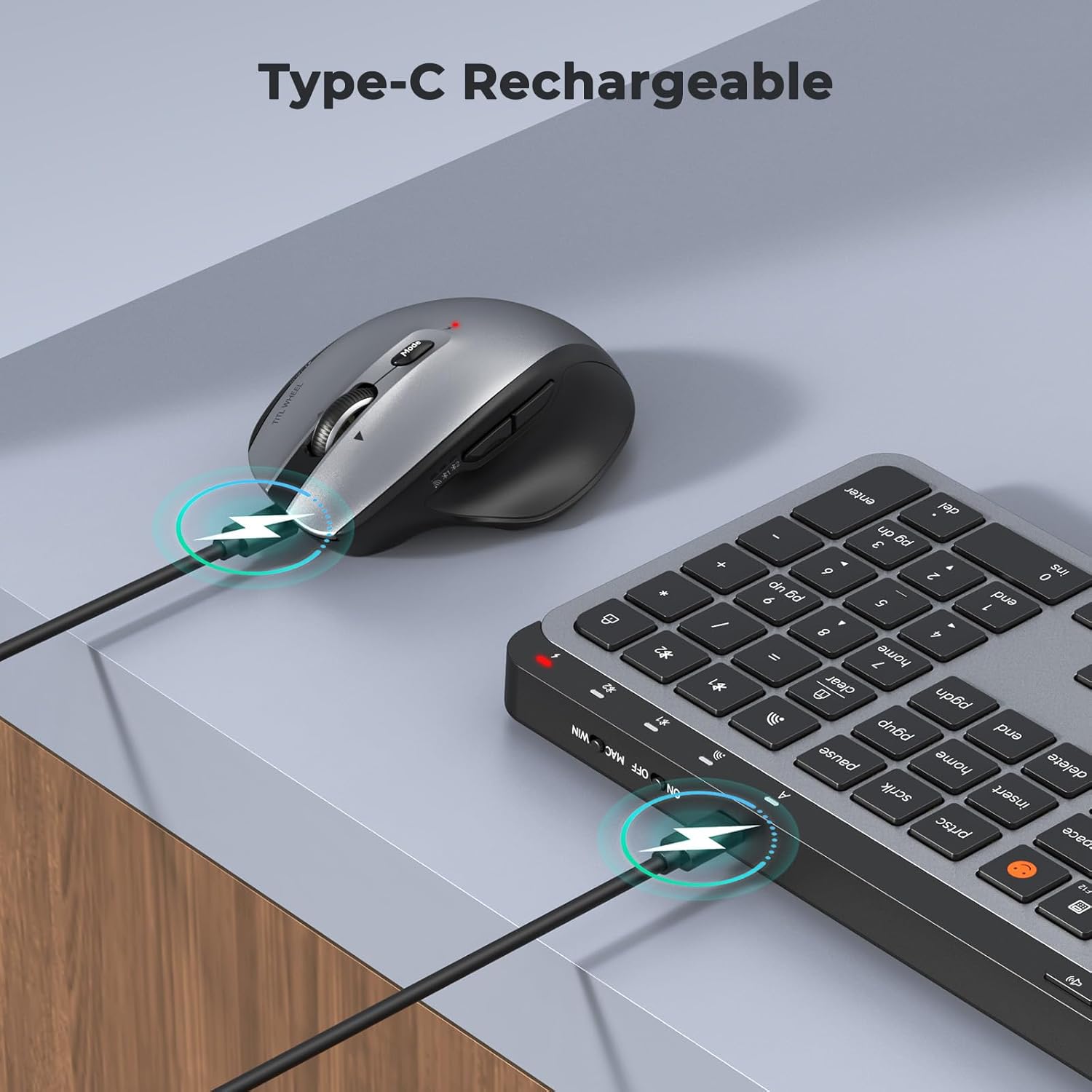
Image: Both the keyboard and mouse are rechargeable via USB-C, ensuring convenience and eliminating the need for disposable batteries.
2. ከመሳሪያዎች ጋር በመገናኘት ላይ
The C9990 combo supports three connection modes: 2.4GHz wireless (via USB receiver) and two Bluetooth channels (BT1, BT2).
2.1. 2.4GHz ገመድ አልባ ግንኙነት
- በተለምዶ በመዳፊት የባትሪ ክፍል ውስጥ የሚቀመጠውን የዩኤስቢ መቀበያ ያግኙ።
- የዩኤስቢ መቀበያውን በኮምፒውተርዎ ላይ ወዳለው የዩኤስቢ ወደብ ይሰኩት።
- የየራሳቸውን የኃይል ማብሪያ / ማጥፊያ በመጠቀም የቁልፍ ሰሌዳውን እና ማውሱን ያብሩ።
- ለቁልፍ ሰሌዳው፣ ይጫኑ 2.4ጂ button (usually indicated by a USB icon) to switch to 2.4GHz mode.
- For the mouse, switch the mode selector to the 2.4ጂ አቀማመጥ.
- መሳሪያዎቹ በራስ-ሰር መገናኘት አለባቸው።
2.2. የብሉቱዝ ግንኙነት (BT1 / BT2)
- የቁልፍ ሰሌዳውን እና መዳፊቱን ያብሩ.
- ለቁልፍ ሰሌዳ፦ ተጭነው ይያዙት። BT1 or BT2 የአመላካች መብራቱ በፍጥነት እስኪበራ ድረስ ለ3-5 ሰከንዶች አዝራሩን ይጫኑ፣ የማጣመሪያ ሁነታን ያሳያል።
- ለመዳፊት፦ Switch the mode selector to the BT1 or BT2 position, then press and hold the Bluetooth pairing button (often located on the underside) until the indicator light flashes.
- በመሳሪያዎ (ላፕቶፕ፣ ታብሌት፣ ስማርትፎን) ላይ ወደ ብሉቱዝ ቅንብሮች ይሂዱ እና አዳዲስ መሳሪያዎችን ይፈልጉ።
- Select "MEETION Keyboard" and "MEETION Mouse" from the list to pair.
- Repeat for the second Bluetooth channel (BT2) if connecting to another device.
3. በመሳሪያዎች መካከል መቀያየር
The C9990 allows seamless switching between up to three connected devices (one 2.4GHz and two Bluetooth).
- ለቁልፍ ሰሌዳ፦ የወሰኑትን ይጫኑ 2.4ጂ, BT1, ወይም BT2 button to switch to the desired connected device.
- ለመዳፊት፦ Use the mode switch on the underside of the mouse to select 2.4ጂ, BT1, ወይም BT2.

Image: The keyboard and mouse can switch between three devices (PC, tablet, phone) with a single click, indicated by the Bluetooth and 2.4G icons.
የአሠራር መመሪያዎች
የቁልፍ ሰሌዳ ተግባራት
- Multimedia Keys (F1-F12): These keys provide quick access to functions like brightness control, display window, home, dictation, sleep, app switcher, screen mirroring, screen capture, music player, email, and calculator. Functions may vary slightly depending on the operating system.
- የስሜት ገላጭ ምስል ቁልፍ፡ The dedicated emoji key supports Windows, macOS, iPad (iPadOS), and Android Samsung devices. It does not support iPhone (iOS).

Image: The keyboard features a row of multimedia keys (F1-F12) for quick access to various system functions.
የመዳፊት ተግባራት
- የዲፒአይ ማስተካከያ Press the DPI switch button (usually located near the scroll wheel) to cycle through the available DPI settings (800, 1200, 1600, 2400). Adjust to your preference for cursor speed and precision.
- Tilt-Scroll Wheel: In addition to vertical scrolling, tilt the scroll wheel left or right for horizontal scrolling in applications that support it (e.g., spreadsheets).
- ወደፊት/ወደኋላ አዝራሮች፡- Use the side buttons for quick navigation in web አሳሾች እና file አሳሾች.
ጥገና
- ማጽዳት፡ የቁልፍ ሰሌዳውን እና የመዳፊትን ገጽታዎች ለማጽዳት ለስላሳ እና ደረቅ ጨርቅ ይጠቀሙ። ለጠንካራ ቆሻሻ፣ ትንሽ ጠጣርampበጨርቁ ላይ በውሃ ወይም ለስላሳ የጽዳት መፍትሄ. ኃይለኛ ኬሚካሎችን ወይም ገላጭ ቁሳቁሶችን ያስወግዱ.
- የባትሪ እንክብካቤ To prolong battery life, avoid fully discharging the devices frequently. Charge them when the low battery indicator appears. If storing for an extended period, charge them to about 50% and recharge every few months.
- ማከማቻ፡ መሳሪያዎቹን በቀጥታ ከፀሀይ ብርሀን እና ከከፍተኛ ሙቀት ርቆ በቀዝቃዛና ደረቅ ቦታ ያከማቹ።
መላ መፈለግ
የግንኙነት ጉዳዮች
- መሣሪያው አይገናኝም; Ensure both the keyboard and mouse are powered on and fully charged. Check that the correct connection mode (2.4G, BT1, or BT2) is selected on both devices. For Bluetooth, ensure your host device's Bluetooth is enabled and the devices are in pairing mode.
- የማያቋርጥ ግንኙነት; Move the devices closer to your computer. Avoid using them near strong electromagnetic interference sources (e.g., Wi-Fi routers, other wireless devices).
- 2.4GHz receiver not recognized: Try plugging the USB receiver into a different USB port. Ensure the receiver is fully inserted.
የተግባር ጉዳዮች
- Keys or mouse unresponsive: Recharge the devices. Restart your computer or device. Re-pair the devices if using Bluetooth or re-insert the USB receiver for 2.4GHz.
- የመዳፊት ጠቋሚ የተሳሳተ ነው፡ Clean the mouse sensor. Ensure you are using the mouse on a suitable surface (not highly reflective or transparent). Adjust DPI settings.
ዝርዝሮች
| የሞዴል ቁጥር | C9990 |
| የግንኙነት ቴክኖሎጂ | Bluetooth, USB (2.4GHz Wireless) |
| የቁልፍ ሰሌዳ አቀማመጥ | QWERTY, Full Size |
| የመዳፊት እንቅስቃሴ ማወቂያ | ኦፕቲካል |
| የመዳፊት ዲፒአይ ቅንብሮች | 800፣ 1200፣ 1600፣ 2400 |
| የኃይል ምንጭ | ባትሪ የተጎላበተ (በዩኤስቢ-ሲ ሊሞላ የሚችል) |
| ተስማሚ ስርዓተ ክወናዎች | Windows, macOS, Linux, Chrome OS, Android |
| የእቃው ክብደት | 1.16 ኪሎግራም (የተጣመረ) |
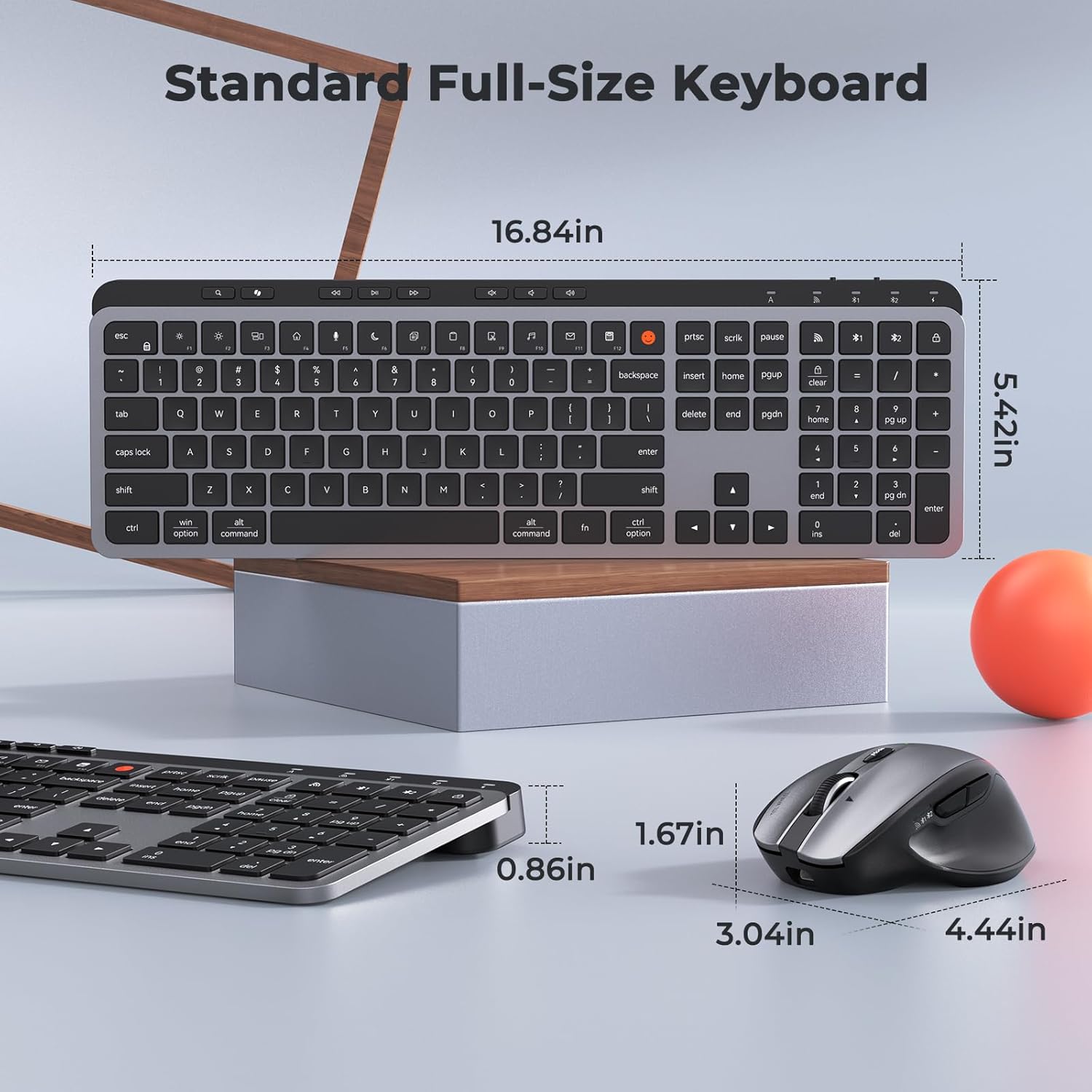
Image: Dimensions of the MEETION C9990 keyboard and mouse for reference.
ዋስትና እና ድጋፍ
The MEETION C9990 Wireless Bluetooth Keyboard and Mouse comes with a የ1-ዓመት ዋስትና ከተገዛበት ቀን ጀምሮ. ይህ ዋስትና በመደበኛ አጠቃቀም ላይ የምርት ጉድለቶችን ይሸፍናል.
For technical support, troubleshooting assistance, or warranty claims, please contact MEETION customer service through the retailer where you purchased the product or visit the official MEETION webየእውቂያ መረጃ ለማግኘት ጣቢያ.
የደህንነት መረጃ
- መሳሪያዎቹን ለውሃ፣ ለእርጥበት እና ለከፍተኛ የሙቀት መጠን አያጋልጡ።
- መሳሪያዎቹን ለጠንካራ ተጽእኖዎች ከመጣል ወይም ከማስገዛት ተቆጠብ።
- Do not attempt to disassemble or repair the devices yourself. Refer to qualified service personnel.
- ልጆች በማይደርሱበት ቦታ ያስቀምጡ.
- በአካባቢያዊ ደንቦች መሰረት ባትሪዎችን እና ኤሌክትሮኒካዊ ክፍሎችን በሃላፊነት ያስወግዱ.


