
1. መግቢያ
Thank you for choosing the RUPA Android TV Box 14.0, Model 2025. This device transforms your television into a smart entertainment hub, offering access to a wide range of streaming services, applications, and media content. Featuring Android 14.0, 4K/8K resolution support, Wi-Fi 6, and a powerful RK3518pro chipset, this TV box delivers a high-performance and user-friendly experience. This manual provides detailed instructions for setup, operation, maintenance, and troubleshooting to ensure you get the most out of your device.
2. በሳጥኑ ውስጥ ያለው
እባክዎ የጥቅልዎን ይዘት ያረጋግጡ። ማንኛውም እቃ ከጎደለ ወይም ከተበላሸ፣ እባክዎ የደንበኞች ድጋፍን ያነጋግሩ።
- RUPA Android TV Box 14.0 (Model 2025)
- የድምጽ የርቀት መቆጣጠሪያ
- የኃይል አስማሚ
- HDMI ገመድ
- የተጠቃሚ መመሪያ (ይህ ሰነድ)
3. ምርት አብቅቷልview
Familiarize yourself with the ports and components of your RUPA Android TV Box.
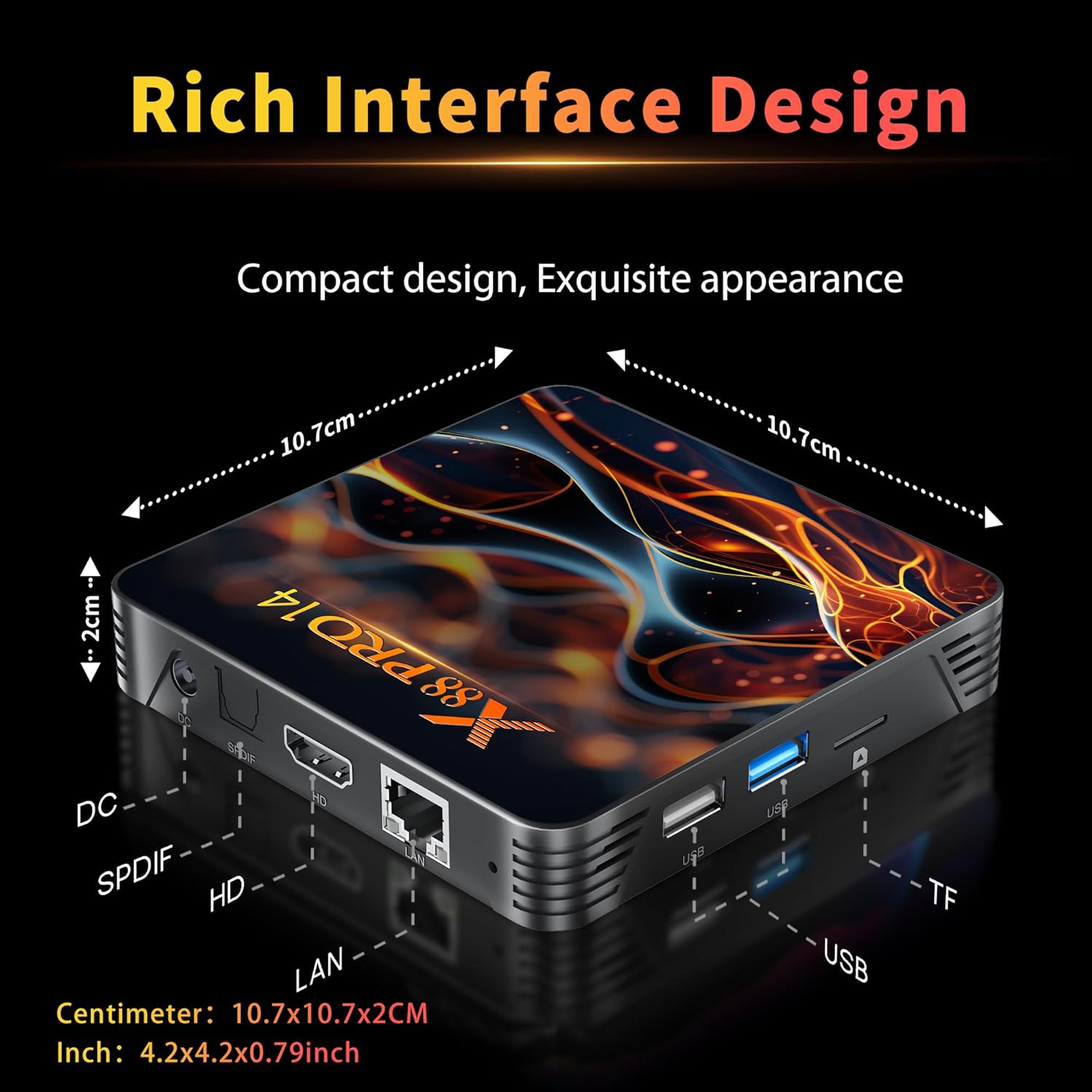
ምስል 3.1፡ Rear and Side Panel Ports of the RUPA Android TV Box.
This image displays the various connectivity options available on the RUPA Android TV Box. On the rear, from left to right, are the DC power input, SPDIF audio output, HDMI port for video and audio, and a LAN (Ethernet) port. On the side, there are multiple USB ports (including USB 3.0) and a TF (MicroSD) card slot for expandable storage.
- የዲሲ ግብዓት የቀረበውን የኃይል አስማሚ እዚህ ያገናኙ።
- SPDIF፡ ከውጭ የኦዲዮ ስርዓቶች ጋር ለመገናኘት ዲጂታል የድምጽ ውፅዓት።
- ኤችዲኤምአይ: Connect to your TV or display for video and audio output.
- ላንኛ ለገመድ የበይነመረብ ግንኙነት የኤተርኔት ወደብ።
- የዩኤስቢ ወደቦች፡ For connecting external devices such as USB drives, keyboards, or mice. Includes USB 3.0 for faster data transfer.
- የ TF ካርድ ማስገቢያ Insert a MicroSD card for additional storage.
4. የማዋቀር መመሪያ
Follow these steps to set up your RUPA Android TV Box for the first time.

ምስል 4.1፡ Basic Setup Steps.
This image visually guides the user through the initial setup process. Step 1 shows connecting the TV box to a television using an HDMI cable. Step 2 depicts connecting the TV box to a power outlet using the power adapter. Step 3 illustrates connecting to the internet via Ethernet or Wi-Fi, and using the remote control to navigate the interface.
- ከቲቪ ጋር ይገናኙ፡ Use the provided HDMI cable to connect the HDMI port on the TV box to an available HDMI input on your television.
- የግንኙነት ኃይል; Plug the power adapter into the DC input port on the TV box, then plug the adapter into a wall outlet. The device should power on automatically or can be turned on using the remote control.
- ግቤትን ይምረጡ፡- Turn on your TV and select the correct HDMI input source using your TV's remote control.
- የመጀመሪያ ማዋቀር አዋቂ፡- የቋንቋ ምርጫን፣ የጊዜ ሰቅን እና የአውታረ መረብ ግንኙነትን ጨምሮ የመጀመሪያውን ማዋቀር ለማጠናቀቅ የማያ ገጽ ላይ መመሪያዎችን ይከተሉ።
- የአውታረ መረብ ግንኙነት፡-
- ዋይ ፋይ፡ Select your Wi-Fi network from the list, enter the password, and connect. The device supports Wi-Fi 6 (2.4G/5.8G Dual-Band).
- ኢተርኔት፡ If using a wired connection, connect an Ethernet cable from your router to the LAN port on the TV box. The connection should be established automatically.
- ጎግል መለያ፡- ወደ Google Play መደብር እና ሌሎች የGoogle አገልግሎቶችን ለመድረስ በGoogle መለያዎ ይግቡ።
5. የአሠራር መመሪያዎች
5.1. Using the Voice Remote Control
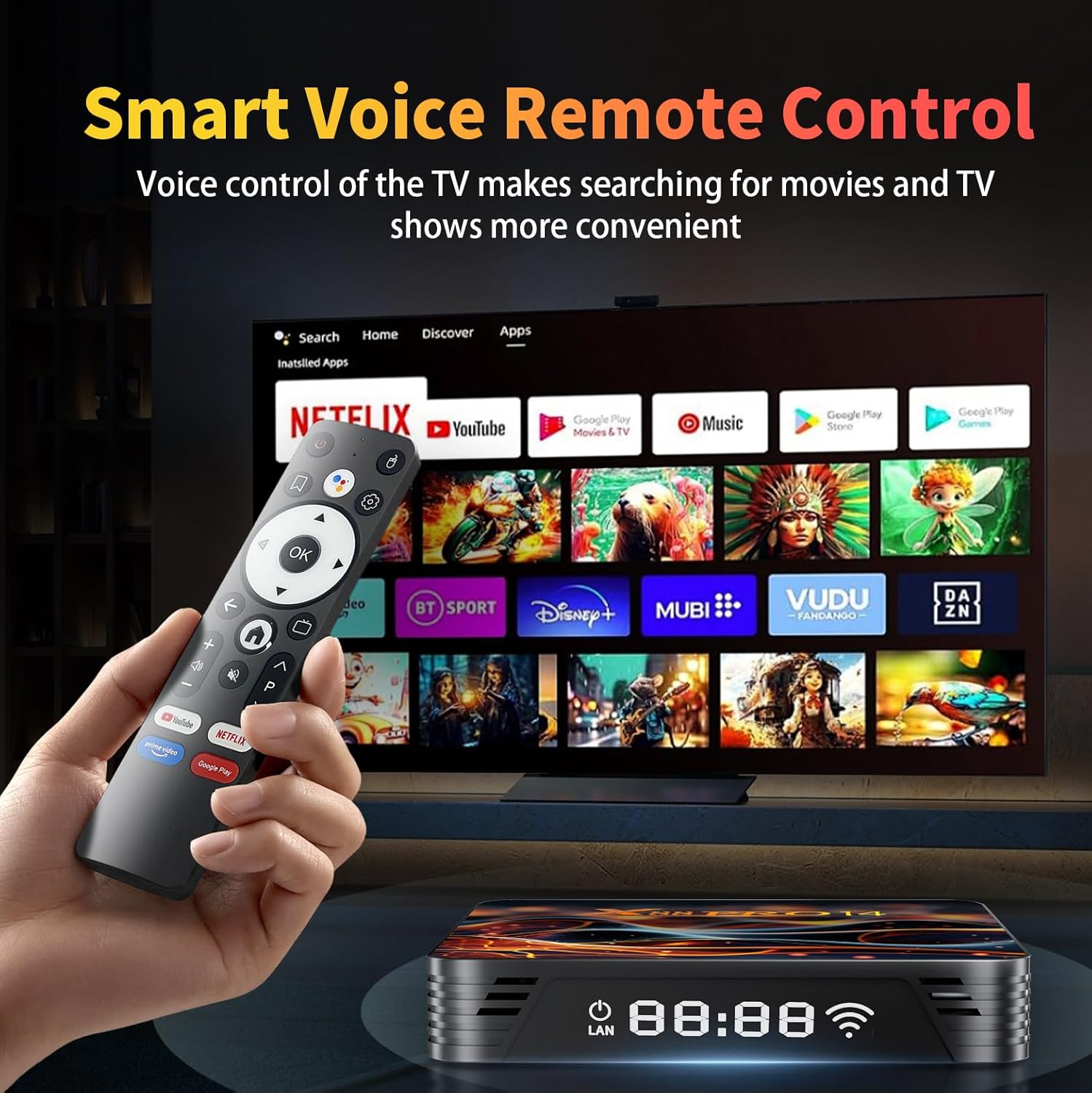
ምስል 5.1፡ Voice Remote Control and User Interface.
This image shows the RUPA Android TV Box alongside its voice-enabled remote control. The TV screen in the background displays the Android TV interface with various streaming app icons like Netflix, YouTube, Disney+, and more, highlighting the ease of navigation and content access.
The included voice remote control allows for intuitive navigation and voice commands.
- የኃይል ቁልፍ፡- መሣሪያውን ያበራል ወይም ያጠፋል.
- የአሰሳ ፓድ (አቅጣጫ ቁልፎች)፦ በምናሌዎች ውስጥ ለማንቀሳቀስ እና ንጥሎችን ለመምረጥ ይጠቀሙ።
- እሺ አዝራር; ምርጫዎችን ያረጋግጣል።
- ተመለስ አዝራር፡- ወደ ቀዳሚው ማያ ገጽ ይመለሳል።
- መነሻ አዝራር፡- ወደ ዋናው የመነሻ ማያ ገጽ ይመለሳል።
- የድምጽ ረዳት አዝራር፡- Press and hold to activate voice commands for searching content, opening apps, or controlling the device.
- የድምጽ አዝራሮች፡- የድምጽ መጠኑን ያስተካክሉ።
- የመተግበሪያ አቋራጭ አዝራሮች፡- Dedicated buttons for popular streaming services (e.g., YouTube, Netflix).
5.2. የአንድሮይድ ቲቪ በይነገጽን ማሰስ
The Android 14.0 interface is designed for easy access to your favorite content.
- መነሻ ስክሪን፡ Displays recommended content, recently used apps, and customizable app shortcuts.
- መተግበሪያዎች፡- Access all installed applications. You can download more from the Google Play Store.
- ቅንብሮች፡- Configure network settings, display options, sound, storage, and other system preferences.
5.3. Screen Mirroring (DLNA)
The RUPA Android TV Box supports screen mirroring, allowing you to display content from your mobile phone or tablet on your TV.
ምስል 5.2፡ Screen Mirroring Functionality.
This image illustrates the screen mirroring capability of the RUPA Android TV Box, showing content from a smartphone being displayed on a large television screen. This feature allows users to share photos, videos, or other media from their mobile devices directly to their TV.
- የሞባይል መሳሪያዎ እና የቴሌቪዥን ሳጥኑ ከተመሳሳይ የWi-Fi አውታረ መረብ ጋር መገናኘታቸውን ያረጋግጡ።
- On your mobile device, open the screen mirroring or cast feature (often found in quick settings or display settings).
- Select the RUPA Android TV Box from the list of available devices.
- Your mobile device's screen will now be displayed on your TV.
6. ቁልፍ ባህሪያት ተብራርተዋል
6.1. 4K 8K Ultra HD Resolution

ምስል 6.1፡ 4K HDR10 Visual Quality.
This image demonstrates the superior visual quality of 4K Ultra HD and HDR10 compared to 1080p Full HD. The 4K side shows significantly sharper details, richer colors, and higher contrast, providing a more immersive viewልምድ.
The RUPA Android TV Box supports video resolutions up to 4K and 8K, delivering exceptional visual clarity and detail. With HDR10+ support, you can experience super bright colors, sharper contrast, and richer details in compatible content, creating a cinematic viewልምድ.
6.2. RK3518pro Chipset and Performance

ምስል 6.2፡ RK3518pro Chipset Performance.
This image highlights the RK3518 Quad-Core Cortex-A53 chipset, emphasizing its low power consumption and good performance. It includes bar graphs indicating significant improvements in multicore computing and response speed compared to previous generations, ensuring smooth operation and multitasking.
Equipped with the powerful RK3518pro Quad-Core Cortex-A53 chipset, 2GB RAM, and 16GB/32GB internal storage, this TV box ensures smooth and responsive operation. It efficiently handles multitasking, allowing you to switch between applications, stream high-definition content, and play games without lag.
6.3. Wi-Fi 6 Dual-Band and Bluetooth 5.0

ምስል 6.3፡ Wi-Fi 6 Performance Comparison.
This image visually compares the performance of Wi-Fi 6 against Wi-Fi 5, illustrating that Wi-Fi 6 offers a significantly higher transmission rate and average network speed. This translates to an ultra-fast and stable internet experience, especially beneficial in crowded network environments and for high-bandwidth streaming.
Enjoy stable and fast internet access with dual-band Wi-Fi 6 (2.4 GHz and 5.8 GHz). Wi-Fi 6 provides higher speeds, lower latency, and improved performance in crowded network environments. Bluetooth 5.0 allows for seamless connection of wireless accessories such as headphones, speakers, keyboards, and game controllers.
6.4. አንድሮይድ 14.0 ኦፕሬቲንግ ሲስተም
The TV box runs on the latest Android 14.0 system, offering enhanced security features, optimized performance, and access to a vast library of applications through the Google Play Store. The 64-bit Android operating system ensures compatibility with a wide range of powerful apps for endless entertainment options.
7. ጥገና
- ማጽዳት፡ የቴሌቭዥን ሳጥኑን ውጫዊ ገጽታ ለማጽዳት ለስላሳ እና ደረቅ ጨርቅ ይጠቀሙ. ፈሳሽ ማጽጃዎችን ወይም ቆሻሻ ቁሳቁሶችን አይጠቀሙ.
- የአየር ማናፈሻ; Ensure the TV box is placed in a well-ventilated area to prevent overheating. Do not block the ventilation holes.
- የሶፍትዌር ማሻሻያ Periodically check for system updates in the settings menu to ensure optimal performance and access to the latest features and security patches.
- የማከማቻ አስተዳደር፡ Regularly clear cache and uninstall unused apps to free up storage space and maintain performance.

ምስል 7.1፡ Efficient Heat Dissipation System.
This image highlights the powerful exhaust heat dissipation design of the RUPA Android TV Box. It shows a comparison between an efficient cooling air group and an ordinary cooling unit, indicating that the TV box's design significantly improves heat dissipation and stability, protecting hardware and ensuring stable operation.
8. መላ መፈለግ
| ችግር | ሊሆን የሚችል ምክንያት | መፍትሄ |
|---|---|---|
| ኃይል የለም | የኃይል አስማሚ አልተገናኘም ወይም የተሳሳተ። | የኃይል አስማሚው ከቴሌቪዥን ሳጥኑ እና ከሚሰራ የኃይል መውጫ ጋር ደህንነቱ በተጠበቀ ሁኔታ መገናኘቱን ያረጋግጡ። የተለየ መውጫ ይሞክሩ። |
| በቲቪ ላይ ምንም ምስል የለም። | Incorrect HDMI input selected or faulty HDMI cable. | Check that your TV is set to the correct HDMI input. Try a different HDMI port on your TV or a different HDMI cable. |
| ምንም የWi-Fi ግንኙነት የለም። | Incorrect Wi-Fi password, router issue, or out of range. | Verify the Wi-Fi password. Restart your router. Ensure the TV box is within range of your Wi-Fi router. Try a wired Ethernet connection if available. |
| የርቀት መቆጣጠሪያ አይሰራም | Low batteries or obstruction. | Replace the batteries in the remote control. Ensure there are no obstructions between the remote and the TV box. |
| መተግበሪያዎች ቀርፋፋ ወይም ብልሽ ናቸው። | Too many apps running, low storage, or outdated app version. | Close unused apps. Clear app cache (Settings > Apps > [App Name] > Clear Cache). Update apps from the Google Play Store. Consider a factory reset if issues persist (backup data first). |
9. ዝርዝሮች
| ባህሪ | ዝርዝር |
|---|---|
| የሞዴል ስም | 2025 |
| ስርዓተ ክወና | አንድሮይድ 14.0 |
| ፕሮሰሰር | RK3518pro Quad-Core Cortex-A53 |
| ራም | 2 ጊባ |
| የውስጥ ማከማቻ | 16 GB / 32 GB (depending on variant) |
| የቪዲዮ የውጤት ጥራት | Up to 4K (3840x2160 pixels), 8K (7680x4320 pixels) |
| ቪዲዮ ኮዴክ | H.265/HEVC |
| ዋይ ፋይ | Wi-Fi 6 (2.4G/5.8G Dual-Band) |
| ብሉቱዝ | ብሉቱዝ 5.0 |
| ኤተርኔት | 10/100ሚ |
| የግንኙነት ወደቦች | HDMI, USB 2.0/3.0, LAN, SPDIF, TF Card Slot, DC Power |
| ልዩ ባህሪያት | HDR10+, DLNA (Screen Mirroring), Voice Remote Control |
| ልኬቶች (L x W x H) | 7.2"ኤል x 4.4" ዋ x 2.2" ሸ (10.7 x 10.7 x 2 ሴሜ) |
10. ዋስትና እና ድጋፍ
The RUPA Android TV Box 14.0 (Model 2025) comes with a standard manufacturer's warranty. Please refer to the warranty card included in your package for specific terms and conditions.
For technical support, troubleshooting assistance, or warranty claims, please contact RUPA customer service through the retailer where you purchased the product or visit the official RUPA webየእውቂያ መረጃ ለማግኘት ጣቢያ.
የመስመር ላይ መርጃዎች፡-
- ለተጨማሪ መረጃ እና ተደጋጋሚ ጥያቄዎች፣ ይጎብኙ RUPA Store on Amazon.