
መግቢያ
This manual provides essential information for setting up, operating, maintaining, and troubleshooting your HP 17.3" Touchscreen Laptop, model 17-cp3602nr. Please read this guide thoroughly to ensure proper use and to maximize the lifespan of your device.
የጥቅል ይዘቶች
ሁሉም እቃዎች በጥቅሉ ውስጥ መኖራቸውን ያረጋግጡ፡-
- HP 17.3" Touchscreen Laptop (Model 17-cp3602nr)
- የ AC ኃይል አስማሚ እና ገመድ
- ፈጣን ጅምር መመሪያ (ከተካተተ)

Image: The HP 17.3" Touchscreen Laptop and its included power adapter.
ማዋቀር
1. የመነሻ ኃይል በማብራት እና በመሙላት ላይ
- የኤሲ ሃይል አስማሚውን ከላፕቶፑ የኤሲ ስማርት ፒን ወደብ እና ከዚያ ወደ ሃይል ማሰራጫ ያገናኙ።
- የላፕቶፑን ክዳን ይክፈቱ። ላፕቶፑ በራስ-ሰር ሊበራ ይችላል፣ ወይም በቁልፍ ሰሌዳው ላይ የሚገኘውን የኃይል አዝራሩን መጫን ሊያስፈልግዎ ይችላል።
- ከመጀመሪያው ጥቅም በፊት ባትሪው ሙሉ በሙሉ እንዲሞላ ይፍቀዱለት፣ ምንም እንኳን ባትሪ በሚሞሉበት ጊዜ ማዋቀር መጀመር ይችላሉ።
2. የዊንዶውስ 11 ማዋቀር
Follow the on-screen instructions to complete the Windows 11 Home setup. This typically includes:
- የእርስዎን ክልል እና የቁልፍ ሰሌዳ አቀማመጥ መምረጥ።
- ከWi-Fi አውታረ መረብ ጋር በመገናኘት ላይ።
- በማይክሮሶፍት መለያ መግባት ወይም መፍጠር።
- ፒን ወይም የይለፍ ቃል በማዘጋጀት ላይ።
- የግላዊነት ቅንብሮችን በማዋቀር ላይ።
3. የጣት አሻራ አንባቢ ማዋቀር
During or after Windows setup, you can configure the fingerprint reader for secure login. Navigate to መቼቶች > መለያዎች > የመግቢያ አማራጮች እና የጣት አሻራዎን ለማከል ጥያቄዎቹን ይከተሉ።

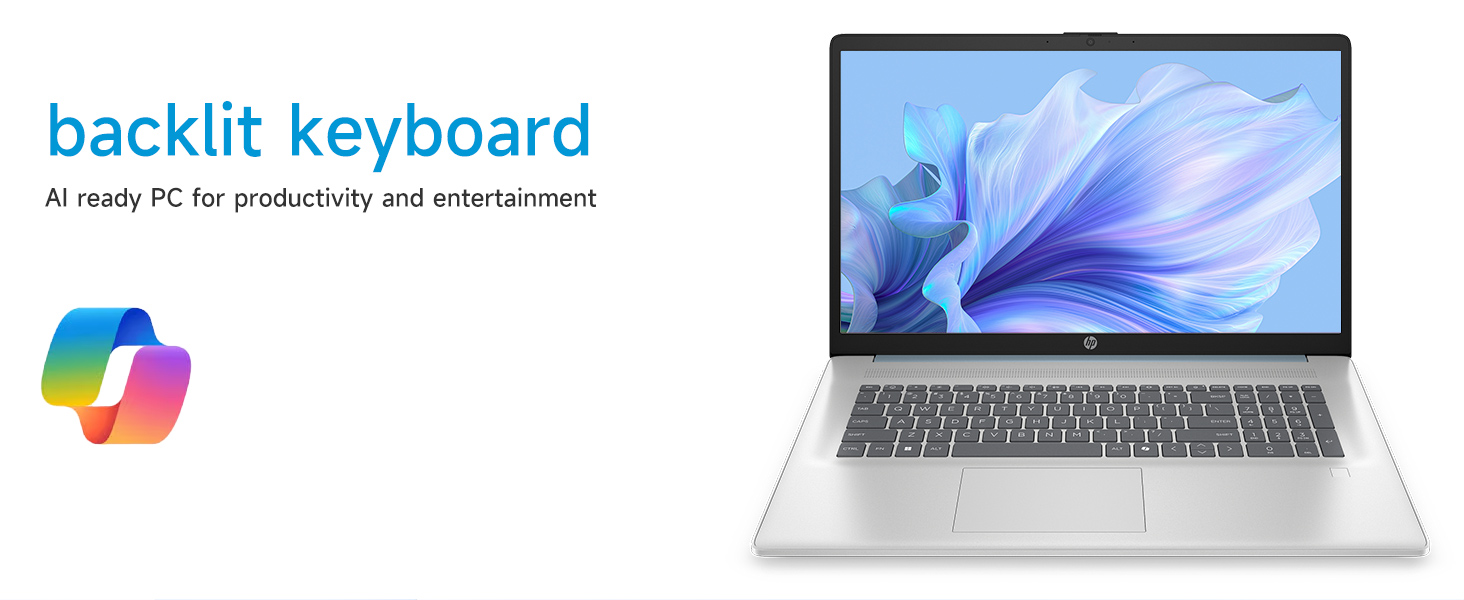
Image: Close-up of the backlit keyboard and the integrated fingerprint reader on the HP laptop.
የአሠራር መመሪያዎች
የንክኪ ማያ ገጽን በመጠቀም
The 17.3" HD+ (1600 x 900) display supports touch input. You can interact with Windows 11 and applications directly on the screen using gestures similar to a tablet or smartphone. Ensure your screen is clean for optimal touch responsiveness.
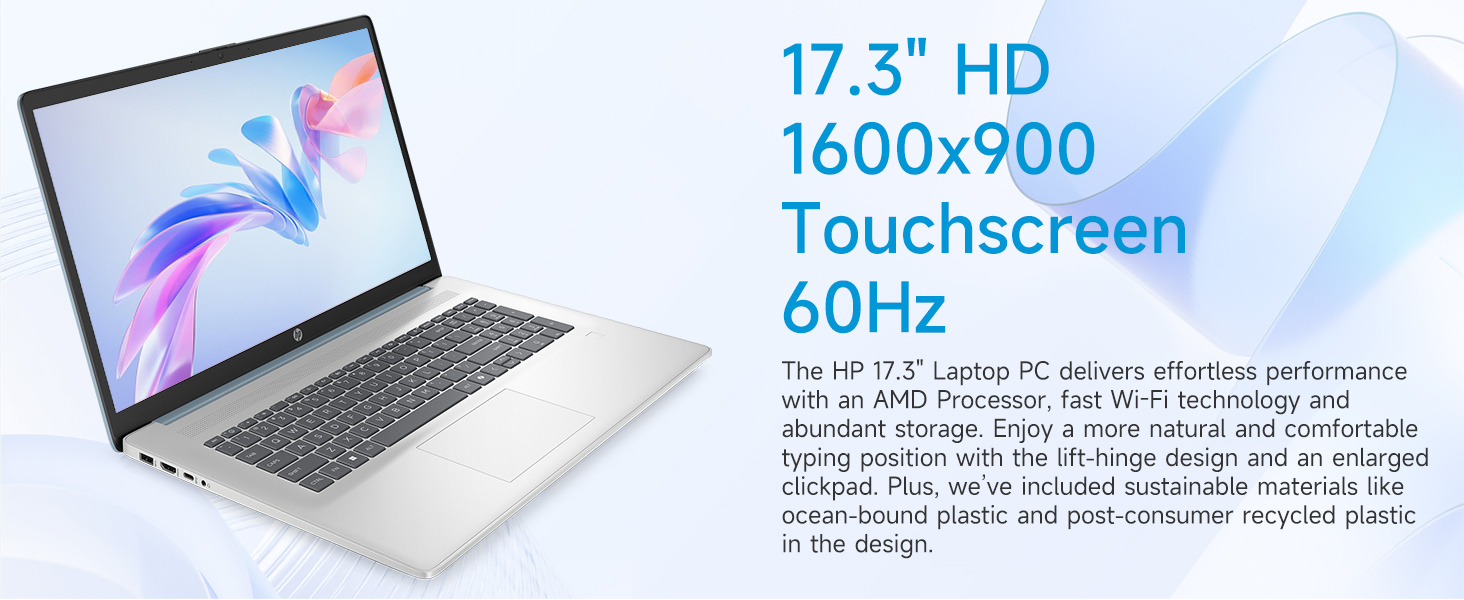
Image: The 17.3-inch touchscreen display of the HP laptop, illustrating its touch capabilities.
የቁልፍ ሰሌዳ እና የመዳሰሻ ሰሌዳ
- የኋላ ብርሃን ቁልፍ ሰሌዳ፡- የሚለውን ይጫኑ Fn + F5 (or similar function key with a keyboard backlight icon) to toggle the keyboard backlight on/off or adjust its brightness.
- የቁጥር ቁልፍ ሰሌዳ፡ ለበለጠ ቀልጣፋ የውሂብ ግቤት ልዩ የሆነውን የቁጥር ቁልፍ ሰሌዳ ይጠቀሙ።
- የመዳሰሻ ሰሌዳ The large click pad supports multi-touch gestures for navigation. Refer to Windows settings for customizing touchpad gestures.
Connecting External Devices (Ports)
Your laptop is equipped with various ports for connecting peripherals:
- የዩኤስቢ ዓይነት-ሲ (5Gbps የምልክት ፍጥነት)፦ ዘመናዊ የዩኤስቢ-ሲ መሳሪያዎችን ለማገናኘት.
- የዩኤስቢ ዓይነት-A (5Gbps የምልክት መጠን) Two ports for standard USB devices like mice, keyboards, or external drives.
- HDMI 1.4b፡ ለተጨማሪ ማሳያ ከውጫዊ ማሳያዎች ወይም ቲቪዎች ጋር ይገናኙ።
- የጆሮ ማዳመጫ/ማይክሮፎን ጥምር ጃክ፡ For audio input/output with a single jack.
- ኤሲ ስማርት ፒን፡- የኃይል አስማሚውን ለማገናኘት.
ምስል፡ ዝርዝር view of the laptop's side ports, including USB-A, USB-C, HDMI, and audio jack.
የ Wi-Fi 6 ግንኙነት
The laptop supports Wi-Fi 6 (802.11ax) for fast and reliable wireless internet connectivity. To connect, click the Wi-Fi icon in the taskbar, select your network, and enter the password.
ጥገና
ላፕቶፕዎን በማጽዳት ላይ
- ስክሪን፡ ለስላሳ፣ ከቆሸሸ ነፃ የሆነ ጨርቅ በትንሹ ተጠቀምampበውሃ ወይም በስክሪን ማጽጃ የታሸገ። ኃይለኛ ኬሚካሎችን ያስወግዱ.
- የቁልፍ ሰሌዳ እና ቻሲስ; ለስላሳ እና ደረቅ ጨርቅ ይጠቀሙ. ለግትር ቆሻሻ, ትንሽ መamp ጨርቅ መጠቀም ይቻላል፣ ይህም ፈሳሽ ወደ ቀዳዳዎቹ እንዳይገባ ያረጋግጣል።
- ወደቦች፡ Keep ports free of dust and debris using compressed air if necessary.
የሶፍትዌር ዝማኔዎች
ስርዓትዎ የቅርብ ጊዜዎቹ የደህንነት መጠገኛዎች እና የአፈጻጸም ማሻሻያዎች እንዳሉት ለማረጋገጥ በየጊዜው የዊንዶውስ ዝመናዎችን ይፈልጉ እና ይጫኑ። ወደ ሂድ ቅንብሮች> የዊንዶውስ ዝመና ዝመናዎችን ለማስተዳደር.
የባትሪ እንክብካቤ
የባትሪ ዕድሜን ለማራዘም ከፍተኛ የሙቀት መጠንን ያስወግዱ እና ባትሪውን ብዙ ጊዜ ሙሉ በሙሉ መሙላት። ለረጅም ጊዜ ማከማቻ, ባትሪውን ወደ 50% ገደማ ይሙሉት.
መላ መፈለግ
ይህ ክፍል ሊያጋጥሙዎት የሚችሉ የተለመዱ ጉዳዮችን ይመለከታል።
ላፕቶፕ አይበራም።
- የኤሲ አስማሚው ከሁለቱም ከላፕቶፕ እና ከሚሰራ የኃይል ማከፋፈያ ጋር ደህንነቱ በተጠበቀ ሁኔታ መገናኘቱን ያረጋግጡ።
- ሌላ መሳሪያ በመጫን የኃይል ማከፋፈያው የሚሰራ መሆኑን ያረጋግጡ።
- ባትሪው ሙሉ በሙሉ ከተለቀቀ ላፕቶፑ ከመብራቱ በፊት ጥቂት ደቂቃዎችን መሙላት ሊወስድ ይችላል።
Screen Remains Blank
- ላፕቶፑ በርቶ እንደሆነ ያረጋግጡ (የኃይል አመልካች መብራት)።
- Try adjusting the screen brightness using the function keys (e.g., Fn+F2/F3).
- If an external monitor is connected, ensure it is properly configured in Windows display settings.
የWi-Fi ግንኙነት ጉዳዮች
- በዊንዶውስ ቅንጅቶች ውስጥ Wi-Fi መንቃቱን ያረጋግጡ።
- የእርስዎን ራውተር እና ሞደም እንደገና ያስጀምሩ።
- አውታረ መረቡን ይረሱ እና እንደገና ይገናኙ ፣ የይለፍ ቃሉን እንደገና ያስገቡ።
- የWi-Fi ነጂዎችን በመሣሪያ አስተዳዳሪ በኩል ያዘምኑ።
System Restarts Unexpectedly
Unexpected restarts can be caused by software conflicts, outdated drivers, or hardware issues. Ensure all Windows updates are installed and drivers are current. If the issue persists, consider running Windows diagnostic tools or contacting HP Support.
ዝርዝሮች
| ባህሪ | ዝርዝር |
|---|---|
| የምርት ስም | HP |
| የሞዴል ስም | 17-cp3602nr |
| የስክሪን መጠን | 17.3 ኢንች |
| የማሳያ ጥራት | ኤችዲ+ (1600 x 900) |
| የማሳያ ባህሪያት | Touch, Anti-glare, 250 nits, 60% NTSC |
| ፕሮሰሰር | AMD Ryzen 5 7430U (6 ኮርስ፣ 12 ክሮች፣ እስከ 4.3 GHz) |
| ግራፊክስ | AMD Radeon ግራፊክስ (የተቀናጀ) |
| ራም | 8 ጊባ DDR4 SDRAM (3200 ሜኸ) |
| ማከማቻ | 128 ጊባ PCIe NVMe M.2 SSD |
| ስርዓተ ክወና | ዊንዶውስ 11 መነሻ |
| ወደቦች | 1x USB Type-C 5Gbps, 2x USB Type-A 5Gbps, 1x HDMI 1.4b, 1x Headphone/Microphone Combo, 1x AC Smart Pin |
| የገመድ አልባ ግንኙነት | Wi-Fi 6 (802.11ax) |
| ልዩ ባህሪያት | Backlit Keyboard, Fingerprint Reader, Numeric Keypad, Webካም |
| Dimensions (L x W x Thickness) | 15.78"ኤል x 10.15" ዋ x 0.81"ሰ |
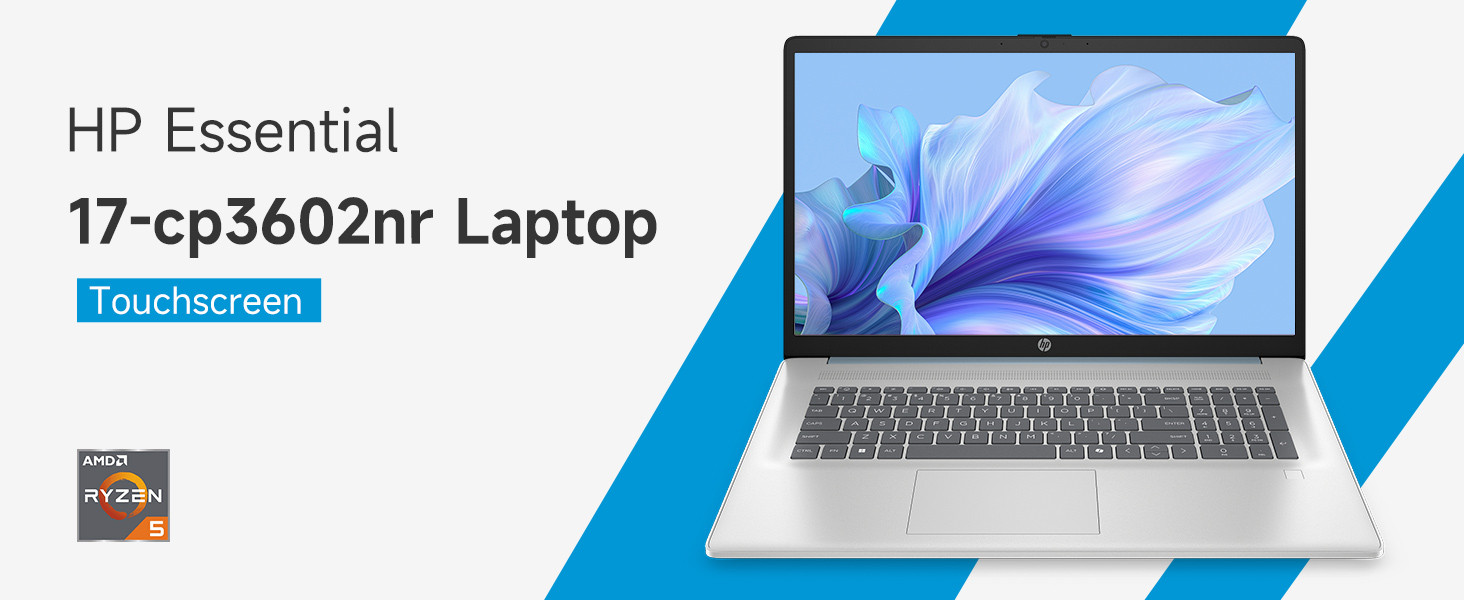
Image: An infographic highlighting key specifications such as the AMD Ryzen 5 processor, Windows 11 Home, storage, and connectivity options.
ዋስትና እና ድጋፍ
የአምራች ዋስትና
Your HP laptop is covered by a standard manufacturer's warranty. For specific terms and conditions, please refer to the warranty documentation included with your product or visit the official HP support website. Warranty duration and coverage may vary by region.
የቴክኒክ ድጋፍ
ለቴክኒካል ድጋፍ፣ ለአሽከርካሪ ማውረዶች ወይም ለተጨማሪ መላ ፍለጋ፣ እባክዎን ኦፊሴላዊውን የ HP ድጋፍን ይጎብኙ webጣቢያ፡
When contacting support, have your laptop's model number (17-cp3602nr) and serial number ready.