
መግቢያ እና በላይview
This manual provides instructions for the Apple AirPods Pro 2nd Generation (Lightning) Replacement Charging Case, model A2700. This product is designed to replace a lost or damaged original charging case, offering seamless connectivity and reliable performance for your existing AirPods Pro 2nd Generation (Lightning) earbuds.
ጠቃሚ የተኳኋኝነት ማስታወሻ፡- This replacement charging case is exclusively compatible with Apple AirPods Pro (2nd Generation) with Lightning connector. It pairs specifically with the left AirPod Pro (A2699) and right AirPod Pro (A2698) from the 2nd Generation Lightning model. It is not compatible with other AirPods models, including AirPods Pro (1st Generation) or AirPods Pro (2nd Generation) with USB-C connector.
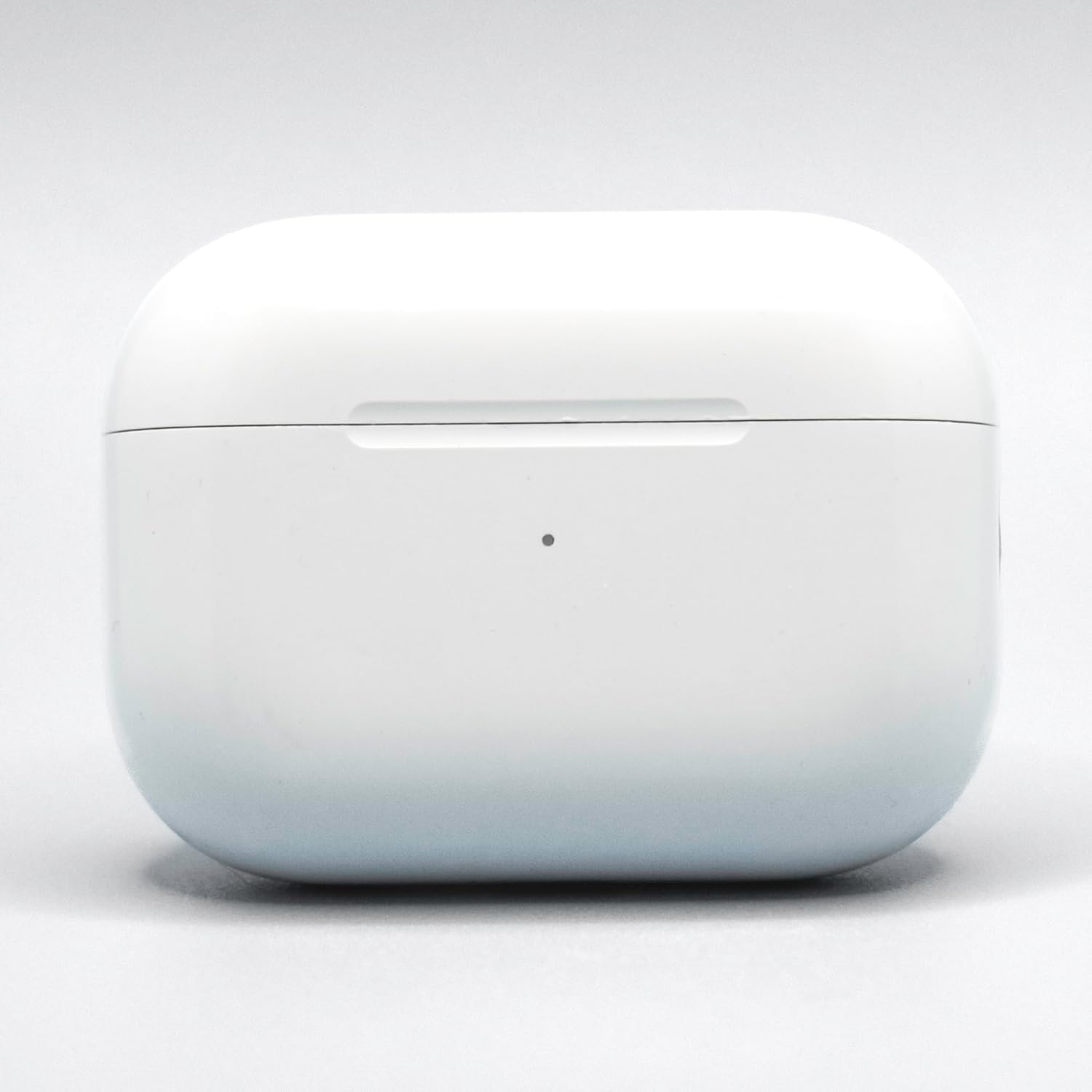
Image: The Apple AirPods Pro 2nd Generation (Lightning) Replacement Charging Case (Model A2700) in white. This image shows the exterior of the charging case, which is designed to hold and charge the AirPods Pro earbuds.
የማዋቀር መመሪያዎች
Follow these steps to set up and pair your new replacement charging case with your AirPods Pro 2nd Generation (Lightning) earbuds:
- ጉዳዩን መክሰስ፡- Before pairing, ensure the replacement charging case is sufficiently charged. Connect the Lightning cable (not included) to the charging port on the bottom of the case and the other end to a USB power adapter. The status light on the front of the case will indicate charging status.
- Place AirPods in Case: Insert your left and right AirPods Pro 2nd Generation (Lightning) earbuds into the new charging case. Ensure they are seated correctly.
- መከለያውን ዝጋ; የኃይል መሙያ መያዣውን ክዳን ይዝጉ.
- ከመሳሪያ ጋር አጣምር;
- Open the charging case lid with your AirPods inside, and hold it near your iPhone or iPad.
- A setup animation should appear on your device's screen. Follow the on-screen instructions to connect.
- If the animation does not appear, go to your device's Bluetooth settings, find your AirPods in the list, and tap "i" (information) next to them. Then tap "Forget This Device." After forgetting, repeat the steps above.
- ዳግም አስጀምር (አስፈላጊ ከሆነ): If pairing issues persist, with the AirPods in the case and the lid open, press and hold the setup button on the back of the case for about 15 seconds until the status light flashes amber, then white. Then, try pairing again.
የአሠራር መመሪያዎች
This section details the basic operation of your replacement charging case.
- ኤርፖዶችን መሙላት፡ Simply place your AirPods Pro 2nd Generation (Lightning) into the charging case. They will begin charging automatically. The case itself holds multiple charges for your AirPods.
- ጉዳዩን መሙላት፡-
- ባለገመድ መሙላት; Connect a Lightning cable to the port on the bottom of the case.
- ገመድ አልባ ባትሪ መሙላት; Place the case with the status light facing up on a Qi-certified wireless charging mat.
- MagSafe መሙላት፡ The case is compatible with MagSafe chargers for convenient magnetic alignment and faster wireless charging.
- የባትሪ ሁኔታን መፈተሽ፡
- Case Status Light:
- አረንጓዴ መብራት; Fully charged (or AirPods fully charged if they are inside).
- አምበር ብርሃን; Less than one full charge remaining.
- የሚያብረቀርቅ ነጭ ብርሃን; ለማጣመር ዝግጁ።
- የሚያብረቀርቅ አምበር ብርሃን; Pairing error, or needs to be reset.
- በ iPhone/iPad ላይ፡- Open the case lid near your iOS device, and the battery status for both AirPods and the case will appear on screen. You can also add the Batteries widget to your device's Today View.
- Case Status Light:
ጥገና
Proper care ensures the longevity and performance of your charging case.
- ማጽዳት፡
- Wipe the exterior of the case with a soft, lint-free cloth.
- ለግትር ምልክቶች፣ በትንሹ መampen the cloth with water or a 70% isopropyl alcohol solution.
- Do not use abrasive materials, sprays, or solvents.
- Ensure no moisture enters the charging ports or speaker openings.
- ማከማቻ፡ Store the charging case in a clean, dry environment away from extreme temperatures.
- ጉዳትን ያስወግዱ; Protect the case from drops, impacts, and exposure to liquids. The case is not water-resistant.
መላ መፈለግ
If you encounter issues with your replacement charging case, try the following solutions:
- ኤርፖድስ ኃይል አይሞላም
- የኃይል መሙያ መያዣው ራሱ መሙላቱን ያረጋግጡ።
- Verify that the AirPods are correctly seated in the case.
- Clean the charging contacts on both the AirPods and inside the case with a dry cotton swab.
- Case Not Charging:
- Check the Lightning cable for damage and ensure it's securely connected. Try a different cable and power adapter.
- If using wireless charging, ensure the case is properly aligned on the charging mat and the mat is powered.
- የማጣመሪያ ጉዳዮች፡-
- Ensure your AirPods are AirPods Pro 2nd Generation (Lightning) model.
- Perform a reset of the charging case: With AirPods inside and lid open, press and hold the setup button on the back for about 15 seconds until the status light flashes amber, then white.
- On your iOS device, go to Bluetooth settings, "Forget This Device" for your AirPods, then try pairing again.
- Status Light Not Responding:
- Try charging the case for at least 30 minutes.
- Perform a hard reset as described in "Pairing Issues."
If problems persist, contact the seller or Apple Support for further assistance.
ዝርዝሮች
| ባህሪ | ዝርዝር |
|---|---|
| የሞዴል ቁጥር | አ2700 |
| ተኳኋኝነት | Apple AirPods Pro 2nd Generation (Lightning) (AirPods A2699, A2698) |
| የምርት ስም | አፕል |
| ቀለም | ነጭ |
| ቁሳቁስ | ፕላስቲክ |
| የኃይል መሙያ በይነገጽ | Lightning port, Qi-certified wireless charging, MagSafe compatible |
| የውሃ መቋቋም ደረጃ | ውሃን መቋቋም የሚችል አይደለም |
| ዩፒሲ | 197644743551 |
| GTIN | 197644743551 |
ዋስትና እና ድጋፍ
This replacement charging case comes with a የ 90 ቀን ዋስትና ከተገዛበት ቀን ጀምሮ። ይህ ዋስትና የማምረቻ ጉድለቶችን የሚሸፍን ሲሆን ምርቱ በመደበኛ አጠቃቀም ወቅት እንደታሰበው እንዲሠራ ያረጋግጣል።
For warranty claims, technical support, or further assistance, please contact the seller from whom you purchased this product. You may also refer to the official Apple Support website for general AirPods Pro information and troubleshooting guides.
እባክዎ ለዋስትና ዓላማዎች የግዢ ማረጋገጫዎን ያቆዩ።