
1. መግቢያ
The Huawei OptiXstar K251a-21 is a sub-FTTR (Fiber to the Room) unit designed to extend the high-speed network provided by the Huawei FTTR OptiXstar F50 Plus main unit. This device supports ultra-Gigabit high-speed access via upstream fiber optic lines and delivers Ultra Gigabit dual-band Wi-Fi and ultra-Gigabit network ports to users. It integrates next-generation Wi-Fi 7 technology for higher speeds and lower latency, ensuring a superior home network experience.
2. የደህንነት መረጃ
Please read and understand all safety instructions before using this device. Failure to follow these instructions may result in injury, damage to the device, or property damage.
- ከመሳሪያው ጋር የቀረበውን የኃይል አስማሚ ብቻ ይጠቀሙ።
- መሳሪያውን ለውሃ፣ ለእርጥበት እና ለከፍተኛ የሙቀት መጠን አያጋልጡት።
- መሳሪያውን በሙቀት ምንጮች አጠገብ ወይም በቀጥታ የፀሐይ ብርሃን ላይ ከማስቀመጥ ይቆጠቡ.
- ከመጠን በላይ ሙቀትን ለመከላከል ትክክለኛ የአየር ዝውውርን ያረጋግጡ.
- መሳሪያውን እራስዎ ለመክፈት ወይም ለመጠገን አይሞክሩ። ለእርዳታ ብቁ የሆኑ የአገልግሎት ባለሙያዎችን ያነጋግሩ።
- መሳሪያውን ከልጆች እና ከቤት እንስሳት ያርቁ.
3. የጥቅል ይዘቶች
ሁሉም እቃዎች በጥቅልዎ ውስጥ መኖራቸውን ያረጋግጡ፡-
- Huawei OptiXstar K251a-21 Sub FTTR Device
- የኃይል ገመድ
- ፈጣን ጅምር መመሪያ (ከተካተተ)
4. ምርት አብቅቷልview
ከመሳሪያው ክፍሎች እና አመልካቾች ጋር እራስዎን ይወቁ።
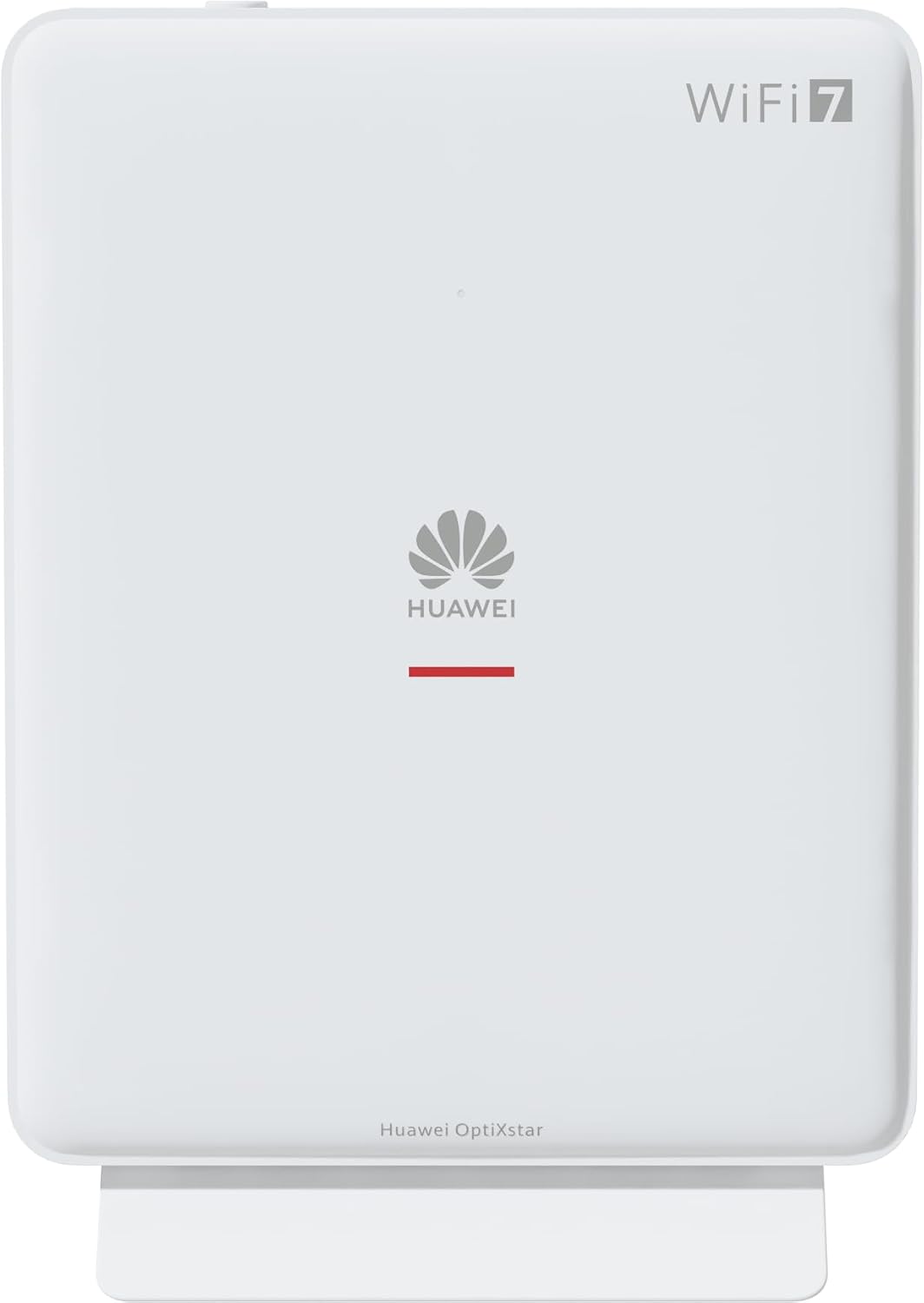
ምስል 1: የፊት view of the Huawei OptiXstar K251a-21 Sub FTTR device, showing the Huawei logo and "WiFi 7" branding.

Figure 2: Angled front-side view of the Huawei OptiXstar K251a-21 Sub FTTR, highlighting its sleek design and ventilation.

ምስል 3: የኋላ view of the Huawei OptiXstar K251a-21 Sub FTTR, displaying the ports (Reset, 2-GE, 1-2.5GE, Power, FTTR) and mounting options.

ምስል 4: የጎን ፕሮfile of the Huawei OptiXstar K251a-21 Sub FTTR, showing its slim form factor and ventilation grilles.

ምስል 5: አንግል የኋላ view of the Huawei OptiXstar K251a-21 Sub FTTR, providing a clear look at the port labels and layout.

ምስል 6: ከፍተኛ view of the Huawei OptiXstar K251a-21 Sub FTTR, featuring the WPS/LED button.
ወደቦች እና አዝራሮች;
- FTTR Port: Connects to the main FTTR unit via a fiber optic cable.
- 1-2.5GE Port: Gigabit Ethernet port for high-speed wired connections.
- 2-GE Port: ለገመድ ግንኙነቶች ጊጋቢት ኢተርኔት ወደብ።
- የኃይል ወደብ ከኃይል አስማሚ ጋር ይገናኛል.
- ዳግም አስጀምር አዝራር፡- Used to restore factory settings (press and hold for 5-10 seconds).
- WPS/LED Button: Initiates Wi-Fi Protected Setup (WPS) for easy device connection and controls LED indicators.
5. ማዋቀር
Follow these steps to set up your Huawei OptiXstar K251a-21 Sub FTTR device:
- አቀማመጥ፡- Choose a central location in your home for optimal Wi-Fi coverage. The device is suitable for various installation scenarios, including vertical placement on a desk, wall-mounting, plugging into a power strip, or mounting in an 86mm junction box with a bracket.
- የፋይበር ኦፕቲክ ገመድን ያገናኙ; Connect one end of the fiber optic cable to the FTTR port on the Sub FTTR unit and the other end to the corresponding FTTR port on your Huawei FTTR OptiXstar F50 Plus main unit or wall outlet. Ensure the connection is secure.
- የግንኙነት ኃይል; Plug the power adapter into the Power port on the Sub FTTR unit, then plug the other end into a power outlet.
- አብራ፡ The device will automatically power on. Wait for the indicator lights to stabilize, typically indicating a successful connection to the main FTTR unit and active Wi-Fi.
- Wired Connections (Optional): For wired devices, connect an Ethernet cable from the 1-2.5GE or 2-GE ports on the Sub FTTR to your computer, gaming console, or other network devices.
6. አሠራር
Once set up, your OptiXstar K251a-21 provides seamless Wi-Fi 7 connectivity.
- የWi-Fi ግንኙነት፡- ፈልግ the Wi-Fi network name (SSID) broadcast by your FTTR system on your devices (smartphones, laptops, etc.). Enter the Wi-Fi password. The system's unique SRCN (Seamless Roaming Coordinate Network) technology ensures seamless roaming throughout your home.
- C-WAN Architecture: The C-WAN architecture centrally controls and coordinates network-wide Wi-Fi resources via the Main FTTR, providing an ultra-Gigabit high-speed experience.
- IoT Casing: The device features an IoT casing designed to protect home network security and privacy.
- የWPS ተግባር፡- Press the WPS/LED button briefly to use Wi-Fi Protected Setup (WPS) for quick connection of compatible devices without entering the password.
- የ LED አመልካቾች The LED indicators provide status information. Refer to the main FTTR unit's manual or the device's specific documentation for detailed LED status meanings.
7. ጥገና
Regular maintenance helps ensure optimal performance and longevity of your device.
- ማጽዳት፡ Gently wipe the device with a soft, dry cloth. Do not use liquid cleaners or abrasive materials.
- የጽኑዌር ዝማኔዎች ፦ Huawei periodically releases firmware updates to improve performance and security. These updates are typically managed through the main FTTR unit or a dedicated mobile application. Ensure your system is always running the latest firmware.
- የአየር ማናፈሻ; ከመጠን በላይ ሙቀትን ለመከላከል የአየር ማናፈሻ ክፍተቶች አለመዘጋታቸውን ያረጋግጡ።
- የኬብል አስተዳደር Keep fiber optic and power cables neatly organized and free from kinks or excessive bending.
8. መላ መፈለግ
ችግሮች ካጋጠሙዎት የሚከተሉትን የመላ ፍለጋ ደረጃዎች ይሞክሩ።
- ኃይል የለም፡ Check if the power cable is securely connected to both the device and the power outlet. Try a different outlet.
- የበይነመረብ ግንኙነት የለም፡
- Verify that the fiber optic cable is correctly connected to the FTTR port.
- Check the status indicators on both the Sub FTTR and the main FTTR unit.
- Restart both the Sub FTTR and the main FTTR unit by unplugging them from power for 30 seconds and then plugging them back in.
- Ensure your main FTTR unit has an active internet connection.
- ቀርፋፋ የWi-Fi ፍጥነት፡
- Ensure the device is placed optimally, away from obstructions and interference sources.
- Check if too many devices are connected to the network.
- Update the firmware of your FTTR system.
- Consider using a wired connection for bandwidth-intensive tasks.
- ከWi-Fi ጋር መገናኘት አልተቻለም፡-
- ትክክለኛውን የWi-Fi ይለፍ ቃል እያስገቡ መሆንዎን ያረጋግጡ።
- Try using the WPS button to connect.
- Restart your device and the Sub FTTR unit.
- ፍቅር: If issues persist, you may need to perform a factory reset. With the device powered on, use a pointed object (like a paperclip) to press and hold the Reset button for 5-10 seconds until the indicators change. Note that this will erase all custom settings.
9. ዝርዝሮች
| ባህሪ | ዝርዝር መግለጫ |
|---|---|
| የምርት ስም | ሁዋዌ |
| የሞዴል ቁጥር | K8M251a-21G02 |
| መጠኖች (ጥቅል) | 24.5 x 23.7 x 7.4 ሴ.ሜ |
| ክብደት (ጥቅል) | 300 ግራም |
| ልዩ ባህሪ | የበይነመረብ ደህንነት |
| ድግግሞሽ ባንድ ክፍል | ድርብ ባንድ |
| ሽቦ አልባ የግንኙነት ደረጃ | 802.11ax (Wi-Fi 7 Generation) |
| ተስማሚ መሣሪያዎች | የግል ኮምፒተር |
| የሚመከር አጠቃቀሞች | ቤት |
| የተካተቱ አካላት | የኃይል ገመድ |
| የግንኙነት ቴክኖሎጂ | Ethernet, FTTR, Wi-Fi, Fiberglass |
| ቀለም | ነጭ |
| የወደብ ብዛት | 4 (FTTR, 1-2.5GE, 2-GE, Power) |
| የውሂብ ማስተላለፍ ፍጥነት | በሰከንድ 1 ጊጋቢት |
| የስማርት ቤት ተኳኋኝነት | Compatible with smart home systems |
| የበይነመረብ ግንኙነት | አዎ |
| የግንኙነት ፕሮቶኮል | ዋይ ፋይ |
10. ዋስትና እና ድጋፍ
የዋስትና መረጃ እና የቴክኒክ ድጋፍ ለማግኘት፣ እባክዎን ኦፊሴላዊውን Huawei ይመልከቱ። website or contact your local Huawei customer service. Keep your purchase receipt for warranty claims.
የመስመር ላይ መርጃዎች፡- የሁዋዌን ኦፊሴላዊ ድጋፍ ይጎብኙ webለተደጋጋሚ ጥያቄዎች፣ የተዘመኑ መመሪያዎች እና የሶፍትዌር ማውረዶች ጣቢያ።
የደንበኛ አገልግሎት፡ Contact details for customer support can typically be found on the Huawei website or in the documentation provided with your main FTTR unit.