
1. መግቢያ
This manual provides essential information for setting up, operating, maintaining, and troubleshooting your TCL TAB 10 Gen4 tablet. Please read this manual thoroughly before using your device to ensure proper and safe operation. The TCL TAB 10 Gen4 is a thin, lightweight, and high-performance tablet designed for various daily tasks.
2. የደህንነት መረጃ
በመሳሪያዎ ላይ ጉዳት ወይም ጉዳት ለመከላከል የሚከተሉትን የደህንነት ጥንቃቄዎች ይከተሉ፡
- ጡባዊውን ለከፍተኛ ሙቀት፣ ለቀጥታ የፀሐይ ብርሃን ወይም ለከፍተኛ እርጥበት አያጋልጡት።
- ታብሌቱን ከመጣል ወይም ለከባድ ጉዳት ከማጋለጥ ይቆጠቡ።
- የጸደቁ ባትሪ መሙያዎችን እና መለዋወጫዎችን ብቻ ይጠቀሙ።
- ታብሌቱን እራስዎ ለመበተን ወይም ለመጠገን አይሞክሩ። ብቃት ያላቸውን የአገልግሎት ባለሙያዎችን ይመልከቱ።
- Keep the tablet away from medical devices to avoid interference.
3. የጥቅል ይዘቶች
ሁሉም እቃዎች በምርት ጥቅልዎ ውስጥ መኖራቸውን ያረጋግጡ፡-
- TCL TAB 10 Gen4 Main Unit
- መያዣ
- የትምህርት መመሪያ (ይህ ሰነድ)
- የዋስትና ካርድ
4. መሣሪያ አብቅቷልview
Familiarize yourself with the physical components of your TCL TAB 10 Gen4 tablet.
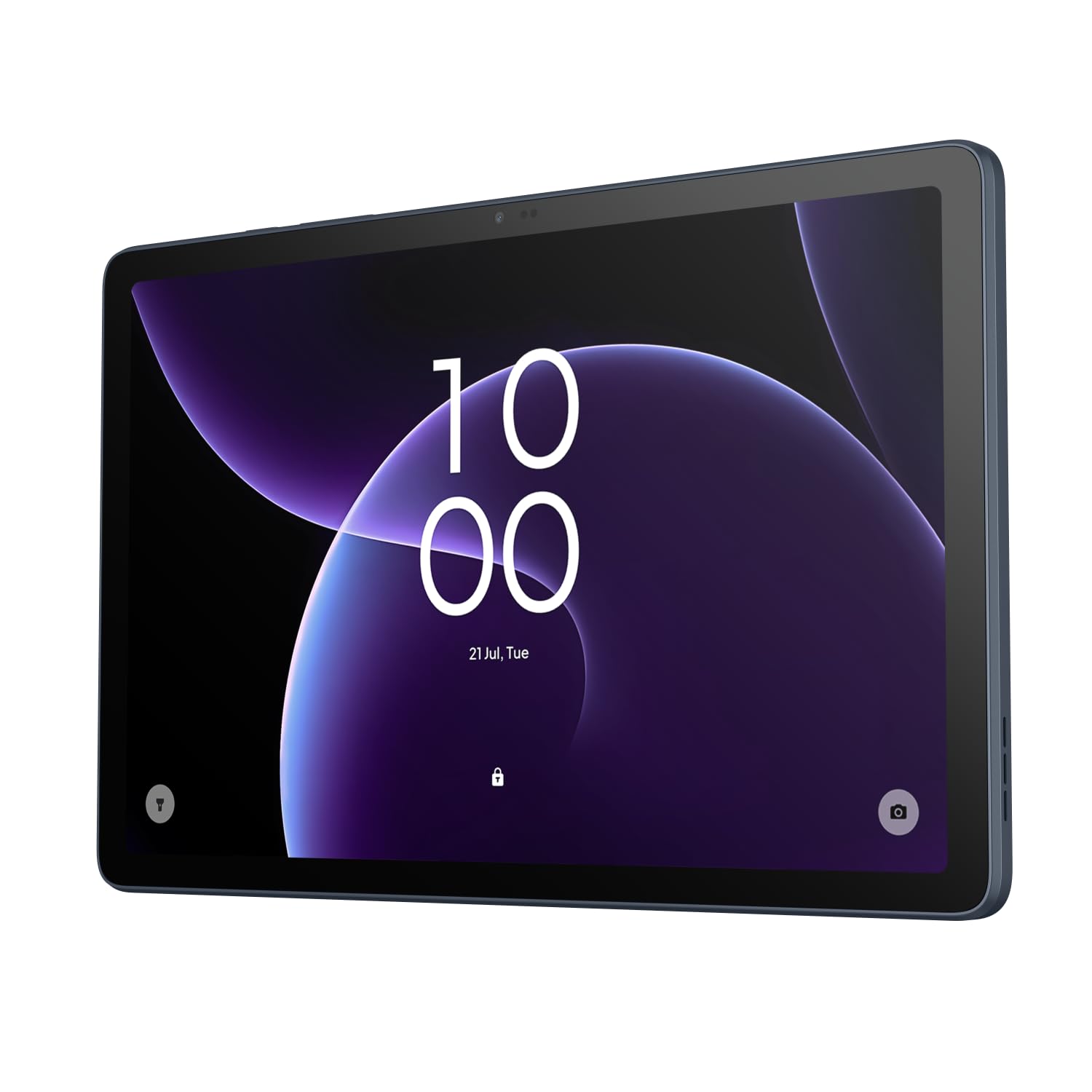
ፊት ለፊት view of the TCL TAB 10 Gen4 tablet displaying the lock screen with time and date.

የኋላ view of the TCL TAB 10 Gen4 tablet, showing the dark blue finish and the camera module with 'AI CAMERA' text.
4.1. አዝራሮች እና ወደቦች
- የኃይል ቁልፍ፡- Press and hold to turn the device on or off. Press briefly to lock/unlock the screen.
- የድምጽ አዝራሮች፡- Adjust the media volume or ringtone volume.
- ዩኤስቢ-ሲ ወደብ ለክፍያ እና የውሂብ ማስተላለፍ.
- የጆሮ ማዳመጫ ጃክ 3.5 ሚሜ የጆሮ ማዳመጫዎችን ያገናኙ።
- የማይክሮ ኤስዲ ካርድ ማስገቢያ; ለተስፋፋ ማከማቻ የማይክሮ ኤስዲ ካርድ ያስገቡ።
- የፊት ካሜራ፡ Located above the display for video calls and selfies.
- የኋላ ካሜራ; Located on the back for taking photos and videos.
5. ማዋቀር
5.1. የመነሻ ኃይል መሙላት
Before first use, fully charge your tablet using the provided USB-C cable and a compatible power adapter. The battery indicator on the screen will show the charging status.
5.2. ማብራት / ማጥፋት
- ለማብራት፡- የቲሲኤል አርማ እስኪታይ ድረስ የኃይል አዝራሩን ተጭነው ይያዙት።
- ለማጥፋት፡- Press and hold the Power button until the power options appear, then tap "Power off."
- ዳግም ለመጀመር፡- Press and hold the Power button until the power options appear, then tap "Restart."
5.3. የመነሻ ማዋቀር አዋቂ
Upon first startup, the tablet will guide you through a setup wizard. Follow the on-screen instructions to:
- ቋንቋዎን ይምረጡ።
- ከWi-Fi አውታረ መረብ ጋር ይገናኙ።
- በጉግል መለያዎ ይግቡ ወይም አዲስ ይፍጠሩ።
- የማያ ገጽ መቆለፊያ (ፒን ፣ ስርዓተ-ጥለት ፣ የይለፍ ቃል) ያዋቅሩ።
5.4. የማይክሮ ኤስዲ ካርድ ማስገባት
To expand storage, insert a microSD card (sold separately) into the designated slot. Ensure the tablet is powered off before inserting or removing the card.
6. ጡባዊውን መሥራት
6.1. መሰረታዊ ዳሰሳ
The TCL TAB 10 Gen4 uses touch gestures for navigation:
- መታ ያድርጉ፡ አንድ ንጥል ይምረጡ ወይም መተግበሪያ ይክፈቱ።
- ነክተው ይያዙ፡ የአውድ ምናሌዎችን ይድረሱ ወይም ንጥሎችን ይውሰዱ።
- ያንሸራትቱ በስክሪኖች ወይም ዝርዝሮች ውስጥ ይሸብልሉ.
- መቆንጠጥ ምስሎችን አሳንስ ወይም አሳንስ እና web ገጾች.
6.2. ከ Wi-Fi ጋር በመገናኘት ላይ
- ወደ ሂድ ቅንብሮች > አውታረ መረብ እና በይነመረብ > ዋይ ፋይ.
- Wi-Fi ቀይር On.
- ከዝርዝሩ ውስጥ የሚፈልጉትን አውታረ መረብ ይምረጡ።
- ከተጠየቁ የይለፍ ቃሉን ያስገቡ እና ከዚያ ይንኩ። ተገናኝ.
6.3. መተግበሪያዎችን በማውረድ ላይ
Access the Google Play Store to download and install applications. A Google account is required.
- ክፈት Play መደብር መተግበሪያ.
- ፈልግ the desired app.
- መታ ያድርጉ ጫን.
6.4. ካሜራውን መጠቀም
ፎቶዎችን ለማንሳት ወይም ቪዲዮዎችን ለመቅረጽ የካሜራ መተግበሪያውን ይክፈቱ። ምስል ለመቅረጽ ወይም የቪዲዮ ቀረጻ ለመጀመር/ለማቆም የመዝጊያ አዝራሩን መታ ያድርጉ። በስክሪኑ ላይ ያለውን አዶ በመጠቀም ከፊት እና ከኋላ ካሜራዎች መካከል ይቀያይሩ።
7. ጥገና
7.1. መሣሪያውን ማጽዳት
Use a soft, lint-free cloth to clean the screen and body of the tablet. Do not use harsh chemicals or abrasive materials. For stubborn smudges, slightly dampጨርቁን በውሃ.
7.2. የሶፍትዌር ዝመናዎች
ጥሩ አፈጻጸም እና ደህንነትን ለማረጋገጥ የሶፍትዌር ማሻሻያዎችን በመደበኛነት ያረጋግጡ እና ይጫኑ። ወደ ሂድ ቅንብሮች > ስርዓት > የስርዓት ዝመና.
7.3. የባትሪ እንክብካቤ
የባትሪ ዕድሜን ለማራዘም;
- በተደጋጋሚ ባትሪውን ሙሉ በሙሉ ከመሙላት ይቆጠቡ።
- Do not leave the tablet connected to the charger for extended periods after it is fully charged.
- Keep the tablet within recommended operating temperatures.
8. መላ መፈለግ
ይህ ክፍል ከጡባዊ ተኮህ ጋር ሊያጋጥሙህ የሚችሏቸውን የተለመዱ ጉዳዮችን ይመለከታል።
8.1. Tablet Will Not Turn On
- ባትሪው መሙላቱን ያረጋግጡ። ባትሪ መሙያውን ያገናኙ እና ለማብራት ከመሞከርዎ በፊት ጥቂት ደቂቃዎችን ይጠብቁ.
- ዳግም እንዲጀመር ለማስገደድ ቢያንስ ለ10-15 ሰከንድ የኃይል ቁልፉን ተጭነው ይቆዩ።
8.2. የWi-Fi ግንኙነት ጉዳዮች
- Check if Wi-Fi is enabled in Settings.
- የእርስዎን Wi-Fi ራውተር እንደገና ያስጀምሩ።
- በጡባዊ ቅንጅቶች ውስጥ አውታረ መረቡን ይረሱ እና እንደገና ያገናኙ።
- በWi-Fi ምልክት ክልል ውስጥ መሆንዎን ያረጋግጡ።
8.3. ቀርፋፋ አፈጻጸም
- ከበስተጀርባ የሚሰሩ ጥቅም ላይ ያልዋሉ መተግበሪያዎችን ዝጋ።
- ለመተግበሪያዎች የመሸጎጫ ውሂብን ያጽዱ።
- በቂ የማከማቻ ቦታ መኖሩን ያረጋግጡ።
- ጡባዊውን እንደገና ያስጀምሩ.
9. ዝርዝሮች
Detailed technical specifications for the TCL TAB 10 Gen4 tablet:
| ባህሪ | ዝርዝር መግለጫ |
|---|---|
| የምርት ስም | TCL |
| የሞዴል ስም | TAB 10 Gen4 |
| የማህደረ ትውስታ ማከማቻ አቅም | 128 ጊባ |
| የስክሪን መጠን | 10.1 ኢንች |
| Display Max Resolution | 1920x1200 ፒክሰሎች |
| ትውልድ | 4 ኛ ትውልድ |
| የተካተቱ አካላት | Main unit, Flip case, Instruction manual, Warranty card |
| ማዋቀር | 4GB RAM + 128GB ROM |
| የገመድ አልባ አይነት | ዋይ ፋይ |
| ሴሉላር ቴክኖሎጂ | የ Wi-Fi ሞዴል |
| ስርዓተ ክወና | አንድሮይድ 15 |
| የንጥል መጠኖች (LxWxH) | 23.8 x 15.5 x 0.7 ሴ.ሜ |
| የንክኪ ማያ ገጽ | አዎ |
| የግራፊክስ መግለጫ | የተዋሃደ |
| Operating System Family | አንድሮይድ |
| የማሳያ ዓይነት | LCD ማሳያ |
| አብሮ የተሰራ የማህደረ ትውስታ አቅም | 4 ጊባ |
| የኤችዲዲ አቅም | 128 ጊባ |
| የባትሪ ሕዋስ ዓይነት | ሊቲየም አዮን |
| የሊቲየም ባትሪ ኢነርጂ ይዘት | 10 ዋት ሰዓታት |
| ፕሮሰሰር መግለጫ | MediaTek |
| Computer CPU Manufacturer | MediaTek |
10. ዋስትና እና ድጋፍ
10.1. የዋስትና መረጃ
The TCL TAB 10 Gen4 tablet comes with a የ 1 ዓመት ዋስትና from the date of purchase. This warranty covers manufacturing defects under normal use. Please refer to the included Warranty Card for full terms and conditions.
10.2. የደንበኛ ድጋፍ
If you encounter issues not covered in the troubleshooting section or require further assistance, please contact TCL customer support. Contact details can typically be found on the official TCL webጣቢያ ወይም በዋስትና ካርድዎ ላይ።
Before contacting support, please have your tablet's model number (TAB 10 Gen4) and serial number ready.