1. ምርት አብቅቷልview
The Native Instruments Traktor Scratch A6 is a digital vinyl system (DVS) designed for DJs to control digital music files using traditional turntables or CD decks. It provides a high-quality audio interface and integrates seamlessly with the included TRAKTOR SCRATCH PRO 2 software, offering features like Remix Decks for creative live performance.
ቁልፍ ባህሪያት የሚከተሉትን ያካትታሉ:
- Digital vinyl system for controlling music files with turntables, CD decks, and DJ controllers.
- ወዲያውኑ ጥቅም ላይ የሚውል የፕለግ-እና-ፕሌይ ተግባር።
- Full version of TRAKTOR SCRATCH PRO 2 software with Loop Recorder.
- Powerful Remix Decks for creative control over loops and one-shot sampሌስ.
- High-resolution 2 kHz Native Scratch timecode signal for precise vinyl response.
- Low-latency soundcard performance for professional audio quality.
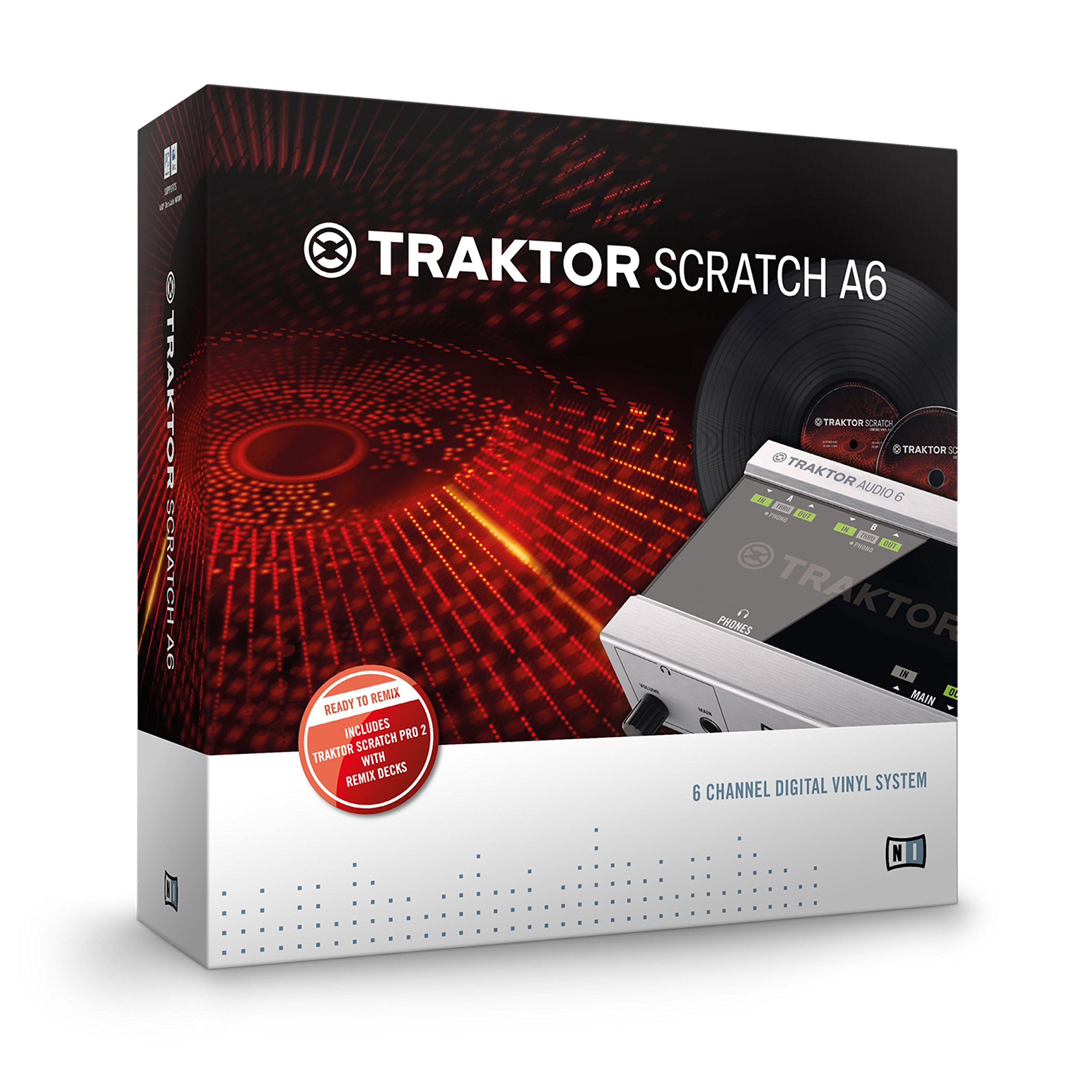
ምስል 1: የፊት view of the Traktor Scratch A6 Audio 6 interface, showing input/output connections and controls.
2. የማዋቀር መመሪያ
This section guides you through the initial setup of your Traktor Scratch A6 Audio 6 system.
2.1. የጥቅል ይዘቶች
ጥቅልዎ የሚከተሉትን ንጥሎች መያዙን ያረጋግጡ፡-
- Traktor Scratch A6 Audio Interface
- 2 x Timecode Vinyl (MK2)
- 2 x Timecode CDs
- 2 x Stereo RCA Cables
- Power Supply Unit with interchangeable plugs
- የዩኤስቢ ገመድ
- TRAKTOR SCRATCH PRO 2 Software Serial Number (on a card)
2.2. የሶፍትዌር ጭነት
- Visit the Native Instruments website to download the TRAKTOR SCRATCH PRO 2 software.
- Create a Native Instruments user account if you do not already have one.
- Install the software on your computer (Windows or macOS).
- Register your software using the provided serial number.
- Ensure all necessary drivers and updates are installed. For Windows 8.1 with USB 3.0, a specific patch might be required; check the Native Instruments support forums for details.
2.3. የሃርድዌር ግንኙነት
Connect the Traktor Scratch A6 Audio 6 to your DJ setup as follows:
- Connect your turntables or CD decks to the IN ports (A and B) on the Traktor Scratch A6 using the RCA cables. Ensure the input type (Phono/Line) is correctly selected on the A6 if applicable.
- ያገናኙት። ውጣ ports (A and B) of the Traktor Scratch A6 to the line inputs of your DJ mixer.
- Connect the Traktor Scratch A6 to your computer using the supplied USB cable.
- Connect the power supply unit to the A6 and a power outlet.
- Power on your DJ mixer, turntables/CD decks, and computer.

ምስል 2: የኋላ view of the Traktor Scratch A6 Audio 6, illustrating the various input and output connections for turntables, mixer, and power.
ጠቃሚ፡- When using vinyl control, ensure your mixer inputs are set to "Line" for the channels connected to the Traktor Scratch A6 outputs.
3. ኦፕሬሽን
This section covers the basic operation of the Traktor Scratch A6 Audio 6 with TRAKTOR SCRATCH PRO 2 software.
3.1. Loading Tracks and Control
- Launch TRAKTOR SCRATCH PRO 2 software on your computer.
- Place the timecode vinyl on your turntables or timecode CDs in your CD decks.
- In the TRAKTOR software, load your desired digital music files into the virtual decks.
- Use your physical turntables or CD decks to control the playback, scratching, and mixing of the digital tracks with high precision.
- Utilize the software's iTunes integration, iPod compatibility, and Crate Flick cover art browsing for efficient track selection.
3.2. የላቁ ባህሪያት
- Remix Decks: Explore the innovative Remix Decks within TRAKTOR to re-arrange track parts, capture loops on the fly, and integrate one-shot samples or your own productions into your live sets.
- TruWave Waveforms: Monitor your tracks visually with intuitive TruWave colored waveforms, providing a clear representation of audio characteristics.
- SoftSync: Engage the SoftSync feature in the software to receive assistance with beat-matching, if desired.
- Direct Thru: The Direct Thru feature allows for seamless switching between digital and analog vinyl playback, facilitating easy DJ changeovers or system transitions without re-cabling.
3.3. Recording Mixes
To record your DJ mixes using the Traktor Scratch A6:
- Connect an RCA cable from a "Record Out" or "Booth Out" port on your DJ mixer to the "Main Input" of the Traktor Scratch A6.
- Use recording software (e.g., Audacity) on your computer, selecting the Traktor Scratch A6 as your audio input device, to capture your mix.
ማስታወሻ፡- The Traktor Scratch A6 is designed to control two turntables/CDJs. For setups requiring more than two decks, consider other Native Instruments audio interfaces like the Traktor Scratch A10.
4. ጥገና
Proper care and maintenance will ensure the longevity and optimal performance of your Traktor Scratch A6 Audio 6.
- የዩኤስቢ ወደብ እንክብካቤ The USB port on the unit can be delicate. Always plug and unplug the USB cable carefully, ensuring a straight insertion and removal without wiggling or applying excessive force. This helps prevent damage to the port.
- ማጽዳት፡ የክፍሉን ውጫዊ ክፍል ለማጽዳት ለስላሳና ደረቅ ጨርቅ ይጠቀሙ። ሻካራ ማጽጃዎችን ወይም ሟሟቶችን ከመጠቀም ይቆጠቡ።
- ማከማቻ፡ መሳሪያውን በማይጠቀሙበት ጊዜ ከፀሐይ ብርሃን እና ከፍተኛ የሙቀት መጠን ርቆ ቀዝቃዛና ደረቅ ቦታ ያስቀምጡ።
- የሶፍትዌር ማሻሻያ Regularly check the Native Instruments website for software and driver updates to ensure compatibility and access to the latest features and bug fixes.
5. መላ መፈለግ
This section addresses common issues you might encounter with your Traktor Scratch A6 Audio 6.
5.1. የተለመዱ ጉዳዮች እና መፍትሄዎች
- ጉዳይ፡- The software does not recognize the audio interface.
መፍትሄ፡-- ሁሉም አሽከርካሪዎች በትክክል መጫኑን ያረጋግጡ።
- Verify the USB cable is securely connected to both the A6 and your computer.
- For Windows 8.1 users with USB 3.0, check the Native Instruments support forums for a specific patch that may be required.
- በኮምፒተርዎ ላይ ወደተለየ የዩኤስቢ ወደብ ለማገናኘት ይሞክሩ።
- Restart your computer and the Traktor Scratch A6.
- ጉዳይ፡- No sound or incorrect sound when using timecode vinyl.
መፍትሄ፡-- Confirm that your DJ mixer inputs connected to the Traktor Scratch A6 outputs are set to "Line" (not "Phono").
- Check all RCA cable connections between the turntables, A6, and mixer.
- Ensure the correct input type (Phono/Line) is selected on the Traktor Scratch A6 for your turntables.
- Verify that the timecode vinyl is clean and in good condition.
- ጉዳይ፡- A "beeping" noise is heard from the turntable stylus when using timecode vinyl.
ማብራሪያ፡- This is normal behavior for timecode vinyl. The "beep" is the audible representation of the control signal being read by the stylus. It does not affect the audio output from your speakers. If distracting, increasing the volume of your main speakers will typically mask this sound.
6. ቴክኒካዊ ዝርዝሮች
| የምርት ስም | ቤተኛ መሣሪያዎች |
| የሞዴል ቁጥር | 21903 |
| የምርት ልኬቶች | 13 x 4 x 12 ኢንች |
| የእቃው ክብደት | 3.08 ፓውንድ |
| ቀለም | ብር |
| የቁስ ዓይነት | አይዝጌ ብረት |
| የግንኙነት ቴክኖሎጂ | ዩኤስቢ |
| የሰርጦች ብዛት | 4 |
| የሲግናል ቅርጸት | ዲጂታል |
| ተስማሚ መሣሪያዎች | ድምጽ ማጉያ ፣ የጆሮ ማዳመጫ |
| የሚደገፍ ሶፍትዌር | Traktor Scratch Pro 2 |
| ስርዓተ ክወና | ዊንዶውስ ፣ ማክሮስ |
| የኃይል ምንጭ | ባለገመድ ኤሌክትሪክ |
| የመጀመሪያ ቀን ይገኛል። | መጋቢት 29 ቀን 2012 ዓ.ም |
7. ዋስትና እና ድጋፍ
7.1. የዋስትና መረጃ
Specific warranty details for the Native Instruments Traktor Scratch A6 Audio 6 are not provided in this manual. Please refer to the official Native Instruments website or the documentation included with your purchase for comprehensive warranty terms and conditions.
7.2. የደንበኛ ድጋፍ
For further assistance, technical support, or to access the latest drivers and software updates, please visit the official Native Instruments support webጣቢያ፡
www.native-instruments.com/support
የ website offers a knowledge base, forums, and contact options for direct support.


