1. መግቢያ
This manual provides comprehensive instructions for the installation, operation, and maintenance of your Swann SWDVK-163208S-US 3200S 16-Channel 960H DVR Security System. Please read this manual thoroughly before using the product to ensure proper setup and functionality. Keep this manual for future reference.
The system includes a 16-channel 960H Digital Video Recorder (DVR) with a pre-installed 1TB hard drive and eight 700TVL security cameras designed for both indoor and outdoor use. It supports continuous recording, motion detection, and remote viewing ችሎታዎች.
2. የደህንነት መረጃ
- Ensure all power connections are secure and correctly rated for the device.
- Do not expose the DVR or cameras to water or excessive moisture.
- DVRን በቀጥታ የፀሐይ ብርሃን ወይም በሙቀት ምንጮች አቅራቢያ ከማስቀመጥ ይቆጠቡ።
- Use only the power adapters supplied with the system.
- Do not attempt to open or service the DVR or cameras yourself. Refer all servicing to qualified personnel.
- የመንገዳገድ አደጋዎችን ለመከላከል እና ተገቢ የአየር ዝውውርን ለማረጋገጥ ኬብሎችን በተደራጀ ሁኔታ ያስቀምጡ።
3. የጥቅል ይዘቶች
Verify that all items listed below are present in your package. If any items are missing or damaged, contact Swann customer support.
- Swann SWDVK-163208S-US 16-Channel 960H DVR with 1TB HDD
- 8 x 700TVL Security Cameras
- 8 x BNC Cables (60ft/18m)
- ለ DVR እና ካሜራዎች የኃይል አስማሚዎች
- የኤተርኔት ገመድ
- HDMI ገመድ
- የዩኤስቢ መዳፊት
- የመጫኛ ዊንጮች እና መሰኪያዎች
- ፈጣን ጅምር መመሪያ
- ስርቆት የማይለወጡ ተለጣፊዎች
4. ስርዓት አልፏልview
4.1 DVR Front Panel
The front panel of the DVR provides access to essential controls and indicators.
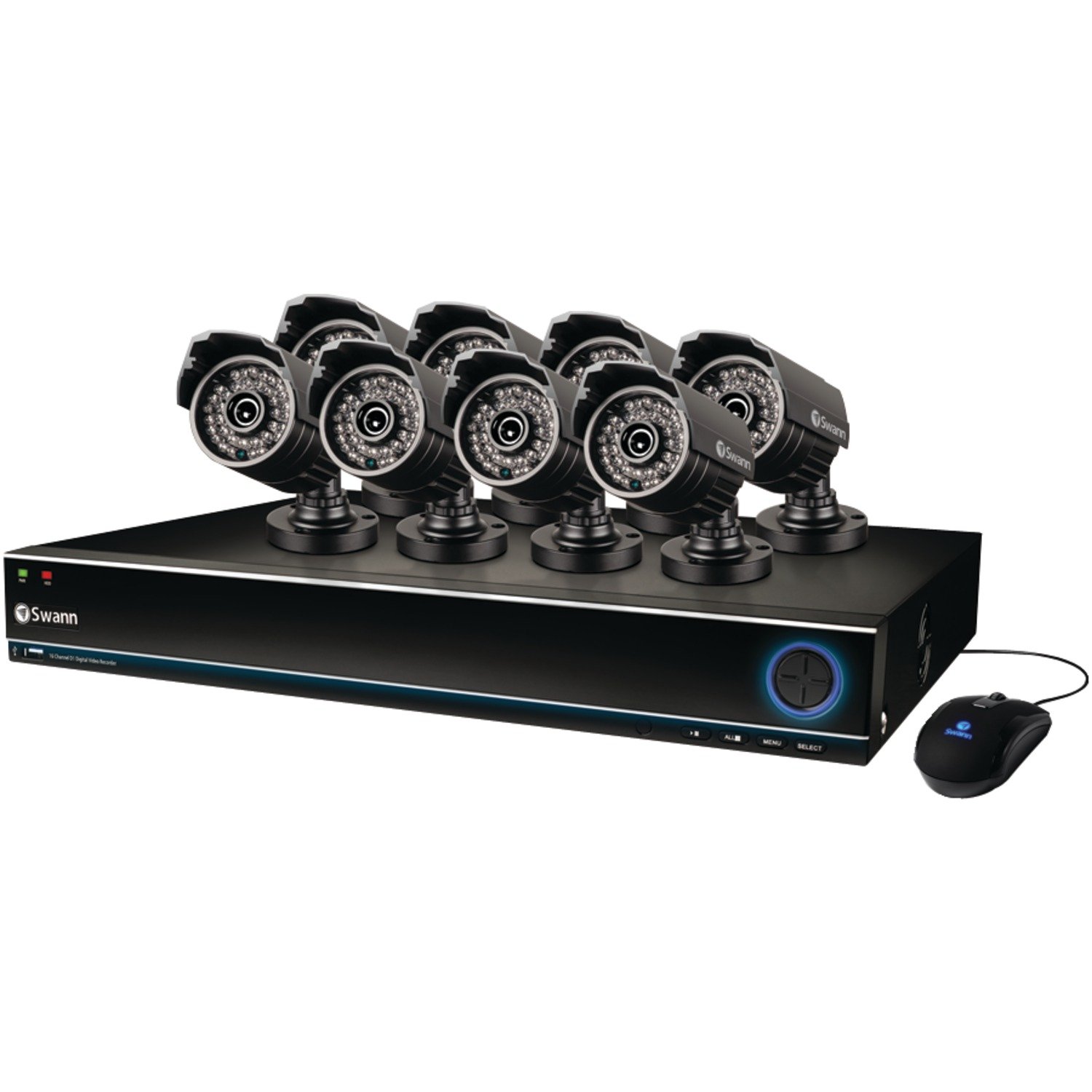
Image: The Swann SWDVK-163208S-US security system, showing the DVR unit and several cameras. The DVR features a blue-lit front panel with control buttons and status indicators.
- የኃይል አመልካች፡- Illuminates when the DVR is powered on.
- HDD አመልካች፡- ሃርድ ድራይቭ በሚሰራበት ጊዜ ብልጭ ድርግም ይላል.
- የአውታረ መረብ አመልካች፡- የአውታረ መረብ ግንኙነትን ያመለክታል።
- የዩኤስቢ ወደብ፡ የዩኤስቢ መዳፊትን ለማገናኘት ወይም ለመረጃ ምትኬ።
- የመቆጣጠሪያ አዝራሮች; Navigate menus and control playback.
4.2 DVR Rear Panel
The rear panel contains all the necessary ports for connecting cameras, monitors, and network cables.
- የቪዲዮ ግብዓት (ቢኤንሲ)፡ 16 ports for connecting security cameras.
- Video Output (HDMI/VGA): For connecting a monitor or TV.
- የድምጽ ግብዓት/ውጤት (RCA)፦ For connecting microphones and speakers (if supported).
- የኤተርኔት ወደብ (RJ45) ለአውታረ መረብ ግንኙነት ፡፡
- የዩኤስቢ ወደቦች፡ ለተንቀሳቃሽ መሳሪያዎች ተጨማሪ የዩኤስቢ ወደቦች።
- eSATA ወደብ፡ For connecting an external hard drive for expanded storage.
- የኃይል ግቤት፡ For connecting the DVR power adapter.
4.3 የካሜራ ባህሪያት
The included 700TVL cameras offer clear video surveillance with night vision capabilities.
- ጥራት፡ 700TVL (Television Lines) for detailed images.
- የምሽት እይታ; Infrared LEDs provide visibility up to 82ft (25m) in low light or complete darkness.
- የአየር ሁኔታ መከላከያ; Designed for both indoor and outdoor installation.
- መጫን፡ Adjustable brackets for flexible positioning.
5. ማዋቀር
5.1 DVR ን ማገናኘት
- Connect the included USB mouse to one of the USB ports on the DVR.
- Connect the HDMI cable from the DVR's HDMI output to an HDMI input on your TV or monitor. Alternatively, use a VGA cable for VGA connections.
- ለሩቅ viewing, connect an Ethernet cable from the DVR's Ethernet port to your router or network switch.
5.2 የሚያገናኙ ካሜራዎች
- Mount each camera in your desired location using the provided screws and plugs. Ensure the camera has a clear field of view እና ከቀጥታ ተጽዕኖ የተጠበቀ ነው።
- Connect one end of the BNC cable to the camera's video output.
- Connect the other end of the BNC cable to a video input port on the DVR (e.g., Video In 1, Video In 2, etc.).
- Connect the camera's power input to the power splitter cable, then connect the power adapter to the splitter and a power outlet.
5.3 በማብራት ላይ
- Connect the DVR power adapter to the DVR's power input and then to a power outlet.
- The DVR will power on automatically. The power indicator light on the front panel will illuminate.
- Wait for the system to boot up. The Swann logo will appear on your connected monitor, followed by the live view ማሳያ.
5.4 የመጀመሪያ ውቅር
Upon first boot-up, the DVR will guide you through an initial setup wizard.
- የቋንቋ ምርጫ፡- የእርስዎን ተወዳጅ ቋንቋ ይምረጡ።
- ቀን እና ሰዓት Set the correct date, time, and time zone. This is crucial for accurate recording timestamps.
- የአውታረ መረብ ቅንብሮች፡- Configure network settings (DHCP is usually sufficient for automatic setup).
- የይለፍ ቃል ማዋቀር፡- Create a strong password for the administrator account to secure your system.
- የሃርድ ድራይቭ ቅርጸት፡- The system may prompt to format the hard drive. Confirm to proceed.
6. ስርዓቱን ማስኬድ
6.1 ቀጥታ ስርጭት View
ከመጀመሪያው ማዋቀር በኋላ፣ DVR በቀጥታ ስርጭት ያሳያል view ከሁሉም የተገናኙ ካሜራዎች. በነጠላ ካሜራ መካከል መቀያየር ይችላሉ። view, multi-camera grids (e.g., 4-channel, 8-channel, 16-channel), and sequence modes using the on-screen menu or front panel controls.
6.2 የመቅዳት ሁነታዎች
DVR የተለያዩ የመቅጃ ሁነታዎችን ይደግፋል፦
- ተከታታይ ቀረፃ Records 24/7, overwriting the oldest footagሠ ሃርድ ድራይቭ ሲሞላ.
- የእንቅስቃሴ ፍለጋ ቀረጻ በካሜራው ውስጥ እንቅስቃሴ ሲገኝ ብቻ ነው የሚቀረጸው view. This conserves hard drive space. Sensitivity and detection areas can be configured for each camera.
- የታቀደ ቀረፃ Records during specific times of the day or week.
- በእጅ መቅዳት፡ Start and stop recording manually from the DVR interface.
Access recording settings via the DVR's main menu: Menu > Record > Record Schedule.
6.3 መልሶ ማጫወት
እንደገናview ተመዝግቧል footage:
- ከቀጥታ view, right-click with the mouse to open the main menu.
- ይምረጡ መልሶ ማጫወት.
- Choose the desired date and camera channel(s).
- Use the timeline to navigate through recorded events. Different colors on the timeline indicate different recording types (e.g., continuous, motion).
- የመልሶ ማጫወት መቆጣጠሪያዎችን (ማጫወት፣ ለአፍታ ማቆም፣ በፍጥነት ወደፊት ማዞር፣ ወደኋላ መመለስ) እንደገና ለመጠቀም ይጠቀሙview footage.
6.4 ምትኬ
You can back up important video footage to a USB flash drive or external hard drive.
- Insert a USB storage device into a USB port on the DVR.
- ወደ ሂድ Menu > Backup.
- Select the camera channel, date, and time range for the footage you wish to back up.
- Choose the backup device and file format (e.g., AVI).
- ጠቅ ያድርጉ ጀምር to begin the backup process.
6.5 ሩቅ Viewing (SwannLink & SwannView)
The SwannLink and SwannView applications allow you to view your cameras remotely from a smartphone or tablet.
- Ensure your DVR is connected to the internet via the Ethernet port.
- Download the SwannView መተግበሪያ ከመሣሪያዎ የመተግበሪያ መደብር።
- Open the app and follow the on-screen instructions to add your DVR. This typically involves scanning a QR code displayed on the DVR's monitor (Menu > Network > SwannLink) or manually entering the device ID.
- Enter the DVR's username and password when prompted.
- አሁን ማድረግ ትችላላችሁ view ኑ footage and access playback remotely.
7. ጥገና
7.1 ሃርድ ድራይቭ አስተዳደር
የ1ቴባ ሃርድ ድራይቭ በጣም ጥንታዊውን የ foo በራስ-ሰር ይተካዋልtage when full. To ensure optimal performance, it is recommended to periodically check the hard drive status via Menu > HDD > Disk Manage. You can also connect an external hard drive to the eSATA port for additional storage capacity.
7.2 Cleaning Cameras
የካሜራ ሌንሶችን በየጊዜው ለስላሳ፣ ዲ ያጽዱamp አቧራውን ፣ ቆሻሻውን ወይም የውሃ ቦታዎችን ሊደብቁ የሚችሉ ጨርቆችን ለማስወገድ view. ጠጣር ኬሚካሎችን ወይም ሻካራ ቁሳቁሶችን አይጠቀሙ።
7.3 የጽኑ ዝማኔዎች
Swann may release firmware updates to improve system performance or add new features. Check the Swann support website for the latest firmware for your model. Follow the instructions provided with the firmware update carefully to avoid damaging the DVR.
8. መላ መፈለግ
| ችግር | ሊሆን የሚችል ምክንያት | መፍትሄ |
|---|---|---|
| ማሳያ ላይ ምንም ምስል የለም። | ልቅ የቪዲዮ ገመድ፣ በሞኒተር ላይ የተሳሳተ ግብዓት አልተመረጠም፣ DVR አልበራም። | የኤችዲኤምአይ/ቪጂኤ ኬብል ግንኙነቶችን ያረጋግጡ። ማሳያው በትክክለኛው ግብዓት ላይ መሆኑን ያረጋግጡ። የDVR ኃይልን ያረጋግጡ። |
| ምንም የካሜራ ምስል የለም። | Loose BNC cable, camera power issue, faulty camera. | Check BNC and power connections for the specific camera. Test camera with a known working cable/power supply. |
| DVR እየቀረጸ አይደለም | Recording schedule not set, hard drive full or faulty, motion detection not configured. | Check recording schedule. Verify hard drive status. Ensure motion detection is enabled and configured correctly. |
| አይቻልም view በርቀት | No network connection, incorrect network settings, app configuration error. | Verify DVR has internet access. Check network settings (DHCP). Reconfigure the DVR in the SwannView መተግበሪያ. |
| Purple image on camera | IR filter stuck, camera malfunction. | Power cycle the camera. If the issue persists, the camera may be faulty and require replacement. |
9. ዝርዝሮች
- የሞዴል ቁጥር፡- SWDVK-163208S-US
- የቪዲዮ ግብዓቶች 16 Channels BNC
- የቪዲዮ ውፅዓት፡- HDMI, VGA
- የማሳያ ጥራት፡ Up to 1080p (HDMI)
- ቀረጻ ጥራት: 960H (960x576/960x480)
- ሃርድ ድራይቭ፡ 1TB SATA HDD (expandable via eSATA)
- የማመቅ ቅርጸት፡ ህ.264
- የአውታረ መረብ በይነገጽ፡ RJ45 የኤተርኔት ወደብ
- የዩኤስቢ በይነገጽ፡ 3 x ዩኤስቢ 2.0 ወደቦች
- የካሜራ ጥራት፡ 700TVL
- የካሜራ የሌሊት እይታ፡ እስከ 82 ጫማ (25ሜ)
- Camera Weatherproof Rating: IP66 (የውጭ አገልግሎት)
- Dimensions (DVR): 22.5 x 15.3 x 8.1 ኢንች (ግምታዊ)
- Weight (DVR): 14 ፓውንድ (ግምታዊ)
- የኃይል ምንጭ፡- ዲሲ 12 ቪ
10. የዋስትና መረጃ
Swann products are covered by a limited warranty. The specific terms and duration of your warranty may vary by region and product. Please refer to the warranty card included with your product or visit the official Swann webዝርዝር የዋስትና መረጃ እና የምዝገባ ሂደቶችን ለማግኘት ድህረ ገጽ። የግዢ ማረጋገጫዎን ለዋስትና ጥያቄዎች ያስቀምጡ።
11. ድጋፍ
For technical assistance, product support, or to download the latest software and manuals, please visit the official Swann support website. You can typically find FAQs, troubleshooting guides, and contact information for customer service there. Have your product model number (SWDVK-163208S-US) ready when contacting support.
የስዋን ድጋፍ Webጣቢያ፡ https://www.swann.com/us/support


