መግቢያ
This manual provides instructions for setting up, operating, and maintaining your Mercury MW3030R Dual Band Wireless Router. Please read this manual carefully before use to ensure proper installation and optimal performance.
የደህንነት መረጃ
- መሳሪያውን ለውሃ ወይም ከመጠን በላይ እርጥበት አያጋልጡ.
- መሳሪያውን እራስዎ ለመበተን ወይም ለመጠገን አይሞክሩ.
- ከመሳሪያው ጋር የቀረበውን የኃይል አስማሚ ብቻ ይጠቀሙ.
- ከመጠን በላይ ሙቀትን ለመከላከል በራውተሩ ዙሪያ በቂ የአየር ዝውውርን ያረጋግጡ።
የጥቅል ይዘቶች
ጥቅልዎ የሚከተሉትን ንጥሎች መያዙን ያረጋግጡ፡-
- Mercury MW3030R Wireless Router
- የኃይል አስማሚ
- የኤተርኔት ገመድ
- ፈጣን የመጫኛ መመሪያ (ይህ መመሪያ እንደ ዝርዝር መመሪያ ሆኖ ያገለግላል)
ምርት አልቋልview
ከራውተሩ ክፍሎች እና አመልካቾች ጋር እራስዎን ይወቁ።
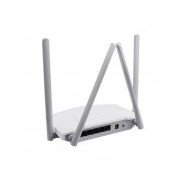
ምስል 1፡ የኋላ view of the Mercury MW3030R router. This image displays the four external antennas, the WAN port (typically blue), multiple LAN ports (typically yellow), and the power input jack. The reset button and WPS button are also usually located on the rear panel.
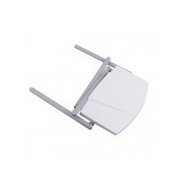
ምስል 2፡ ከላይ ወደታች view of the Mercury MW3030R router with its antennas folded. This perspective highlights the router's sleek, white casing and its overall compact form factor, suitable for various placements.
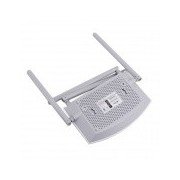
ምስል 3፡ ከታች view of the Mercury MW3030R router. This image shows the ventilation holes designed for heat dissipation and the product label, which typically contains important information such as the default Wi-Fi name (SSID), password, and web management address.
የ LED አመልካቾች
- የኃይል LED; የራውተሩን የኃይል ሁኔታ ያሳያል።
- የበይነመረብ LED: የኢንተርኔት ግንኙነቱን ሁኔታ ያሳያል።
- WLAN LED: የገመድ አልባ እንቅስቃሴን ያመለክታል።
- LAN LEDs Indicate connection status for each LAN port.
ማዋቀር
1. የሃርድዌር ግንኙነት
- አብራ፡ Connect the power adapter to the router's power port and plug it into a wall outlet. Wait for the Power LED to become stable.
- ከበይነመረብ (WAN) ጋር ይገናኙ፡ Connect one end of an Ethernet cable to your modem's LAN port and the other end to the router's WAN port (usually distinctively colored, e.g., blue).
- የመገናኛ መሳሪያዎች (ላን)፡ For wired connections, connect your computer or other devices to the router's LAN ports (usually yellow) using Ethernet cables.
- አንቴናዎች Adjust the four antennas for optimal signal coverage.
2. የመጀመሪያ ውቅር (Web በይነገጽ)
- ወደ ራውተር ይገናኙ፡ Connect your computer to the router either via an Ethernet cable to a LAN port or wirelessly using the default Wi-Fi SSID and password printed on the router's label (refer to Figure 3).
- መዳረሻ Web አሳሽ፡ ክፈት ሀ web browser (e.g., Chrome, Firefox) and type the default access address (e.g., http://192.168.1.1 or http://tplinkwifi.net) በአድራሻ አሞሌው ውስጥ እና አስገባን ይጫኑ.
- ግባ፡ ነባሪውን የተጠቃሚ ስም እና የይለፍ ቃል ያስገቡ (ብዙውን ጊዜ አስተዳዳሪ ለሁለቱም ወይም በራውተር መለያ ላይ እንደተገለጸው)።
- ፈጣን ማዋቀርን አሂድ፡ Follow the on-screen instructions of the Quick Setup Wizard to configure your internet connection type (e.g., PPPoE, Dynamic IP, Static IP) and wireless settings (SSID, password).
- ነባሪ የይለፍ ቃል ለውጥ፡ ለደህንነት ሲባል፣ የራውተሩን ነባሪ የመግቢያ የይለፍ ቃል መቀየር በጣም ይመከራል። web የአስተዳደር በይነገጽ.
የአሠራር መመሪያዎች
ከWi-Fi ጋር በመገናኘት ላይ
- On your wireless device (smartphone, laptop), search for available Wi-Fi networks.
- Select your router's Wi-Fi network name (SSID) that you configured during setup.
- Enter the Wi-Fi password you set.
- መሣሪያዎ አሁን ከበይነመረቡ ጋር መገናኘት አለበት።
ባለሁለት ባንድ ኦፕሬሽን
The MW3030R supports both 2.4GHz and 5.0GHz wireless bands. The 2.4GHz band offers wider coverage, while the 5.0GHz band provides faster speeds with less interference over shorter distances. You can connect your devices to either band based on your needs.
የእንግዳ አውታረ መረብ
ወደ ራውተር ይድረሱ web interface to enable and configure a separate guest network. This allows guests to access the internet without accessing your main network resources.
ጥገና
- የጽኑዌር ዝማኔዎች ፦ የአምራቹን በመደበኛነት ያረጋግጡ website for firmware updates. Updating firmware can improve performance, add new features, and fix security vulnerabilities.
- ራውተሩን እንደገና ማስጀመር; የአውታረ መረብ ችግር ካጋጠመዎት፣ የኃይል አስማሚውን በማላቀቅ፣ ለ10 ሰከንዶች በመጠበቅ እና ከዚያም እንደገና በማገናኘት ራውተሩን እንደገና ለማስጀመር ይሞክሩ።
- ማጽዳት፡ ራውተሩን ንፁህ እና ከአቧራ የጸዳ ያድርጉት። ለስላሳ እና ደረቅ ጨርቅ ይጠቀሙ። ፈሳሽ ማጽጃዎችን አይጠቀሙ።
- አቀማመጥ፡- ራውተሩን ማዕከላዊ ቦታ ላይ ያስቀምጡት፣ ጣልቃ ገብነት ሊያስከትሉ ከሚችሉ እንቅፋቶች እና መሳሪያዎች (ለምሳሌ ማይክሮዌቭ፣ ገመድ አልባ ስልኮች) ራቅ ያድርጉ።
መላ መፈለግ
የበይነመረብ መዳረሻ የለም።
- Check if the Internet LED on the router is lit or blinking correctly.
- ከሞደምዎ የሚገኘው የኢተርኔት ገመድ ከራውተሩ የWAN ወደብ ጋር ደህንነቱ በተጠበቀ ሁኔታ መገናኘቱን ያረጋግጡ።
- የእርስዎን ሞደም እና ራውተር እንደገና ያስጀምሩ።
- የኢንተርኔት ግንኙነት ቅንብሮችዎን በራውተር ውስጥ ያረጋግጡ web በይነገጽ.
ቀርፋፋ ገመድ አልባ ፍጥነት
- Ensure your device is connected to the 5.0GHz band if it supports it, for faster speeds.
- Move closer to the router or adjust antenna positions.
- ከሌሎች የኤሌክትሮኒክስ መሳሪያዎች ጣልቃገብነት ያረጋግጡ.
- Reduce the number of devices connected to the network or bandwidth-intensive activities.
ራውተርን መድረስ አልተቻለም Web በይነገጽ
- መሳሪያዎ ከራውተሩ (ሽቦ ወይም ገመድ አልባ) ጋር መገናኘቱን ያረጋግጡ።
- Verify the IP address you are typing in the browser is correct (e.g., http://192.168.1.1).
- የአሳሽዎን መሸጎጫ ለማጽዳት ይሞክሩ ወይም የተለየ አሳሽ ይጠቀሙ።
- If you forgot the login password, you may need to perform a factory reset (Warning: This will erase all your settings).
ዝርዝሮች
| ባህሪ | መግለጫ |
|---|---|
| ሞዴል | MW3030R |
| የገመድ አልባ ደረጃዎች | IEEE 802.11ac/n/g/b/a |
| ድግግሞሽ | 2.4GHz and 5.0GHz (Dual Band) |
| የገመድ አልባ ፍጥነት | እስከ 600Mbps (የተጣመረ) |
| አንቴናዎች | 4 ውጫዊ አንቴናዎች |
| በይነገጾች | 1x WAN Port, Multiple LAN Ports (typically 3 or 4) |
| የኃይል አቅርቦት | External Power Adapter (provided) |
ዋስትና እና ድጋፍ
The Mercury MW3030R router comes with a standard manufacturer's warranty. For detailed warranty information, technical support, or service inquiries, please refer to the official Mercury webጣቢያ ወይም የደንበኛ ድጋፍን ያግኙ። ለዋስትና ጥያቄዎች የግዢ ደረሰኝዎን ያስቀምጡ።


