1. መግቢያ
This manual provides essential information for the safe and efficient use of your Canon PIXUS MG7730 Black Inkjet Multifunction Printer. Please read this manual thoroughly before using the printer and keep it for future reference. The PIXUS MG7730 is designed for high-quality photo and document printing, copying, and scanning, featuring advanced connectivity and user-friendly operation.
2. ምርት አብቅቷልview
The Canon PIXUS MG7730 is a versatile multifunction printer equipped with a 6-color hybrid ink system, ensuring vibrant photos and crisp text. It offers seamless wireless connectivity and intuitive controls for a streamlined user experience.
ቁልፍ ባህሪዎች
- 6-Color Hybrid Ink System: Utilizes both dye-based and pigment-based inks for superior photo quality and sharp black text.
- ገመድ አልባ ግንኙነት: Supports Wi-Fi (802.11n) and NFC for easy printing from various devices.
- የሚታወቅ የመዳሰሻ ፓነል Features a 3.5-inch LCD touch screen with an intelligent touch system for simple navigation.
- አውቶማቲክ የዱፕሌክስ ህትመት; Saves paper by automatically printing on both sides of the page.
- CD/DVD Label Printing: Print directly onto compatible CD/DVD discs.
- PIXUS Cloud Link: Print from and scan to cloud services like Instagram, Facebook, and Dropbox.
- Dual Paper Trays: Front 2-stage cassette paper feeding allows for simultaneous loading of different paper types (e.g., photo paper and plain paper).

ምስል 2.1: የፊት view of the Canon PIXUS MG7730 printer.

Figure 2.2: The Canon PIXUS MG7730 printer integrated into a modern home office environment.

Figure 2.3: Close-up of the 3.5-inch LCD touch panel display for intuitive operation.
3. ማዋቀር
Follow these steps to set up your Canon PIXUS MG7730 printer for the first time.
3.1 ማሸግ እና አቀማመጥ
- ማተሚያውን ከማሸጊያው ላይ ያስወግዱ እና ሁሉንም የመከላከያ ካሴቶች እና ቁሳቁሶችን ያስወግዱ.
- Place the printer on a stable, level surface with adequate space around it for ventilation and operation.
3.2 የኃይል ግንኙነት
- የኃይል ገመዱን ከአታሚው ጋር ያገናኙ እና ከዚያም ወደ ግድግዳ መውጫ.
- አታሚውን ለማብራት የኃይል አዝራሩን ይጫኑ.
3.3 የቀለም ካርቶጅ መትከል
The PIXUS MG7730 uses BCI-371 and BCI-370 series ink cartridges.
- Open the printer's top cover to access the ink cartridge slots.
- Unpack each ink cartridge (BCI-371XL BK, BCI-371XL C, BCI-371XL M, BCI-371XL Y, BCI-371XL GY, BCI-370XL PGBK).
- Insert each cartridge into its corresponding slot until it clicks into place. Ensure all cartridges are correctly seated.
- የላይኛውን ሽፋን ይዝጉ.

Figure 3.1: Proper installation of BCI-371 and BCI-370 series ink cartridges.
Relevant Ink Cartridge Links:BCI-370XL (PGBK),BCI-371XL (BK),BCI-371XL (M),BCI-371XL (GY),BCI-371XL (Y),BCI-371XL (C)
3.4 የወረቀት ጭነት
The printer features front 2-stage paper feeding. You can load different paper types simultaneously.
- Pull out the upper paper cassette for photo paper or the lower cassette for plain paper.
- Load the paper with the print side facing down. Adjust the paper guides to fit the paper size.
- Push the paper cassette back into the printer.

Figure 3.2: Demonstrating the front 2-stage paper feeding system for loading different paper types.
3.5 ሶፍትዌር እና የአውታረ መረብ ግንኙነት
- Install the printer drivers and software from the provided CD-ROM or Canon's official webጣቢያ.
- Follow the on-screen instructions to connect the printer to your Wi-Fi network.
- For NFC-enabled devices, touch your smartphone to the NFC mark on the printer to establish a direct connection for printing.
4. የአሠራር መመሪያዎች
This section covers the basic operations of your PIXUS MG7730 printer.
4.1 Basic Printing (Documents and Photos)
- አታሚው መብራቱን እና ከመሳሪያዎ ጋር መገናኘቱን ያረጋግጡ።
- Load the appropriate paper into the paper tray.
- From your computer or smart device, open the document or photo you wish to print.
- Select "Print" from the application's menu. Adjust print settings (e.g., paper size, print quality, duplex printing) as needed.
- የህትመት ሂደቱን ለመጀመር "አትም" የሚለውን ጠቅ ያድርጉ።

Figure 4.1: The printer actively printing a photo from the front paper tray.
4.2 መቅዳት
- Place the document face down on the scanner glass or face up in the Automatic Document Feeder (if available).
- On the printer's touch panel, select "Copy".
- Adjust settings such as number of copies, paper type, and copy quality.
- Press the "Start" button (Color or Black) to begin copying.
4.3 በመቃኘት ላይ
- ሰነዱን በስካነር መስታወት ላይ ያስቀምጡት.
- On the printer's touch panel, select "Scan".
- የተቃኘውን መድረሻ ይምረጡ file (ለምሳሌ፣ ኮምፒውተር፣ የደመና አገልግሎት)።
- Adjust scan settings (e.g., resolution, color mode) and press "Start".
4.4 CD/DVD Label Printing
- Open the disc tray cover on the printer.
- Place a printable CD/DVD onto the disc tray, ensuring it is correctly aligned.
- Insert the disc tray into the printer's disc printing slot.
- Use the Canon software on your computer to design and print the label.

Figure 4.2: The printer performing CD/DVD label printing with a disc in the tray.
4.5 Smartphone/Tablet Printing
The PIXUS MG7730 supports printing directly from smartphones and tablets via Wi-Fi or NFC.
- የካኖን PRINT Inkjet/SELPHY መተግበሪያ፡ Download and install the app on your smart device. Connect to the same Wi-Fi network as your printer to print photos and documents.
- NFC Printing: For NFC-enabled Android devices, simply touch the device to the NFC mark on the printer to initiate printing.
- PIXUS Cloud Link: Access and print photos from online services like Instagram directly from the printer's touch panel or via the app.
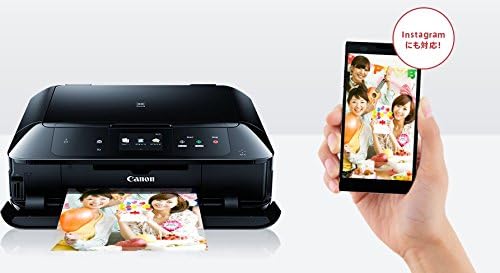
Figure 4.3: Printing photos wirelessly from a smartphone, highlighting Instagram compatibility.

Figure 4.4: Visual representation of PIXUS Cloud Link connectivity with various online services.
5. ጥገና
መደበኛ ጥገና የአታሚዎን ጥሩ አፈጻጸም እና ረጅም ጊዜ ያረጋግጣል።
5.1 የቀለም ካርቶጅ መተካት
When an ink cartridge runs low or is empty, a message will appear on the LCD screen. Replace cartridges as follows:
- Ensure the printer is on. Open the top cover.
- Press the tab on the empty cartridge to release it, then lift it out.
- Unpack a new genuine Canon BCI-371 or BCI-370 series ink cartridge.
- Insert the new cartridge into the correct slot and push down until it clicks.
- የላይኛውን ሽፋን ይዝጉ.
5.2 የህትመት ጭንቅላት ማጽዳት
If print quality declines (e.g., streaks, faded colors), perform a print head cleaning:
- From the printer's touch panel, navigate to "Setup" > "Maintenance" > "Cleaning".
- Follow the on-screen prompts to perform a standard or deep cleaning.
- Print a nozzle check pattern to verify improvement.
5.3 አጠቃላይ ጽዳት
- የአታሚውን ውጫዊ ገጽታ ለስላሳ, መamp፣ ከጥጥ ነፃ የሆነ ጨርቅ።
- Clean the scanner glass regularly with a glass cleaner and a soft cloth to prevent dust and smudges from affecting scan quality.
- Periodically clean the paper feed rollers using the maintenance option in the printer's menu to prevent paper jams.
6. መላ መፈለግ
This section addresses common issues you might encounter with your PIXUS MG7730 printer.
6.1 አታሚ ምላሽ አይሰጥም
- አታሚው መብራቱን ያረጋግጡ።
- የኃይል ገመዱ ደህንነቱ በተጠበቀ ሁኔታ መገናኘቱን ያረጋግጡ።
- Ensure the printer is properly connected to your computer or network (Wi-Fi status light should be on).
- Restart both the printer and your computer/router.
6.2 ደካማ የህትመት ጥራት
- የቀለም ደረጃውን ይፈትሹ እና ባዶ ወይም ዝቅተኛ ካርትሬጅዎችን ይተኩ።
- Perform a print head cleaning and nozzle check (refer to Section 5.2).
- Ensure you are using genuine Canon ink cartridges and appropriate paper types for your print settings.
- Align the print head if print quality issues persist.
6.3 የወረቀት ጃም
- ማተሚያውን ያጥፉ እና የኤሌክትሪክ ገመዱን ያላቅቁ.
- ሁሉንም ሽፋኖች በጥንቃቄ ይክፈቱ እና ማንኛውንም የተጨናነቀ ወረቀት ያስወግዱ, እንዳይቀደድ ቀስ ብለው ይጎትቱ.
- Check both front and rear paper trays, as well as the internal paper path.
- ወረቀቱ በትክክል መጫኑን እና ከመጠን በላይ መሙላቱን ያረጋግጡ።
- ሁሉንም ሽፋኖች ይዝጉ፣ የኃይል ገመዱን ይሰኩ እና አታሚውን ያብሩ።
6.4 የአውታረ መረብ ግንኙነት ጉዳዮች
- የ Wi-Fi ራውተርዎ በትክክል እየሰራ መሆኑን ያረጋግጡ።
- አታሚው በእርስዎ የWi-Fi ራውተር ክልል ውስጥ መሆኑን ያረጋግጡ።
- Re-enter your Wi-Fi password on the printer's touch panel.
- If using a direct connection, ensure your smart device's Wi-Fi is enabled and connected to the printer's direct connection network.
7. ዝርዝሮች
| ባህሪ | ዝርዝር መግለጫ |
|---|---|
| የሞዴል ስም | MG7730 |
| የምርት ስም | ቀኖና |
| የምርት ልኬቶች (D x W x H) | 37 x 43.5 x 14.8 ሴ.ሜ |
| የእቃው ክብደት | 9.32 ኪ |
| ቀለም | ጥቁር |
| የአታሚ ውፅዓት | ቀለም |
| የህትመት ቴክኖሎጂ | Inkjet (Photo Print, Document Print, Copy, Scan) |
| ከፍተኛው የህትመት ጥራት (ቀለም) | 9600 x 2400 ዲፒአይ |
| ከፍተኛ የህትመት ፍጥነት (ቀለም) | 10 ገጾች/ደቂቃ |
| ከፍተኛ የህትመት ፍጥነት (ሞኖ) | 15 ገጾች/ደቂቃ |
| የስካነር አይነት | ፎቶ |
| ከፍተኛው የሉህ አቅም | 125 ሉሆች |
| የሉህ መጠን | A4, Hagaki (Postcard) |
| Duplex ማተሚያ | አዎ (ራስ-ሰር) |
| የግንኙነት ቴክኖሎጂ | NFC፣ Wi-Fi |
| የገመድ አልባ አይነት | 802.11n |
| ተስማሚ መሣሪያዎች | ስማርትፎን ፣ ታብሌት |
| የቋሚ ማያ ገጽ ማሳያ መጠን | 3.5 ኢንች |
| ልዩ ባህሪያት | Wireless LAN (Wi-Fi), Memory card printing, Disc label printing, Wired LAN, LCD monitor, Automatic duplex printing, Smartphone compatible, Wi-Fi Direct, 2-stage paper tray |
| በአምራች ተቋርጧል | አይ |
8. ዋስትና እና ድጋፍ
Your Canon PIXUS MG7730 printer comes with a standard manufacturer's warranty. For detailed information regarding warranty terms, coverage, and duration, please refer to the warranty card included with your product or visit the official Canon webለክልልዎ ጣቢያ.
ለቴክኒክ ድጋፍ፣ ለአሽከርካሪ ውርዶች እና ለተጨማሪ ግብዓቶች፣ እባክዎን የ Canon ድጋፍን ይጎብኙ website or contact Canon customer service. Keep your product model number (MG7730) and serial number handy when seeking support.
ቀኖና ድጋፍ Webጣቢያ፡ global.canon/en/support/