1. መግቢያ
This manual provides essential information for setting up, operating, maintaining, and troubleshooting your HP 15-AY075NR Notebook. Please read this guide thoroughly to ensure proper use and to maximize the lifespan of your device. This notebook is designed for general computing tasks, featuring an Intel Core i3-5005U processor, 6GB of RAM, a 500GB HDD, and runs on Windows 10.
2. የጥቅል ይዘቶች
ማዋቀሩን ከመቀጠልዎ በፊት፣ ሁሉም እቃዎች በጥቅሉ ውስጥ መኖራቸውን ያረጋግጡ፦
- HP 15-AY075NR Notebook
- የ AC ኃይል አስማሚ እና የኃይል ገመድ
- ፈጣን ጅምር መመሪያ (ከተካተተ)
- የዋስትና መረጃ (ከተካተተ)
3. አካላዊ ከመጠን በላይview
Familiarize yourself with the main components and ports of your HP 15-AY075NR Notebook.
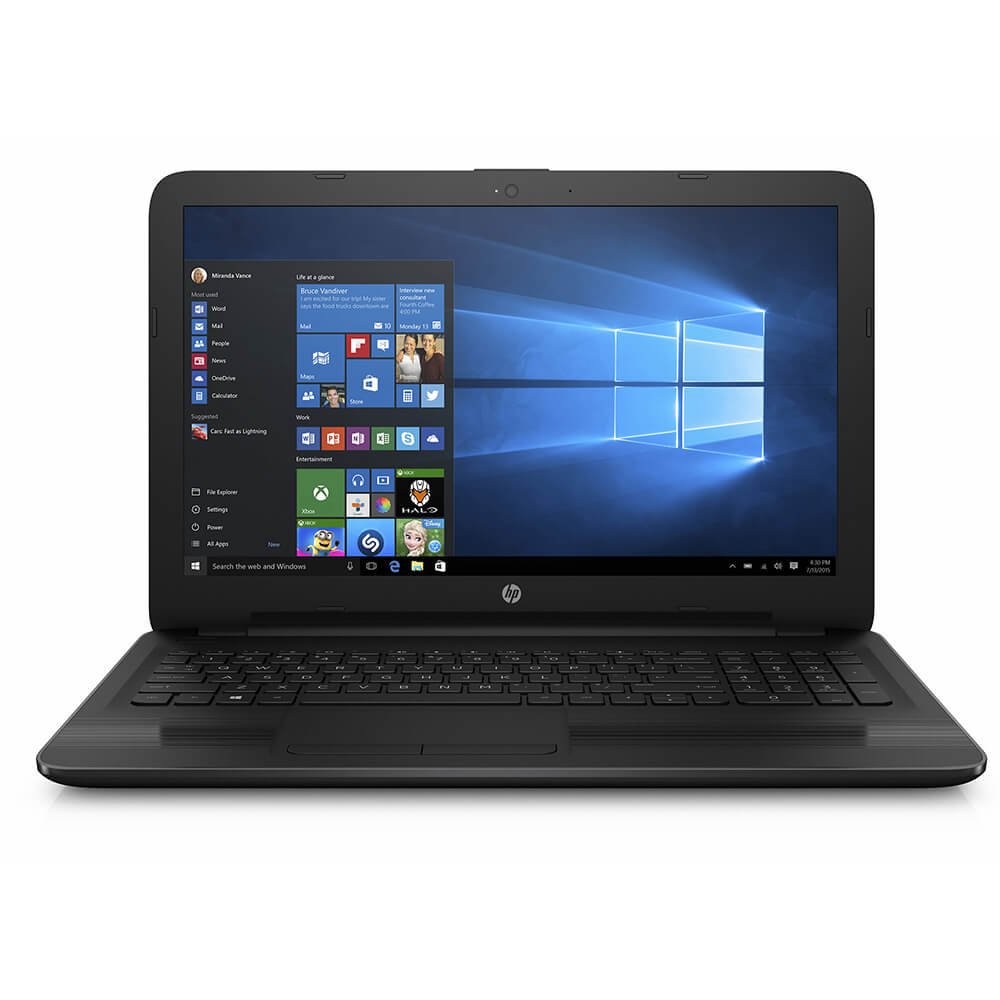
ምስል 3.1፡ ፊት ለፊት view of the HP 15-AY075NR Notebook. This image displays the laptop in a closed position, highlighting its sleek black design and overall form factor.
3.1. የግራ ጎን ወደቦች
- የኃይል አገናኝ: የ AC ኃይል አስማሚን ያገናኛል.
- ኤተርኔት (RJ-45) ወደብ፡ ለገመድ አውታረ መረብ ግንኙነት።
- የኤችዲኤምአይ ወደብ Connects to external displays or TVs.
- ዩኤስቢ 3.0 ወደብ ከተኳኋኝ መሣሪያዎች ጋር ለከፍተኛ ፍጥነት የውሂብ ማስተላለፍ።
- ዩኤስቢ 2.0 ወደብ ተጓዳኝ ክፍሎችን ለማገናኘት.
- የጆሮ ማዳመጫ/ማይክሮፎን ጥምር ጃክ፡ ለድምጽ ግብአት/ውፅዓት።
3.2. የቀኝ ጎን ወደቦች
- Optical Drive (DVD Super Multi): For reading and writing CDs/DVDs.
- ዩኤስቢ 2.0 ወደብ ተጓዳኝ ክፍሎችን ለማገናኘት.
- ኤስዲ ካርድ አንባቢ፡- የ SD ማህደረ ትውስታ ካርዶችን ለማንበብ.
3.3. የቁልፍ ሰሌዳ እና የመዳሰሻ ሰሌዳ
The notebook features a full-size island-style keyboard with a numeric keypad for efficient data entry. The multi-touch touchpad allows for precise cursor control and gesture-based navigation.
4. ማዋቀር
4.1. የኃይል አስማሚን ማገናኘት
- Connect the AC adapter to the power connector on the left side of the notebook.
- የኤሌክትሪክ ገመዱን መሬት ላይ ወዳለው የኤሌክትሪክ ሶኬት ይሰኩት።
- ባትሪው በራስ-ሰር መሙላት ይጀምራል። ለመጀመሪያ ጊዜ ከመጠቀምዎ በፊት ባትሪውን ሙሉ በሙሉ መሙላት ይመከራል።
4.2. የመጀመሪያ የኃይል ማብራት እና የዊንዶውስ 10 ማዋቀር
- Open the notebook lid and press the power button, typically located above the keyboard.
- Follow the on-screen instructions to complete the Windows 10 initial setup. This includes selecting your region, language, accepting license terms, creating a user account, and setting up network connections.
- Connect to a Wi-Fi network or use a wired Ethernet connection during setup to download necessary updates.
5. አሠራር
5.1. የኃይል አስተዳደር
- አብራ፡ የኃይል አዝራሩን ይጫኑ.
- ዝጋ፡ የጀምር አዝራሩን ጠቅ ያድርጉ፣ ከዚያ ኃይል > ዝጋ።
- የእንቅልፍ ሁኔታ: ክዳኑን ይዝጉ ወይም የጀምር አዝራሩን ጠቅ ያድርጉ፣ ከዚያ Power > Sleep የሚለውን ጠቅ ያድርጉ።
- እንደገና ጀምር፥ የጀምር አዝራሩን ጠቅ ያድርጉ፣ ከዚያ Power> ዳግም አስጀምር።
5.2. ከአውታረ መረቦች ጋር መገናኘት
- ዋይ ፋይ፡ Click the network icon in the taskbar, select your desired network, and enter the password if prompted.
- ባለገመድ (ኢተርኔት)፡- Connect an Ethernet cable from your router/modem to the Ethernet port on the notebook.
5.3. Using External Devices
- የዩኤስቢ መሣሪያዎች፡- የዩኤስቢ ድራይቮችን፣ አይጦችን ወይም ሌሎች ተጓዳኝ መሳሪያዎችን ወደ ዩኤስቢ 2.0 ወይም ዩኤስቢ 3.0 ወደቦች ያስገቡ።
- ውጫዊ ማሳያ Connect an HDMI cable from the notebook's HDMI port to an external monitor or TV. Press የዊንዶውስ ቁልፍ + ፒ to adjust display settings.
- ኤስዲ ካርዶች፡ Insert an SD card into the card reader slot until it clicks into place.
- Optical Discs: Press the eject button on the optical drive to open the tray. Place a CD or DVD onto the tray, label side up, and gently push the tray back in.
6. ጥገና
6.1. Cleaning the Notebook
- ለስላሳ፣ ከቆሸሸ ነፃ የሆነ ጨርቅ በትንሹ ተጠቀምampማሳያውን ለማፅዳት በውሃ ወይም በስክሪን ማጽጃ የታሸገ።
- ለቁልፍ ሰሌዳ እና ለሻሲ, ለስላሳ እና ደረቅ ጨርቅ ይጠቀሙ. ኃይለኛ ኬሚካሎችን ወይም ገላጭ ቁሳቁሶችን ያስወግዱ.
- ትክክለኛውን የአየር ፍሰት ለማረጋገጥ በየጊዜው ከአየር ማስወጫ አቧራ ለማጽዳት የታመቀ አየር ይጠቀሙ።
6.2. የባትሪ እንክብካቤ
- በተደጋጋሚ ባትሪውን ሙሉ በሙሉ ከመሙላት ይቆጠቡ።
- Store the notebook in a cool, dry place if not used for extended periods.
- If the battery is removable (check your specific model), ensure it is properly seated.
6.3. የሶፍትዌር ዝመናዎች
Regularly check for and install Windows updates and HP driver updates to ensure optimal performance and security. Access Windows updates via መቼቶች > አዘምን እና ደህንነት > የዊንዶውስ ዝመና.
7. መላ መፈለግ
7.1. No Power / Does Not Turn On
- የኤሲ አስማሚው ከላፕቶፕ እና ከሚሰራ የኃይል መውጫ ጋር ደህንነቱ በተጠበቀ ሁኔታ መገናኘቱን ያረጋግጡ።
- ሌላ መሳሪያ በመጫን የኃይል ማከፋፈያው የሚሰራ መሆኑን ያረጋግጡ።
- ባትሪው ሙሉ በሙሉ ከተለቀቀ, ለማብራት ከመሞከርዎ በፊት ቢያንስ ለ 15-30 ደቂቃዎች እንዲሞላ ይፍቀዱለት.
7.2. Blank or Black Screen
- Ensure the notebook is powered on.
- Connect an external monitor to the HDMI port to check if the display output works. If it does, the internal display may have an issue.
- Try adjusting the screen brightness using the function keys (e.g., Fn+F2/F3 or similar, depending on your keyboard layout).
7.3. የWi-Fi ግንኙነት ጉዳዮች
- Ensure Wi-Fi is enabled (check the wireless key or function key, e.g., Fn + F12).
- የእርስዎን ራውተር እና ሞደም እንደገና ያስጀምሩ።
- የዊንዶውስ አውታረ መረብ መላ ፈላጊውን ያሂዱ (ቅንብሮች > አውታረ መረብ እና በይነመረብ > ሁኔታ > የአውታረ መረብ መላ ፈላጊ).
8. ዝርዝሮች
| ባህሪ | ዝርዝር መግለጫ |
|---|---|
| ሞዴል | 15-AY075NR (X0H79UA#ABA) |
| ፕሮሰሰር | Intel Core i3-5005U (2.0 GHz, Dual Core) |
| ራም | 6 GB DDR3L-1600 SDRAM |
| ማከማቻ | 500 ጊባ HDD (5400 RPM) |
| ግራፊክስ | ኢንቴል ኤችዲ ግራፊክስ (የተቀናጀ) |
| ማሳያ | 15.6 ኢንች ኤችዲ ኤስቪኤ ብራይትView WLED-backlit (1366 x 768) |
| ስርዓተ ክወና | ዊንዶውስ 10 |
| የገመድ አልባ ግንኙነት | Intel 802.11a/b/g/n/ac (1x1) Wi-Fi, Bluetooth 4.0 |
| ወደቦች | 1x USB 3.0, 2x USB 2.0, 1x HDMI, 1x RJ-45, 1x Headphone/Mic Combo, 1x Multi-format SD Media Card Reader |
| ኦፕቲካል ድራይቭ | ዲቪዲ ሱፐር መልቲ |
| የባትሪ ህይወት (አማካይ) | 6.25 ሰዓታት |
| ክብደት | 4.73 ፓውንድ |
| ልኬቶች (LxWxH) | 24 x 4 x 14 ኢንች (የምርት ልኬቶች) |
9. ዋስትና እና ድጋፍ
Your HP 15-AY075NR Notebook is covered by a standard manufacturer's warranty. For specific warranty terms and conditions, please refer to the documentation included with your product or visit the official HP support website. HP provides technical support, driver downloads, and troubleshooting resources online.
For further assistance, please visit the official HP Support webጣቢያ፡ ድጋፍ.hp.com