1. መግቢያ
This manual provides instructions for the Apple TV (32GB, 4th Generation), a digital media player developed by Apple Inc. It allows users to access digital content from various sources, including streaming services, apps, and AirPlay from Apple devices. This guide covers setup, operation, maintenance, and troubleshooting to ensure optimal use of your device.
በሣጥኑ ውስጥ ያለው
- Apple TV (32GB, 4th generation)
- Siri የርቀት መቆጣጠሪያ
- የኃይል ገመድ
- Lightning to USB Cable (for remote charging)
An HDMI cable (sold separately) is required to connect the Apple TV to your television.
2. ማዋቀር
2.1 Connecting Your Apple TV
- የግንኙነት ኃይል; Plug one end of the power cord into the power port on the back of the Apple TV and the other end into a power outlet.
- ከቲቪ ጋር ይገናኙ፡ Use an HDMI cable (not included) to connect the HDMI port on the back of the Apple TV to an HDMI input on your television. Note: Ensure the HDMI cable is fully engaged to prevent signal issues.
- ከአውታረ መረብ ጋር ይገናኙ (አማራጭ)፦ For a wired internet connection, connect an Ethernet cable from your router to the Ethernet port on the back of the Apple TV. For Wi-Fi, you will configure this during the on-screen setup.
- አብራ፡ Turn on your television and select the correct HDMI input. The Apple TV should power on automatically.

ምስል 2.1፡ የኋላ view of the Apple TV showing the power, USB-C, HDMI, and Ethernet ports for connections.
2.2 Initial Setup with Siri Remote
- Pair Siri Remote: If the Siri Remote does not automatically pair, press and hold the ምናሌ እና የድምጽ መጠን መጨመር አዝራሮች ለ 5 ሰከንዶች.
- ቋንቋ እና ክልል፡- ቋንቋዎን እና ክልልዎን ለመምረጥ የማያ ገጽ ላይ መመሪያዎችን ይከተሉ።
- Quick Setup with iOS Device: If you have an iPhone or iPad, bring it close to the Apple TV when prompted. Your device will offer to transfer Wi-Fi settings and Apple ID information automatically.
- በእጅ ማዋቀር፡- If not using an iOS device, manually select your Wi-Fi network and enter your Apple ID credentials using the Siri Remote.
- የተሟላ ማዋቀር; Continue following the on-screen prompts to enable location services, Siri, and other preferences.
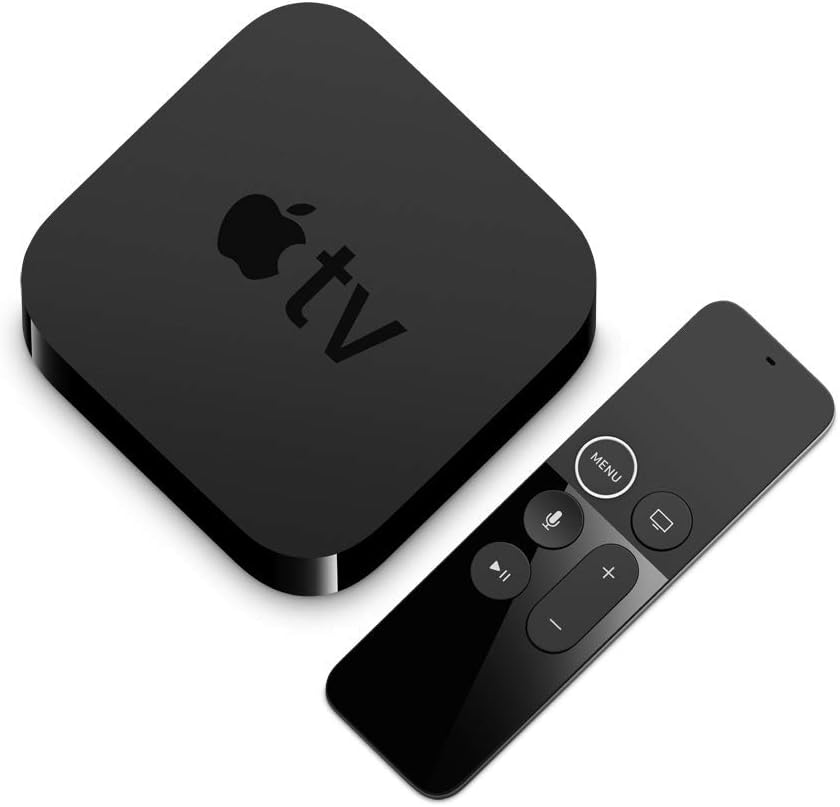
ምስል 2.2፡ The Apple TV unit and its accompanying Siri Remote, used for navigation and control.
3. Operating Your Apple TV
3.1 Siri Remote Functions
The Siri Remote features a touch surface for navigation and dedicated buttons for various functions:
- Touch Surface: Swipe to navigate, click to select.
- የምናሌ አዝራር፡- Go back to the previous screen or return to the Home screen (hold).
- TV/Home Button: Go to the TV app or Home screen (single press), open App Switcher (double press), or activate Control Center (hold).
- Siri Button: Press and hold to activate Siri for voice commands and search.
- አጫውት/አፍታ አቁም አዝራር፡- የሚዲያ መልሶ ማጫወትን ይቆጣጠሩ።
- የድምጽ አዝራሮች፡- Control your TV's volume (requires TV setup).
3.2 ቁልፍ ባህሪያት
- 1080p HD ቪዲዮ፡ Enjoy high-quality video content.
- Dolby Digital Plus 7.1 Surround Sound: አስማጭ ድምጽ ይለማመዱ።
- Apple TV+ Access: Watch original stories from Apple TV+.
- Apple Arcade: Play groundbreaking games.
- ኤርፕሌይ፡ Stream photos and videos from your iPhone or iPad to your TV.
- የሲሪ ድምጽ ቁጥጥር፡- ፈልግ movies, shows, and games using voice commands.
4. ጥገና
4.1 Cleaning Your Apple TV and Siri Remote
- Unplug the Apple TV from the power outlet before cleaning.
- Use a soft, lint-free cloth to wipe the exterior of the Apple TV and Siri Remote.
- Avoid using abrasive cleaners, solvents, or aerosol sprays, as these can damage the finish.
- Do not allow moisture to get into any openings.
4.2 Siri Remote Battery
The Siri Remote contains a rechargeable lithium-ion battery. To charge, connect the remote to a power source using the included Lightning to USB cable.
5. መላ መፈለግ
5.1 No Picture or Signal
- Ensure the Apple TV is properly connected to power and turned on.
- Verify the HDMI cable is securely connected to both the Apple TV and your television. Try a different HDMI port on your TV or a different HDMI cable.
- Confirm your TV is set to the correct HDMI input source.
- Restart your Apple TV by unplugging it from power for 30 seconds, then plugging it back in.
5.2 Siri Remote Not Responding
- Ensure the remote is charged. Connect it to power using the Lightning to USB cable.
- Point the remote at the Apple TV and press any button.
- If the remote is still unresponsive, try re-pairing it by holding the ምናሌ እና የድምጽ መጠን መጨመር አዝራሮች ለ 5 ሰከንዶች.
- Restart the Apple TV (unplug and replug power).
5.3 የአውታረ መረብ ግንኙነት ጉዳዮች
- ራውተርዎን እና ሞደምዎን በትክክል እየሰሩ መሆናቸውን ለማረጋገጥ ያረጋግጡ።
- For Wi-Fi, go to ቅንብሮች > አውታረ መረብ on your Apple TV to verify your connection and re-enter Wi-Fi password if necessary.
- ለኤተርኔት፣ ገመዱ ደህንነቱ በተጠበቀ ሁኔታ መገናኘቱን ያረጋግጡ።
- Restart your router, modem, and Apple TV.
6. ዝርዝሮች
| የሞዴል ቁጥር | MR912LL/A |
| የማከማቻ አቅም | 32 ጊባ |
| ልኬቶች (H x W x D) | 1.4 ኢንች x 3.9 ኢንች x 3.9 ኢንች (35 ሚሜ x 98 ሚሜ x 98 ሚሜ) |
| ክብደት | 0.94 ፓውንድ (425 ግ) |
| የቪዲዮ ውፅዓት | HDMI 1.4 |
| የቪዲዮ ጥራት | እስከ 1080 ፒ |
| የድምጽ ውፅዓት | Dolby Digital Plus 7.1 surround sound |
| ግንኙነት | 802.11ac Wi-Fi with MIMO, Ethernet, Bluetooth 4.0 |
| ወደቦች | HDMI, Ethernet, USB-C (for service and support) |
| Siri Remote Battery | ዳግም-ተሞይ ሊቲየም-አዮን |
ማስታወሻ-ዝርዝር መግለጫዎች ያለ ማስታወቂያ ሊለወጡ ይችላሉ ፡፡
7. የዋስትና መረጃ
Your Apple TV (32GB, 4th Generation) is covered by a one-year limited warranty from the date of original retail purchase. This warranty covers manufacturing defects in materials and workmanship. It does not cover damage caused by accidents, misuse, unauthorized modifications, or normal wear and tear.
For complete details regarding the warranty terms and conditions, please refer to the official Apple warranty documentation included with your product or visit the Apple Support webጣቢያ.
8. ድጋፍ
For additional assistance, technical support, or service, please contact Apple Support through the following resources:
- የመስመር ላይ ድጋፍ Visit the official Apple Support webጣቢያ፡ ድጋፍ.apple.com
- የማህበረሰብ መድረኮች፡ Engage with other Apple users and experts: ውይይቶች.apple.com
- አፕል መደብር፡ Visit an authorized Apple Store for in-person assistance.
Please have your product's serial number ready when contacting support. The serial number can be found on the bottom of your Apple TV device or in the Settings menu on the device itself.


