1. መግቢያ
This manual provides detailed instructions for the setup, operation, and maintenance of your Waveshare 13.3-inch Capacitive Touch Screen LCD (V1). This display features a 1920x1080 resolution, HDMI input, IPS panel for wide viewing angles, and a durable toughened glass cover. Please read this manual thoroughly before using the product to ensure proper functionality and longevity.
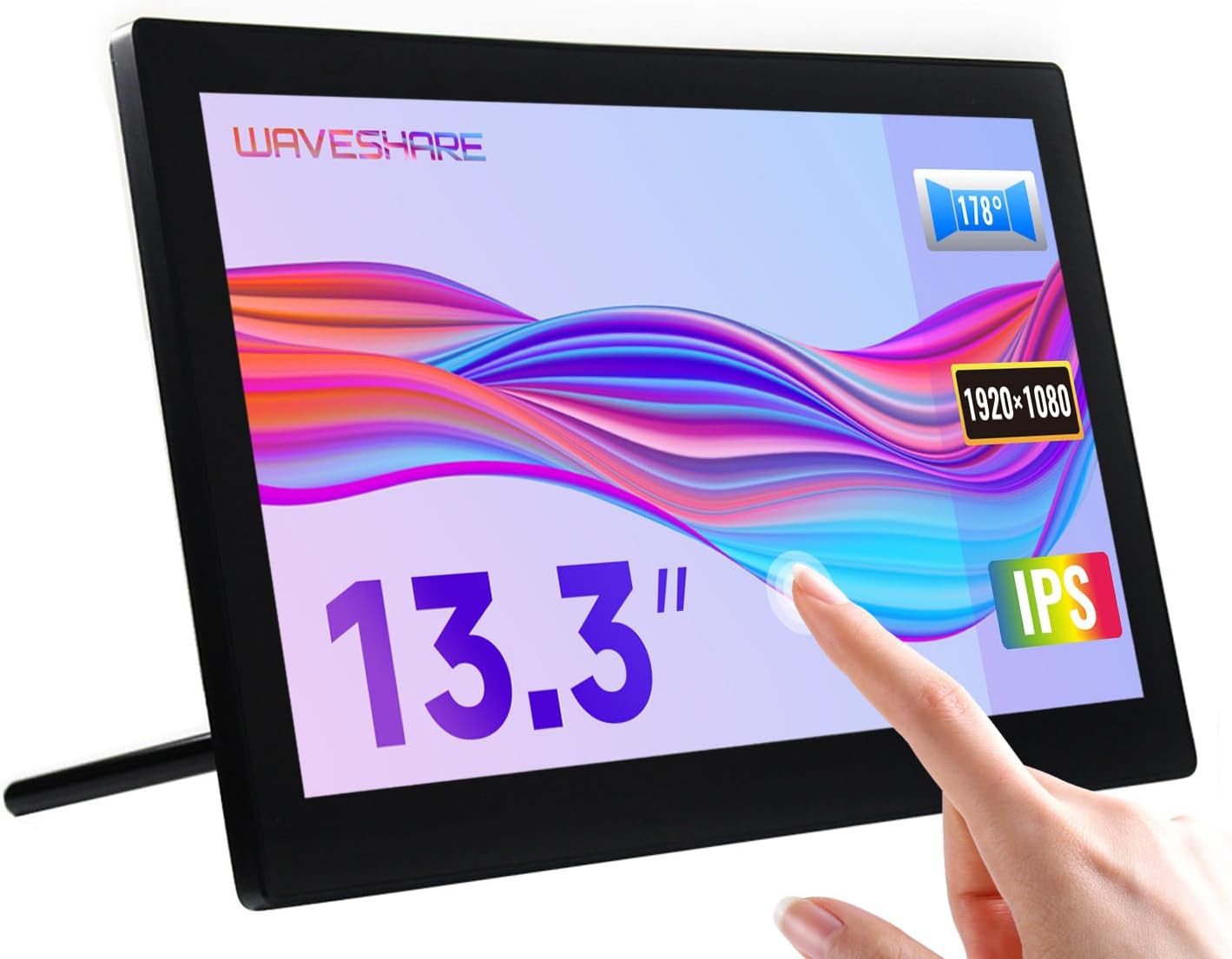
Image 1.1: The Waveshare 13.3-inch Capacitive Touch Screen LCD, showcasing its touch functionality and sleek design.
2. የደህንነት መረጃ
- የኃይል አቅርቦቱን ጥራዝ ያረጋግጡtage matches the product's requirements to prevent damage.
- Avoid exposing the display to extreme temperatures, humidity, or direct sunlight.
- ክፍሉን አይበታተኑ. ሁሉንም አገልግሎቶች ብቁ ለሆኑ ባለሙያዎች ያመልክቱ።
- Keep the screen away from strong magnetic fields.
- Handle with care to avoid dropping or impacting the screen, especially the toughened glass panel.
3. የጥቅል ይዘቶች
ሁሉም እቃዎች በጥቅሉ ውስጥ መኖራቸውን ያረጋግጡ፡-
- Waveshare 13.3-inch HDMI LCD (H) Display
- የኃይል አስማሚ
- HDMI ገመድ
- USB-A to Micro-USB Cable (for touch functionality)
- የተጠቃሚ መመሪያ (ይህ ሰነድ)
4. ምርት አብቅቷልview
4.1. ባህሪያት
- 13.3-inch IPS panel with 1920x1080 resolution.
- Capacitive 10-point touch control (operating system dependent).
- Toughened glass panel with up to 6H hardness.
- HDMI and VGA display interfaces.
- Built-in Hi-Fi speakers and 3.5mm audio jack.
- Supports various devices including Raspberry Pi, Jetson Nano, PCs, and game consoles.
- Integrated case with a 75° back stand and VESA mounting holes (75x75mm).

Image 4.1: Detailed features and system compatibility of the display.
4.2. የአካል ክፍሎች
The display includes various ports and control buttons:
- VGA Display Port: For video input via VGA.
- የኤችዲኤምአይ ወደብ For video input via HDMI.
- 3.5ሚሜ ኦዲዮ ጃክ፡ ለድምጽ ውፅዓት።
- Touch Port (USB): For connecting the touch functionality to your device.
- 12V የኃይል ግቤት; የኃይል አስማሚውን ለማገናኘት.
- የኋላ አዝራሮች፡ Power, direction controls, and Menu/Enter/Return buttons for OSD navigation.

ምስል 4.2፡ የኋላ view of the display with ports and a Raspberry Pi connection exampለ.
5. የማዋቀር መመሪያዎች
5.1. የመጀመሪያ ግንኙነት
- ቪዲዮ ያገናኙ፡ Use the provided HDMI cable to connect the display's HDMI port to your source device (e.g., Raspberry Pi, PC). If using VGA, connect a VGA cable.
- Connect Touch (USB): Connect the USB-A to Micro-USB cable from your source device's USB port to the display's Touch Port. This enables touch functionality.
- የግንኙነት ኃይል; Plug the power adapter into the display's 12V Power Input, then connect it to a power outlet.
- አብራ፡ Press the power button on the back of the display. The screen should illuminate and display content from your source device.

Image 5.1: Display showing a Windows desktop after successful connection.
5.2. ግንኙነት Exampሌስ
The display supports various connection configurations:
- Working with Raspberry Pi 4: Connect HDMI for video and USB for touch. Power the display with its 12V adapter.
- Working with Raspberry Pi Zero W: Requires additional mini HDMI adapter and USB cable. Connect mini HDMI for video and USB for touch. Power the display with its 12V adapter.
- Working with AI Computer Jetson Nano: Connect HDMI for video and USB for touch. Power the display with its 12V adapter.
- Working with Mini PC: Connect HDMI for video and USB for touch. Power the display with its 12V adapter.

Image 5.2: Visual guide for connecting the display to different devices.
6. የአሠራር መመሪያዎች
6.1. በስክሪን ላይ ማሳያ (OSD) ምናሌ
The OSD menu allows you to adjust display settings such as brightness, contrast, and input source. Use the back buttons (direction controls and Menu/Enter/Return) to navigate and select options.
- የሚለውን ይጫኑ MENU የ OSD ሜኑ ለመክፈት አዝራር።
- የሚለውን ተጠቀም አቅጣጫ በምናሌ አማራጮች ውስጥ ለማሰስ አዝራሮች።
- ተጫን MENU again (or the designated Enter button) to select an option or confirm a setting.
- የሚለውን ተጠቀም ተመለስ button to go back or exit the menu.
6.2. Displaying Content
Once connected and powered on, the display will automatically detect the active video input. Ensure your source device is outputting video to the selected HDMI or VGA port.

Image 6.1: The display showing multimedia content from a web አሳሽ.
6.3. የንክኪ መቆጣጠሪያ
The display features capacitive 10-point touch control. Ensure the USB touch cable is connected to your source device for touch functionality. Driver-free operation is supported on most compatible operating systems.

Image 6.2: Illustration of touch control and audio features.
6.4. የኦዲዮ ውፅዓት
The display includes built-in Hi-Fi speakers for audio output. Alternatively, you can connect external speakers or headphones to the 3.5mm audio jack for private listening or higher quality audio.
7. Device & System Support
The Waveshare 13.3-inch display offers broad compatibility:
- ራስቤሪ ፒ፡ Supports all versions of Raspberry Pi.
- Supports Raspberry Pi OS, 10-point touch, driver free.
- Supports Ubuntu / Kali / WIN10 IoT, single point touch, driver free.
- Supports Retropie, driver free.
- Jetson Nano: Supports Ubuntu, single point touch, driver free.
- ፒሲ፡ Supports Windows 11 / 10 / 8.1 / 8 / 7, 10-point touch, driver free.
- የጨዋታ ኮንሶሎች፡ Supports Xbox360, PS4, Switch (display and sound only).

ምስል 7.1፡ አልቋልview of supported devices and operating systems.
8. ጥገና
- ማያ ገጹን ማጽዳት; ለስላሳ፣ ከቆሸሸ ነፃ የሆነ ጨርቅ በትንሹ ተጠቀምampበውሃ ወይም በስክሪን ማጽጃ መፍትሄ የተሸፈነ. ኃይለኛ ኬሚካሎችን ወይም ገላጭ ቁሳቁሶችን ያስወግዱ.
- አጠቃላይ እንክብካቤ Keep the display free from dust. When not in use for extended periods, consider covering it to prevent dust accumulation.
- ማከማቻ፡ Store the display in a cool, dry place, away from direct sunlight and extreme temperatures.
9. መላ መፈለግ
| ችግር | ሊሆን የሚችል ምክንያት | መፍትሄ |
|---|---|---|
| ማሳያ የለም/ጥቁር ማያ ገጽ የለም |
|
|
| Touch not working |
|
|
| ኦዲዮ የለም |
|
|
10. ዝርዝሮች
| ባህሪ | ዝርዝር |
|---|---|
| የስክሪን መጠን | 13.3 ኢንች |
| ጥራት | 1920x1080 (ኤፍኤችዲ 1080 ፒ) |
| የማሳያ ፓነል | አይፒኤስ |
| Viewማእዘን | 178° |
| የንክኪ ዓይነት | Capacitive, 10-point touch |
| Touch Panel Hardness | Up to 6H Toughened Glass |
| ማሳያ በይነገጽ። | HDMI, VGA |
| የድምጽ ውፅዓት | Built-in Hi-Fi Speakers, 3.5mm Audio Jack |
| የኃይል ግቤት | 12 ቪ ዲ.ሲ |
| የምርት ልኬቶች (LxWxH) | 7.09 x 3.94 x 3.54 ኢንች (180 x 100 x 90 ሚሜ በግምት) |
| የእቃው ክብደት | 2.2 ፓውንድ (1 ኪግ በግምት) |
| የማቀፊያ ቁሳቁስ | ፖሊካርቦኔት / ኤቢኤስ |

Image 10.1: Physical dimensions of the display.
11. ዋስትና እና ድጋፍ
Waveshare products are designed for reliability and performance. For warranty information, technical support, or further assistance, please visit the official Waveshare webጣቢያ ወይም በቀጥታ የደንበኛ አገልግሎታቸውን ያግኙ። ለዋስትና ጥያቄዎች የግዢ ደረሰኝዎን እንደ ግዢ ማረጋገጫ ያቆዩት።
Official Waveshare Webጣቢያ፡ www.waveshare.com


