1. መግቢያ
This manual provides detailed instructions for the HP DeskJet 3762 multifunction printer. The HP DeskJet 3762 is a compact all-in-one device designed for printing, scanning, and copying. It supports Wi-Fi and AirPrint for convenient wireless operation and is compatible with HP Instant Ink services.
ቁልፍ ባህሪያት የሚከተሉትን ያካትታሉ:
- Compact design, making it one of the smallest all-in-one printers.
- Economical and easy-to-use multifunctionality with high-quality output.
- Wireless printing from smartphones, tablets, and the HP Smart app.
- Support for HP Instant Ink, offering potential savings on ink costs.
- Print speeds of up to 8 pages per minute (ppm) for black/white and 5.5 ppm for color.
- High print resolution of up to 4800 x 1200 dpi.
2. የማዋቀር መመሪያ
2.1 Unboxing እና የመጀመሪያ አቀማመጥ
Carefully remove the printer from its packaging. Ensure all protective tapes and packing materials are removed from the exterior and interior of the printer. Place the printer on a stable, flat surface with adequate space for paper input and output.
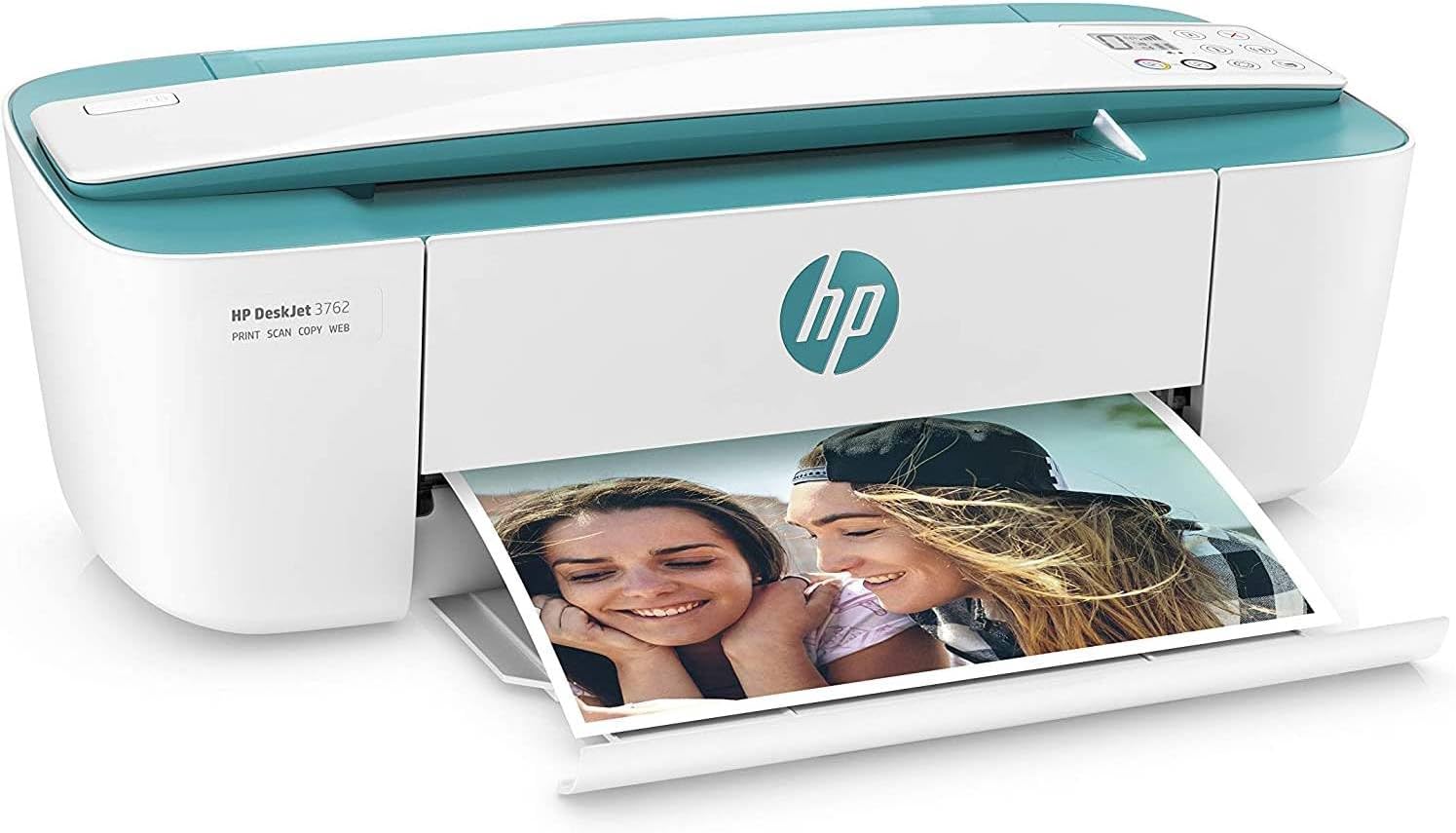
Image: The HP DeskJet 3762 multifunction printer, showcasing የታመቀ ዲዛይን እና ፎቶ እየታተመ ነው።
2.2 የኃይል ግንኙነት
የኃይል ገመዱን ከአታሚው ጋር እና ከዚያም ከግድግዳ ሶኬት ጋር ያገናኙ። አታሚውን ለማብራት የኃይል ቁልፉን ይጫኑ።
2.3 የቀለም ካርቶጅ መትከል
Open the ink cartridge access door. Wait for the carriage to move to the center. Install the HP 304 black and HP 304 color ink cartridges into their respective slots. Close the access door.

Image: HP Instant Ink packaging alongside HP 304 black and color ink cartridges, which are compatible with the DeskJet 3762.
2.4 የወረቀት ጭነት
ተራ ነጭ ወረቀት ወደ ግብዓት ትሪው ውስጥ ያስገቡ። የወረቀት መመሪያዎቹን ከወረቀቱ መጠን ጋር እንዲመጣጠን ያስተካክሉ።
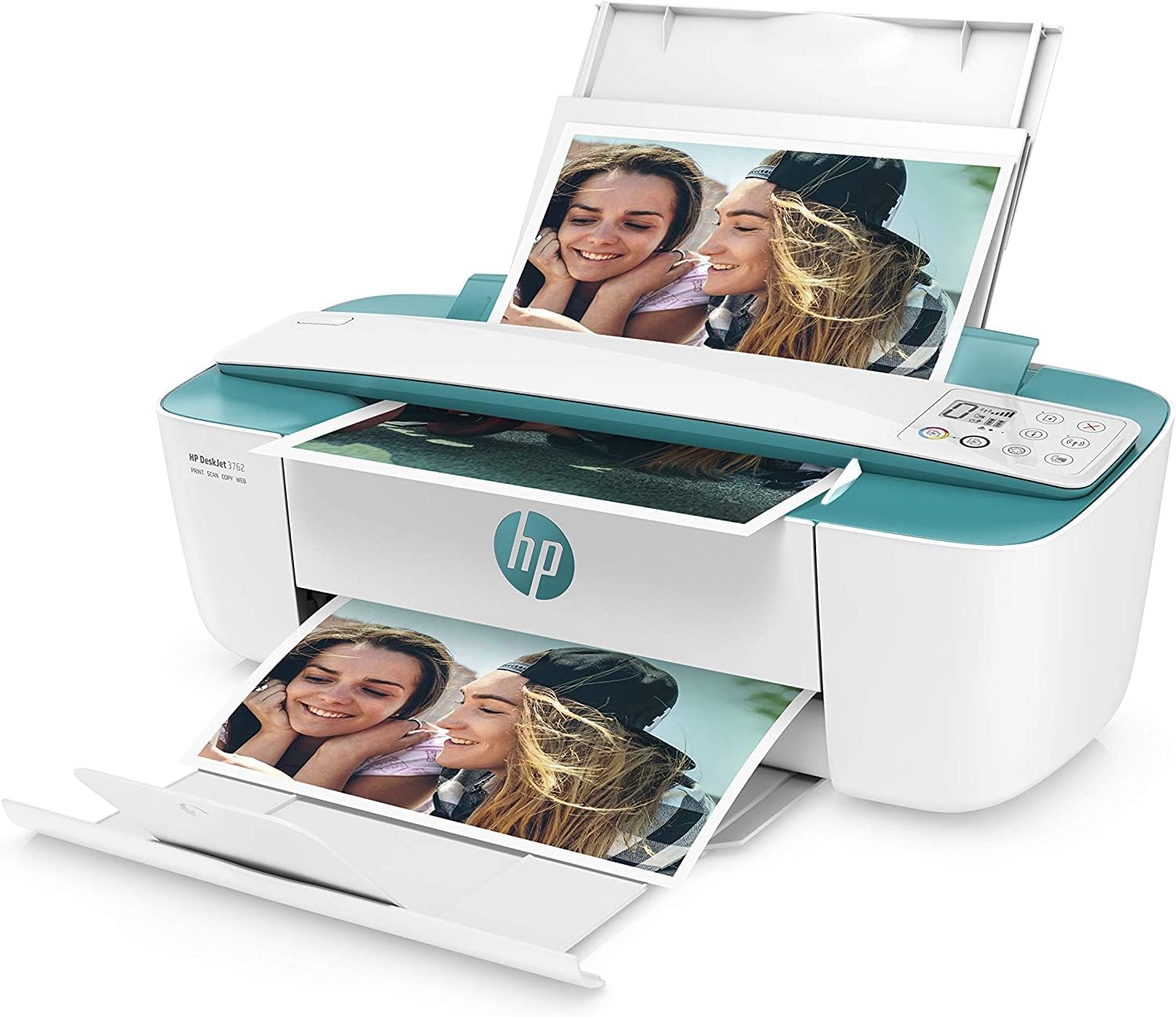
Image: The HP DeskJet 3762 printer with paper loaded in the input tray, ready for printing, and a document exiting the output tray.
2.5 Software and Wireless Setup
Download and install the HP Smart app on your computer or mobile device. Follow the on-screen instructions in the app to connect your printer to your Wi-Fi network. The app will guide you through the wireless setup process, enabling features like mobile printing and ink level monitoring.

Image: A smartphone displaying the HP Smart app interface, highlighting features such as easy printer installation, ink level monitoring, mobile printing, and on-the-go scanning.
3. የአሠራር መመሪያዎች
3.1 ማተም
To print from a computer, ensure the printer drivers are installed. Select 'Print' from your document or application, choose the HP DeskJet 3762, and adjust settings as needed. For mobile printing, use the HP Smart app or AirPrint (for Apple devices) to send documents or photos directly to the printer over Wi-Fi.

Image: The HP DeskJet 3762 printer positioned on a desk, actively printing documents, with a laptop nearby, illustrating a typical home office setup.
3.2 በመቃኘት ላይ
Place the document or photo face down on the scanner glass. Use the HP Smart app on your computer or mobile device to initiate a scan. Select scan settings such as resolution and file type, then save the scanned image to your desired location.
3.3 መቅዳት
Place the original document face down on the scanner glass. On the printer's control panel, press the copy button (often indicated by a document icon). You may press it multiple times for multiple copies. The printer will automatically scan and print the copy.

ምስል: ዝርዝር view of the HP DeskJet 3762 printer's control panel, showing the power button, Wi-Fi indicator, ink level display, and function buttons for copy, scan, and cancel.
4. ጥገና
4.1 የቀለም ካርትሬጅ መተካት
When an ink cartridge is low or empty, the printer's display or the HP Smart app will indicate it. Purchase genuine HP 304 replacement cartridges. Follow the installation steps outlined in Section 2.3 to replace them.
4.2 ማተሚያውን ማጽዳት
Periodically wipe the exterior of the printer with a soft, lint-free cloth. For print quality issues, use the printer software or HP Smart app to perform printhead cleaning or alignment routines.
5. መላ መፈለግ
5.1 የግንኙነት ጉዳዮች
- አታሚ ከWi-Fi ጋር አልተገናኘም፦ Ensure your printer is within range of your router. Restart both the printer and your router. Use the HP Smart app to re-establish the wireless connection.
- Cannot print from mobile device: Verify that your mobile device is connected to the same Wi-Fi network as the printer. Ensure the HP Smart app is updated.
5.2 Print Quality Problems
- Faded or streaky prints: Check ink levels. Perform a printhead cleaning cycle through the HP Smart app or printer software.
- ትክክል ያልሆኑ ቀለሞች፡ Ensure genuine HP ink cartridges are used. Run a printhead alignment.
5.3 የወረቀት ጃም
If a paper jam occurs, carefully open all access doors and remove any jammed paper. Avoid tearing the paper, as small pieces can remain and cause further issues. Refer to the printer's internal diagrams for specific jam clearance points.
6. ዝርዝሮች
| ባህሪ | ዝርዝር |
|---|---|
| የምርት ስም | HP |
| የሞዴል ስም | HP Deskjet 3762 |
| የምርት ልኬቶች | 7.9D x 17.7W x 5.9H ሴንቲሜትር |
| የግንኙነት ቴክኖሎጂ | ዩኤስቢ፣ WLAN |
| የህትመት ቴክኖሎጂ | Inkjet |
| ልዩ ባህሪ | Automatic Duplexing (Note: Product specifications state 'Non' for Duplexage automatique, but feature bullets mention 'Duplexage automatique'. Please verify with product documentation.) |
| ቀለም | ጥቁር አረንጓዴ |
| የአታሚ ውፅዓት | ቀለም |
| ከፍተኛ የህትመት ፍጥነት (ቀለም) | 5.5 ገጾች በደቂቃ |
| ከፍተኛ የህትመት ፍጥነት (ሞኖክሮም) | 8 ገጾች በደቂቃ |
| የእቃው ክብደት | 2.33 ኪ |
| ከፍተኛ የሚዲያ መጠን | A4 |
| የተካተቱ አካላት | HP Deskjet 3762 All-in-One Inkjet Multifunction Printer |
| የስካነር አይነት | ጠፍጣፋ አልጋ |
| ከፍተኛው የሉህ አቅም | 60 |
| ተስማሚ መሣሪያዎች | ስማርትፎን ፣ ታብሌት |
| ከፍተኛ የቀለም ህትመት ጥራት | 4800 x 1200 ዲፒአይ |
| ከፍተኛው ጥቁር እና ነጭ የህትመት ጥራት | 4800 x 1200 ዲፒአይ |
| ኃይል | 50 ዋት |
| ስርዓተ ክወና | Mac OS X 10.6 Snow Leopard (and newer) |
| ጠቅላላ የዩኤስቢ ወደቦች | 1 |
7. ዋስትና እና ድጋፍ
For warranty information and technical support, please refer to the documentation included with your printer or visit the official HP support webጣቢያ። እዚያ ለደንበኛ አገልግሎት የሚሆኑ አሽከርካሪዎችን፣ የመላ ፍለጋ መመሪያዎችን እና የእውቂያ መረጃዎችን ማግኘት ይችላሉ።
የ HP ድጋፍ Webጣቢያ፡ https://support.hp.com