1. መግቢያ
This manual provides essential information for the proper use and maintenance of your Zentality C-710 10-inch Dual SIM Tablet. Please read this guide thoroughly before operating the device to ensure optimal performance and longevity. Keep this manual for future reference.
2. ምርት አብቅቷልview
The Zentality C-710 is a 10-inch Android tablet designed for communication and multimedia. It features dual SIM card support for cellular connectivity, a Quad-Core processor, 1GB RAM, and 16GB of internal storage. The device includes front and rear cameras, Bluetooth, and a vibrant IPS LCD display.
2.1 የመሣሪያ ክፍሎች
Familiarize yourself with the tablet's physical features and controls.

ምስል 1፡ ከፊት እና ከኋላ view of the Zentality C-710 Tablet, showing the screen, cameras, and rear casing.
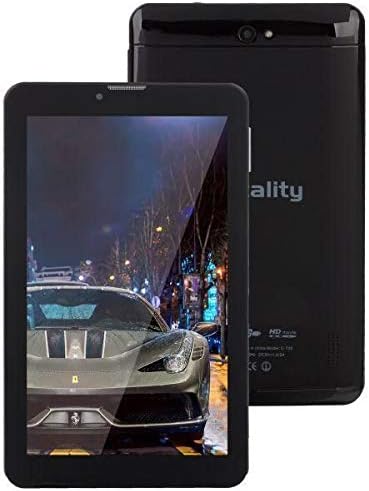
ምስል 2፡ ፊት ለፊት view of the Zentality C-710 Tablet with the screen displaying an image, highlighting the display area.
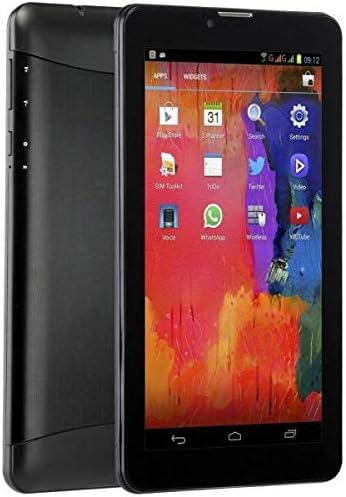
ምስል 3፡ ጎን view of the Zentality C-710 Tablet, illustrating the placement of physical buttons and ports.
3. ማዋቀር
3.1 ባትሪውን መሙላት
Before first use, fully charge the tablet's battery. Connect the provided charger to the tablet's charging port and plug it into a power outlet. The battery indicator on the screen will show charging status. A full charge typically takes several hours.
3.2 ሲም ካርዶችን ማስገባት
The Zentality C-710 supports dual SIM cards for cellular network access. Locate the SIM card slot(s) on the side or back of the tablet. Carefully insert your standard or micro SIM cards into the designated slots, ensuring they are correctly oriented as indicated by the diagram near the slot. Close the tray securely.
3.3 የማይክሮ ኤስዲ ካርድ ማስገባት
To expand storage, insert a microSD card (up to 32GB, not included) into the dedicated slot. Ensure the card is oriented correctly before gently pushing it in until it clicks into place.
3.4 ማብራት / ማጥፋት
To power on, press and hold the Power button until the Zentality logo appears. To power off, press and hold the Power button until the power options menu appears, then select 'Power off'.
3.5 የመጀመሪያ ማዋቀር
Upon first power-on, follow the on-screen prompts to select your language, connect to a Wi-Fi network, set up your Google account, and configure other basic settings.
4. አሠራር
4.1 Touchscreen Gestures
Navigate your tablet using standard Android touchscreen gestures:
- መታ ያድርጉ፡ አንድ ንጥል ይምረጡ ወይም መተግበሪያ ይክፈቱ።
- መታ ያድርጉ እና ይያዙ: የአውድ ምናሌዎችን ይድረሱ ወይም አዶዎችን ያንቀሳቅሱ።
- ያንሸራትቱ በስክሪኖች ወይም ዝርዝሮች ውስጥ ይሸብልሉ.
- መቆንጠጥ ምስሎችን አሳንስ ወይም አሳንስ እና web ገጾች.
4.2 ከ Wi-Fi ጋር በመገናኘት ላይ
ወደ ሂድ ቅንብሮች > አውታረ መረብ እና በይነመረብ > Wi-Fi. Turn Wi-Fi on, then select your desired network from the list and enter the password if required.
4.3 ከብሉቱዝ መሳሪያዎች ጋር መገናኘት
ወደ ሂድ መቼቶች > የተገናኙ መሣሪያዎች > ብሉቱዝ. Turn Bluetooth on, then select 'Pair new device' and choose your device from the list to connect.
4.4 Making Calls (3G)
With an active SIM card, you can make and receive calls. Open the 'Phone' application, dial the number, and press the call button.
4.5 ካሜራውን መጠቀም
Open the 'Camera' application. Tap the shutter button to take photos. Switch between front and rear cameras using the camera toggle icon. Adjust settings like flash and mode as needed.
4.6 መተግበሪያዎችን ማስተዳደር
Download new applications from the Google Play Store. To uninstall an app, tap and hold its icon on the home screen or app drawer, then drag it to the 'Uninstall' option.
5. ጥገና
5.1 ጡባዊውን ማጽዳት
Use a soft, lint-free cloth to clean the screen and body of the tablet. Avoid using harsh chemicals or abrasive materials, which can damage the display or finish. For stubborn smudges, slightly dampጨርቁን በውሃ ወይም ለኤሌክትሮኒክስ የተነደፈ ስክሪን ማጽጃ።
5.2 የባትሪ እንክብካቤ
To prolong battery life, avoid extreme temperatures. Do not leave the tablet charging for extended periods after it's full. If storing the tablet for a long time, ensure the battery is charged to about 50%.
5.3 የሶፍትዌር ዝመናዎች
ጡባዊዎ የቅርብ ጊዜ ባህሪያት፣ የደህንነት ጥገናዎች እና የአፈጻጸም ማሻሻያዎች እንዳሉት ለማረጋገጥ የስርዓት ዝመናዎችን በመደበኛነት ይፈትሹ እና ይጫኑ። ወደሚከተለው ይሂዱ ቅንብሮች > ስርዓት > የስርዓት ማሻሻያ.
6. መላ መፈለግ
6.1 ጡባዊ አልበራም
Ensure the battery is sufficiently charged. Connect the charger and wait a few minutes before attempting to power on again. If the issue persists, try a different charger or contact support.
6.2 የ Wi-Fi ግንኙነት ጉዳዮች
Check if Wi-Fi is enabled in settings. Restart your tablet and your Wi-Fi router. Ensure you are entering the correct password. If the problem continues, try forgetting the network and reconnecting.
6.3 ቀርፋፋ አፈጻጸም
Close unnecessary background applications. Clear cache data from apps in መቼቶች > መተግበሪያዎች እና ማሳወቂያዎች > [የመተግበሪያ ስም] > ማከማቻ እና መሸጎጫ > መሸጎጫ አጽዳ. Consider uninstalling unused apps or performing a factory reset as a last resort (back up your data first).
6.4 App Crashes
Ensure the app is updated to its latest version. Clear the app's cache and data (this will reset the app). If the issue persists, uninstall and reinstall the app.
7. ዝርዝሮች
| ባህሪ | ዝርዝር መግለጫ |
|---|---|
| የምርት ስም | Zentality |
| የሞዴል ስም | ሲ-710 |
| የማሳያ ማያ ገጽ መጠን | 10 ኢንች |
| የማሳያ ዓይነት | IPS LCD |
| ስርዓተ ክወና | አንድሮይድ |
| ፕሮሰሰር | ባለአራት ኮር |
| የተጫነው RAM መጠን | 1 ጊባ |
| የማህደረ ትውስታ ማከማቻ አቅም | 16 ጊባ |
| የተንቀሳቃሽ ስልክ አውታረ መረብ ቴክኖሎጂ | 3G |
| Number of SIM Cards | ድርብ ሲም |
| የግንኙነት ዓይነት | ሴሉላር፣ ብሉቱዝ |
| የኋላ ካሜራ ጥራት | 5 ሜጋፒክስል |
| ፊት ለፊት Webየካሜራ ጥራት | 1.3 ሜጋፒክስል |
| የባትሪ አቅም | 4000 ሚአሰ |
| ቀለም | ጥቁር |
| የእቃው ክብደት | 940 ግራም |
| የጥቅል ልኬቶች | 27.4 x 27 x 3.8 ሴ.ሜ |
| የመጀመሪያ ቀን ይገኛል። | ጁላይ 23፣ 2019 |
8. ዋስትና እና ድጋፍ
For warranty information and technical support, please refer to the documentation included with your purchase or visit the official Zentality webጣቢያ. ለዋስትና ጥያቄዎች የግዢ ማረጋገጫዎን ያስቀምጡ።


