1. መግቢያ እና በላይview
The AVMATRIX VS0601 is a compact, multi-format 6-channel video switcher designed for live production environments. It supports a variety of input signals, including 4 SDI and 2 HDMI inputs, and offers scaled outputs for both SDI and HDMI Program (PGM) feeds. The device also features HDMI and SDI multiview outputs for comprehensive monitoring, various transition effects (CUT, AUTO, T-BAR, FADE, WIPE, MIX), GPIO Tally, Picture-in-Picture (PIP), and Fade-to-Black (FTB) functionalities. Its portable design makes it suitable for diverse applications.
2. የምርት ባህሪዎች
- Multi-format 6-Channel Input: Accepts 4 SDI and 2 HDMI input signals.
- Scaled Outputs: SDI and HDMI PGM outputs with scaling capabilities.
- ባለብዙview ክትትል፡ Dedicated HDMI and SDI multiview outputs for monitoring all inputs simultaneously.
- የሽግግር ውጤቶች፡ Supports CUT, AUTO, T-BAR transitions, along with FADE, WIPE, and MIX effects.
- GPIO Tally Interface: For integration with live tally systems.
- ሥዕል-በሥዕል (ፒአይፒ) Allows for overlaying one video source onto another.
- Fade-to-Black (FTB): Smooth transition to a black screen.
- የታመቀ ንድፍ Portable and easy to transport for on-location use.
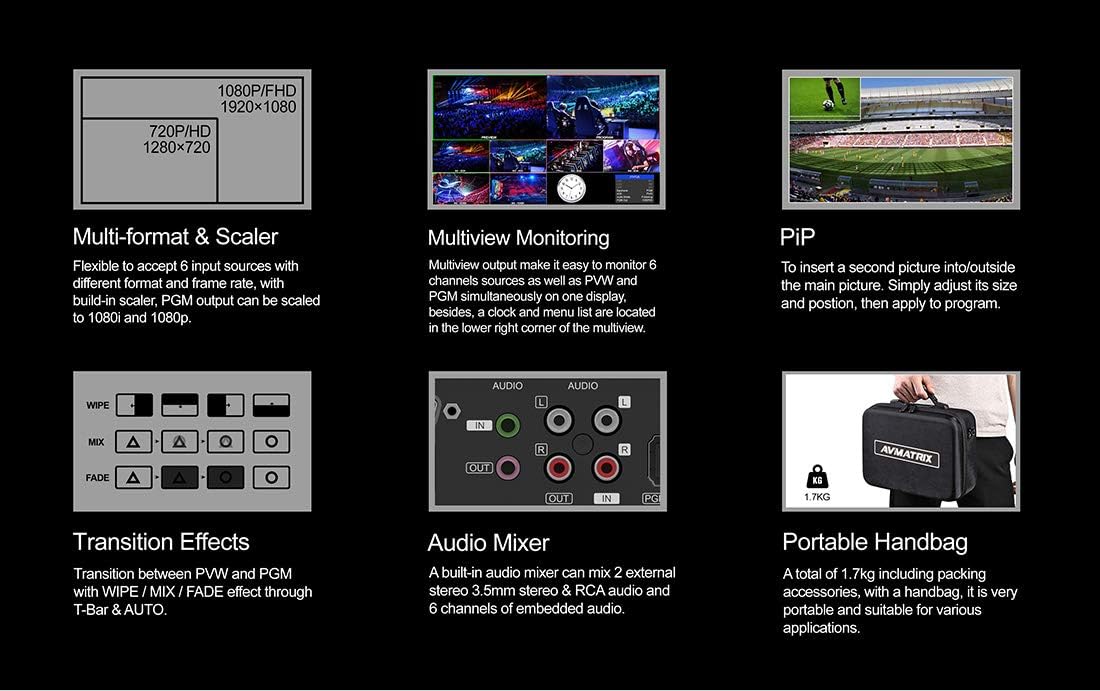
ምስል 2.1፡ ቁልፍ ባህሪያት አልቋልview
3. ማዋቀር
3.1 ማሸግ እና መፈተሽ
Carefully unpack the AVMATRIX VS0601 and all accessories. Inspect the unit for any signs of damage during transit. Retain the packaging materials for future transport or storage.
3.2 የማገናኘት ኃይል
Connect the provided DC 12V power adapter to the 'DC 12V' input port on the rear panel of the switcher. Plug the adapter into a suitable power outlet. Ensure the power switch is in the 'OFF' position before connecting power.
3.3 የቪዲዮ ግቤት ግንኙነቶች
The VS0601 supports 4 SDI inputs and 2 HDMI inputs. Connect your video sources (cameras, media players, computers) to the corresponding input ports on the rear panel.
- SDI Inputs: Connect up to four SDI sources to the 'SDI IN 1-4' ports.
- HDMI ግብዓቶች፡- Connect up to two HDMI sources to the 'HDMI IN 5-6' ports.

ምስል 3.1: የኋላ ፓነል ግንኙነቶች
3.4 የቪዲዮ ውፅዓት ግንኙነቶች
Connect your display monitors or recording devices to the output ports.
- Program (PGM) Output: Connect your main program display or recorder to the 'PGM OUT' (SDI or HDMI) ports.
- ባለብዙview ውጤት፡ Connect a monitor to the 'MULTIVIEW OUT' (HDMI or SDI) for simultaneous viewing of all inputs, program, and preview.
- የዩኤስቢ ውፅዓት፡- Connect to a computer via the 'USB OUT' port for streaming applications.
3.5 የድምጽ ግንኙነቶች
The switcher includes audio input and output options.
- የድምጽ ግቤት፡- Connect external audio sources to the 'AUDIO IN' (RCA L/R or 3.5mm stereo) ports.
- የድምጽ ውፅዓት፡- Connect to external audio monitoring or recording devices via the 'AUDIO OUT' (RCA L/R or 3.5mm stereo) ports.
3.6 Tally and LAN Connections
- ድምር፦ Connect a Tally system to the 'TALLY' (DB-15) port for visual indication of program and preview ምንጮች.
- ላንኛ Connect an Ethernet cable to the 'LAN' (RJ45) port for network control and firmware updates.
4. የአሠራር መመሪያዎች
4.1 የፊት ፓነል መቆጣጠሪያዎች
The front panel provides intuitive controls for selecting inputs, managing transitions, and adjusting audio.

ምስል 4.1 የፊት ፓነል አቀማመጥ
- PGM (Program) Buttons: Select the input currently live on the program output.
- PVW (Preview) አዝራሮች፡ Select the input to be previewed before transitioning to program.
- ቲ-ባር፡ Manually control transitions between preview እና ፕሮግራም.
- የመቁረጥ አዝራር፦ Instantly switch from preview ለፕሮግራም።
- ራስ-ሰር አዝራር፡- Execute a transition with a pre-set speed.
- የምናሌ ቁልፍ፡ Navigate and select options within the on-screen display (OSD) menu.
- AUDIO/EFFECTS Buttons: Access audio mixer controls, keying functions (Chroma, Luma, DSK), and Picture-in-Picture (PIP) settings.
4.2 መሰረታዊ መቀያየር
- Power on the unit using the switch on the rear panel.
- በ Multiview monitor, observe all connected inputs.
- Press a button in the ፒቪደብሊው row to select an input for preview. This input will appear on the preview section of your multiview ተቆጣጠር።
- Press a button in the ፒ.ጂ. row to select an input for program. This input will immediately go live.
- To transition from the previewed source to the program output, use the ቲ-ባር።, ቁረጥ button for an instant switch, or አውቶማቲክ button for a timed transition.
4.3 የድምጽ ማደባለቅ
The VS0601 features an integrated audio mixer. Access the audio controls via the front panel buttons and the OSD menu to adjust levels for embedded audio from HDMI/SDI inputs and external analog audio inputs.
- የሚለውን ተጠቀም AFV (Audio Follow Video) function to automatically switch audio with video transitions.
- Manually adjust individual audio channel levels using the menu and rotary knob.
4.4 Keying and PIP
The switcher supports various keying effects and Picture-in-Picture functionality.
- የክሮማ ቁልፍ፡ Use for green screen or blue screen effects.
- የሉማ ቁልፍ፡ Key based on brightness levels.
- DSK (Downstream Key): Overlay graphics or text onto the program output.
- ፒአይፒ (ሥዕል-በሥዕል): Display a smaller video source within the main program video. Adjust size and position through the OSD menu.
5. ዝርዝሮች
| ምድብ | ዝርዝር |
|---|---|
| ሞዴል | ቪኤስ0601 |
| ግብዓቶች | 4x SDI (SD/HD/3G-SDI), 2x HDMI (Type-A) |
| አናሎግ የድምጽ ግብዓቶች | 1x 3.5mm stereo audio, 1x RCA (L/R) audio |
| የ PGM ውጤቶች | 1x SDI (SD/HD/3G-SDI), 1x HDMI (Type-A) |
| የ AUX ውፅዓት | 1x SDI (SD/HD/3G-SDI) |
| ባለብዙview ውጤቶች | 1x SDI (SD/HD/3G-SDI), 1x HDMI (Type-A) |
| የአናሎግ ኦዲዮ ውፅዓት | 1x 3.5mm stereo audio, 1x RCA (L/R) audio |
| የ LAN በይነገጽ | RJ45 x1, Synchronize local time |
| Tally በይነገጽ | DB-15 x1 |
| የኤስዲአይ የግቤት ቅርጸት ድጋፍ | 1080p 60/50/30/25/24, 1080i 60/50, 720p 60/50, 576i, 480i |
| የኤችዲኤምአይ የግቤት ቅርጸት ድጋፍ | 1080p 60/50/30/25/24, 1080i 60/50, 720p 60/50, 576p, 576i, 480p, 480i |
| የ PGM ውፅዓት ቅርጸት | 1080p 60/50/30/25/24, 1080i 60/50 |
| ባለብዙview የውጤት ቅርጸት | 1080 ፒ 60 |
| የኤስዲአይ ተገዢነት | SMPTE 292M/SMPTE 259M/SMPTE 424M |
| ልኬቶች (LWD) | 249.2 x 172.3 x 55 ሚሜ |
| ክብደት | 1 ኪግ (2.2 ፓውንድ) |
| የሥራ ሙቀት | -20 ~ 60 ° ሴ |
| የማከማቻ ሙቀት | -30 ~ 70 ° ሴ |
| የአሁኑ | ዲሲ 12V, 1.2A |
| ጥራዝtage | ዲሲ 6-17V |
| የኃይል አቅርቦት | ዲሲ 12V, 2A |

ምስል 5.1: ቴክኒካዊ ዝርዝሮች
6. ጥገና
- ማጽዳት፡ የክፍሉን ውጫዊ ክፍል ለማጽዳት ለስላሳ እና ደረቅ ጨርቅ ይጠቀሙ. ፈሳሽ ወይም ኤሮሶል ማጽጃዎችን አይጠቀሙ.
- የአየር ማናፈሻ; ከመጠን በላይ ሙቀትን ለመከላከል በክፍሉ ዙሪያ ትክክለኛውን የአየር ዝውውርን ያረጋግጡ. የአየር ማናፈሻ ክፍተቶችን አያግዱ።
- ማከማቻ፡ When not in use for extended periods, store the switcher in a cool, dry place, preferably in its original packaging.
- የጽኑዌር ዝማኔዎች ፦ Periodically check the AVMATRIX official webምርጥ አፈጻጸም እና አዳዲስ ባህሪያትን ማግኘትን ለማረጋገጥ የጽኑዌር ዝማኔዎች ጣቢያ። ከጽኑዌር ዝማኔ ጋር የተሰጡትን መመሪያዎች በጥንቃቄ ይከተሉ።
7. መላ መፈለግ
7.1 የቪዲዮ ውፅዓት የለም
- የኃይል አስማሚው ደህንነቱ በተጠበቀ ሁኔታ መገናኘቱን እና መሳሪያው መብራቱን ያረጋግጡ።
- Check all video cables (SDI, HDMI) for secure connections at both the switcher and the display/source.
- Ensure the correct input is selected on the PGM row.
- Confirm that the output resolution of the switcher is compatible with your display device.
- Test with different cables or display devices if possible.
7.2 ምንም የድምጽ ውፅዓት
- ደህንነታቸው የተጠበቀ ግንኙነቶችን ለማግኘት ሁሉንም የኦዲዮ ገመዶችን ያረጋግጡ።
- Verify audio levels in the mixer settings via the OSD menu. Ensure no channels are muted.
- Confirm that the audio source is active and producing sound.
- If using embedded audio, ensure the video source is providing audio.
7.3 Controls Unresponsive
- Restart the unit by powering it off and then on again.
- Ensure no foreign objects are obstructing buttons or the T-Bar.
- If connected via LAN, check network connection and control software status.
8. ዋስትና እና ድጋፍ
For warranty information and technical support, please refer to the official AVMATRIX webጣቢያ ወይም የአካባቢዎን አከፋፋይ ያነጋግሩ። ለዋስትና ጥያቄዎች የግዢ ደረሰኝዎን እንደ ግዢ ማረጋገጫ ያቆዩት።
የመስመር ላይ መርጃዎች፡-
- AVMATRIX Official Webጣቢያ
- LILLIPUT Store on Amazon (Manufacturer/Seller)


