1. መግቢያ
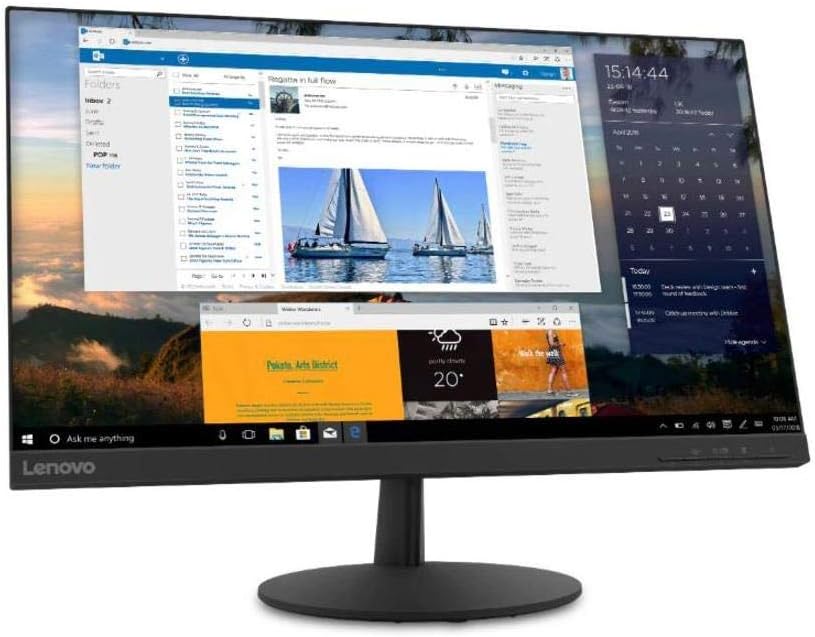
This manual provides essential information for setting up, operating, and maintaining your Lenovo L24q-30 23.8-inch QHD monitor. The L24q-30 is designed to deliver a superior visual experience with its QHD (2560 x 1440) resolution, IPS panel, and >99% sRGB color gamut. It features AMD FreeSync technology, a 75Hz refresh rate, and a 4ms response time for smooth visuals. The monitor is TüV Eye Comfort certified, reducing blue light and flicker for extended viewing comfort. Connectivity options include HDMI 1.4 and DisplayPort 1.2, along with a 3.5mm audio output.
2. የደህንነት መረጃ
Please read this section carefully before using your monitor to ensure safe and proper operation.
- እንዳይወድቅ ለመከላከል ሁልጊዜ ሞኒተሩን በተረጋጋና ጠፍጣፋ መሬት ላይ ያድርጉት።
- በተቆጣጣሪው ዙሪያ ትክክለኛውን አየር ማናፈሻን ያረጋግጡ። የአየር ማናፈሻ ክፍተቶችን አያግዱ.
- ከተቆጣጣሪው ጋር የቀረቡትን የኃይል አስማሚ እና ገመዶችን ብቻ ይጠቀሙ።
- Do not expose the monitor to rain or moisture to avoid electric shock.
- ከማጽዳትዎ በፊት መቆጣጠሪያውን ከኃይል ማሰራጫው ያላቅቁት.
- ስክሪኑን በሹል ነገሮች ከመንካት ይቆጠቡ።
- If any unusual smoke, noise, or odor occurs, immediately unplug the monitor and contact customer support.
3. የጥቅል ይዘቶች
ሁሉም እቃዎች በጥቅልዎ ውስጥ መኖራቸውን ያረጋግጡ፡-
- Lenovo L24q-30 Monitor
- የመቆሚያ ቤዝ ይቆጣጠሩ
- የቆመ አንገትን ይቆጣጠሩ
- የኃይል ገመድ
- HDMI ገመድ
- Quick Setup Guide / Warranty Card
4. ማዋቀር
4.1 የሞኒተሪ ስታንድ ማሰባሰብ
- Carefully remove the monitor from its packaging, placing it face down on a soft, clean cloth to protect the screen.
- ትሮቹን በማስተካከል እና ወደ ቦታው ጠቅ እስኪያደርግ ድረስ በመግፋት የቆመ አንገትን ወደ መቆጣጠሪያ ፓነል ያያይዙት።
- የመቆሚያውን መሠረት ከቆመው አንገት ጋር ያያይዙት። ከመሠረቱ በታች ባለው ዊንጣ ያስጠብቁት።
- Gently lift the assembled monitor and place it upright on a stable surface.

ምስል 4.1: ጎን view of the monitor with the stand attached, showing its slim profile.
4.2 ማገናኛ ገመዶች
በሞኒተሩ ጀርባ ላይ ያሉትን የወደብ ቦታዎች ለማየት ከታች ያለውን ምስል ይመልከቱ።
ምስል 4.2: የኋላ view of the monitor, highlighting the power input, HDMI, DisplayPort, and audio output ports.
- የኃይል ግንኙነት; የኃይል ገመዱን ከሞኒተሩ የኃይል ግብዓት ወደብ ጋር ያገናኙ፣ ከዚያም ሌላኛውን ጫፍ መሬት ላይ ወዳለው የኤሌክትሪክ መውጫ ይሰኩ።
- የቪዲዮ ግንኙነት፡-
- For HDMI: Connect one end of the HDMI cable to the monitor's HDMI port and the other end to the HDMI output port on your computer.
- For DisplayPort: Connect one end of the DisplayPort cable to the monitor's DisplayPort and the other end to the DisplayPort output on your computer.
- የድምጽ ውፅዓት (ከተፈለገ) If you wish to connect external speakers or headphones directly to the monitor, plug them into the 3.5mm audio out port.
4.3 የመጀመሪያ ኃይል-በ
Press the power button located on the front or bottom bezel of the monitor. The power indicator light will illuminate. If no image appears, ensure all cables are securely connected and your computer is powered on.
5. ሞኒተሩን መስራት
5.1 የማያ ገጽ ላይ ማሳያ (OSD) መቆጣጠሪያዎች
The monitor features control buttons, typically located on the bottom right bezel, to access and navigate the On-Screen Display (OSD) menu. These buttons allow you to adjust various monitor settings.
- የኃይል ቁልፍ፡- ማሳያውን ያበራል ወይም ያጠፋል.
- የምናሌ አዝራር፡- የ OSD ምናሌን ይከፍታል።
- የማውጫ ቁልፎች (ላይ/ታች/ግራ/ቀኝ)፡ የምናሌ አማራጮችን ለማሰስ እና እሴቶችን ለማስተካከል ይጠቅማል።
- አስገባ/አዝራር ምረጥ ምርጫን ያረጋግጣል ወይም ንዑስ ምናሌ ያስገባል።
- የመውጫ ቁልፍ Exits the current menu or returns to the previous level.
5.2 ቅንብሮችን ማስተካከል
To adjust monitor settings:
- የሚለውን ይጫኑ ምናሌ OSD ን ለመክፈት ቁልፍ።
- Use the navigation buttons to select a category (e.g., Picture, Color, Input).
- ተጫን አስገባ / ምረጥ to enter the category.
- Use navigation buttons to adjust values (e.g., Brightness, Contrast, Color Temperature) or select sub-options.
- ተጫን አስገባ / ምረጥ ለውጦችን ለማረጋገጥ.
- ተጫን ውጣ ከ OSD ምናሌ ለመውጣት.
5.3 Activating AMD FreeSync
To utilize AMD FreeSync technology, ensure your graphics card supports FreeSync and that it is enabled in your graphics card's control panel. Then, navigate to the OSD menu on your monitor, typically under a 'Gaming' or 'Display' section, and enable the FreeSync option.
5.4 Adjusting Refresh Rate
The monitor supports a 75Hz refresh rate. To set this, you may need to adjust the display settings within your operating system (e.g., Windows Display Settings or macOS System Preferences) after connecting the monitor. Select the highest available refresh rate for optimal performance.
6. ጥገና
6.1 መቆጣጠሪያውን ማጽዳት
- ስክሪን፡ ስክሪኑን በቀስታ ለስላሳ እና ከተሸፈነ ጨርቅ ይጥረጉ። ለግትር ምልክቶች፣ በትንሹ መampጨርቁን በውሃ ወይም በአሞኒያ ያልሆነ፣ አልኮል የሌለው የስክሪን ማጽጃ ያጽዱ። ማጽጃውን በቀጥታ በማያ ገጹ ላይ አይረጩ።
- Casing: ተቆጣጣሪውን ለማጽዳት ለስላሳ ደረቅ ጨርቅ ይጠቀሙ ሐasinሰ. ገላጭ ማጽጃዎችን ወይም ፈሳሾችን ያስወግዱ።
- ከማጽዳትዎ በፊት ሁልጊዜ መቆጣጠሪያውን ይንቀሉ.
6.2 ማከማቻ
ሞኒተሩን ለረጅም ጊዜ ካከማቹ፣ ሁሉንም ገመዶች ያላቅቁ እና ከተቻለ በዋናው ማሸጊያ ውስጥ ያስቀምጡት። ከቀጥታ የፀሐይ ብርሃን እና ከፍተኛ የሙቀት መጠን ርቆ ቀዝቃዛና ደረቅ ቦታ ያስቀምጡ።
7. መላ መፈለግ
በእርስዎ ማሳያ ላይ ችግሮች ካጋጠሙዎት የሚከተሉትን የተለመዱ ችግሮች እና መፍትሄዎች ይመልከቱ፡
| ችግር | ሊሆን የሚችል መፍትሄ |
|---|---|
| ምንም ኃይል / ኃይል LED ጠፍቷል | Ensure the power cable is securely connected to both the monitor and the electrical outlet. Check the power outlet with another device. |
| No image / "No Signal" message | Verify the video cable (HDMI/DisplayPort) is securely connected to both the monitor and the computer. Ensure the correct input source is selected in the OSD menu. Check if the computer is powered on and not in sleep mode. |
| ምስሉ የደበዘዘ ወይም የተዛባ ነው። | Ensure the monitor's native resolution (2560x1440) is selected in your computer's display settings. Adjust brightness, contrast, and sharpness settings in the OSD menu. |
| ስክሪን ብልጭ ድርግም ይላል | Check the video cable for damage or loose connections. Ensure the refresh rate is set correctly (75Hz). Disable FreeSync temporarily to see if it resolves the issue. |
| ቀለሞች የተሳሳቱ ናቸው | Adjust color settings (Color Temperature, Gamma) in the OSD menu. Reset color settings to factory defaults. |
8. ዝርዝሮች
| ባህሪ | ዝርዝር |
|---|---|
| የሞዴል ስም | Lenovo L24q-30 |
| የስክሪን መጠን | 23.8 ኢንች |
| የፓነል ዓይነት | አይፒኤስ (በአውሮፕላን ውስጥ መቀየር) |
| ጥራት | QHD (2560 x 1440) |
| ምጥጥነ ገጽታ | 16፡9 |
| የማደስ ደረጃ | 75 Hz |
| የምላሽ ጊዜ | 4 ሚሴ |
| ቀለም ጋሙት | > 99% sRGB |
| ተለዋዋጭ ንፅፅር ሬሾ | 3ሚ፡1 |
| Viewማእዘን | 178° (H/V) |
| ግንኙነት | 1x HDMI 1.4, 1x DisplayPort 1.2, 1x Audio Out (3.5mm) |
| VESA ተራራ ተኳኋኝነት | 100 ሚሜ x 100 ሚሜ |
| Eye Comfort Certification | TüV Rheinland Eye Comfort |
| መጠኖች (ከቆመበት ጋር) | Approx. 21 x 38 x 49 inches (W x D x H) - Note: These dimensions may refer to packaging. Refer to product documentation for exact monitor dimensions. |
| ክብደት (ከቆመበት ጋር) | Approx. 1 pound - Note: This weight appears to be incorrect for a monitor. Refer to product documentation for exact weight. |
| ቀለም | ጥቁር |
9. ዋስትና እና ድጋፍ
For detailed warranty information, please refer to the warranty card included in your product package or visit the official Lenovo support website. The warranty covers manufacturing defects under normal use conditions.
For technical support, driver downloads, or service inquiries, please visit the Lenovo Support website or contact their customer service department. Have your monitor's model number (L24q-30) and serial number ready when contacting support.
የ Lenovo ድጋፍ Webጣቢያ፡ ድጋፍ.lenovo.com


