1. መግቢያ
The Poly Studio is an all-in-one USB video and audio conferencing system designed for home offices and small meeting rooms. It integrates a 4K camera, smart microphones, and a speaker into a single, sleek bar, offering a plug-and-play solution for enhanced virtual meetings.

Image: Poly Studio Premium USB Video & Audio Conferencing System, showcasing በውስጡ የታመቀ ንድፍ.
ቁልፍ ባህሪዎች
- ሁሉን-በአንድ መፍትሄ፡- Combines a 4K camera, smart microphone, and speaker into a single bar, ideal for small meeting rooms and home offices.
- ተሰኪ እና አጫውት የዩኤስቢ ግንኙነት፡- No software required for basic functionality. Connect via USB to instantly elevate your Zoom, Teams, Skype, and Google Meet experience.
- Exceptional Audio Clarity: Features Polycom noise-blocking technology and beamforming microphones for crystal-clear sound.
- Smart Camera Framing: Automatically adjusts framing and tracking based on speaker movement and participants in the room.
2. ማዋቀር
Follow these steps to set up your Poly Studio conferencing system:
- መሣሪያውን ያራግፉ; Carefully remove the Poly Studio bar and all accessories from the packaging.
- የመጫኛ አማራጭ ይምረጡ፡- The Poly Studio can be mounted on a tabletop, wall, or tripod.
- የጠረጴዛ ጫፍ; መሳሪያውን በተረጋጋ ቦታ ላይ ያስቀምጡት.
- የግድግዳ ተራራ Use the provided wall mount bracket and hardware to securely attach the device to a wall, typically above or below your display.
- Tripod Mount: Attach the device to a standard tripod using the integrated tripod thread.
- የግንኙነት ኃይል; Plug the power cable into the Poly Studio and then into a power outlet.
- ከኮምፒዩተር ጋር ይገናኙ; Connect the USB cable from the Poly Studio to an available USB port on your laptop or PC.
- የሶፍትዌር እውቅና; Your computer should automatically recognize the device as a USB camera, microphone, and speaker.

Image: Poly Studio connected to a display, highlighting its compatibility with various video conferencing applications.
3. የአሠራር መመሪያዎች
The Poly Studio is designed for ease of use with popular video conferencing platforms.
- Select Device in Application: In your preferred video conferencing application (e.g., Zoom, Microsoft Teams, Skype, Google Meet), navigate to the audio and video settings. Select "Poly Studio" as your camera, microphone, and speaker.
- Utilize Smart Camera Features: The device's smart camera framing and speaker tracking features will automatically adjust the view to keep participants in frame and focus on the active speaker.
- Experience Clear Audio: Polycom's noise-blocking and beamforming technologies work automatically to ensure clear audio transmission and reception.
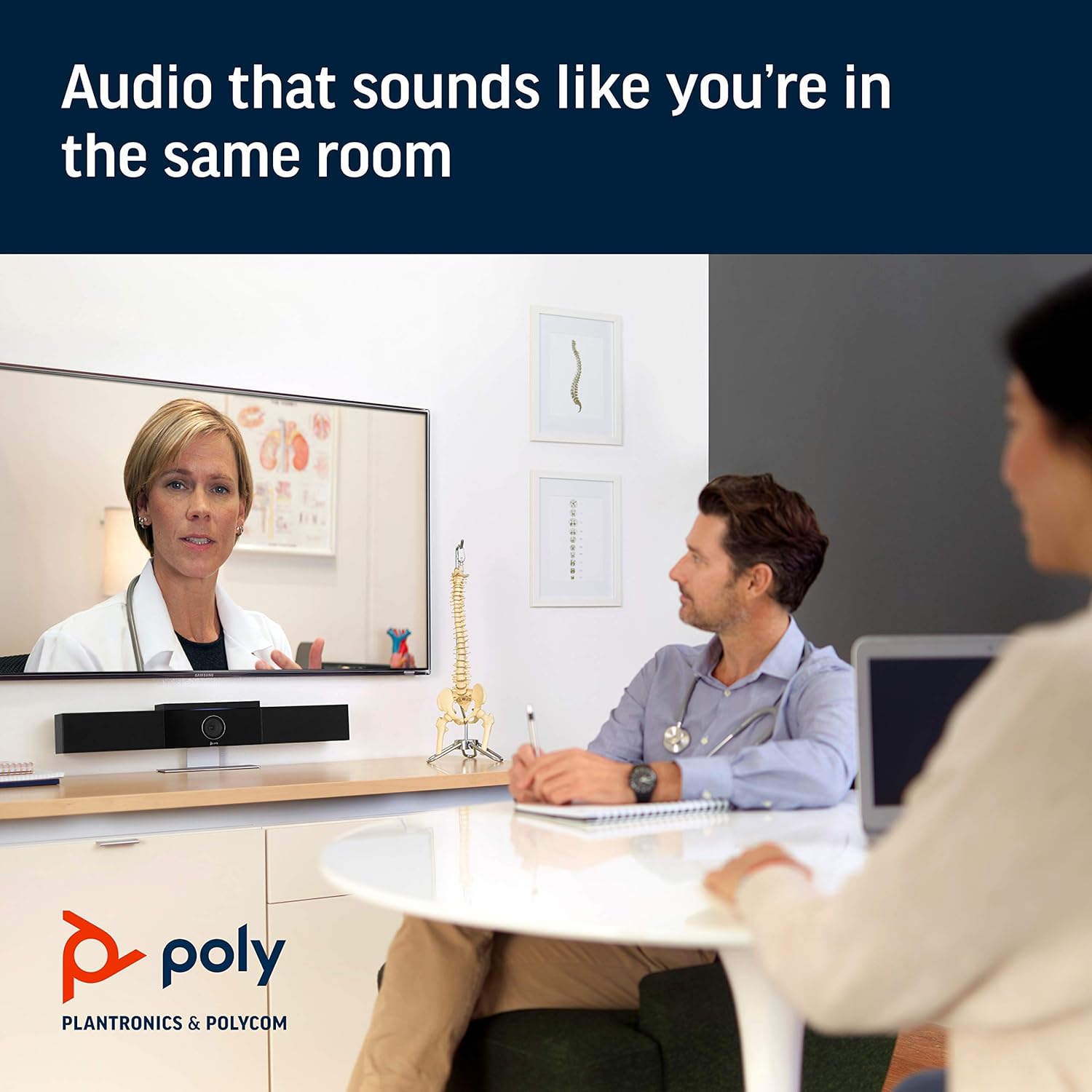
Image: Poly Studio in a meeting room, illustrating its capability to deliver clear audio for all participants.

Image: Poly Studio capturing vivid details and facial expressions of meeting participants.
4. ጥገና
To ensure optimal performance and longevity of your Poly Studio, regular maintenance is recommended:
- ማጽዳት፡ Gently wipe the device with a soft, dry cloth. Avoid using harsh chemicals or abrasive materials.
- የሶፍትዌር ማሻሻያ Regularly check for and install software updates. These updates often include performance improvements, new features, and bug fixes. Poly Lens remote device management software can assist with this.
- የኬብል አስተዳደር ጉዳት እንዳይደርስ ለመከላከል ሁሉም ኬብሎች በጥሩ ሁኔታ የተደራጁ መሆናቸውን እና በጭንቀት ውስጥ አለመሆናቸውን ያረጋግጡ።
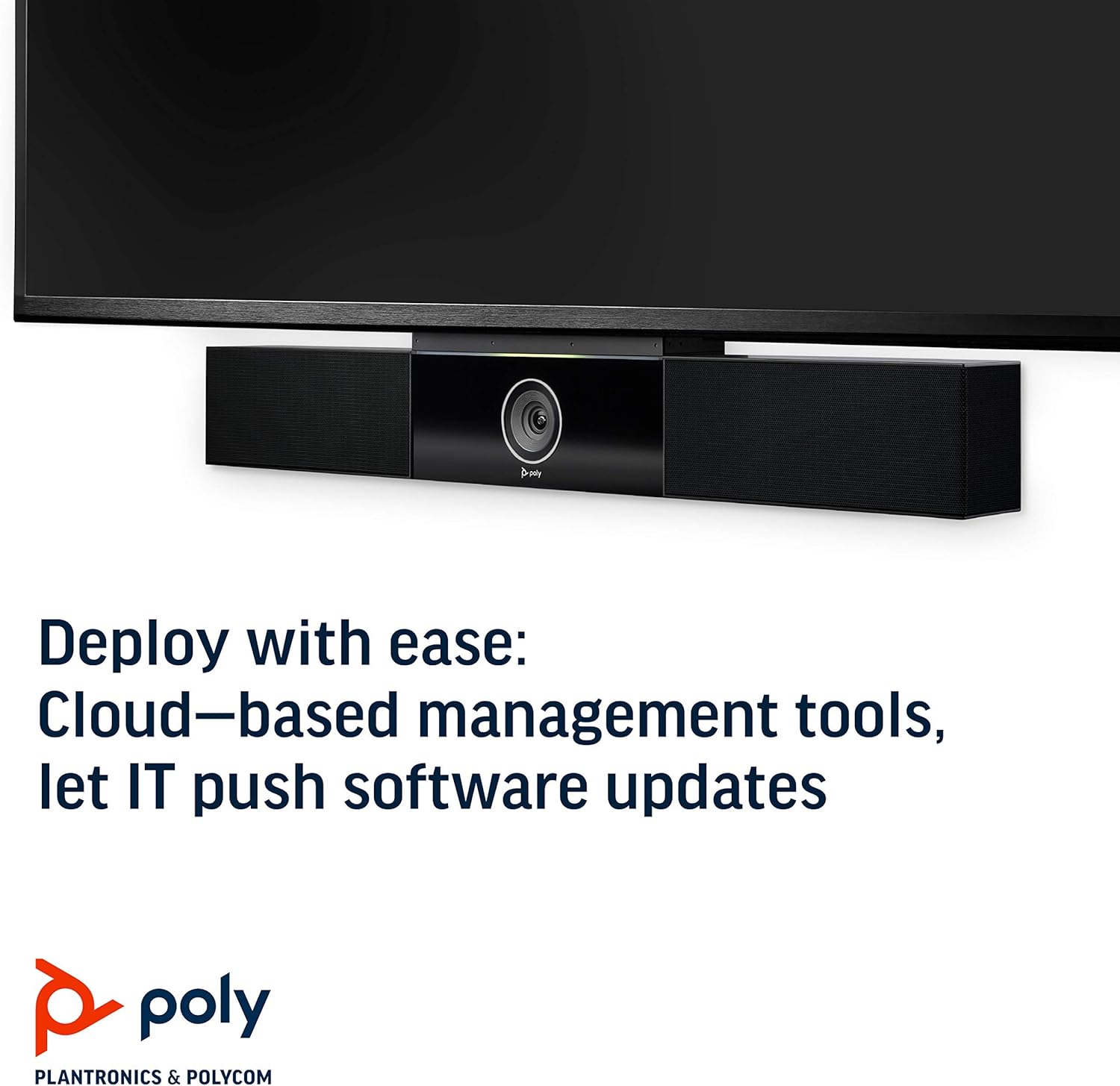
Image: Poly Studio, illustrating its compatibility with cloud-based management tools for easy software updates.
5. መላ መፈለግ
If you encounter issues with your Poly Studio, try the following troubleshooting steps:
- ኃይል የለም፡ Ensure the power cable is securely connected to both the device and the power outlet. Try a different outlet if necessary.
- ቪዲዮ/ኦዲዮ የለም፡ Verify that the USB cable is securely connected to both the Poly Studio and your computer. Check your video conferencing application settings to ensure the Poly Studio is selected as the active camera, microphone, and speaker.
- ደካማ የድምጽ ጥራት፡ Ensure the device is placed in a central location in the room. Check for any physical obstructions blocking the microphones or speakers. Update the device firmware via the Poly Lens app.
- Camera Not Tracking: Ensure the room is adequately lit. Check the Poly Lens app settings for camera tracking modes and adjust as needed.
- መሣሪያ አልታወቀም፡- Try connecting the USB cable to a different USB port on your computer. Restart your computer.
6. ዝርዝሮች
| ባህሪ | ዝርዝር |
|---|---|
| የመጫኛ አይነት | የጠረጴዛ ተራራ |
| የሞዴል ስም | 649661882596 |
| የድምጽ ማጉያ አይነት | ስቴሪዮ |
| ልዩ ባህሪ | ዝቅተኛ ብርሃን |
| ለምርት የሚመከር አጠቃቀሞች | video conferencing in home offices and small conference rooms |
| ተስማሚ መሣሪያዎች | ላፕቶፕ |
| የዙሪያ ድምጽ ቻናል ውቅር | 2.0 |
| ቀለም | ጥቁር |
| የተካተቱ አካላት | camera, stereo speakers, microphones, control unit |
| ውሃ የማይገባ ነው። | ውሸት |
| የዋስትና ዓይነት | የተወሰነ |
| የእቃዎች ብዛት | 1 |
| የመቆጣጠሪያ ዘዴ | ድምጽ |
| ገመድ አልባ የመገናኛ ቴክኖሎጂ | ገመድ አልባ የመገናኛ ቴክኖሎጂ የለም |
| የድምጽ ማጉያ መጠን | 21.59 ሴ.ሜ |
| የኃይል ምንጭ | ባለገመድ ኤሌክትሪክ |
| የውሃ መቋቋም ደረጃ | የውሃ መቋቋም አይደለም |
| የድምጽ ሾፌር ዓይነት | ተለዋዋጭ ሾፌር |
| Subwoofer ግንኙነት ቴክኖሎጂ | ባለገመድ |
| ለምርት ልዩ አጠቃቀሞች | Home office, Small conference rooms, Video conferencing with Zoom and Microsoft Teams |
| ዩፒሲ | 649661882596 |
| የቤት ውስጥ / የውጭ አጠቃቀም | የቤት ውስጥ |
| አምራች | ፖሊኮም ኢንክ |
| ቅርጽ | አራት ማዕዘን ቅርጽ ያለው ፕሪዝም |
| የምርት ልኬቶች | 30 x 6 x 4 ኢንች |
| የእቃው ክብደት | 10.58 ፓውንድ |
| ASIN | B091YCFF84 |
| የንጥል ሞዴል ቁጥር | 649661882596 |
| የመጀመሪያ ቀን ይገኛል። | ኤፕሪል 7, 2021 |
| የምርት ስም | ፖሊ |
| የድምጽ ማጉያ ከፍተኛ የውጤት ኃይል | 40 ዋት |
| የድግግሞሽ ምላሽ | 120 kHz |
| የግንኙነት ቴክኖሎጂ | ዩኤስቢ |
| የድምጽ ውፅዓት ሁኔታ | ስቴሪዮ |
7. ዋስትና እና ድጋፍ
Your Poly Studio Premium USB Video & Audio Conferencing System comes with a የተወሰነ ዋስትና. For specific details regarding the warranty period and coverage, please refer to the official Poly documentation or contact Poly support.
ይህ ምርት እንዲሁም ለሚከተሉት ብቁ ነው የ90-ቀን ተመላሽ/መተካት። policy under the Amazon Renewed Guarantee, as it is a renewed product. For support or to claim warranty/return, please contact the seller or refer to the product's official support channels.