1. መግቢያ
The Poly Voyager Focus 2 UC USB-A Headset is designed to create a focused audio environment, blocking out background noise for clear communication. Featuring three levels of hybrid Active Noise Canceling (ANC) and Poly Acoustic Fence technology, it ensures you hear your calls clearly and are heard without distractions. This headset offers all-day comfort and versatile connectivity for computers (via BT700 USB-A adapter) and mobile devices (via Bluetooth v5.1). This Microsoft Teams certified version includes a dedicated Teams button for enhanced collaboration.
2. በሳጥኑ ውስጥ ያለው
- Voyager Focus 2 UC USB-A Headset
- መያዣ
- BT700 USB-A አስማሚ
- የኃይል መሙያ ገመድ
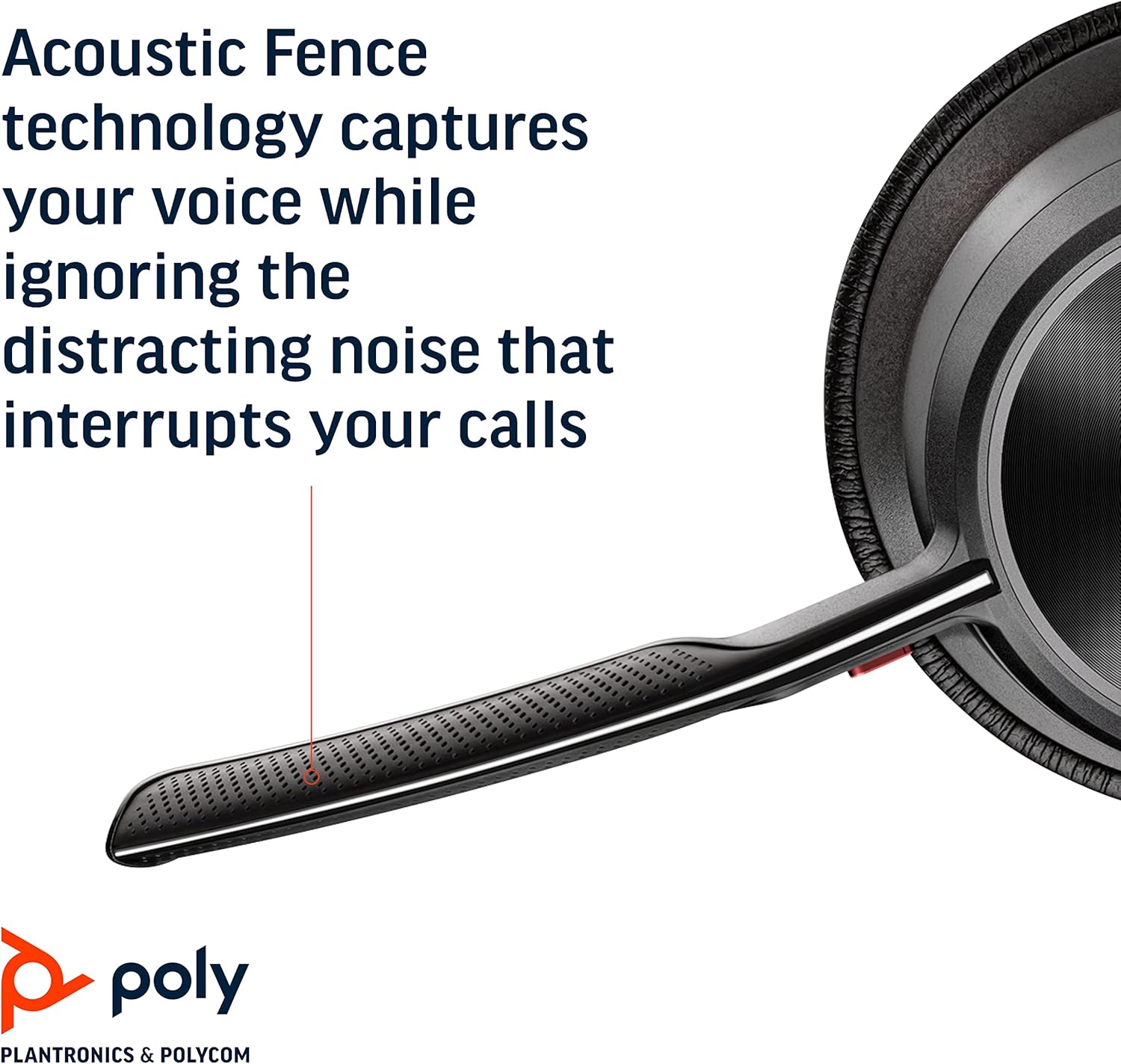
Image: Headset components including the BT700 USB-A adapter and charging cable.
3. ማዋቀር
3.1 የጆሮ ማዳመጫውን መሙላት
Connect the charging cable to the headset's USB port and to a power source. A full charge provides up to 19 hours of talk time. If using an optional charging stand, simply place the headset on the stand to charge.

Image: The Poly Voyager Focus 2 UC USB-A Headset placed on its charging stand.
3.2 Connecting to a Computer (USB-A Adapter)
- Insert the BT700 USB-A adapter into an available USB-A port on your computer.
- በጆሮ ማዳመጫዎ ላይ ኃይል ይስጡ.
- የአዳፕተሩ ኤልኢዲ ሰማያዊ ያበራል፣ ከዚያም ከጆሮ ማዳመጫው ጋር ሲገናኝ ጠንካራ ሰማያዊ ይሆናል።
3.3 Connecting to a Mobile Device (Bluetooth)
- With the headset powered off, slide and hold the Power switch towards the Bluetooth icon until the LED flashes red and blue.
- On your mobile device, go to Bluetooth settings and select "Poly Voyager Focus 2" from the list of available devices.
- Once successfully paired, the headset LED will stop flashing.
3.4 የጆሮ ማዳመጫውን ማስተካከል
Adjust the headband for a comfortable fit. Position the boom microphone approximately two finger-widths from the corner of your mouth. The microphone boom is flexible and can be rotated to either the left or right side, automatically adjusting audio channels.

Image: A woman wearing the headset, demonstrating a comfortable fit for work.
4. የአሠራር መመሪያዎች
4.1 ማብራት / ማጥፋት
Slide the Power switch to the 'On' position to power on the headset. Slide it to 'Off' to power off.
4.2 የድምጽ መቆጣጠሪያ
Use the volume up (+) and volume down (-) buttons located on the earcup to adjust the listening volume.

Image: Close-up of the headset earcup with visible volume controls.
4.3 ድምጸ-ከል አንሳ/አጥፋ
Press the dedicated mute button on the microphone boom to mute or unmute your microphone. The Dynamic Mute Alert feature will notify you if you speak while muted.

ምስል፡ ዝርዝር view of the headset's boom microphone.
4.4 ንቁ የድምጽ መሰረዝ (ኤኤንሲ)
Adjust the noise canceling level (High, Low, or Off) using the ANC switch on the earcup to suit your environment and personal preference.
4.5 የጥሪ አስተዳደር
Press the Call button on the earcup to answer or end a call. For Microsoft Teams calls, use the dedicated Teams button for instant access to the Teams App and notifications.
5. ባህሪያት
- የድምጽ አፈፃፀም Three options of Advanced Digital Hybrid Active Noise Canceling (ANC) – high, low, and off – for personalized noise control.
- ፖሊ አኮስቲክ አጥር ቴክኖሎጂ፡ Advanced multi-microphone noise canceling ensures callers hear only your voice, not your surroundings.
- ዘመናዊ ቴክኖሎጂ፡- Dynamic Mute Alert notifies you if you speak while your microphone is muted.
- All-Day Wearing: Lightweight headband with a sling and plush ear cushions provide comfort for extended use. Up to 19 hours of talk time.
- Multiple Device Connections: Connects to a computer via the included BT700 USB-A adapter and to a mobile device via Bluetooth v5.1.
ቪዲዮ፡ አንድ ባለሥልጣን አብቅቷል።view of the Poly Voyager Focus 2 headset, highlighting its key features and design.
6. ጥገና
6.1 ጽዳት
የጆሮ ማዳመጫውን በለስላሳ፣ ዲ ይጥረጉamp cloth. Avoid using harsh chemicals or abrasive materials. Ensure the microphone and earcup surfaces are free from debris.
6.2 ማከማቻ
When not in use, store the headset in its provided carry case to protect it from dust and damage. Avoid storing in extreme temperatures.
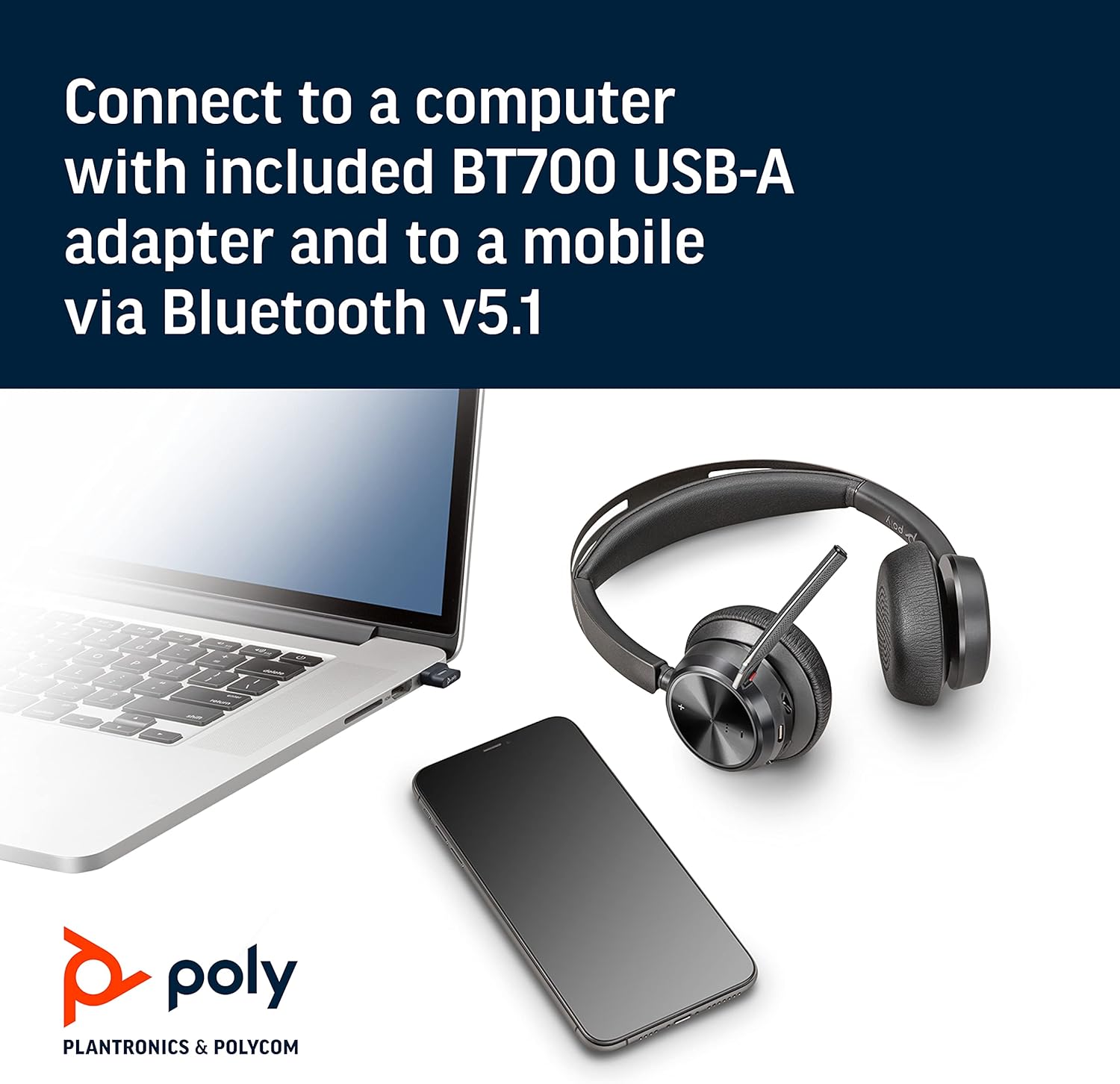
Image: The headset neatly folded and stored inside its carry case.
7. መላ መፈለግ
7.1 No Sound/Poor Audio Quality
- የጆሮ ማዳመጫው መብራቱን እና ሙሉ በሙሉ መሙላቱን ያረጋግጡ።
- Check that the headset is correctly paired with your device (computer via USB adapter or mobile via Bluetooth).
- Verify the volume levels on both the headset and your connected device.
- If connected to a computer, ensure the Poly BT700 adapter is recognized as the default audio device in your system settings.
7.2 ማይክሮፎን አይሰራም
- Confirm the microphone is not muted (check the mute button and Dynamic Mute Alert).
- Ensure the microphone boom is properly positioned near your mouth.
- የጆሮ ማዳመጫ ማይክሮፎኑ እንደ የግቤት መሣሪያ መመረጡን ለማረጋገጥ የመሣሪያዎን የድምጽ ቅንብሮች ያረጋግጡ።
7.3 የግንኙነት ጉዳዮች
- የጆሮ ማዳመጫውንም ሆነ የተገናኘውን መሳሪያዎን እንደገና ያስጀምሩ።
- Move closer to your connected device to ensure you are within the Bluetooth range (up to 10 meters for mobile, 50 meters for BT700 adapter).
- If using the BT700 adapter, try plugging it into a different USB port.
- Unpair and re-pair the headset with your device.
8. ዝርዝሮች
| የሞዴል ስም | Voyager Focus 2 UC-M USB-A |
| የንጥል ሞዴል ቁጥር | 213726-02 |
| የግንኙነት ቴክኖሎጂ | ብሉቱዝ 5.1 |
| የድምጽ መቆጣጠሪያ | Active Noise Cancellation (Hybrid Digital) |
| የማይክሮፎን ቴክኖሎጂ | Poly Acoustic Fence |
| የባትሪ ህይወት (የንግግር ጊዜ) | እስከ 19 ሰዓታት ድረስ |
| የጆሮ ማዳመጫዎች ጃክ | ዩኤስቢ |
| የእቃው ክብደት | 175 ግራም (6.2 አውንስ) |
| የምርት ልኬቶች | 4 x 6 x 2.8 ኢንች |
| ተስማሚ መሣሪያዎች | PCs, Smartphones, Tablets, Laptops |
| የተካተቱ አካላት | Headset, carry case, BT700 USB adapter and charging cable |
9. ዋስትና እና ድጋፍ
For warranty information, technical support, or to register your product, please visit the official Poly website or refer to the documentation included with your purchase. You can also visit the የPOLY መደብር በአማዞን ላይ ለተጨማሪ መገልገያዎች እና የምርት መረጃ.