1. መግቢያ
This manual provides essential information for setting up, operating, maintaining, and troubleshooting your Alienware X17 R1 Gaming Laptop. Please read this manual thoroughly to ensure optimal performance and longevity of your device.

Figure 1: Alienware X17 R1 Gaming Laptop
2. የጥቅል ይዘቶች
Ensure all items are present in your Alienware X17 R1 package:
- Alienware X17 R1 Notebook
- የኃይል አስማሚ
- የኃይል ገመድ
- የተጠቃሚ መመሪያ (ይህ ሰነድ)
3. ምርት አብቅቷልview
3.1 ዲዛይን እና ልኬቶች
The Alienware X17 R1 features a sleek, thin design in Lunar Light (white) with Dark Side of the Moon (black) accents for the keyboard and deck. Its dimensions are approximately 11.79 x 15.72 x 0.82 inches (LxWxH) and it weighs around 7.05 pounds.

Figure 2: Alienware X17 R1 Side Profile
3.2 ወደቦች እና ማገናኛዎች
The Alienware X17 R1 is equipped with a comprehensive set of ports, primarily located at the rear for efficient cable management and thermal performance.
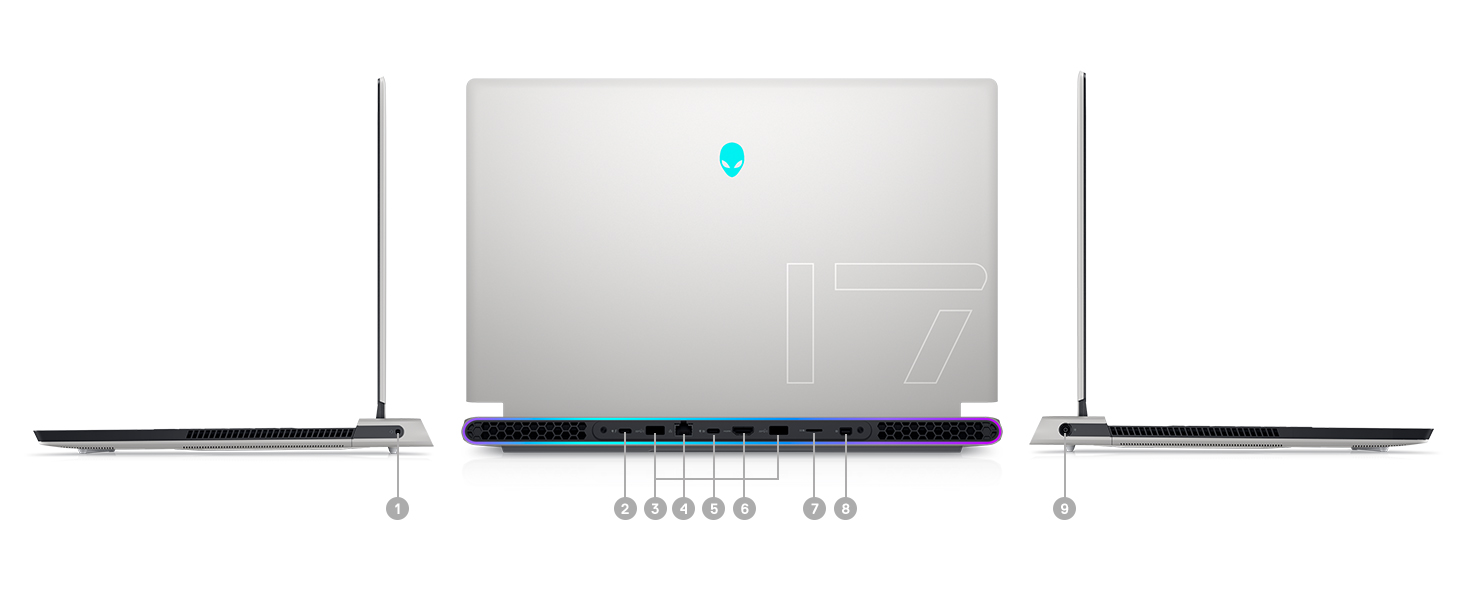
Figure 3: Rear Ports and Connectors
- Power/DC-in Port
- Mini Display Port 1.4
- HDMI 2.1 (for up to 4K/120Hz output)
- Type-C USB 3.2 Gen 2 Port with Power Delivery (5V/3A)
- Killer E3100 RJ-45 2.5G Ethernet
- የማይክሮ ኤስዲ ካርድ አንባቢ
- USB 3.2 Gen 1 Type-A with Powershare
- Type-C Thunderbolt™ 4/USB 3.2 Gen 2 Port with Power Delivery (5V/3A)
- Global Headset Jack
3.3 የቁልፍ ሰሌዳ እና የመዳሰሻ ሰሌዳ
The laptop features an AlienFX keyboard with per-key RGB lighting and an AlienFX Lighting design supporting 16.8 million colors. The touchpad is glass, offering solid tracking and responsive gestures.

Figure 4: AlienFX Keyboard and Touchpad
3.4 ማሳያ
The 17.3-inch Full HD (1920 x 1080) display boasts a 360Hz refresh rate and 1ms response time, enhanced with ComfortView Plus, NVIDIA G-SYNC, and Advanced Optimus for a smooth visual experience.

ምስል 5፡ 360Hz ማሳያ
3.5 የማቀዝቀዣ ዘዴ
The Alienware X17 R1 incorporates advanced thermal management with its Cryo-Tech™ Technologies. This includes an exclusive Quad Fan design and Element 31, an encapsulated gallium-silicone thermal interface material, to ensure efficient heat dissipation during intensive use.

Figure 6: Cryo-Tech Cooling System
Video 1: Official Alienware X17 R1 Product Overview, highlighting key features including the cooling system.
4. ማዋቀር
4.1 የመጀመሪያ ኃይል-በ
- Unpack your Alienware X17 R1 laptop and all accessories.
- Connect the power adapter to the laptop's power port and then to a power outlet.
- Open the laptop lid and press the power button (Alienware head logo) to turn on the device.
- Follow the on-screen instructions to complete the Windows 11 setup process.
4.2 ማገናኛ ፔሪፈራል
Utilize the various ports on the rear and sides of the laptop to connect external monitors, keyboards, mice, and other accessories. For optimal display performance, use the HDMI 2.1 or Mini Display Port 1.4 for external monitors.

Figure 7: Connecting External Peripherals
5. ላፕቶፕዎን መስራት
5.1 የኃይል አስተዳደር
The Alienware X17 R1 offers tailored power states to optimize performance or battery life. These can be managed through the Alienware Command Center software:
- ጸጥታ ሁነታ: Reduces fan noise and power consumption.
- ሚዛናዊ ሁነታ፦ Offers a balance between performance and acoustics.
- ሙሉ የፍጥነት ሁነታ፡- Maximizes fan speed for peak performance.
- የባትሪ ቆጣቢ ሁነታ፡- Optimizes settings for extended battery life.
- የአፈጻጸም ሁነታ፡ Prioritizes performance for demanding tasks.
5.2 Windows Hello
The laptop supports Windows Hello for secure and convenient login using facial recognition via the integrated webካም.
5.3 Alienware Command Center
This software allows you to customize various aspects of your laptop, including RGB lighting, power profiles, and overclocking settings. It is recommended to keep the software updated for the best experience.

Figure 8: Alienware Command Center
6. ጥገና
6.1 ጽዳት
- ማያ ገጹን እና ውጫዊ ንጣፎችን ለማፅዳት ለስላሳ እና ለስላሳ ጨርቅ ይጠቀሙ።
- ለግትር ምልክቶች፣ በትንሹ መampጨርቁን በውሃ ወይም በስክሪኑ ደህንነቱ የተጠበቀ ማጽጃ።
- የአቧራ ክምችትን ለመከላከል የአየር ማስገቢያ ቀዳዳዎችን አዘውትረው ያጽዱ፣ ይህም የማቀዝቀዣ አፈፃፀምን ሊጎዳ ይችላል።
6.2 የሶፍትዌር ዝመናዎች
Keep your operating system, drivers, and Alienware Command Center software updated to ensure optimal performance, security, and compatibility. Use the Alienware Update utility or visit the Dell support webለቅርብ ጊዜ ዝመናዎች ጣቢያ።
6.3 Upgradable Components
The Alienware X17 R1 offers upgradable slots for memory and storage:
- 2 x RAM Slots (DDR4)
- 1 x M.2 PCIe Gen 4 SSD Slot
- 1 x M.2 PCIe Gen 3 SSD Slot
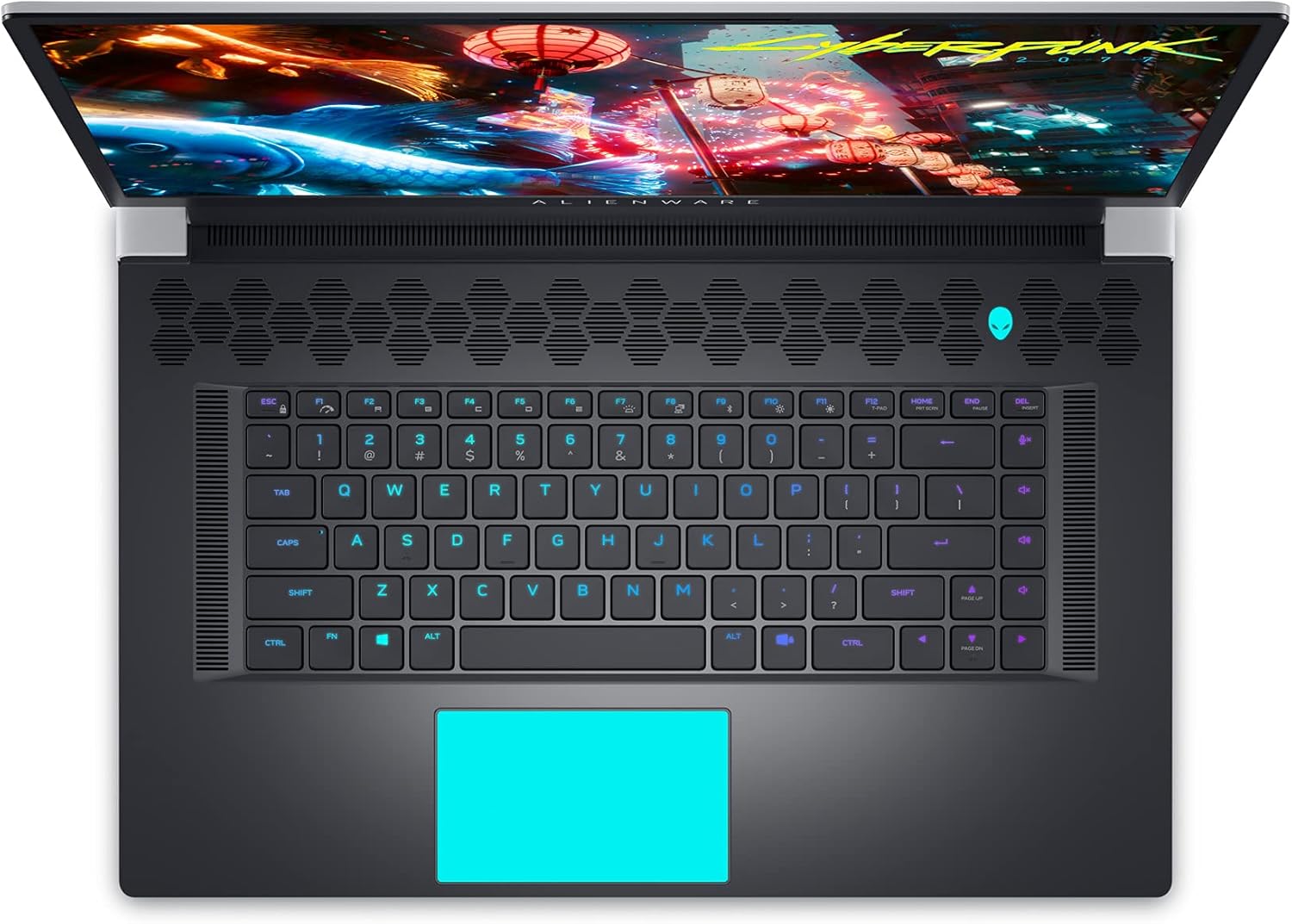
Figure 9: Internal Components and Upgradable Slots
7. መላ መፈለግ
If you encounter issues with your Alienware X17 R1, try the following basic troubleshooting steps:
- ኃይል የለም፡ የኃይል አስማሚው ከላፕቶፑም ሆነ ከኃይል መውጫው ጋር ደህንነቱ በተጠበቀ ሁኔታ መገናኘቱን ያረጋግጡ። የተለየ መውጫ ይሞክሩ።
- የማሳያ ጉዳዮች፡- If the screen is blank, try connecting an external monitor to verify if the issue is with the laptop's display or the graphics card. Update graphics drivers.
- የአፈጻጸም መዘግየት፡ Check your power management settings in Alienware Command Center. Ensure all drivers are up to date. Monitor temperatures to prevent thermal throttling.
- የግንኙነት ችግሮች፡- For Wi-Fi or Ethernet issues, restart your router and the laptop. Check network adapter drivers.
- የሶፍትዌር ጉድለቶች; Restart the application or the laptop. Ensure your operating system and applications are updated.
For more advanced troubleshooting or persistent issues, refer to the Dell support webጣቢያ ወይም የደንበኛ አገልግሎትን ያነጋግሩ።
8. ዝርዝሮች
| ባህሪ | ዝርዝር መግለጫ |
|---|---|
| የሞዴል ስም | Alienware x17 R1 |
| ፕሮሰሰር | 11th Generation Intel Core i7-11800H (8 Cores, up to 4.6 GHz) |
| ራም | 32 ጊባ DDR4 3200 ሜኸርዝ |
| ማከማቻ | 1 TB M.2 PCIe NVMe Solid State Drive |
| ግራፊክስ ካርድ | NVIDIA GeForce RTX 3080 16GB GDDR6 |
| ማሳያ | 17.3-inch FHD (1920 x 1080) 360Hz 1ms with ComfortView Plus, NVIDIA G-SYNC and Advanced Optimus |
| ስርዓተ ክወና | ዊንዶውስ 11 መነሻ |
| የገመድ አልባ ግንኙነት | Killer AX 1675 + Bluetooth 5.2 |
| ወደቦች | 3x USB 3.0, 2x Type-C (Thunderbolt 4/USB 3.2 Gen 2), HDMI 2.1, Mini DisplayPort 1.4, Ethernet, Micro SD, Headset Jack |
| የእቃው ክብደት | 7.05 ፓውንድ |
| የምርት ልኬቶች | 11.79 x 15.72 x 0.82 ኢንች |
| ቀለም | Lunar Light (White) |
9. ዋስትና እና ድጋፍ
Your Alienware X17 R1 laptop is covered by Dell's standard warranty. For detailed warranty information, technical support, or service requests, please visit the official Dell support webየደንበኛ አገልግሎታቸውን ይጎብኙ ወይም ያነጋግሩ። ለፈጣን እርዳታ የግዢ ደረሰኝዎን እና የምርት መለያ ቁጥርዎን በእጅዎ ያስቀምጡ።
ዴል ድጋፍ Webጣቢያ፡ www.dell.com/support