1. መግቢያ
The ACT AC7049 Dual Monitor Docking Station transforms your laptop into a complete workstation. This versatile 11-in-1 docking station allows you to connect up to two Full HD displays (max. 2048 x 1152 resolution) to your laptop via HDMI, using a single USB-C/A cable. It expands your laptop's connectivity with a Gigabit LAN port, microphone and headphone jacks, and six additional USB ports. Featuring DisplayLink® technology, it ensures advanced screen display on both MacOS and Windows computers.
2. ቁልፍ ባህሪያት
- ባለሁለት ማሳያ ድጋፍ; Connect up to two external displays with HDMI ports, supporting resolutions up to 2048x1152@60Hz.
- ሁለንተናዊ ተኳኋኝነት Works with laptops featuring a USB-C or USB-A 3.2 Gen1 (USB 3.0) port, compatible with MacOS and Windows thanks to DisplayLink technology.
- ሰፊ ግንኙነት; Includes 2x HDMI, 1x Gigabit Ethernet, 3x USB-A 3.2 Gen 1 (one with fast charging), 4x USB-A 2.0, and 3.5mm audio jacks for microphone and headphones.
- ተለዋዋጭ አቀማመጥ፡- Designed for both vertical and horizontal placement to optimize desk space and port accessibility.
- የዩኤስቢ ኃይል መሙያ ወደብ Dedicated USB port for charging smartphones and tablets.
3. የጥቅል ይዘቶች
እባክዎን ጥቅሉን ለሚከተሉት ነገሮች ያረጋግጡ፡
- ACT AC7049 Docking Station
- USB-C/A 3.2 Gen1 Connection Cable (USB-A to USB-C)
- የኃይል አስማሚ
- አቀባዊ አቋም
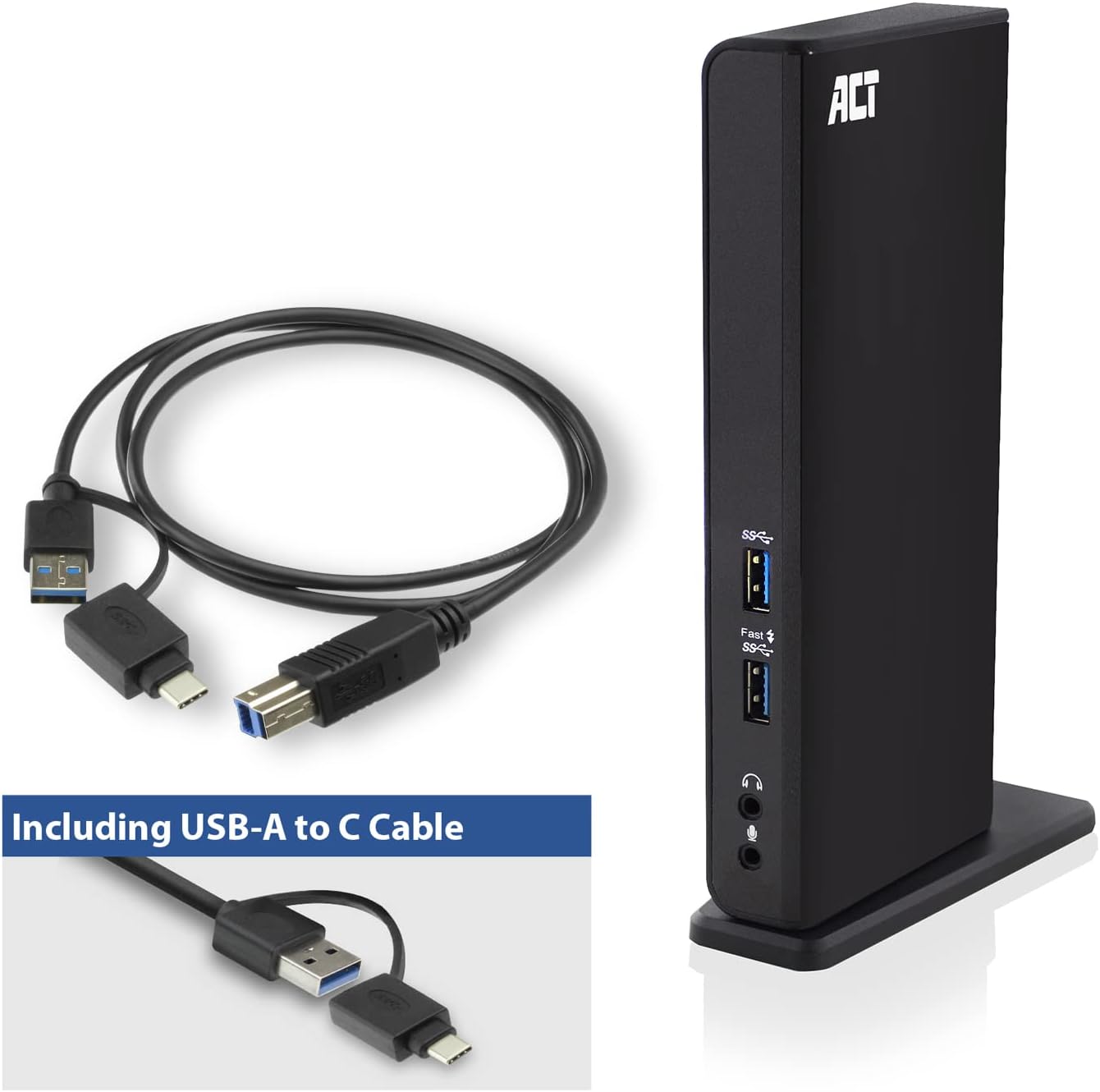
Image: The ACT AC7049 Docking Station shown with its included USB-A to USB-C connection cable and power adapter, highlighting the components provided in the package.
4. የማዋቀር መመሪያ
4.1. የኃይል አስማሚን ማገናኘት
- Connect the power adapter to the DC 5V input port on the back of the AC7049 docking station.
- Plug the power adapter into a wall outlet. The docking station will power on.
4.2. ከላፕቶፕዎ ጋር መገናኘት
- Use the provided USB-C/A 3.2 Gen1 connection cable. Connect the USB-B end to the corresponding port on the docking station.
- Connect the other end (USB-A or USB-C, depending on your laptop's port) to an available USB 3.2 Gen1 (USB 3.0) or USB-C port on your laptop.
4.3. Driver Installation (DisplayLink)
The AC7049 utilizes DisplayLink technology for extended monitor functionality. Drivers are typically installed automatically on most operating systems. If not, please follow these steps:
- ኦፊሴላዊውን DisplayLink ይጎብኙ webጣቢያ (www.displaylink.com/downloads) to download the latest drivers for your operating system (Windows or MacOS).
- Install the downloaded driver package and follow the on-screen instructions.
- ከተጠየቁ ኮምፒተርዎን እንደገና ያስጀምሩ.

Image: The official DisplayLink 'Plug and Display' logo, indicating the technology used for multi-monitor support.
5. የአሠራር መመሪያዎች
5.1. ውጫዊ ማሳያዎችን ማገናኘት
- Connect your HDMI monitors to the two HDMI ports on the back of the docking station.
- Once connected, your operating system should detect the new displays. You can configure display settings (extend, mirror, primary display) through your computer's display settings.

Image: A visual representation of the docking station enabling both 'Mirror your content' and 'Extend your content' display modes across a laptop and two external monitors.
5.2. የዩኤስቢ ፐርፌራልስን ማገናኘት
- የፊት ዩኤስቢ ወደቦች; Two USB-A 3.2 Gen1 ports (one with fast charging capability) are located on the front for easy access to frequently used devices like USB drives, smartphones, or tablets.
- Rear USB Ports: Four USB-A 2.0 ports are located on the back for connecting peripherals such as keyboards, mice, printers, or other less frequently connected devices.
5.3. የአውታረ መረብ ግንኙነት
Connect an Ethernet cable from your router or network switch to the Gigabit Ethernet port on the docking station. Your laptop will automatically gain wired network access.
5.4. የድምፅ ግንኙነቶች
Connect your headphones and/or microphone to the dedicated 3.5mm audio jacks on the front of the docking station.

Image: An isometric diagram showcasing the comprehensive connectivity of the ACT AC7049, demonstrating how a laptop, two monitors, a keyboard, mouse, network cable, headphones, and a smartphone can all be connected simultaneously.
6. የምደባ አማራጮች
The ACT AC7049 docking station offers flexible placement options to suit your workspace:
- አቀባዊ አቀማመጥ፡ Use the included stand to position the docking station vertically. This saves desk space and provides easy access to all ports.
- አግድም አቀማመጥ፡ The docking station can also be placed horizontally if preferred.

Image: The ACT AC7049 Docking Station positioned vertically on its stand, highlighting its compact design and accessible ports.
7. ጥገና
To ensure optimal performance and longevity of your ACT AC7049 Docking Station, follow these maintenance guidelines:
- ማጽዳት፡ የመትከያ ጣቢያውን ውጫዊ ክፍል ለማጽዳት ለስላሳ እና ደረቅ ጨርቅ ይጠቀሙ። መሳሪያውን ሊጎዱ ስለሚችሉ ፈሳሽ ማጽጃዎችን ወይም ኤሮሶሎችን ከመጠቀም ይቆጠቡ።
- የአየር ማናፈሻ; ከመጠን በላይ ሙቀትን ለመከላከል የመትከያ ጣቢያው በደንብ አየር በሚገባበት ቦታ ላይ መቀመጡን ያረጋግጡ። የአየር ማስገቢያ ክፍተቶችን አይዝጉ።
- ማከማቻ፡ ረዘም ላለ ጊዜ ጥቅም ላይ በማይውልበት ጊዜ የመትከያ ጣቢያውን በቀጥታ ከፀሐይ ብርሃን እና ከከፍተኛ ሙቀት ርቆ በቀዝቃዛና ደረቅ ቦታ ያከማቹ።
- የኬብል አስተዳደር ኬብሎችን እና ወደቦችን እንዳይጎዱ ለመከላከል ኬብሎችን በተደራጀ ሁኔታ ያስቀምጡ እና ከመንቀጥቀጥ ወይም ከመጠን በላይ ከመታጠፍ የፀዱ።
8. መላ መፈለግ
If you encounter issues with your ACT AC7049 Docking Station, please refer to the following common troubleshooting steps:
- ምንም የማሳያ ውጤት የለም፡
- Ensure the docking station is powered on and correctly connected to your laptop.
- የኤችዲኤምአይ ኬብሎች ከሁለቱም የመትከያ ጣቢያ እና ከሞኒተሮች ጋር ደህንነቱ በተጠበቀ ሁኔታ መገናኘታቸውን ያረጋግጡ።
- ውጫዊ ማሳያዎች በትክክል መገኘታቸውን እና መዋቀራቸውን ለማረጋገጥ የላፕቶፕዎን የማሳያ ቅንብሮች ይፈትሹ (ለምሳሌ፣ የተራዘሙ ወይም የተንጸባረቁ)።
- Reinstall or update the DisplayLink drivers from www.displaylink.com/downloads.
- ችግሩን ለመለየት አንድ ሞኒተር በአንድ ጊዜ ለማገናኘት ይሞክሩ።
- የዩኤስቢ መሳሪያዎች የማይሰሩበት ጊዜ፡
- Ensure the docking station is properly connected to your laptop and powered.
- የዩኤስቢ መሣሪያውን በቀጥታ ከላፕቶፕዎ ጋር ለማገናኘት ይሞክሩ እና ተግባራዊ መሆኑን ያረጋግጡ።
- Connect the USB device to a different USB port on the docking station.
- ላፕቶፕዎን እንደገና ያስጀምሩ።
- ምንም የአውታረ መረብ ግንኙነት የለም፡
- Verify the Ethernet cable is securely connected to both the docking station and your router/switch.
- የሽቦ ግንኙነቱ መብራቱን ለማረጋገጥ የላፕቶፕዎን የአውታረ መረብ ቅንብሮች ይፈትሹ።
- Test the Ethernet cable with another device if possible.
- ኦዲዮ አይሰራም፦
- Ensure headphones/microphone are fully plugged into the correct 3.5mm jacks.
- Check your laptop's sound settings to ensure the docking station's audio output/input is selected as the default device.
9. ዝርዝሮች
| ባህሪ | ዝርዝር መግለጫ |
|---|---|
| የሞዴል ቁጥር | AC7049 |
| የምርት ስም | ACT |
| ቀለም | ጥቁር |
| የግንኙነት ቴክኖሎጂ | ዩኤስቢ-A፣ ዩኤስቢ-ሲ |
| የቪዲዮ ውፅዓት | 2 x HDMI (Max. 2048 x 1152 @ 60Hz) |
| የዩኤስቢ ወደቦች | 3 x USB-A 3.2 Gen 1 (5Gbps, 1x Fast Charging), 4 x USB-A 2.0 (480Mbps) |
| የአውታረ መረብ ወደብ | 1 x ጊጋቢት ኢተርኔት (RJ45) |
| የድምጽ ወደቦች | 1 x 3.5mm Headphone Jack, 1 x 3.5mm Microphone Jack |
| ተስማሚ መሣሪያዎች | Laptop, Computer (with USB 3.2 Gen1 / USB 3.0 or USB-C port) |
| የስርዓተ ክወና ድጋፍ | Windows, MacOS (via DisplayLink) |
| ልኬቶች (L x W x H) | 10.9 x 6 x 18.1 ሴሜ (በግምት) |
| የእቃው ክብደት | 317 ግራም |
10. ዋስትና እና ድጋፍ
ACT products are designed for reliability and adhere to international standards and EU legislation. The ACT AC7049 Docking Station comes with a manufacturer's warranty, typically ranging from 2 to 5 years. For specific warranty details and support, please refer to the official ACT webጣቢያ ወይም ቸርቻሪዎን ያነጋግሩ።
For technical support or further inquiries, please visit the official ACT connectivity webጣቢያ፡ www.act-connectivity.com