1. በላይview
The FIFINE K669PRO2 is a USB condenser microphone designed for various applications including podcasting, gaming, streaming, voice-overs, and online meetings. It features RGB lighting, a tap-to-mute function, a gain control knob, and a cardioid pickup pattern for clear audio capture. This manual provides instructions for setting up, operating, and maintaining your microphone.
2. የጥቅል ይዘቶች
ሁሉም እቃዎች መኖራቸውን ለማረጋገጥ እባክዎ የጥቅል ይዘቱን ያረጋግጡ፡-
- FIFINE K669PRO2 USB Condenser Microphone with Pop Filter
- USB-C to USB-A Cable (6.5ft / 2m)
- ትሪፖድ መቆሚያ
- የተጠቃሚ መመሪያ

Figure 2.1: Package Contents. Includes the microphone with pop filter, USB cable, tripod stand, and user manual.
3. የማዋቀር መመሪያ
Follow these steps to set up your FIFINE K669PRO2 microphone:
3.1 አካላዊ ስብስብ
- የሶስትዮሽ ማቆሚያውን ያያይዙ፡ Screw the microphone onto the included tripod stand. Ensure it is firmly attached and stable on your desk.
- Install the Pop Filter: Attach the pop filter to the microphone's shock mount. This helps reduce plosive sounds for clearer audio.

Figure 3.1: Plug and Play setup. The microphone connects directly to your computer via the provided USB cable.
3.2 ከመሣሪያዎ ጋር መገናኘት
- የዩኤስቢ ገመዱን ያገናኙ; Plug the USB-C end of the cable into the microphone and the USB-A end into an available USB port on your computer (PC/Mac) or gaming console (PS4/PS5).
- የስርዓት እውቅና Your operating system should automatically detect and install the necessary drivers. The microphone is plug-and-play, requiring no additional software installation.
- እንደ የግቤት መሣሪያ ይምረጡ፡-
- ዊንዶውስ፡ ሂድ ወደ የድምጽ ቅንብሮች > ግቤት and select "FIFINE K669PRO2" as your input device.
- macOS: ሂድ ወደ የስርዓት ምርጫዎች > ድምጽ > ግቤት and select "FIFINE K669PRO2".
- PS4/PS5፡ ሂድ ወደ ቅንብሮች > መሳሪያዎች > የድምጽ መሳሪያዎች and select "FIFINE K669PRO2" as your input device.
4. የአሠራር መመሪያዎች
4.1 ቁጥጥር ያግኙ
The microphone features a gain control knob on the front. Rotate the knob to adjust the microphone's input sensitivity. Turn clockwise to increase gain and counter-clockwise to decrease it. Adjust the gain to achieve optimal audio levels without distortion.

Figure 4.1: Front panel controls, including the gain knob for volume adjustment.
4.2 ድምጸ-ከል ተግባር
Tap the mute button on the front of the microphone to instantly mute or unmute your audio. The LED indicator will change color to show the mute status (e.g., green for active, red for muted), providing a visual reminder.
Figure 4.2: Front panel controls, highlighting the tap-to-mute button.
4.3 RGB የመብራት መቆጣጠሪያ
The microphone features customizable RGB lighting. Use the RGB control key on the back of the microphone to cycle through different lighting modes and colors. There are three lighting modes and over nine color options available.

Figure 4.3: RGB lighting in action, showcasing dynamic solid-color, dynamic multi-color, and static solid color modes.

ምስል 4.4: የኋላ view of the microphone, indicating the RGB control button.
4.4 Cardioid Pickup Pattern
The K669PRO2 utilizes a cardioid polar pattern. This means the microphone primarily picks up sound from the front, reducing unwanted noise from the sides and rear. Position the microphone directly towards the sound source (e.g., your mouth) for optimal voice capture.
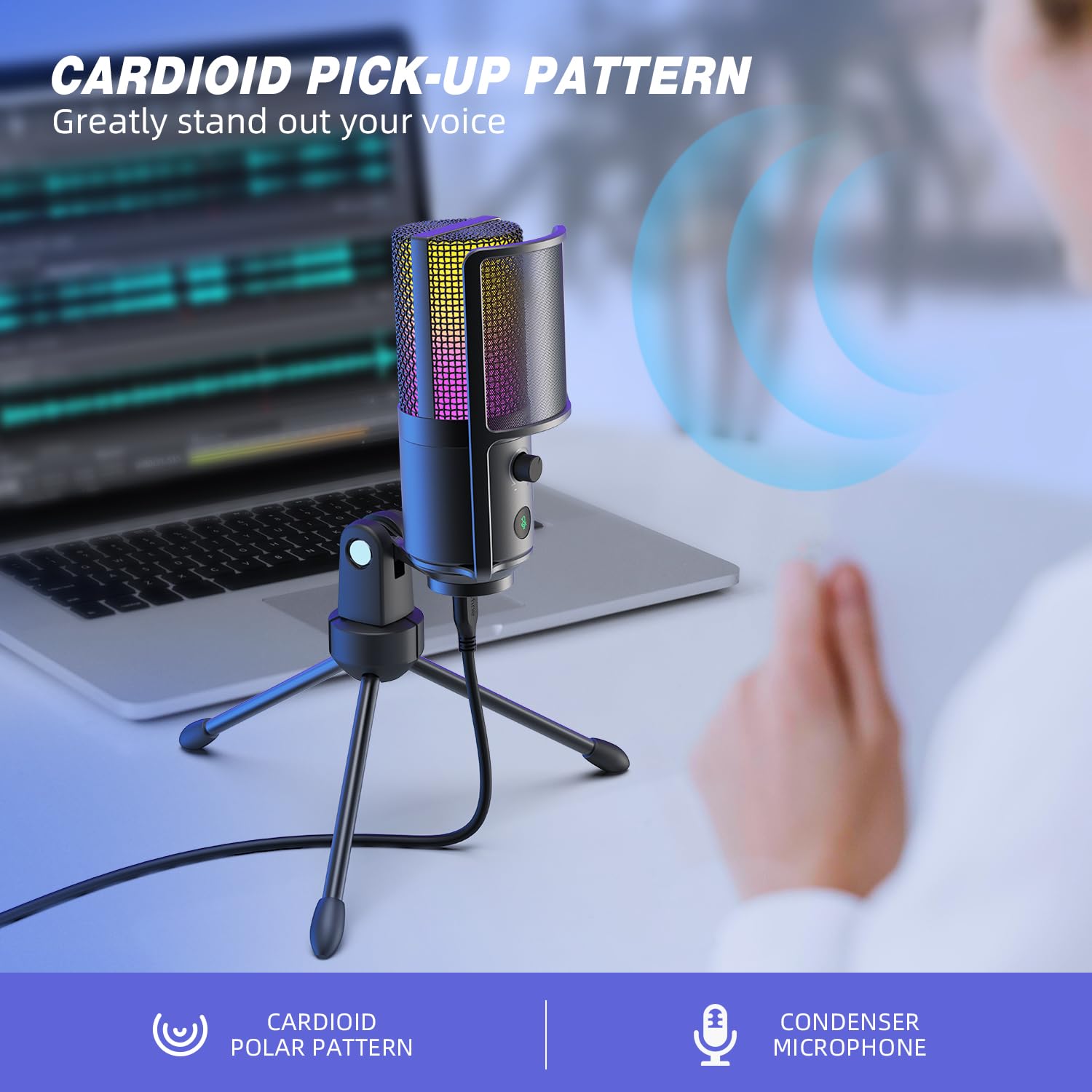
Figure 4.5: Cardioid pickup pattern illustration, demonstrating focused sound capture.
5. ጥገና
- ማጽዳት፡ Use a soft, dry cloth to clean the microphone's exterior. Avoid using liquid cleaners or solvents, as they may damage the device.
- ማከማቻ፡ በማይጠቀሙበት ጊዜ ማይክሮፎኑን በደረቅና አቧራ በሌለበት አካባቢ ያስቀምጡት።
- አያያዝ፡ ማይክሮፎኑን በጥንቃቄ ይያዙ። እሱን ከመጣል ወይም ለጠንካራ ተፅዕኖዎች ከማስገዛት ተቆጠብ፣ ይህም አፈፃፀሙን ሊጎዳ ይችላል።
6. መላ መፈለግ
| ችግር | ሊሆን የሚችል ምክንያት | መፍትሄ |
|---|---|---|
| ከማይክሮፎን ምንም የድምፅ ውጤት የለም። |
|
|
| Low volume or weak audio. |
|
|
| የተዛባ ወይም ግልጽ ያልሆነ ኦዲዮ። |
|
|
| RGB መብራት አይሰራም። |
|
|
7. ዝርዝሮች
| ሞዴል | K669PRO2 |
| የዋልታ ንድፍ | ባለአቅጣጫ (Cardioid) |
| የግንኙነት ቴክኖሎጂ | ዩኤስቢ |
| የማገናኛ አይነት | USB-C (on mic), USB-A (on cable) |
| ተስማሚ መሣሪያዎች | ፒሲ ፣ ማክ ፣ PS4 ፣ PS5 |
| ቁሳቁስ | ብረት |
| የድግግሞሽ ምላሽ | 20 Hz - 20 kHz |
| የምልክት-ወደ-ጫጫታ ሬሾ | 70 ዲቢቢ |
| የኃይል ምንጭ | ባለገመድ ኤሌክትሪክ (ዩኤስቢ የተጎላበተ) |
| የእቃው ክብደት | 508 ግ |
| የተካተቱ አካላት | Microphone, USB Cable, Tripod Stand, Pop Filter |
8. ዋስትና እና ድጋፍ
የዋስትና መረጃ፣ የቴክኒክ ድጋፍ ወይም የደንበኛ አገልግሎት ጥያቄዎችን ለማግኘት፣ እባክዎን ኦፊሴላዊውን FIFINE ይመልከቱ። website or contact their customer support directly. Details can typically be found on the product packaging or the manufacturer's official online channels.
You can visit the FIFINE store for more information: FIFINE Official Store


