1. መግቢያ
The AeroCool Blade is an ATX semi-tower PC case designed for optimal airflow and aesthetic appeal. It features an RGB front panel with preset lighting modes, a full tempered glass side window, and ample space for component installation. This manual provides essential information for the proper setup, operation, and maintenance of your PC case.
የደህንነት መረጃ፡ Always disconnect power from your system before performing any installation or maintenance. Handle components with care to avoid damage. Refer to individual component manuals for specific installation instructions.
2. የጥቅል ይዘቶች
- AeroCool Blade ATX Semi-Tower PC Case
- 1 x 120mm RGB Rear Fan (pre-installed)
- 3 x 120mm Front Fans (pre-installed)
- የመለዋወጫ ኪት (ዊንጮች፣ መጋጠሚያዎች፣ የኬብል ክራቦች)
3. ማዋቀር እና መጫን
3.1 ጉዳዩን ማዘጋጀት
Carefully remove the case from its packaging. Place it on a stable, flat surface. Remove the tempered glass side panel by unscrewing the thumb screws at the rear of the case and gently pulling the panel away.

ምስል 3.1 - ውስጣዊ view of the AeroCool Blade PC case, illustrating the layout for component installation.
3.2 የማዘርቦርድ ጭነት
- Install the necessary motherboard standoffs into the motherboard tray according to your motherboard's form factor (ATX, Micro-ATX, Mini-ITX).
- የ I/O ጋሻውን በኬሱ የኋላ ክፍል ውስጥ ይጫኑ።
- በጥንቃቄ ማዘርቦርድዎን በቆመበት ቦታ ላይ ያስቀምጡ, የሾላውን ቀዳዳዎች በማስተካከል.
- ማዘርቦርዱን በተሰጡት ብሎኖች ያስጠብቁ።
3.3 የኃይል አቅርቦት አሃድ (PSU) መጫኛ
The AeroCool Blade supports bottom-mounted PSUs. Slide your PSU into the dedicated compartment at the bottom rear of the case. Secure it with screws from the rear of the case.
3.4 የማከማቻ ድራይቭ መጫኛ
- 3.5 ኢንች ኤችዲዲዎች፡ Install 3.5" hard drives into the drive cage located beneath the PSU shroud.
- 2.5" SSDs/HDDs: Install 2.5" drives onto the dedicated mounting points on the motherboard tray or behind it.

ምስል 3.2፡ የኋላ ውስጣዊ view, highlighting cable management routes and 2.5-inch drive mounting locations.
3.5 የማስፋፊያ ካርድ (ጂፒዩ) መጫኛ
Remove the necessary expansion slot covers from the rear of the case. Insert your graphics card or other expansion cards into the PCIe slots on your motherboard and secure them with screws.
3.6 Fan and Cooling Installation
The case comes with one 120mm RGB fan pre-installed at the rear and three 120mm fans pre-installed at the front. Ensure all fan cables are connected to appropriate headers on your motherboard or fan controller.

Figure 3.3: A 120mm RGB fan, similar to those pre-installed in the AeroCool Blade case.
3.7 የፊት ፓነል እኔ / ሆይ ግንኙነቶች
Connect the front panel cables (USB 3.0, USB 2.0, HD Audio, Power Switch, Reset Switch, LED Switch, Power LED, HDD LED) to the corresponding headers on your motherboard. Refer to your motherboard manual for exact pin configurations.
4. የአሠራር መመሪያዎች
4.1 በማብራት ላይ
Once all components are installed and connected, replace the side panel. Connect your monitor, keyboard, mouse, and power cable to the PSU. Press the Power button located on the top panel of the case to turn on your system.

ምስል 4.1፡ የላይኛው ፊት view of the case, indicating the location of the power button and front I/O ports.
4.2 RGB የመብራት መቆጣጠሪያ
The AeroCool Blade features an RGB front panel. Use the dedicated LED button on the top panel to cycle through various preset lighting modes and effects. Pressing the button will change the lighting pattern or color.

ምስል 4.2: የፊት view of the AeroCool Blade case with its distinctive RGB lighting.
4.3 የፊት ፓነል ወደቦች
The top panel provides convenient access to:
- 1 x ዩኤስቢ 3.0 ወደብ
- 2 x ዩኤስቢ 2.0 ወደቦች
- HD Audio output
- የማይክሮፎን ግቤት
Connect your USB devices, headphones, and microphone to these ports as needed.
5. ጥገና
5.1 የአቧራ ማጣሪያ ማጽዳት
Regularly check and clean the dust filters to maintain optimal airflow and prevent dust buildup inside the case. Dust filters are typically located at the top, front, and bottom (under the PSU). Gently remove them and clean with compressed air or rinse with water (ensure they are completely dry before re-installation).
5.2 የውጭ ጽዳት
የጉዳዩን ውጫዊ ገጽታዎች ለስላሳ, መamp ጨርቅ። ጨርቁን ወይም የተለሰለሰ ብርጭቆውን ሊጎዱ የሚችሉ ጠጣር ኬሚካሎችን ወይም ሻካራ ቁሳቁሶችን ከመጠቀም ይቆጠቡ።
6. መላ መፈለግ
- ስርዓቱ አይበራም;
Ensure the PSU is switched on and properly connected to the wall outlet. Verify all power cables from the PSU are correctly connected to the motherboard and components. Check the front panel power switch connection to the motherboard. - RGB መብራት አይሰራም፡
Ensure the RGB controller (if applicable) and fan RGB cables are securely connected. Press the LED button on the top panel to cycle through modes. If connected to a motherboard header, check motherboard software settings. - አድናቂዎች የማይሽከረከሩ;
Verify that all fan power cables are securely connected to the motherboard fan headers or a fan controller. Check BIOS/UEFI settings for fan speed control. - Front Panel USB/Audio Not Working:
Ensure the USB and HD Audio cables from the front panel are correctly connected to the corresponding headers on your motherboard.
7. ዝርዝሮች
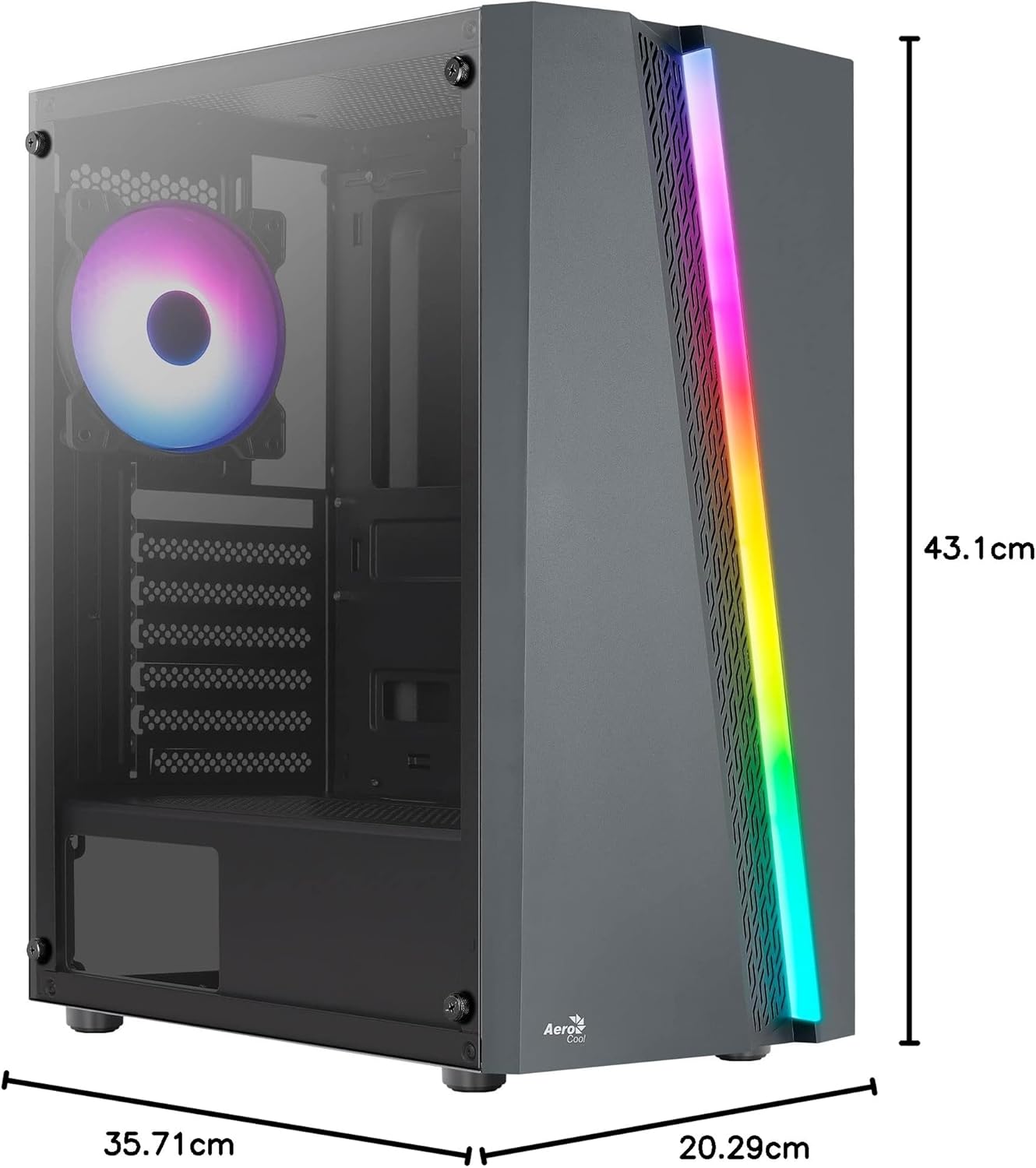
Figure 7.1: Dimensions of the AeroCool Blade PC Case.
| ባህሪ | ዝርዝር መግለጫ |
|---|---|
| የምርት ስም | ኤሮኮል |
| የሞዴል ስም | BLADEBK |
| የጉዳይ ዓይነት | Semi-Tower |
| የማዘርቦርድ ተኳኋኝነት | ATX፣ ማይክሮ-ATX፣ ሚኒ-ITX |
| ቁሳቁስ | Tempered Glass (Side Panel) |
| የምርት ልኬቶች (L x W x H) | 43.1 x 20.3 x 35.7 ሴ.ሜ |
| የእቃው ክብደት | 4 ኪ.ግ |
| Drive Bays | 2 x 3.5", 2 x 2.5" |
| የጂፒዩ ማጽዳት | እስከ 307 ሚ.ሜ |
| የሲፒዩ ማቀዝቀዣ ቁመት | እስከ 155 ሚ.ሜ |
| የፊት I / O ወደቦች | 1 x USB 3.0, 2 x USB 2.0, HD Audio, Mic, LED Control, Power |
| ቀድሞ የተጫኑ አድናቂዎች | 1 x 120mm RGB Rear, 3 x 120mm Front |
| የማቀዝቀዣ ዘዴ | አየር |
8. ዋስትና እና ድጋፍ
የዋስትና መረጃ እና የቴክኒክ ድጋፍ ለማግኘት፣ እባክዎን ኦፊሴላዊውን AeroCool ይመልከቱ። webጣቢያ ወይም የአካባቢዎን ቸርቻሪ ያነጋግሩ። ለዋስትና ጥያቄዎች የግዢ ማረጋገጫዎን ያስቀምጡ።
የእውቂያ መረጃ፡- ለተጨማሪ እርዳታ እባክዎን ይጎብኙ www.aerocool.io.


