1. መግቢያ
This user manual provides comprehensive instructions for the EasySMX 9110 Wireless Gaming Controller and its accompanying backup wireless receiver dongle. This kit is designed to enhance your gaming experience across multiple platforms.
The EasySMX 9110 Wireless Gaming Controller is compatible with a wide range of devices, including PC (Xinput & Dinput), Steam, PlayStation 3 (PS3), Android mobile devices, Android TV boxes, Tesla vehicles, Nintendo Switch, and Steam Deck.
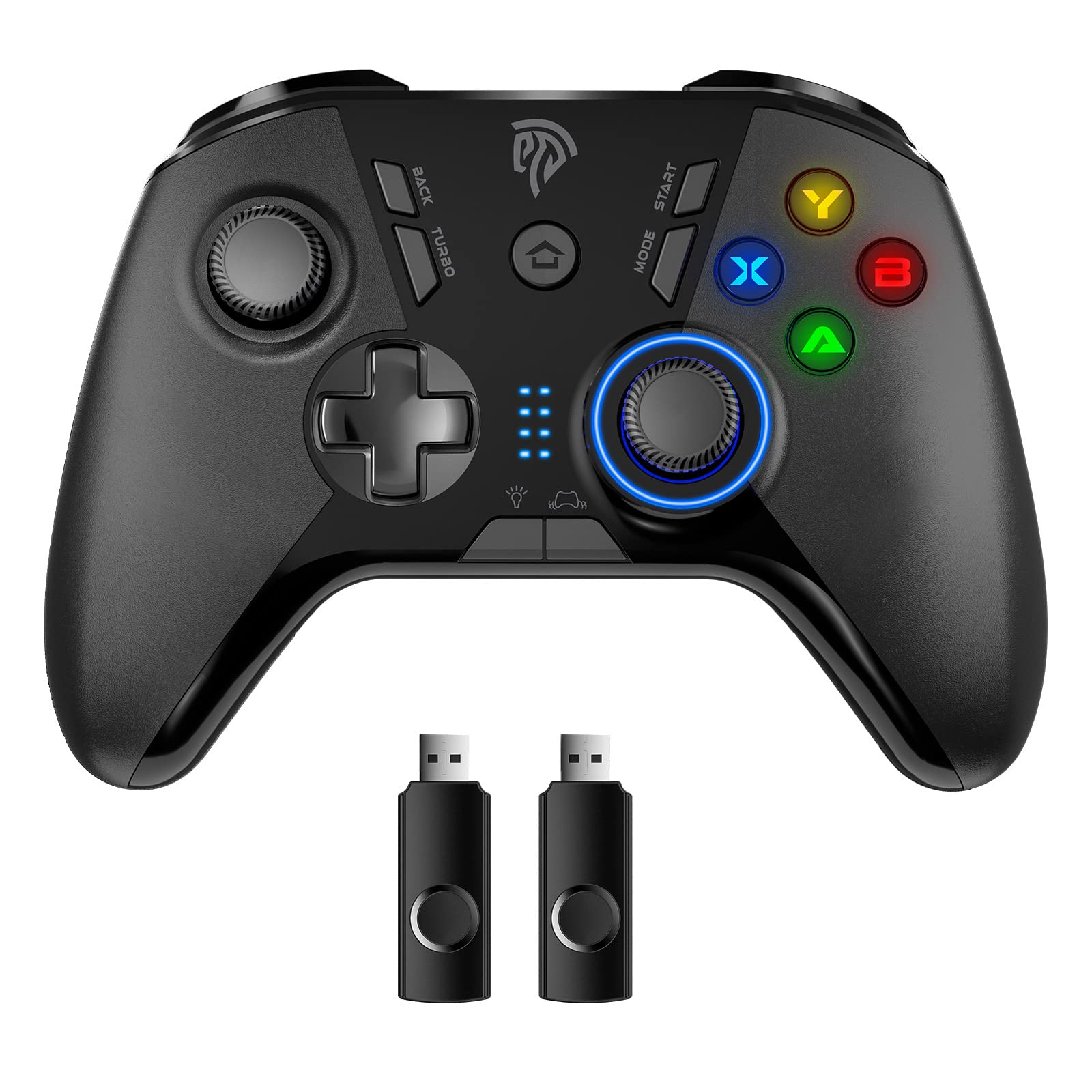
Image 1.1: EasySMX 9110 Wireless Gaming Controller and USB Dongle. The image displays the black wireless controller with its various buttons and joysticks, alongside the compact black USB wireless receiver dongle.
2. የጥቅል ይዘቶች
እባክዎ ሁሉም እቃዎች በጥቅልዎ ውስጥ መኖራቸውን ያረጋግጡ፡-
- 1 x EasySMX 9110 Wireless Gaming Controller
- 1 x Backup Wireless Receiver Dongle
- 1 x USB Charging Cable (typically included, though not explicitly listed in product features)
- 1 x የተጠቃሚ መመሪያ (ይህ ሰነድ)
3. ማዋቀር
3.1. መቆጣጠሪያውን መሙላት
Before initial use, ensure the controller is fully charged. The controller has a built-in 600mAh battery, providing approximately 12-14 hours of working time on a full charge. A full charge typically takes about 2 hours.
- Connect the small end of the USB charging cable to the charging port on the controller.
- የዩኤስቢ ቻርጅ ገመዱን ትልቁን ጫፍ ከዩኤስቢ የኃይል ምንጭ ጋር ያገናኙ (ለምሳሌ፣ የኮምፒውተር ዩኤስቢ ወደብ፣ የዩኤስቢ ግድግዳ አስማሚ)።
- The indicator lights on the controller will show charging status. They will typically stop blinking or change color once fully charged.
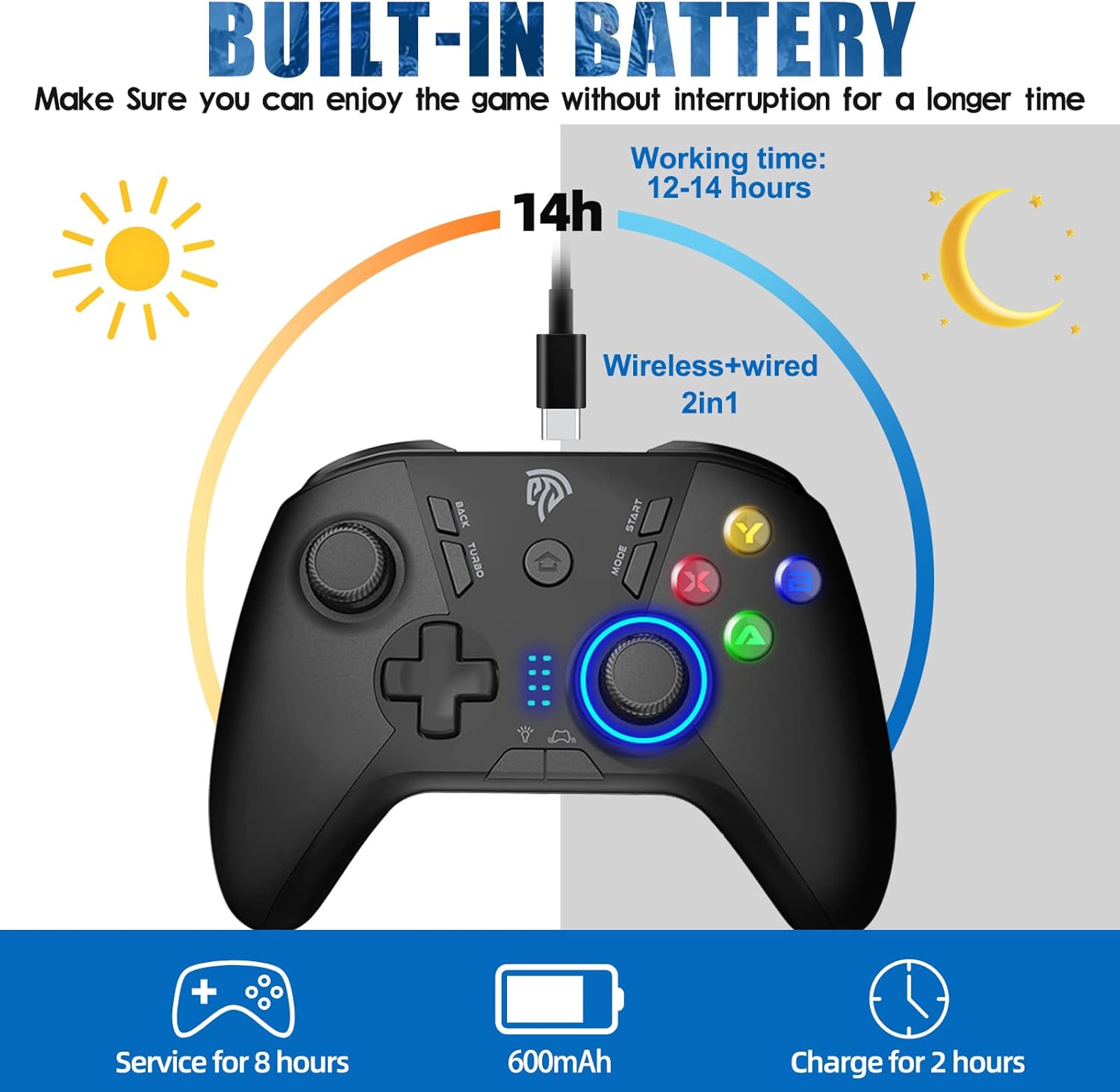
Image 3.1: EasySMX 9110 Controller Built-in Battery and Charging Information. This graphic illustrates the controller's 600mAh built-in battery, showing a working time of 12-14 hours and a charging time of 2 hours.
3.2. Connecting the Wireless Receiver Dongle
The controller uses a 2.4GHz wireless connection via the provided USB dongle. The dongle allows for a stable connection up to 10 meters (approximately 33 feet).
- Locate an available USB port on your desired gaming platform (PC, PS3, Android TV Box, Nintendo Switch Dock, Steam Deck via adapter, Tesla).
- Insert the wireless receiver dongle firmly into the USB port.
- The system should automatically recognize the dongle.

Image 3.2: EasySMX Wireless Receiver Dongle Close-up. A detailed view of the black USB wireless receiver dongle, featuring a central circular button.

Image 3.3: EasySMX Controller 2.4G Wireless Range and Dongle. This image illustrates the 2.4G wireless connection between the controller and the USB dongle, highlighting a 10-meter operational range.
3.3. መቆጣጠሪያውን በማጣመር
Once the dongle is connected to your device, power on the controller. The controller should automatically attempt to connect to the dongle. The indicator lights on the controller will confirm a successful connection.
- Press the Home button (usually the central logo button) on the controller to power it on.
- The indicator lights will flash while searching for the dongle and become solid once connected.
- If the controller does not connect automatically, ensure the dongle is properly inserted and try pressing the Home button again.
4. የአሠራር መመሪያዎች
4.1. ማብራት / ማጥፋት
- አብራ፡ Press the Home button (EasySMX logo) to turn on the controller.
- ኃይል ዝጋ: Press and hold the Home button for approximately 5 seconds to turn off the controller. The controller will also automatically power off after a period of inactivity to conserve battery.
4.2. Mode Switching (Xinput/Dinput)
The EasySMX 9110 controller supports both Xinput and Dinput modes for PC compatibility. The controller typically defaults to Xinput mode when connected to a PC, which is standard for most modern games.
- To switch between modes, consult the specific instructions provided with your controller or refer to the EasySMX official support website. (Note: Specific button combination for mode switching is not provided in the product data, general guidance is given).
4.3. የቱርቦ ተግባር
The controller features a Turbo function for rapid-fire input. This can be useful in games requiring quick, repeated button presses.
- To activate Turbo: Press and hold the desired action button (e.g., A, B, X, Y) and then press the 'TURBO' button simultaneously.
- To deactivate Turbo: Repeat the same process (hold the action button and press 'TURBO').
4.4. Supported Platforms and Connection Methods
The controller offers versatile compatibility:
- PC (Windows XP/7/8/8.1/10/11): Connect the USB dongle to an available USB port on your desktop or laptop. The system will install necessary drivers automatically.
- PlayStation 3 (PS3)፦ Connect the USB dongle to an available USB port on the PS3 console.
- Android Mobile/Tablet/TV Box: For Android devices, an OTG adapter (not included) may be required to connect the USB dongle. Plug the dongle into the OTG adapter, then connect the adapter to your Android device.
- ኔንቲዶ ቀይር፡ Connect the USB dongle to an available USB port on the Nintendo Switch dock. For handheld mode, an OTG adapter is required.
- የእንፋሎት ዴክ፡ Connect the USB dongle to an available USB port on the Steam Deck or via a USB-C hub/adapter.
- Tesla: Connect the USB dongle to an available USB port in your Tesla vehicle.
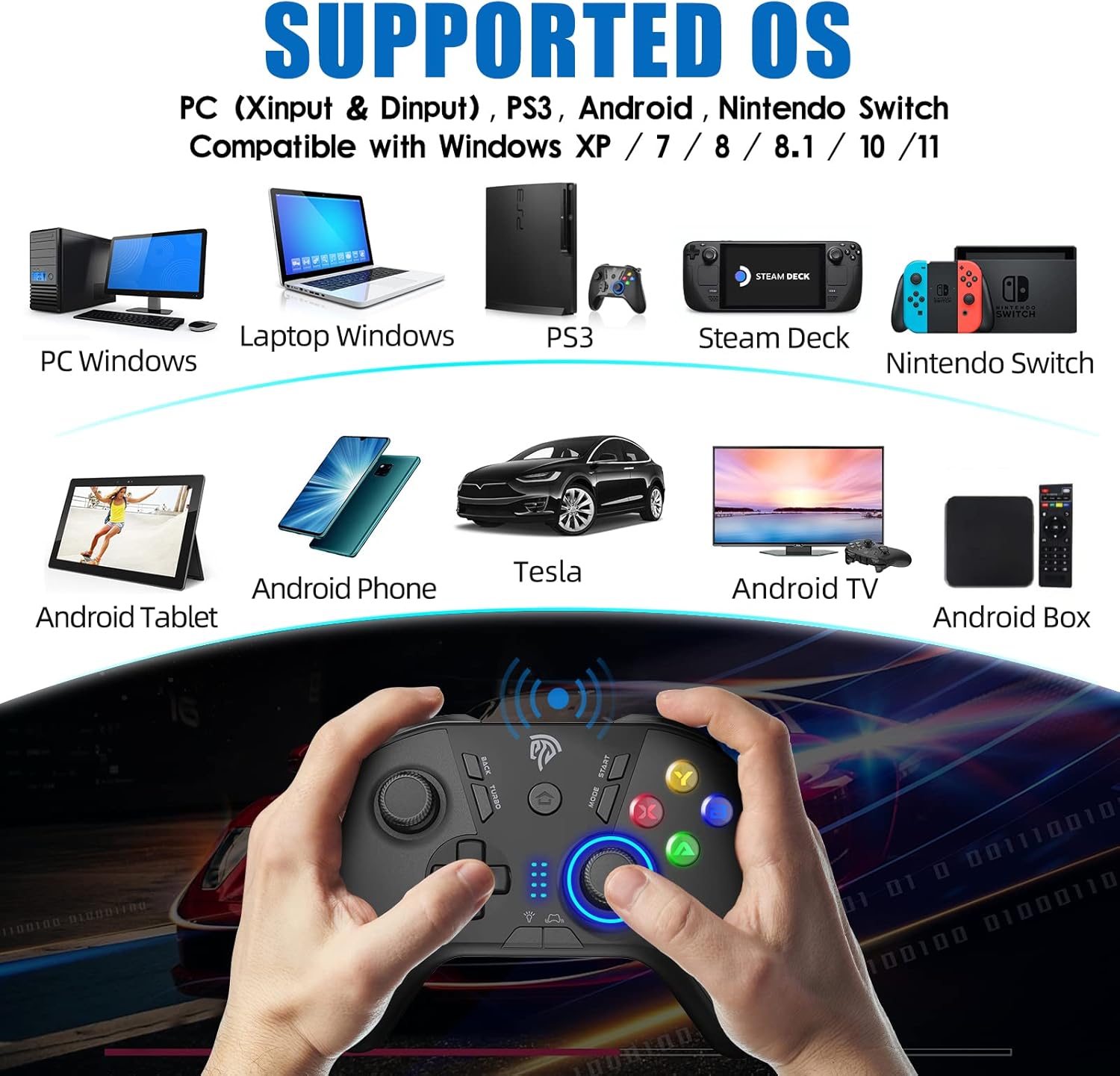
Image 4.1: EasySMX Controller Supported Operating Systems and Devices. This image displays various compatible platforms including PC (Windows), Laptop, PS3, Steam Deck, Nintendo Switch, Android Phone, Android Tablet, Tesla, Android TV, and Android Box.
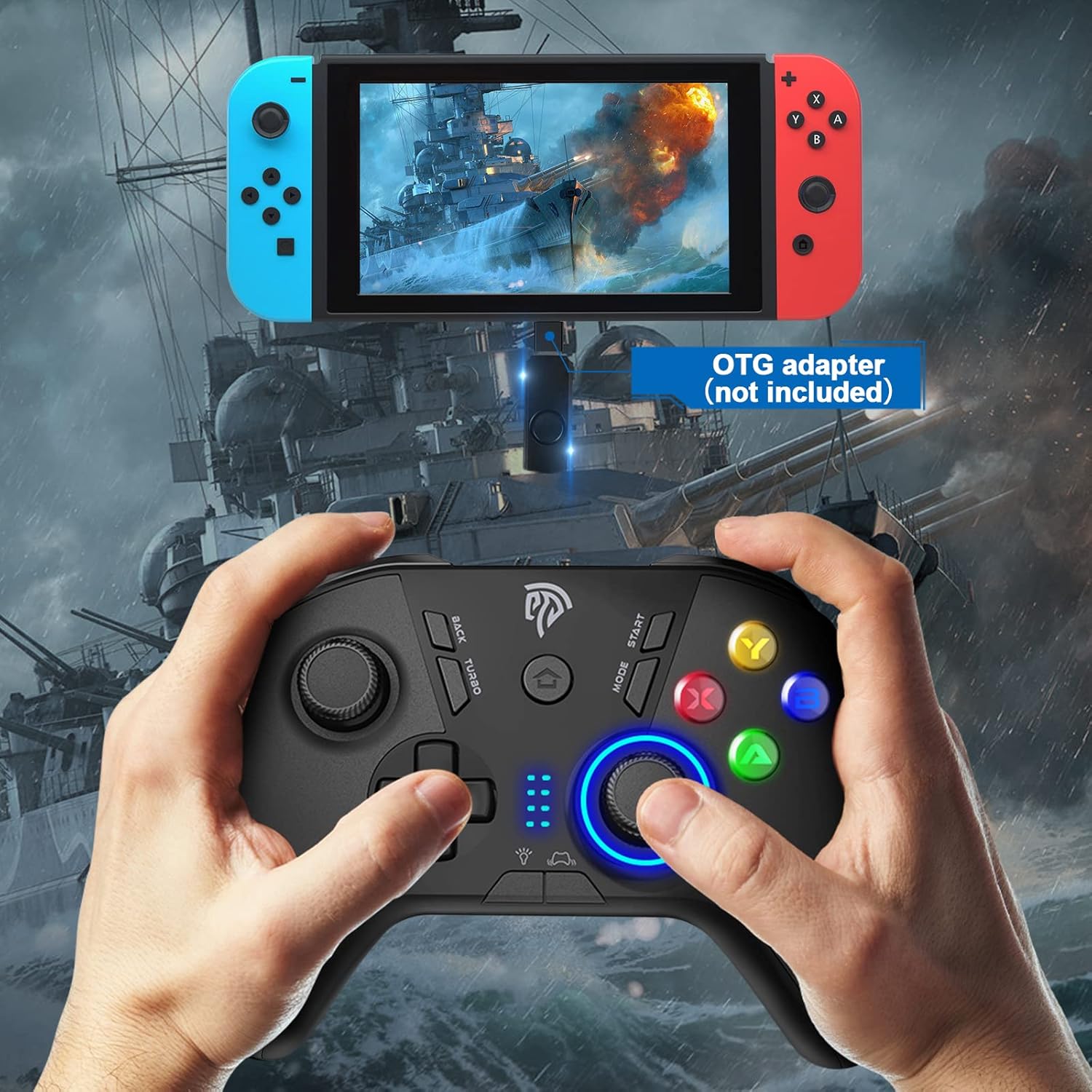
Image 4.2: EasySMX Controller Connected to Nintendo Switch via OTG Adapter. The image shows the controller being used with a Nintendo Switch in handheld mode, indicating that an OTG adapter (not included) is required for this connection.
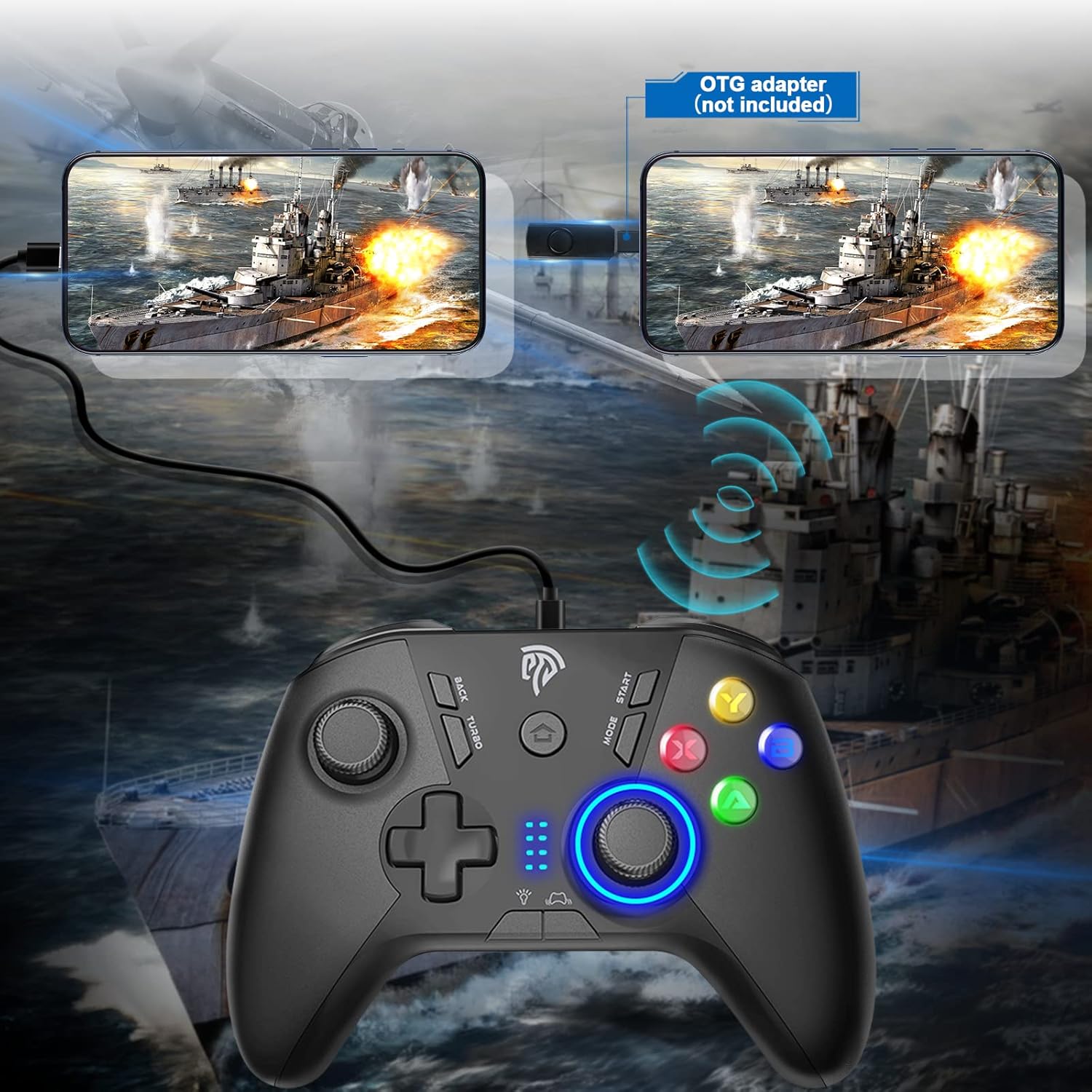
Image 4.3: EasySMX Controller Connected to Mobile Phones via OTG Adapter. This image demonstrates the controller connected to two mobile phones, illustrating the use of an OTG adapter (not included) for wired connection to mobile devices.
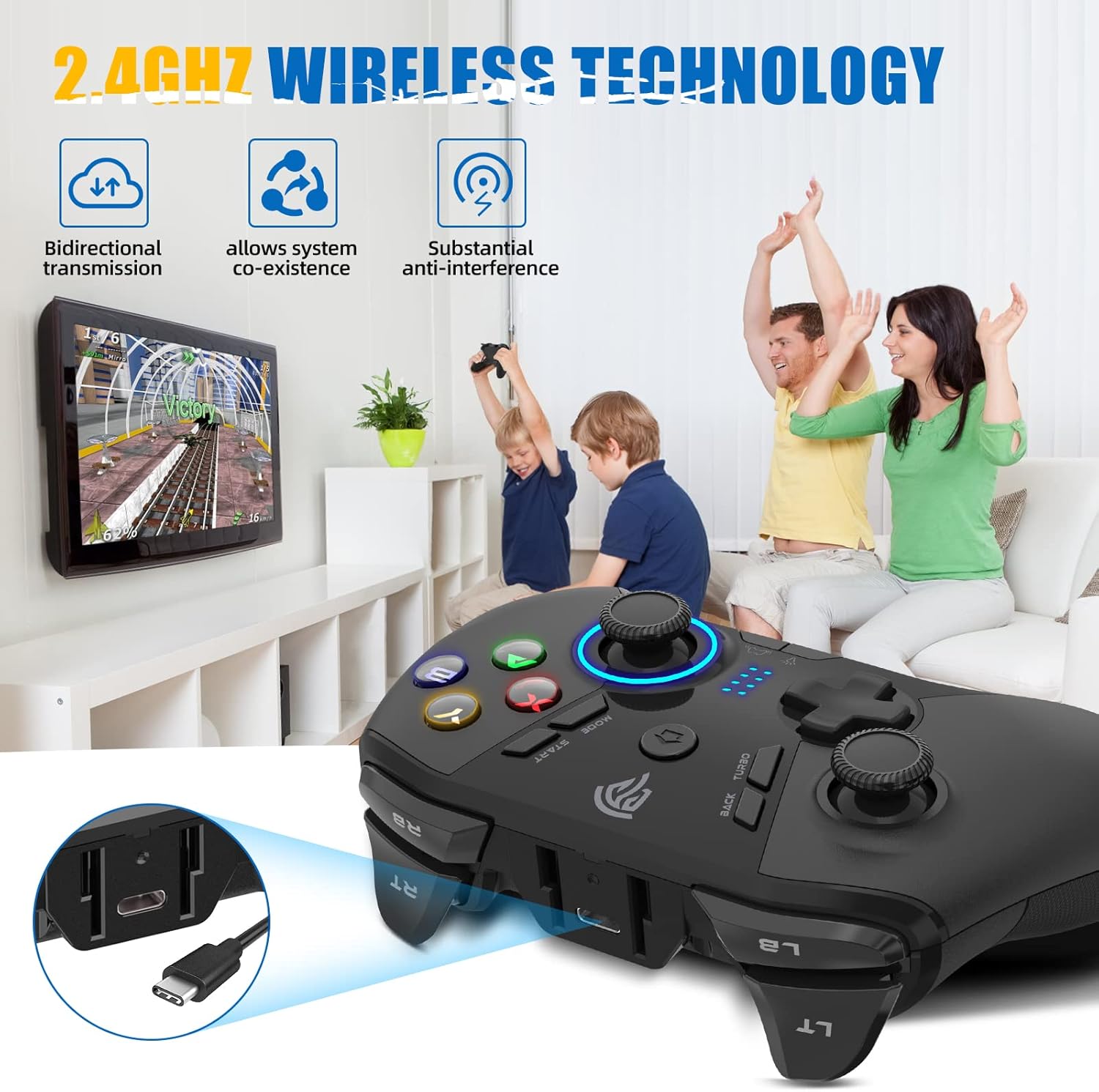
Image 4.4: EasySMX 2.4GHz Wireless Technology for Gaming. This image highlights the 2.4GHz wireless technology, emphasizing bidirectional transmission, system co-existence, and substantial anti-interference for a smooth gaming experience.
5. ጥገና
5.1. ማጽዳት
- Use a soft, dry cloth to wipe the surface of the controller and dongle.
- ለግትር ቆሻሻ፣ በትንሹ መampጨርቁን በውሃ ወይም በቀላል የጽዳት መፍትሄ ያጠቡ፣ ከዚያም ወዲያውኑ ደረቅ ያድርቁት።
- Do not use harsh chemicals, abrasive cleaners, or allow liquids to enter the device openings.
5.2. ማከማቻ
- Store the controller and dongle in a cool, dry place away from direct sunlight and extreme temperatures.
- ጉዳት እንዳይደርስብዎት ከባድ ነገሮችን በመቆጣጠሪያው ላይ ከማስቀመጥ ይቆጠቡ።
5.3. የባትሪ እንክብካቤ
- የባትሪውን ዕድሜ ለማራዘም፣ መቆጣጠሪያውን ብዙ ጊዜ ሙሉ በሙሉ ከመሙላት ይቆጠቡ።
- If storing the controller for an extended period, charge it to approximately 50% every three months.
6. መላ መፈለግ
6.1. መቆጣጠሪያው እየተገናኘ አይደለም
- Check Dongle: Ensure the wireless receiver dongle is securely plugged into a working USB port on your device.
- አብራ፡ Make sure the controller is powered on by pressing the Home button.
- የባትሪ ደረጃ፡ Charge the controller fully to ensure it has sufficient power.
- ጣልቃ ገብነት፡- Move closer to the dongle or away from potential sources of wireless interference (e.g., Wi-Fi routers, microwaves).
- እንደገና ያጣምሩ፡ Try re-pairing the controller by powering it off and on, ensuring the dongle is connected.
6.2. አዝራሮች ወይም ጆይስቲክ ምላሽ አይሰጡም
- ግንኙነት፡- Verify the controller is properly connected to your device (indicator lights solid).
- እንደገና ጀምር፥ ማብራት እና ከዚያ መቆጣጠሪያውን ማብራት።
- በሌላ መሳሪያ ላይ ይሞክሩት፡- If possible, test the controller on a different compatible device to determine if the issue is with the controller or the original device/game.
- አጽዳ፡ አዝራሮችን ወይም ጆይስቲክን የሚያደናቅፍ ምንም አይነት ፍርስራሽ እንደሌለ ያረጋግጡ።
6.3. መዘግየት ወይም ግንኙነት ማቋረጥ
- ርቀት፡ Ensure the controller is within the 10-meter operating range of the dongle.
- እንቅፋቶች፡- Minimize physical obstructions between the controller and the dongle.
- ጣልቃ ገብነት፡- Reduce other 2.4GHz wireless devices operating nearby.
- የዩኤስቢ ወደብ፡ Try a different USB port for the dongle, especially if using a USB hub.
7. ዝርዝሮች
| ባህሪ | ዝርዝር |
|---|---|
| የምርት ስም | EasySMX |
| ሞዴል | 9110 |
| የግንኙነት ቴክኖሎጂ | 2.4GHz Wireless (USB Dongle) |
| ገመድ አልባ ክልል | እስከ 10 ሜትር |
| የመቆጣጠሪያ አይነት | የጨዋታ ሰሌዳ |
| ተስማሚ መሣሪያዎች | PC (Desktop, Laptop), Gaming Console (PS3, Nintendo Switch, Steam Deck), Smartphone (Android), Television (Android TV), Tesla |
| የኃይል ምንጭ | ባትሪ (አብሮ የተሰራ 600mAh) |
| የስራ ጊዜ | 12-14 ሰአታት (በግምት) |
| የኃይል መሙያ ጊዜ | 2 ሰዓታት (በግምት) |
| ልዩ ባህሪ | Wireless, Turbo Function |
8. ዋስትና እና ድጋፍ
8.1. የዋስትና መረጃ
EasySMX products typically come with a limited warranty. For specific warranty terms and conditions, please refer to the warranty card included with your product or visit the official EasySMX webጣቢያ. ለዋስትና ጥያቄዎች የግዢ ደረሰኝዎን እንደ ግዢ ማረጋገጫ ያቆዩት።
8.2. የደንበኛ ድጋፍ
If you encounter any issues not covered in this manual or require further assistance, please contact EasySMX customer support. You can usually find contact information (email, phone, or support portal) on the official EasySMX webጣቢያ፡
When contacting support, please have your product model (9110) and purchase details ready.


