1. መግቢያ
This manual provides comprehensive instructions for the safe and efficient use of your MARKLIFE P50 Portable Bluetooth Thermal Label Printer. Please read this manual thoroughly before operating the device and retain it for future reference.
2. የደህንነት መረጃ
- መሳሪያውን አትሰብስቡ፣ አይጠግኑት ወይም አይቀይሩት።
- መሳሪያውን ከውሃ፣ ከእርጥበት እና ከከፍተኛ ሙቀት ያርቁ።
- Use only MARKLIFE approved labels and accessories.
- ከታተመ በኋላ ወዲያውኑ የህትመት ጭንቅላቱን ከመንካት ይቆጠቡ፣ ምክንያቱም ሞቃት ሊሆን ይችላል።
- ልጆች በማይደርሱበት ቦታ ያስቀምጡ.
3. የጥቅል ይዘቶች
ሁሉም እቃዎች በጥቅልዎ ውስጥ መኖራቸውን ያረጋግጡ፡-
- MARKLIFE P50 መለያ አታሚ
- 3 Rolls of Labels (2x 1.57"x1.18" white gap labels, 1x 2"x2" circle gap label)
- የዩኤስቢ-ሲ ኃይል መሙያ ገመድ
- የተጠቃሚ መመሪያ (ይህ ሰነድ)
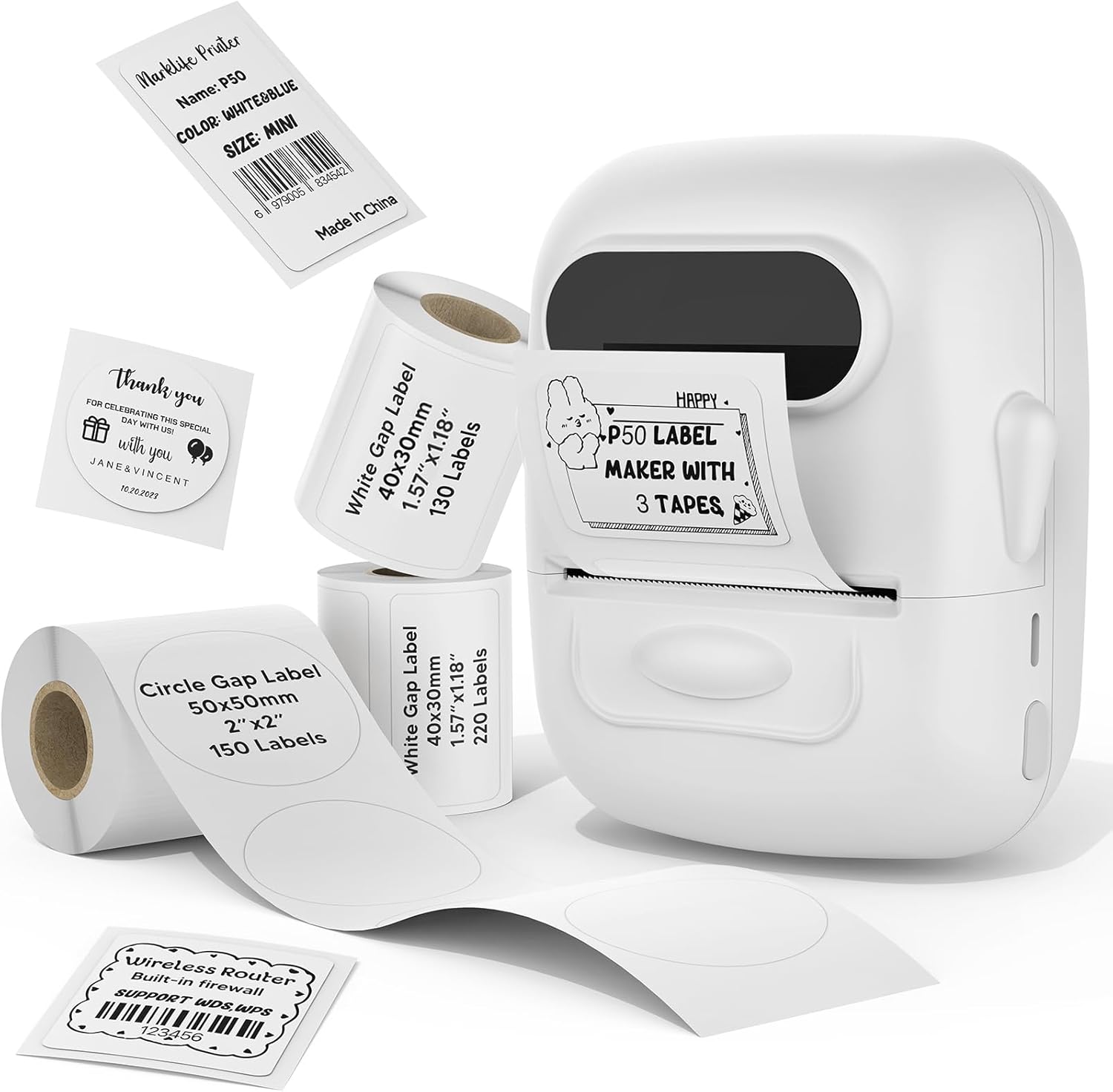
Image: MARKLIFE P50 Label Printer and various label rolls included in the package.
4. ምርት አብቅቷልview
The MARKLIFE P50 is a compact, portable thermal label printer designed for various labeling needs. It connects wirelessly via Bluetooth to your smartphone or tablet and can also connect to a Windows PC via USB. It utilizes thermal printing technology, requiring no ink, and supports black and white printing only.

Image: The MARKLIFE P50 printer being placed into a handbag, highlighting its portable design and built-in 1200mAh battery with Type-C charging.
5. ማዋቀር
5.1 መሳሪያውን መሙላት
Before first use, fully charge the printer using the provided USB-C cable and a compatible power adapter (not included). The charging indicator light will show the charging status.
5.2 መለያዎችን መጫን
- የመለያውን ክፍል ክዳን ይክፈቱ።
- የህትመት ገጹ ወደ ላይ እያየ የመለያውን ጥቅል ያስገቡ።
- Ensure the label edge is aligned and extends slightly out of the printer slot.
- Close the cover firmly. The printer will automatically detect the label type and size.

Image: Illustration of label loading and compatible label widths (0.59 to 2.24 inches) for the P50 printer.
5.3 App Installation and Bluetooth Pairing (for Mobile Devices)
- Download the "Marklife" app from your device's app store (iOS or Android).
- Turn on the P50 printer.
- በእርስዎ ዘመናዊ ስልክ ወይም ጡባዊ ላይ ብሉቱዝን ያንቁ።
- Open the Marklife app and follow the on-screen instructions to connect to your P50 printer. The app will typically detect the printer automatically.
5.4 PC Connection (for Windows)
For Windows PC connectivity, download the official software from the MARKLIFE website. Connect the printer to your PC using the USB-C cable. The software will guide you through the printing process.

Image: The P50 label printer connected to both a laptop and a smartphone, illustrating its support for mobile and PC devices.
6. ኦፕሬሽን
6.1 Basic Printing (via App)
- Ensure the printer is powered on and connected to the Marklife app.
- Select a template or create a new label design within the app.
- Enter your desired text, add images, barcodes, or QR codes.
- Adjust print settings (e.g., quantity, density) as needed.
- ማተም ለመጀመር በመተግበሪያው ውስጥ ያለውን "አትም" የሚለውን ቁልፍ ይጫኑ።

Image: Various label applications, such as clothing tags with barcodes, handmade soap labels, and price tags for baked goods, demonstrating the printer's versatility.
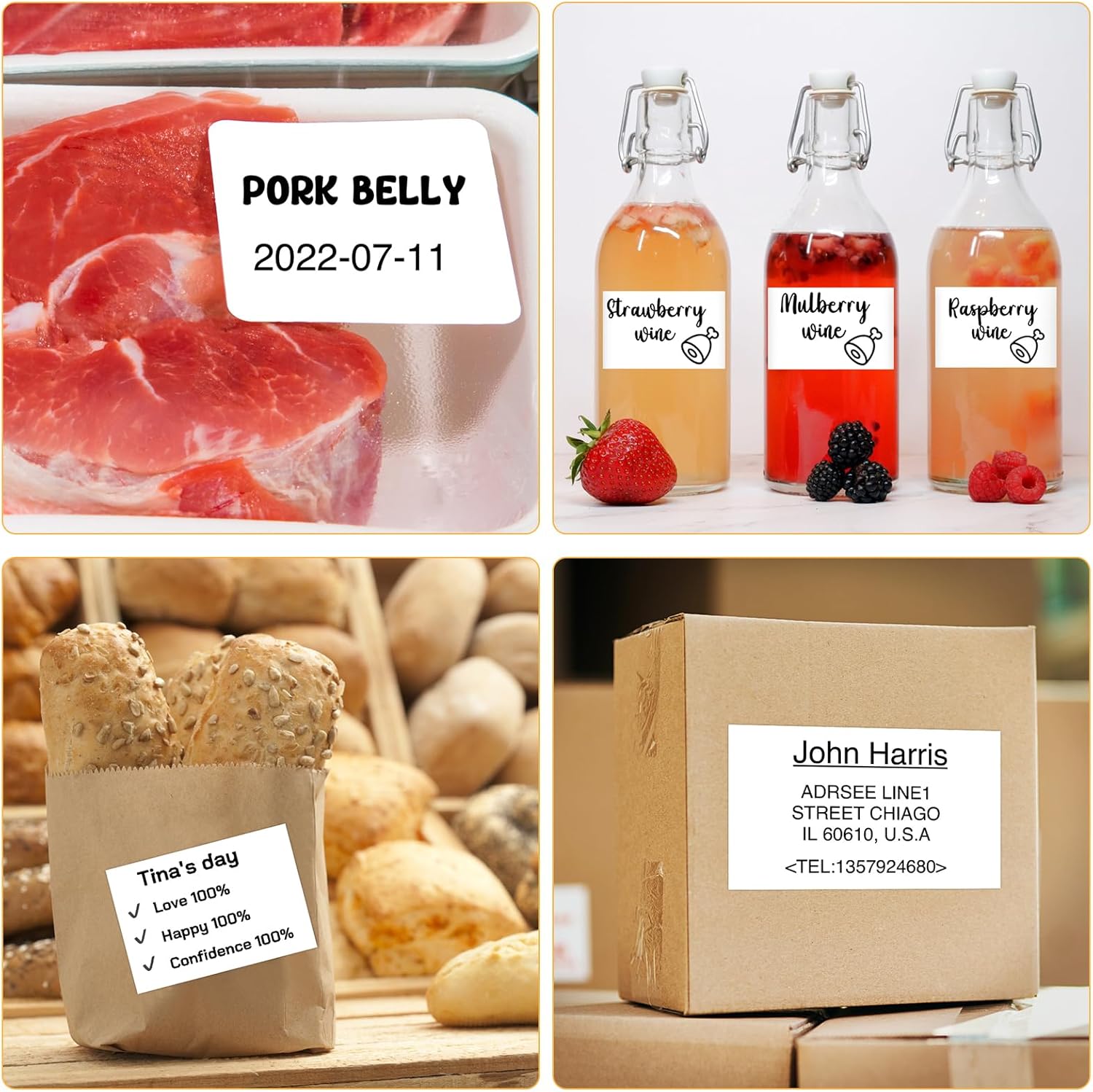
ምስል፡ ዘጸamples of labels for food items (pork belly, beverages) and a shipping address label, showcasing different label content possibilities.
6.2 ባች ማተሚያ
The Marklife app supports batch printing for multiple copies of the same label or sequential labels. Refer to the app's specific instructions for detailed steps on batch printing functionality.

Image: The MARKLIFE P50 printer actively printing multiple barcode labels in a batch, demonstrating stable printing over a long duration.
7. ጥገና
- የህትመት ጭንቅላትን ማጽዳት; ለስላሳ፣ ከቆሸሸ ነፃ የሆነ ጨርቅ በትንሹ ተጠቀም መampened with alcohol to gently wipe the print head. Ensure the printer is off and cooled down before cleaning.
- ውጫዊውን ማጽዳት; Wipe the printer's exterior with a soft, dry cloth. Do not use harsh chemicals.
- መለያ ማከማቻ፡ Store label rolls in a cool, dry place away from direct sunlight to preserve their quality.
8. መላ መፈለግ
| ችግር | ሊሆን የሚችል ምክንያት | መፍትሄ |
|---|---|---|
| አታሚ አልበራም። | ዝቅተኛ የባትሪ ወይም የኃይል ችግር | Charge the printer using the USB-C cable. |
| በብሉቱዝ መገናኘት አልተቻለም | Bluetooth off, app issue, or printer not discoverable | Ensure Bluetooth is enabled on your device. Restart the printer and the app. Try re-pairing. |
| ደካማ የህትመት ጥራት | Dirty print head, incorrect label loading, or low print density setting | Clean the print head. Re-load labels correctly. Adjust print density in the app. |
| መለያዎች በትክክል አይመገቡም። | Improper label loading or label jam | Open the cover, re-seat the label roll, ensuring it's aligned. Clear any jammed labels. |
9. ዝርዝሮች
| ባህሪ | ዝርዝር |
|---|---|
| ሞዴል | P50 |
| የህትመት ቴክኖሎጂ | ሙቀት |
| ግንኙነት | ብሉቱዝ ፣ ዩኤስቢ |
| ተስማሚ መሣሪያዎች | Android, iOS, Windows PC |
| ከፍተኛ የሚዲያ መጠን | 2 ኢንች (57 ሚሜ) |
| Print Width Range | 0.59" - 2.24" (15 ሚሜ - 57 ሚሜ) |
| የአታሚ ውፅዓት | ሞኖክሮም (ጥቁር እና ነጭ) |
| ባትሪ | Built-in 1200mAh (rechargeable) |
| የኃይል መሙያ ወደብ | ዩኤስቢ-ሲ |
| የምርት ልኬቶች | 4" ዲ x 3" ዋ x 2"ኤች (በግምት) |
| የእቃው ክብደት | 6 አውንስ (በግምት) |
10. ዋስትና እና ድጋፍ
The MARKLIFE P50 Label Printer comes with a limited warranty. For warranty details, technical support, or customer service inquiries, please refer to the official MARKLIFE webጣቢያ ወይም የደንበኞቻቸውን ድጋፍ በቀጥታ ያነጋግሩ። የግዢ ደረሰኝህን እንደ ግዢ ማረጋገጫ አቆይ።
አምራች፡ MARKLIFE


