1. መግቢያ
Thank you for choosing the Baseus EliteJoy Gen2 Series 12-in-1 USB-C Hub. This versatile docking station expands the connectivity of your USB-C enabled device, providing a comprehensive solution for various peripherals and display needs. It is designed to enhance your productivity and streamline your workspace.
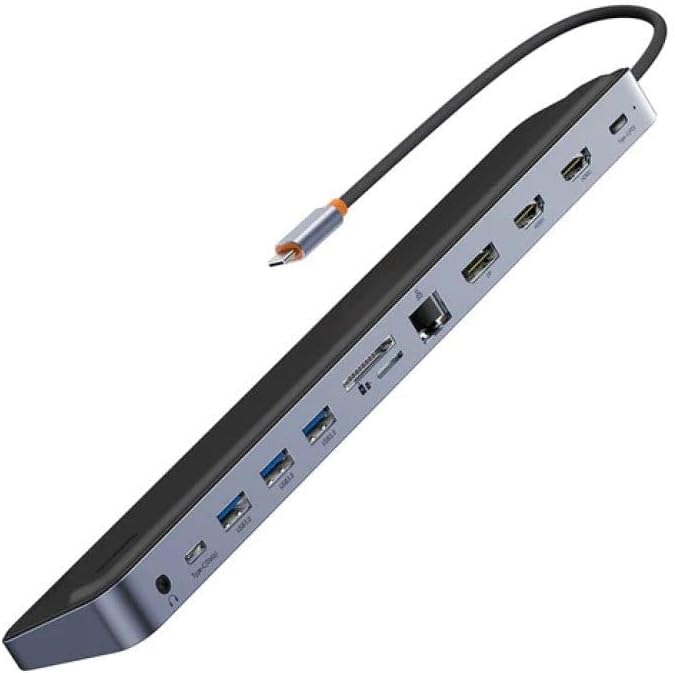
Figure 1: The Baseus EliteJoy Gen2 Series 12-in-1 USB-C Hub, showcasing በውስጡ ቄንጠኛ ንድፍ እና በርካታ ወደቦች.
This manual provides detailed instructions on how to set up, operate, and maintain your hub, along with troubleshooting tips and product specifications. Please read this manual thoroughly before use to ensure optimal performance and longevity of your device.
2. የጥቅል ይዘቶች
Please check the package contents upon unboxing. If any items are missing or damaged, please contact your retailer or Baseus customer support.
- 1 x Baseus EliteJoy Gen2 Series 12-in-1 USB-C Hub
- 1 x የተጠቃሚ መመሪያ (ይህ ሰነድ)
3. ምርት አብቅቷልview and Port Layout
The Baseus EliteJoy Gen2 Hub features a comprehensive array of ports designed to meet diverse connectivity needs. Familiarize yourself with the port layout for easy setup and operation.

ምስል 2: ጎን view of the Baseus Hub, illustrating the various input and output ports.
የወደብ መግለጫዎች፡-
- የዩኤስቢ-ሲ የግቤት ገመድ፡ Connects to your host device (laptop, tablet, smartphone) for power and data.
- 2 x የኤችዲኤምአይ ወደቦች፡ Connect to external displays for video output. Supports various resolutions up to 4K.
- 3 x የዩኤስቢ 3.0 ወደቦች፡ For connecting USB peripherals such as keyboards, mice, external hard drives, and USB flash drives. Offers high-speed data transfer.
- ፒዲ (የኃይል አቅርቦት) ወደብ፡ USB-C port for power input to charge your host device while using the hub. Supports high wattagሠ ኃይል መሙያ።
- DP (DisplayPort) Port: Connect to an external display for video output, offering an alternative to HDMI.
- የኤስዲ ካርድ ማስገቢያ፡ ከ SD ማህደረ ትውስታ ካርዶች መረጃን ለማንበብ እና ለመፃፍ።
- የቲኤፍ ካርድ ማስገቢያ (ማይክሮኤስዲ)፦ For reading and writing data from TF (MicroSD) memory cards.
- RJ45 የኤተርኔት ወደብ፡ የተረጋጋ እና ፈጣን የሆነ የገመድ ግንኙነት ያቀርባል።
- Type-C Data Port: An additional USB-C port for data transfer, connecting USB-C peripherals.
- 3.5ሚሜ ኦዲዮ ጃክ፡ የጆሮ ማዳመጫዎችን፣ ድምጽ ማጉያዎችን ወይም ማይክሮፎኖችን ለማገናኘት።
4. የማዋቀር መመሪያ
Follow these steps to set up your Baseus EliteJoy Gen2 Series USB-C Hub:
- ከአስተናጋጅ መሣሪያ ጋር ይገናኙ፡ Plug the integrated USB-C cable of the hub into an available USB-C port on your laptop, tablet, or smartphone. Ensure your device's USB-C port supports video output (DisplayPort Alternate Mode) and Power Delivery for full functionality.
- የኃይል ግንኙነት (አማራጭ ግን የሚመከር) For stable operation, especially when connecting multiple peripherals or external displays, connect a USB-C power adapter (not included) to the PD (Power Delivery) port on the hub. This will also charge your host device.
- ተያያዥ ነገሮች፡-
- ማሳያዎች፡- Connect your HDMI or DisplayPort cables from your monitors to the corresponding ports on the hub.
- የዩኤስቢ መሣሪያዎች፡- Plug in your USB peripherals (keyboard, mouse, external hard drive, USB flash drive) into the USB 3.0 ports or the Type-C data port.
- አውታረ መረብ፡ Connect an Ethernet cable from your router/modem to the RJ45 port for a wired internet connection.
- ማህደረ ትውስታ ካርዶች; የኤስዲ ወይም የTF ካርዶችን በየራሳቸው ማስገቢያዎች ውስጥ ያስገቡ።
- ኦዲዮ፡ Plug in your headphones or speakers into the 3.5mm audio jack.
- የአሽከርካሪ ጭነት; The hub is generally plug-and-play and does not require specific drivers for most operating systems (Windows, macOS, Chrome OS, Linux). If you encounter any issues, ensure your device's operating system is up to date.

Figure 3: The Baseus Hub in use, connected to a laptop and power adapter, demonstrating a typical setup.
5. የአሠራር መመሪያዎች
Once connected, the Baseus Hub operates seamlessly with your host device. Here are some key operational notes:
- የውጤት ማሳያ Your operating system should automatically detect connected displays. You can configure display settings (mirror, extend, resolution) through your device's display settings. The hub supports dual HDMI output and a single DisplayPort output, allowing for multi-monitor setups.
- የዩኤስቢ ውሂብ ማስተላለፍ; USB 3.0 ports offer data transfer speeds up to 5Gbps. Ensure your connected devices and cables also support USB 3.0 for optimal performance.
- የኃይል አቅርቦት The PD port allows for pass-through charging of your host device. The actual charging speed depends on your power adapter and host device's capabilities.
- የኤተርኔት ግንኙነት፡- Once connected, your device should automatically recognize the wired network. Check your network settings if an internet connection is not established.
- ካርድ አንባቢ: Insert SD or TF cards correctly into their respective slots. They will appear as removable drives on your computer.
- የድምጽ ውፅዓት፡- Select the hub's audio output device in your system's sound settings if audio does not automatically route to your connected headphones/speakers.
6. ጥገና
Proper care and maintenance will ensure the longevity of your Baseus Hub:
- ማጽዳት፡ Use a soft, dry, lint-free cloth to clean the hub. Do not use liquid cleaners or aerosol sprays.
- ማከማቻ፡ ማዕከሉን በቀጥታ ከፀሀይ ብርሀን እና ከከፍተኛ ሙቀት ርቆ በቀዝቃዛና ደረቅ ቦታ ያከማቹ።
- አያያዝ፡ ማዕከሉን ከመጣል ወይም ለጠንካራ ተጽእኖ ከማጋለጥ ይቆጠቡ። የተቀናጀውን የዩኤስቢ-ሲ ገመድ ከመጠን በላይ አያጠፍጡ ወይም አይጎትቱት።
- የአየር ማናፈሻ; ከመጠን በላይ ሙቀትን ለመከላከል በሚሰሩበት ጊዜ ማዕከሉ በቂ የአየር ዝውውር እንዳለው ያረጋግጡ።
7. መላ መፈለግ
If you encounter issues with your Baseus Hub, please refer to the following common problems and solutions:
| ችግር | ሊሆን የሚችል መፍትሄ |
|---|---|
| No display output from HDMI/DP ports. |
|
| የዩኤስቢ መሳሪያዎች በየጊዜው አይታወቁም ወይም አይሰሩም። |
|
| No internet connection via RJ45 Ethernet port. |
|
| Host device is not charging via PD port. |
|
8. ዝርዝሮች
| ባህሪ | ዝርዝር |
|---|---|
| የምርት ስም | ቤዝየስ |
| የሞዴል ቁጥር | WKSX030213 |
| ቀለም | Black (Dark Grey) |
| ጠቅላላ የዩኤስቢ ወደቦች | 12 (including 3x USB 3.0, 1x Type-C Data) |
| ተስማሚ መሣሪያዎች | Laptops, Desktops, Tablets, Smartphones with USB-C port supporting DisplayPort Alt Mode and Power Delivery. |
| የውሂብ ማስተላለፍ ፍጥነት | Up to 5 Gigabits per second (USB 3.0) |
| የቪዲዮ ውፅዓት | 2x HDMI, 1x DisplayPort (resolutions up to 4K supported) |
| ኤተርኔት | አርጄ45 ጊጋባይት ኤተርኔት |
| ካርድ አንባቢ | SD and TF (MicroSD) slots |
| ኦዲዮ | 3.5mm የድምጽ ጃክ |
| ክብደት | 268 ግራም |
9. ዋስትና እና ድጋፍ
Baseus products are designed and manufactured to the highest quality standards. This product is covered by a limited warranty from the date of purchase. Please refer to the warranty card included with your product or visit the official Baseus webለዝርዝር የዋስትና ውሎች እና ሁኔታዎች ጣቢያ።
For technical support, troubleshooting assistance, or general inquiries, please contact Baseus customer service through their official website or the contact information provided on your product packaging. When contacting support, please have your product model number (WKSX030213) and purchase details ready.
ተጨማሪ መረጃ እና የድጋፍ መርጃዎችን በሚከተለው አድራሻ ማግኘት ይችላሉ፡- www.baseus.com


