1. መግቢያ
This manual provides comprehensive instructions for the LENVII D7800 Desktop Automatic 2D Barcode Scanner. Please read this manual carefully before using the product to ensure proper operation and to maximize its performance and lifespan. Keep this manual for future reference.
2. የደህንነት መረጃ
- ስካነሩን ለውሃ ወይም ከመጠን በላይ እርጥበት አያጋልጡት።
- Avoid dropping the scanner from heights exceeding 1.2 meters to prevent damage, despite its anti-shock design.
- ስካነሩን እራስዎ ለመበተን ወይም ለመጠገን አይሞክሩ. ብቃት ያላቸውን የአገልግሎት ሰራተኞች ይመልከቱ።
- ምርጡን አፈጻጸም ለማረጋገጥ የቃኝ መስኮቱን ንጹህ ያድርጉት።
- Avoid direct eye exposure to the scanner's light source.
3. የጥቅል ይዘቶች
ሁሉም እቃዎች በጥቅሉ ውስጥ መኖራቸውን ያረጋግጡ፡-
- LENVII D7800 Desktop Automatic 2D Barcode Scanner
- የዩኤስቢ ገመድ (የተዋሃደ)
- የተጠቃሚ መመሪያ (ይህ ሰነድ)

ምስል 3.1፡ Package contents including the scanner, USB cable, and user manual.
4. ምርት አብቅቷልview
4.1 ቁልፍ ባህሪያት
- ከእጅ-ነጻ ንድፍ; Omnidirectional scanning for 1D, 2D, and QR codes.
- CCD Scanning Technology: Capable of reading barcodes from mobile phone and computer screens, as well as damaged, blurred, distorted, colorful, or reflective barcodes.
- ይሰኩ እና ይጫወቱ፡ የአሽከርካሪ ጭነት አያስፈልግም።
- ሰፊ ተኳኋኝነት Works with Windows XP/7/8/10, Mac OS, and Linux operating systems.
- የሚስተካከለው ጭንቅላት; Features a 15° adjustable head for flexible scanning angles.
- Anti-shock Design: Engineered to withstand drops from up to 1.2 meters.
4.2 ልኬቶች
The scanner has compact dimensions suitable for desktop use.

ምስል 4.1፡ የፊት እና ጎን view of the LENVII D7800 scanner with dimensions indicated.
4.3 Anti-shock Design
The LENVII D7800 is designed for durability, capable of withstanding accidental drops from a height of 1.2 meters without affecting its functionality.

ምስል 4.2፡ Illustration of the scanner's anti-shock capability.
5. ማዋቀር
5.1 ስካነርን በማገናኘት ላይ
- Place the LENVII D7800 scanner on a stable, flat surface.
- Connect the integrated USB cable from the scanner to an available USB port on your computer (desktop or laptop).
- The scanner will power on automatically and initiate the "Plug and Play" process.

ምስል 5.1፡ The scanner connected to various devices, demonstrating its plug-and-play functionality.
5.2 የአሽከርካሪዎች መጫኛ
The LENVII D7800 is a plug-and-play device. No additional drivers or software installation is required for basic operation. Your operating system (Windows, Mac OS, Linux) will automatically recognize the device.
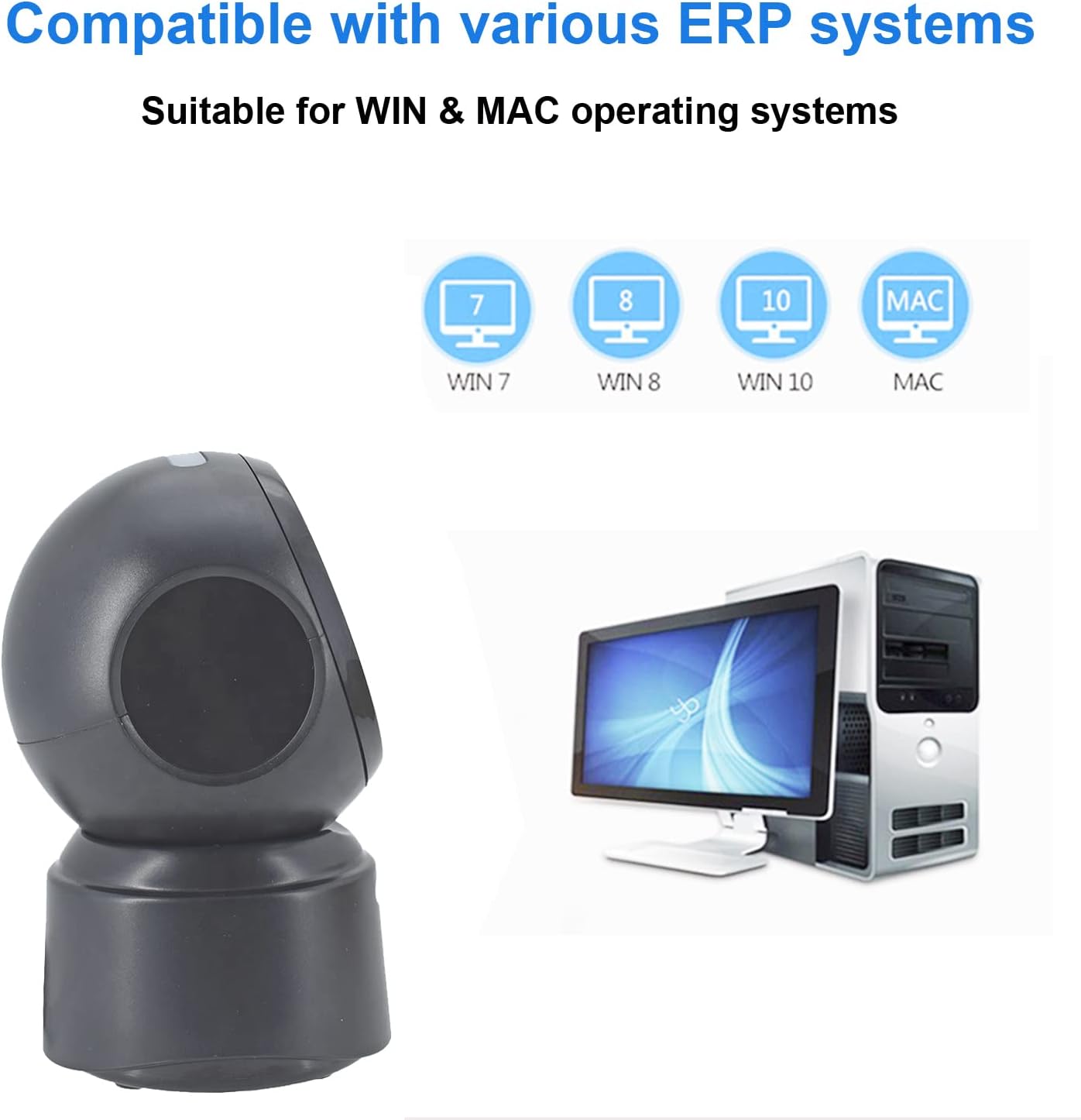
ምስል 5.2፡ Compatibility with various operating systems.
6. የአሠራር መመሪያዎች
6.1 መሰረታዊ የፍተሻ ሂደት
The D7800 scanner operates in an automatic, hands-free mode. Once connected, it is ready to scan.
- Ensure the scanner is connected to your computer and powered on.
- Present the barcode to the scanning window. The scanner will automatically detect and read the barcode.
- A successful scan is typically indicated by an audible beep and/or a visual confirmation (e.g., LED indicator).
- The scanned data will be transmitted to your computer as keyboard input.
6.2 Scanning Barcode Types
The scanner supports a wide range of 1D, 2D, and QR codes, including those that are less than perfect.
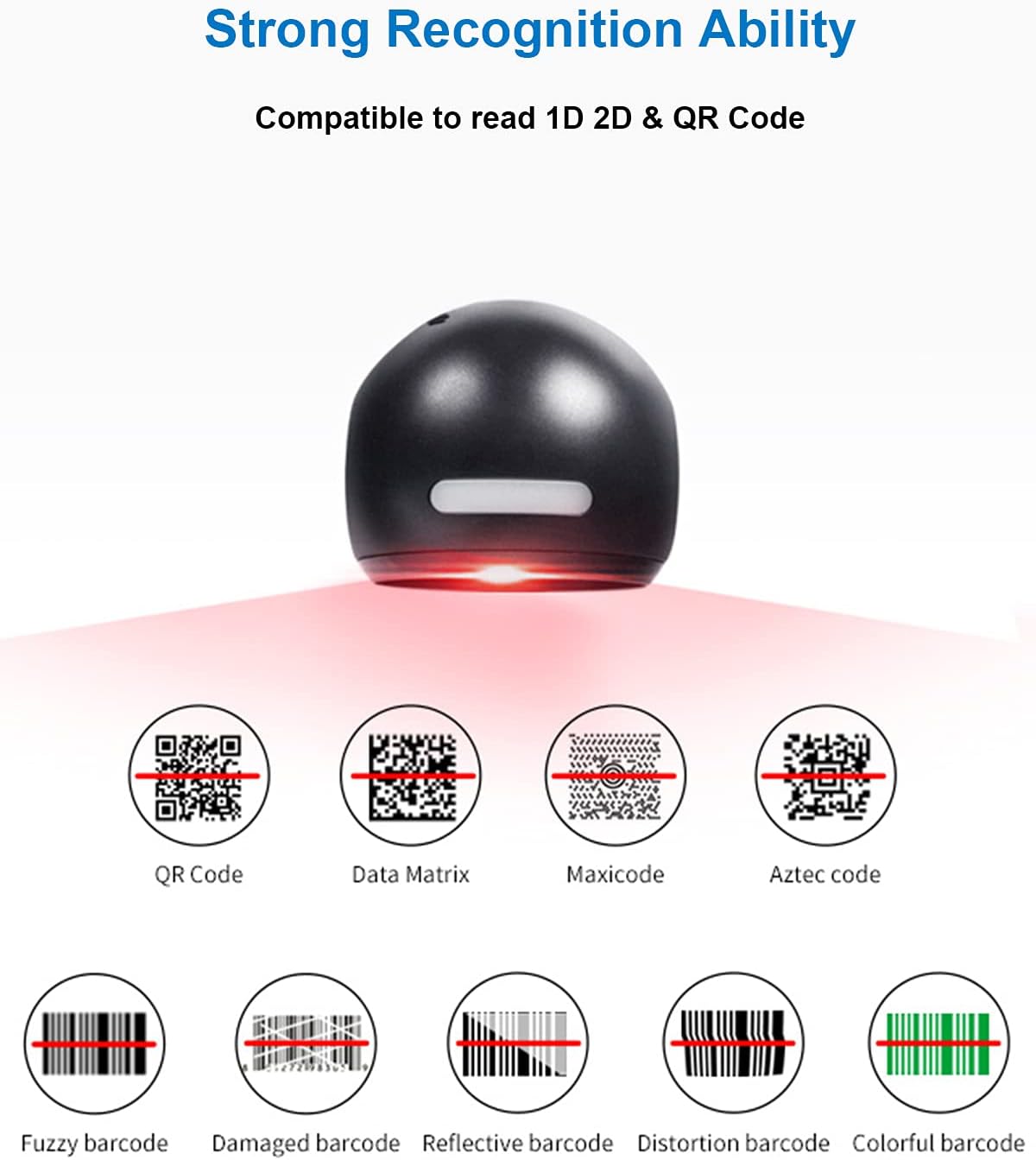
ምስል 6.1፡ Examples of various barcode types and conditions the scanner can recognize.
6.3 On-Screen Barcode Scanning
The D7800 is capable of scanning barcodes directly from digital displays, such as smartphones, tablets, and computer monitors.

ምስል 6.2፡ The scanner reading a barcode from a digital screen. Example barcode: 1234567890
6.4 የመተግበሪያ ሁኔታዎች
The LENVII D7800 is suitable for various environments requiring efficient barcode scanning.
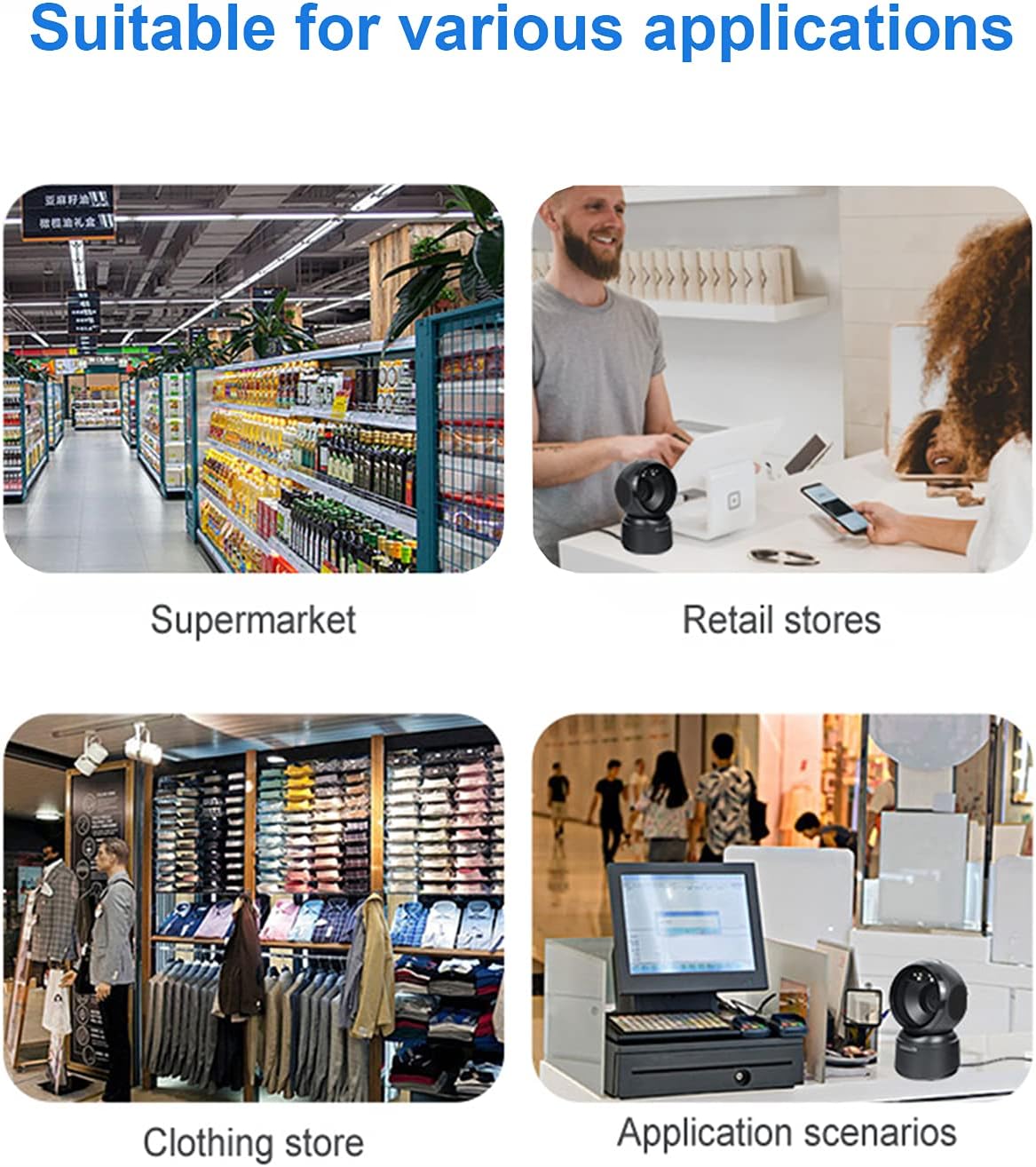
ምስል 6.3፡ Common application environments for the scanner.
7. ጥገና
7.1 ስካነርን ማጽዳት
- ከማጽዳትዎ በፊት ስካነሩ ከኃይል ምንጭ ጋር መገናኘቱን ያረጋግጡ።
- Use a soft, dry, lint-free cloth to wipe the exterior of the scanner.
- ለመቃኘት መስኮት፣ የሌንስ ማጽጃ ጨርቅ ወይም ለስላሳ ጨርቅ በትንሹ ይጠቀሙampened with a mild, non-abrasive cleaning solution. Avoid spraying cleaners directly onto the scanner.
- Do not use harsh chemicals, solvents, or abrasive materials, as these can damage the scanner's surface or scanning window.
7.2 ማከማቻ
When not in use, store the scanner in a cool, dry place, away from direct sunlight and extreme temperatures. The maximum storage temperature is 60°C (140°F).
8. መላ መፈለግ
| ችግር | ሊሆን የሚችል ምክንያት | መፍትሄ |
|---|---|---|
| ስካነር አይበራም። | የዩኤስቢ ገመድ በትክክል አልተገናኘም ወይም የተሳሳተ የዩኤስቢ ወደብ። | Ensure the USB cable is securely connected. Try a different USB port on your computer. |
| ስካነር ባርኮዶችን አያነብም። |
|
|
| የተቃኘው ውሂብ የተሳሳተ ወይም ያልተሟላ ነው። |
|
|
እነዚህን መፍትሄዎች ከሞከሩ በኋላ ችግሩ ከቀጠለ፣ እባክዎ የደንበኛ ድጋፍን ያግኙ።
9. ዝርዝሮች
| ባህሪ | ዝርዝር |
|---|---|
| ሞዴል | ዲ7800 |
| ዓይነት | 2D CMOS Wired Barcode Scanner |
| የግንኙነት ዘዴ | ዩኤስቢ |
| ልኬቶች (W x H x D) | 84 ሚሜ x 140.2 ሚሜ x 90.1 ሚሜ (ግምት 3.31 x 5.52 x 3.55 ኢንች) |
| ክብደት | 230 ግራም (በግምት 0.51 ፓውንድ) |
| ቁሳቁስ | ኤቢኤስ |
| ቀለም | ጥቁር |
| የብርሃን ምንጭ | 617nm LED (aimer); 6500K LEDs (illumination) |
| የምስል ዳሳሽ | 640 * 480 CMOS |
| ፕሮሰሰር | ARM 32-ቢት |
| የፍጥነት ቅኝት። | 200 ጊዜ / ሰ |
| ኃይል | ዲሲ 5 ቪ |
| የአሁኑ | 400mA ± 5% |
| ተስማሚ ስርዓተ ክወና | Windows XP/7/8/10, Mac OS, Linux |
| 1D Code Support | EAN-8, EAN-13, Codabar, CODE 39, CODE 93, CODE 128, China Post, GS1-128, UPC-A, UPC-E, ISBN/ISSN, ISBT, Interleaved 2 of 5, Standard 2 of 5, Matrix 2 of 5, Industrial 2 of 5, MSI, RSS, ITF14, Telepen, etc. |
| 2D/QR Code Support | Micro QR Code, Data Matrix, PDF417, Micro PDF417, Maxicode, Aztec, Hanxin, etc. |
| ከፍተኛው የማከማቻ ሙቀት | 60°ሴ (140°ፋ) |
10. ዋስትና እና ድጋፍ
10.1 የዋስትና መረጃ
LENVII products are covered by a limited warranty against defects in materials and workmanship. Please refer to the warranty card included with your product or contact LENVII customer support for specific warranty terms and conditions.
10.2 የደንበኛ ድጋፍ
For technical assistance, troubleshooting, or product inquiries, please contact LENVII customer support. Contact information can typically be found on the product packaging or the official LENVII webጣቢያ.


