1. መግቢያ
This manual provides comprehensive instructions for the setup, operation, and maintenance of your Xprinter XP-Q801K Thermal Receipt Printer. This printer is designed for efficient and reliable receipt printing in various business environments, featuring high-speed direct thermal printing and a USB interface for easy connectivity.

ምስል 1: የፊት view of the Xprinter XP-Q801K Thermal Receipt Printer, showing the paper output slot and control buttons.
2. ማዋቀር
2.1 ማሸግ
Carefully remove the printer and all accessories from the packaging. Verify that all components are present:
- Xprinter XP-Q801K Thermal Receipt Printer
- የኃይል አስማሚ
- የዩኤስቢ ገመድ
- Paper Roll (starter)
- የተጠቃሚ መመሪያ (ይህ ሰነድ)
2.2 ማተሚያውን በማገናኘት ላይ
Before connecting, ensure the printer is powered off. Locate the ports on the rear of the printer.
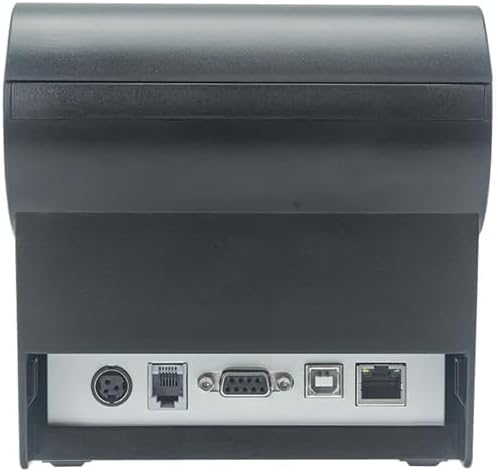
ምስል 2: የኋላ view of the printer, highlighting the power, USB, and other interface ports.
- የግንኙነት ኃይል; Insert the power adapter cable into the printer's power input port (DC 24V/2.5A) and plug the adapter into a suitable electrical outlet (AC 100-240V, 50-60Hz).
- ዩኤስቢ ያገናኙ፡ Connect one end of the provided USB cable to the USB port on the printer and the other end to an available USB port on your computer.
- Cash Drawer (Optional): If using a cash drawer, connect its cable to the cash drawer port (DC 24V/1A) on the printer.
2.3 Loading the Paper Roll
The printer uses 80mm wide thermal paper rolls.
- Open the paper cover by pushing the cover open button (usually located on the side or front).
- Insert the thermal paper roll with the printing surface facing the print head. Ensure the roll is seated correctly in the paper compartment.
- ትንሽ መጠን ያለው ወረቀት ከመቁረጫው በላይ ይጎትቱ።
- የወረቀት ሽፋኑን ወደ ቦታው እስኪገባ ድረስ በጥብቅ ይዝጉት።
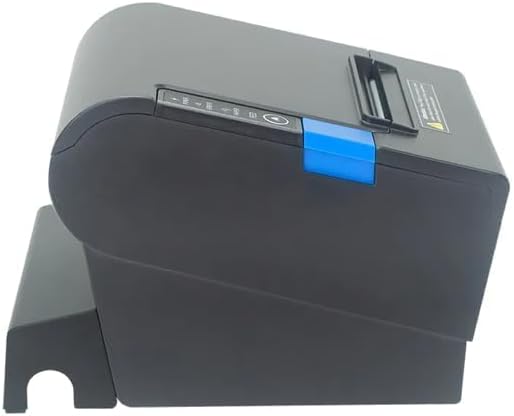
ምስል 3: ጎን view of the printer, illustrating the paper cover mechanism.
2.4 የአሽከርካሪዎች መጫኛ
The printer requires a driver to communicate with your computer. Drivers are typically available for Windows, Linux, Android, and Mac operating systems.
- For Windows users, the printer often supports plug-and-play installation or requires a specific Windows driver.
- For Linux, Android, and Mac, SDKs (Software Development Kits) are usually provided for integration.
የአምራቹን ይመልከቱ website or the included driver CD/USB drive for the latest drivers and installation instructions specific to your operating system.
3. ማተሚያውን መስራት
3.1 ማብራት / ማጥፋት
Locate the power switch on the side or rear of the printer. Flip the switch to the 'ON' position to power on the printer. The 'POWER' indicator light will illuminate. Flip to 'OFF' to power down.
3.2 Indicator Lights and Buttons
The front panel typically features several indicator lights and buttons:
- ኃይል፡- አታሚው መብራቱን ያመለክታል።
- ስህተት፡- Illuminates or flashes to indicate an error condition (e.g., paper out, print head overheating, cutter error).
- ወረቀት ፦ Indicates that the paper roll is low or out.
- የምግብ አዝራር፡- Press to manually feed paper. Hold to perform a self-test print (if supported by model).
3.3 መሰረታዊ ማተሚያ
Once the printer is connected and drivers are installed, you can print receipts from your POS software or application. Ensure the printer is selected as the default or active printer in your system settings.
The printer supports various print speeds up to 300 mm/s and automatic paper cutting after each print job.
4. ጥገና
መደበኛ ጥገና ከፍተኛ አፈፃፀምን ያረጋግጣል እና የአታሚዎን ዕድሜ ያራዝማል።
4.1 የህትመት ጭንቅላትን ማጽዳት
የህትመት ጭንቅላቱን አዘውትሮ ማጽዳት ያስፈልጋል፣ በተለይም የህትመት ጥራቱ ከተበላሸ።
- ማተሚያውን ያጥፉ እና የኃይል ገመዱን ያላቅቁ.
- የወረቀት ሽፋኑን ይክፈቱ.
- የጥጥ መጥረጊያን በትንሹ ተጠቀም መampened with isopropyl alcohol (ethanol) to gently wipe the thermal elements of the print head.
- ሽፋኑን ከመዝጋት እና ኃይልን እንደገና ከማገናኘትዎ በፊት የህትመት ጭንቅላት ሙሉ በሙሉ እንዲደርቅ ይፍቀዱለት.
4.2 Cleaning the Cutter
Paper dust can accumulate around the cutter blade, affecting its performance.
- ማተሚያውን ያጥፉ እና የኃይል ገመዱን ያላቅቁ.
- Carefully remove any visible paper dust or debris from around the cutter blade using a soft brush or compressed air.
- Do not use liquids on the cutter.
4.3 አጠቃላይ ጽዳት
የአታሚውን ውጫዊ ገጽታ ለስላሳ, መamp ጨርቅ. ኃይለኛ ኬሚካሎችን ወይም ሻካራ ማጽጃዎችን ከመጠቀም ይቆጠቡ።
5. መላ መፈለግ
ይህ ክፍል ከአታሚዎ ጋር ሊያጋጥሙዎት የሚችሉ የተለመዱ ችግሮችን ይዳስሳል።
| ችግር | ሊሆን የሚችል ምክንያት | መፍትሄ |
|---|---|---|
| አታሚ አይበራም። | የኃይል ገመድ አልተገናኘም፤ የኃይል መውጫው ችግር አለበት፤ የኃይል ማብሪያ / ማጥፊያው ጠፍቷል። | Ensure power cable is securely connected. Test power outlet. Turn power switch to 'ON'. |
| ማተም የለም። | Paper out; Paper loaded incorrectly; Driver not installed or incorrect; USB cable loose; Printer not selected. | Load new paper roll. Re-load paper correctly. Install/reinstall correct driver. Check USB connection. Select printer in software. |
| ERROR light is on/flashing. | Paper out; Paper jam; Print head overheating; Cutter error. | Load paper. Clear paper jam. Allow printer to cool down. Check cutter for obstructions. |
| ደካማ የህትመት ጥራት። | Dirty print head; Low quality paper; Old paper roll. | Clean the print head (see Section 4.1). Use high-quality thermal paper. Replace old paper rolls. |
እነዚህን መፍትሄዎች ከሞከሩ በኋላ ችግሩ ከቀጠለ፣ እባክዎ የደንበኛ ድጋፍን ያግኙ።
6. ዝርዝሮች
| ባህሪ | ዝርዝር |
|---|---|
| የህትመት ዘዴ | ቀጥተኛ የሙቀት |
| የወረቀት ስፋት | 80 ሚ.ሜ |
| የህትመት ፍጥነት | 230 ሚሜ / ሰ, 260 ሚሜ / ሰ, 300 ሚሜ / ሰ |
| በይነገጽ | ዩኤስቢ |
| የመስመር ክፍተት | 3.75 mm (adjustable by commands) |
| Character Size (ANK) | Font A: 1.5 × 3.0 mm (12 × 24 dots) Font B: 1.1 × 2.1 mm (9 × 17 dots) |
| Character Size (Chinese/Traditional Chinese) | 3.0 × 3.0 mm (24 × 24 dots) |
| የአሞሌ ኮድ ዓይነቶች | UPC-A / UPC-E / JAN13 (EAN13) / JAN8 (EAN8) / CODE39 / ITF / CODABAR / CODE93 / CODE128 |
| 2D ባርኮድ | QR Code / PDF417 |
| NV Flash Memory | 256 ኪ.ባ |
| የግቤት ኃይል | AC 100-240V ፣ 50-60Hz |
| የውጤት ኃይል | ዲሲ 24V/2.5A |
| የገንዘብ መሳቢያ ውፅዓት | ዲሲ 24V/1A |
| ክብደት | 1.0 ኪ.ግ |
| ልኬቶች (D × W × H) | 194.5 × 145 × 146.4 ሚሜ |
| የአሠራር ሙቀት | 0 ~ 45 ° ሴ |
| የሚሰራ እርጥበት | 10 ~ 80% RH |
| መቁረጫ ሕይወት | 1.5 ሚሊዮን ቅነሳ |
| የህትመት ራስ ህይወት | 150 ኪ.ሜ |
| የስርዓተ ክወና ተኳኋኝነት | Windows, Linux, Android, Mac |


