1. መግቢያ
Thank you for choosing the JSAUX USB C Docking Station Stand. This 5-in-1 multiport hub is designed to enhance your mobile device experience by providing expanded connectivity, including video output, high-speed data transfer, and power delivery, all while serving as a stable phone stand. This manual provides detailed instructions for setup, operation, and maintenance to ensure optimal performance.
2. ምርት አብቅቷልview
The JSAUX 5-Port Docking Station Stand integrates multiple essential ports into a compact design, allowing you to connect various peripherals to your USB-C enabled smartphone or tablet.
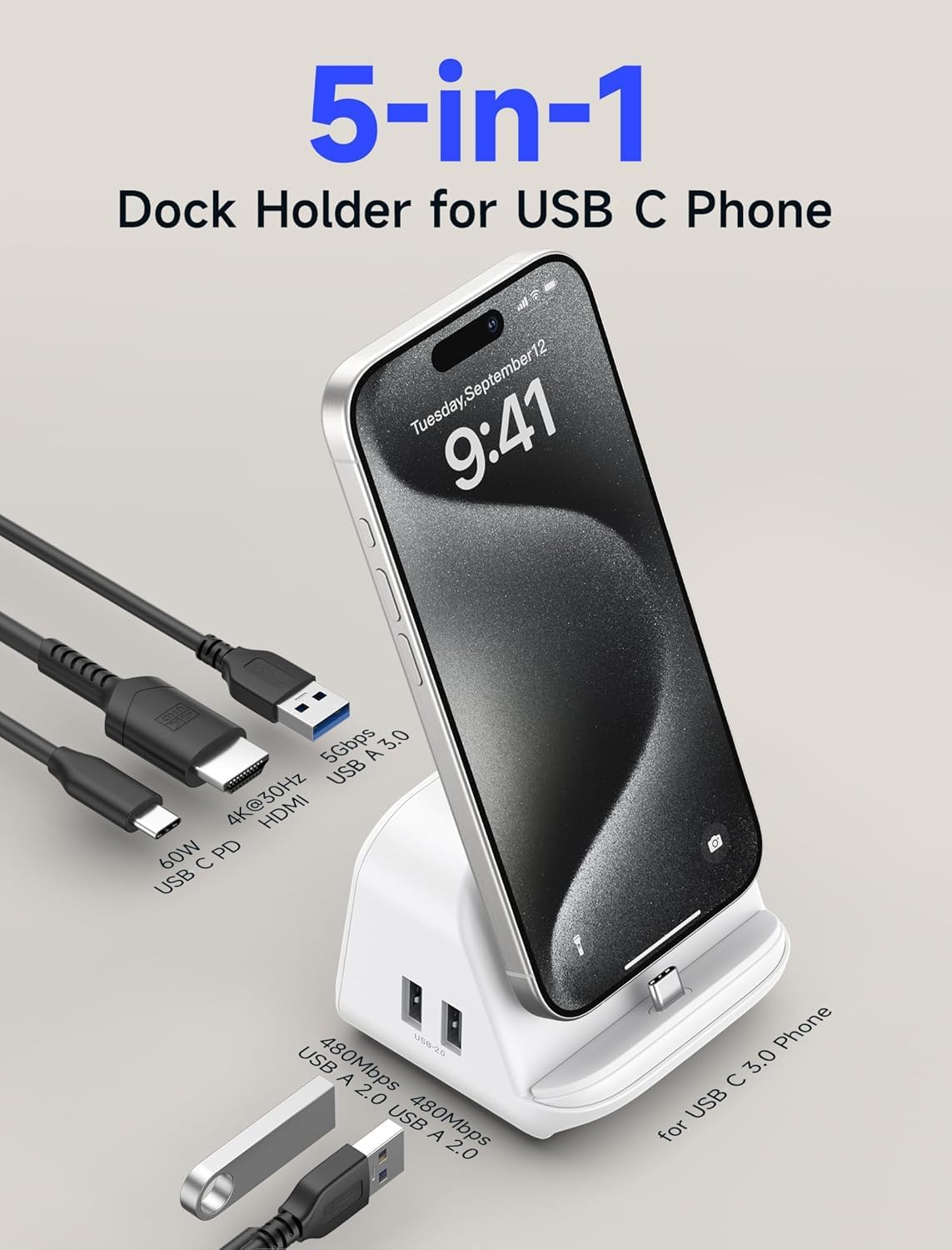
ምስል 1፡ የፊት እና የኋላ view of the JSAUX 5-in-1 USB C Docking Station Stand, highlighting its various ports including USB-C PD, HDMI, USB 3.0, and USB 2.0.
ቁልፍ ባህሪዎች
- ባለ 5-በ-1 ግንኙነት፦ Combines essential ports for versatile use.
- 4K HDMI ውፅዓት፡- Supports video output up to 4K@30Hz for external displays.
- የዩኤስቢ 3.0 ውሂብ ማስተላለፍ; One USB-A 3.0 port for high-speed data transfer up to 5Gbps.
- የዩኤስቢ 2.0 ውሂብ ማስተላለፍ; Two USB-A 2.0 ports for standard data transfer up to 480Mbps, ideal for peripherals.
- 60 ዋ የኃይል አቅርቦት (PD): USB-C PD port for fast charging your device while in use.
- የተዋሃደ የስልክ ማቆሚያ፡ Provides a stable and convenient viewለመሳሪያዎ የማብራት አንግል።
- የኤስዲ/TF ካርድ ማስገቢያዎች፡- For direct access to memory cards.
3. የጥቅል ይዘቶች
- JSAUX USB C Docking Station Stand (5-Port)
- USB-C ወደ USB-C ገመድ
- Power Adapter (Charging Brick)
- Adjustable Pads (for phone case thickness)
- የትምህርት መመሪያ (ይህ ሰነድ)
4. ማዋቀር
የመትከያ ጣቢያዎን ለማዘጋጀት የሚከተሉትን ደረጃዎች ይከተሉ፦
- የግንኙነት ኃይል; Plug the provided USB-C to USB-C cable into the USB-C PD port on the docking station and connect the other end to the power adapter. Plug the power adapter into a wall outlet. Ensure the power adapter is rated over 30W for 60W fast charging support.
- Prepare Phone Stand: The docking station includes adjustable pads to accommodate different phone case thicknesses. Refer to the guide on the dock for proper pad placement:

Image 2: The phone stand section of the dock, illustrating how to place the included pads for bare phones (3mm pad) and phones with cases (1mm pad) to ensure stability. Note: Only supports phone cases with a thickness of 3mm or less.
- ስልክ አስገባ፡ Carefully place your USB-C enabled phone onto the stand, aligning its USB-C port with the connector on the dock. Ensure a secure connection. A blue indicator light on the dock will illuminate to confirm a proper connection.

Image 3: Close-up of the dock's base, showing a blue light indicating a proper connection and the absence of light for an incorrect connection.
5. የአሠራር መመሪያዎች
5.1. Connecting to a Display (HDMI)
Connect an HDMI cable (not included) from the HDMI port on the docking station to your monitor, TV, or projector. The dock supports 4K@30Hz video output, allowing you to mirror or extend your phone's display to a larger screen for presentations, video streaming, or gaming.

Image 4: A smartphone docked and connected to an external monitor via the HDMI port, showcasing 4K video output.
5.2. Data Transfer (USB & Card Slots)
- ዩኤስቢ 3.0 ወደብ Use the blue USB-A 3.0 port for connecting external storage devices like hard drives or USB flash drives. This port offers data transfer speeds up to 5Gbps, ideal for quickly moving large files.

Image 5: A smartphone docked, with a USB drive connected to the USB A 3.0 port, illustrating 5Gbps data transfer speeds.
- የዩኤስቢ 2.0 ወደቦች; The two black USB-A 2.0 ports are suitable for connecting peripherals such as keyboards, mice, or game controllers. These ports provide data transfer speeds up to 480Mbps.

Image 6: A smartphone docked and connected to a monitor, with a gamepad connected to a USB A 2.0 port for gaming.
- የኤስዲ/TF ካርድ ማስገቢያዎች፡- Insert your SD or TF (MicroSD) cards into the corresponding slots for direct access to files on your phone or computer.
5.3. Charging (60W PD)
The USB-C PD port allows you to charge your connected device at up to 60W while simultaneously using other functions of the docking station. This ensures your device remains powered during extended use.

Image 7: A smartphone docked and charging via the 60W Power Delivery port, with the charging status visible on the phone screen.
5.4. የተኳኋኝነት ማስታወሻዎች
- iPhone 15 Plus: When an HDMI connection is active, the USB 3.0 port may not function.
- Samsung S21 / Samsung Note20 Ultra: A USB drive must be connected to the dock before connecting the phone. Additionally, the USB drive and Power Delivery (PD) cannot be used simultaneously.
- Phone Case Thickness: For optimal stability and connection, the dock only supports phone cases with a thickness of 3mm or less.

Image 8: Visual representation of compatible phone models, including iPhone 15 series, Google Pixel, Samsung Galaxy S23/S22/S21/S20 series, OnePlus 9/8 series, Xiaomi Mi 10 series, Huawei P40 series, and Huawei Mate 40 series.
6. ጥገና
የመትከያ ጣቢያዎ ረጅም ጊዜ እና በአግባቡ እንዲሠራ ለማረጋገጥ የሚከተሉትን የጥገና መመሪያዎች ይከተሉ፡
- ማጽዳት፡ Use a soft, dry cloth to wipe the surface of the docking station. Avoid using harsh chemicals or abrasive cleaners.
- ወደብ እንክብካቤ Keep all ports free of dust and debris. Use compressed air if necessary to clear any blockages.
- ማከማቻ፡ ጥቅም ላይ በማይውሉበት ጊዜ፣ የመትከያ ጣቢያውን ከፀሐይ ብርሃን እና ከፍተኛ የሙቀት መጠን ራቅ ባለ ቀዝቃዛና ደረቅ ቦታ ያስቀምጡ።
- አያያዝ፡ መሳሪያውን ለጠንካራ ተጽእኖዎች ከመጣል ወይም ከማስገዛት ይቆጠቡ, ይህ ውስጣዊ አካላትን ሊጎዳ ይችላል.
7. መላ መፈለግ
If you encounter issues with your JSAUX USB C Docking Station Stand, please refer to the following common solutions:
- ኃይል/ኃይል መሙላት የለም፦
- Ensure the power adapter is securely plugged into both the wall outlet and the dock's USB-C PD port.
- የኃይል አስማሚው በትክክል እየሰራ መሆኑን እና በቂ የውሃ አቅርቦት መኖሩን ያረጋግጡtage (over 30W for 60W PD).
- Check the connection between your phone and the dock's USB-C connector. The blue indicator light should be on.
- No Video Output via HDMI:
- Ensure the HDMI cable is securely connected to both the dock and the display.
- Verify the display input source is set to the correct HDMI port.
- For iPhone 15 Plus users, note that the USB 3.0 port may not work when HDMI is active. Try disconnecting any USB 3.0 devices.
- ከተቻለ በተለየ የኤችዲኤምአይ ገመድ ወይም ማሳያ ይሞክሩ።
- የዩኤስቢ መሣሪያዎች ያልታወቁ፡-
- Ensure USB devices are properly inserted into the correct USB-A ports.
- For Samsung S21/Note20 Ultra, connect the USB drive before docking the phone. Also, avoid using USB drive and PD simultaneously.
- Some high-power USB devices may require external power or may not be fully supported.
- Phone Not Stable on Stand:
- Ensure the correct adjustable pads are used based on your phone's case thickness (or lack thereof).
- The dock supports phone cases with a maximum thickness of 3mm. Thicker cases may prevent a stable connection.
If the issue persists, please contact JSAUX customer support for further assistance.
8. ዝርዝሮች
| ባህሪ | ዝርዝር መግለጫ |
|---|---|
| ሞዴል | 5-ወደብ |
| የማገናኛ አይነት | HDMI, USB-C, USB-A, SD, TF |
| የኤችዲኤምአይ ውፅዓት | 4ኬ@30Hz |
| USB-A 3.0 Data Speed | እስከ 5ጂቢበሰ |
| USB-A 2.0 Data Speed | እስከ 480Mbps |
| የዩኤስቢ-ሲ ኃይል አቅርቦት | እስከ 60 ዋ |
| ተስማሚ መሣሪያዎች | Cellular Phones (USB-C enabled) |
| ተስማሚ የስልክ ሞዴሎች | iPhone 15 Series, Google Pixel, Samsung S24/23/21/20, OnePlus 9/8, Xiaomi Mi 10, Huawei P40/Mate 40 series |
| ቁሳቁስ | ፕላስቲክ |
| የእቃው ክብደት | 10.5 አውንስ (297.67 ግራም) |
| የጥቅል ልኬቶች | 5.87 x 4.8 x 3.23 ኢንች |
| የኃይል ምንጭ | ባለገመድ ኤሌክትሪክ |
9. ዋስትና እና ድጋፍ
JSAUX products are designed and manufactured to the highest quality standards. For specific warranty information, please refer to the warranty card included with your purchase or visit the official JSAUX website. If you require technical support, have questions about product functionality, or need assistance with troubleshooting, please contact JSAUX customer service through their official channels. Please have your product model and purchase details ready when contacting support.


