1. መግቢያ
This manual provides detailed instructions for the installation, operation, and maintenance of your Xprinter XP-370B Thermal Barcode Sticker Printer. Please read this manual thoroughly before using the printer to ensure proper functionality and to prevent damage.
2. የደህንነት መረጃ
- አታሚውን ሁልጊዜ ከመሬት ላይ ካለው የኃይል መውጫ ጋር ያገናኙ።
- Do not expose the printer to water or high humidity.
- ማተሚያውን በቀጥታ የፀሐይ ብርሃን ውስጥ ወይም በሙቀት ምንጮች አጠገብ ከማስቀመጥ ይቆጠቡ.
- Use only Xprinter approved accessories and power adapters.
- አታሚውን ከልጆች ያርቁ.
- አታሚውን እራስዎ ለመበተን ወይም ለመጠገን አይሞክሩ. ለእርዳታ ብቁ የሆኑ የአገልግሎት ሰራተኞችን ያነጋግሩ።
3. የጥቅል ይዘቶች
ሁሉም እቃዎች በጥቅሉ ውስጥ መኖራቸውን ያረጋግጡ፡-
- Xprinter XP-370B Thermal Barcode Sticker Printer
- የኃይል አስማሚ
- የዩኤስቢ ገመድ
- ፈጣን ጅምር መመሪያ (ከተካተተ)
4. ምርት አብቅቷልview
The Xprinter XP-370B is a compact and efficient thermal printer designed for barcode and sticker printing. It features high-speed printing capabilities and supports various connectivity options.

ምስል 4.1: የፊት-ቀኝ view of the Xprinter XP-370B Thermal Barcode Sticker Printer.

ምስል 4.2: ጎን view illustrating the power button and top cover key for accessing the media compartment.
5. ማዋቀር
5.1 ማሸግ እና አቀማመጥ
- ማተሚያውን ከማሸጊያው በጥንቃቄ ያስወግዱት.
- ማተሚያውን በቂ የአየር ማናፈሻ ባለው የተረጋጋ እና ጠፍጣፋ መሬት ላይ ያድርጉት።
- Ensure there is enough space around the printer for cable connections and media loading.
5.2 ማተሚያውን በማገናኘት ላይ
- Connect the power adapter to the printer's power port and then plug it into a power outlet.
- Connect the printer to your computer using the provided USB cable. The printer also supports Serial, Ethernet, and Bluetooth connectivity options depending on the model.
- Turn on the printer using the power button located on the side (refer to Figure 4.2).
5.3 የህትመት ሚዲያዎችን መጫን
- Press the top cover key (refer to Figure 4.2) to open the printer's top cover.
- Place the roll of thermal labels into the media compartment. The maximum label diameter supported is 100mm.
- Adjust the paper guide to fit the width of your labels securely.
- Pull a small length of labels past the print head.
- Close the top cover until it clicks into place.
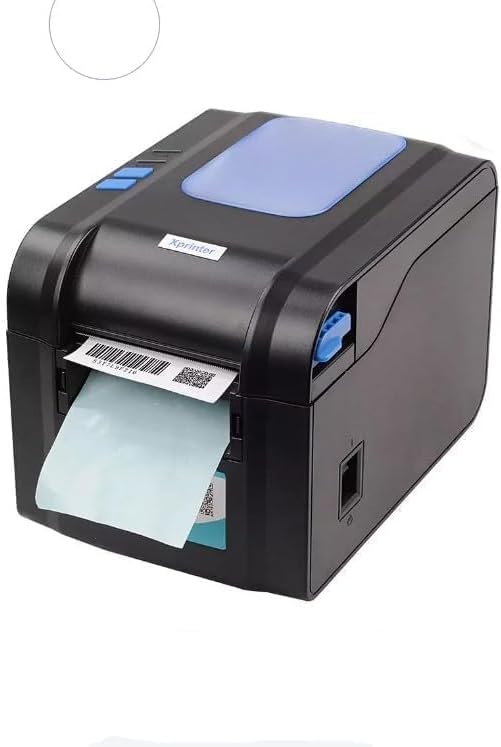
Figure 5.3: The printer demonstrating a label being fed out after printing.
5.4 የአሽከርካሪዎች መጫኛ
- For Windows systems, insert the driver CD (if provided) or download the latest drivers from the official Xprinter webጣቢያ. ለመጫን የማያ ገጽ ላይ መመሪያዎችን ይከተሉ።
- For Android and iOS devices, download the appropriate printing application from your device's app store.
6. የአሠራር መመሪያዎች
6.1 መሰረታዊ ማተሚያ
- አታሚው መብራቱን እና ከመሳሪያዎ ጋር መገናኘቱን ያረጋግጡ።
- ለማተም የሚፈልጉትን ሰነድ ወይም መተግበሪያ ይክፈቱ።
- Select the Xprinter XP-370B from your list of available printers.
- Adjust print settings such as label size, orientation, and density as needed.
- Initiate the print command. The printer will begin printing at speeds up to 152mm/s.
7. ጥገና
7.1 ማተሚያውን ማጽዳት
- ከማጽዳትዎ በፊት አታሚውን ያጥፉ እና ገመዱን ይንቀሉ።
- ለስላሳ፣ ከቆሸሸ ነፃ የሆነ ጨርቅ ይጠቀሙ መampened with isopropyl alcohol to gently clean the print head.
- Clean the exterior of the printer with a soft, dry cloth.
- ገላጭ ማጽጃዎችን ወይም ፈሳሾችን አይጠቀሙ.
8. መላ መፈለግ
- አታሚ ምላሽ እየሰጠ አይደለም፦ Check power connection, USB/Serial/Ethernet/Bluetooth connection, and ensure drivers are correctly installed.
- ደካማ የህትመት ጥራት; Clean the print head, ensure correct media type is used, and check print density settings.
- የወረቀት መቀርቀር: Open the top cover, carefully remove any jammed labels, and re-load the media correctly.
- መለያዎች የማይመገቡባቸው፡ Ensure labels are loaded correctly and the paper guide is adjusted properly. Check for any obstructions.
9. ዝርዝሮች
| ባህሪ | ዝርዝር መግለጫ |
|---|---|
| የምርት ስም | Xprinter |
| የሞዴል ቁጥር | XP-370B |
| የአታሚ ቴክኖሎጂ | ሙቀት |
| የግንኙነት ቴክኖሎጂ | USB, Serial, Bluetooth, Ethernet (options vary) |
| ከፍተኛው የህትመት ፍጥነት | እስከ 152 ሚሜ / ሰ |
| ከፍተኛው የሚዲያ መጠን | 4 x 6 ኢንች |
| Maximum Label Diameter | 100 ሚ.ሜ |
| የህትመት ሚዲያ | መለያዎች |
| የአታሚ ውፅዓት | ሞኖክሮም |
| የንጥል መጠኖች (D x W x H) | 15D x 7W x 10H ሴንቲሜትር |
| የእቃው ክብደት | 300 ግ |
| የሚደገፉ ስርዓተ ክወናዎች | ዊንዶውስ ፣ አንድሮይድ ፣ አይኦኤስ |
10. ዋስትና እና ድጋፍ
For warranty information and technical support, please refer to the documentation provided with your purchase or visit the official Xprinter webጣቢያ. ለዋስትና ጥያቄዎች የግዢ ደረሰኝዎን እንደ ግዢ ማረጋገጫ ያቆዩት።


