1. መግቢያ
This manual provides instructions for the SHREYANS Mini Barcode Scanner, model M_SRS710UB. This device is designed for efficient scanning of both 1D and 2D barcodes, offering versatile connectivity options including 2.4G wireless, Bluetooth, and USB wired connections. It is compatible with a wide range of operating systems and devices, making it suitable for various applications.
2. የጥቅል ይዘቶች
እባክዎ ሁሉም እቃዎች በጥቅሉ ውስጥ መኖራቸውን ያረጋግጡ፡-
- SHREYANS Mini Barcode Scanner
- 2.4ጂ ገመድ አልባ የዩኤስቢ ዶንግል
- የዩኤስቢ-ሲ ኃይል መሙያ ገመድ
- ዩኤስቢ-ኤ አስማሚ
- የእጅ አንጓ ላንደር
- የተጠቃሚ መመሪያ (ይህ ሰነድ)
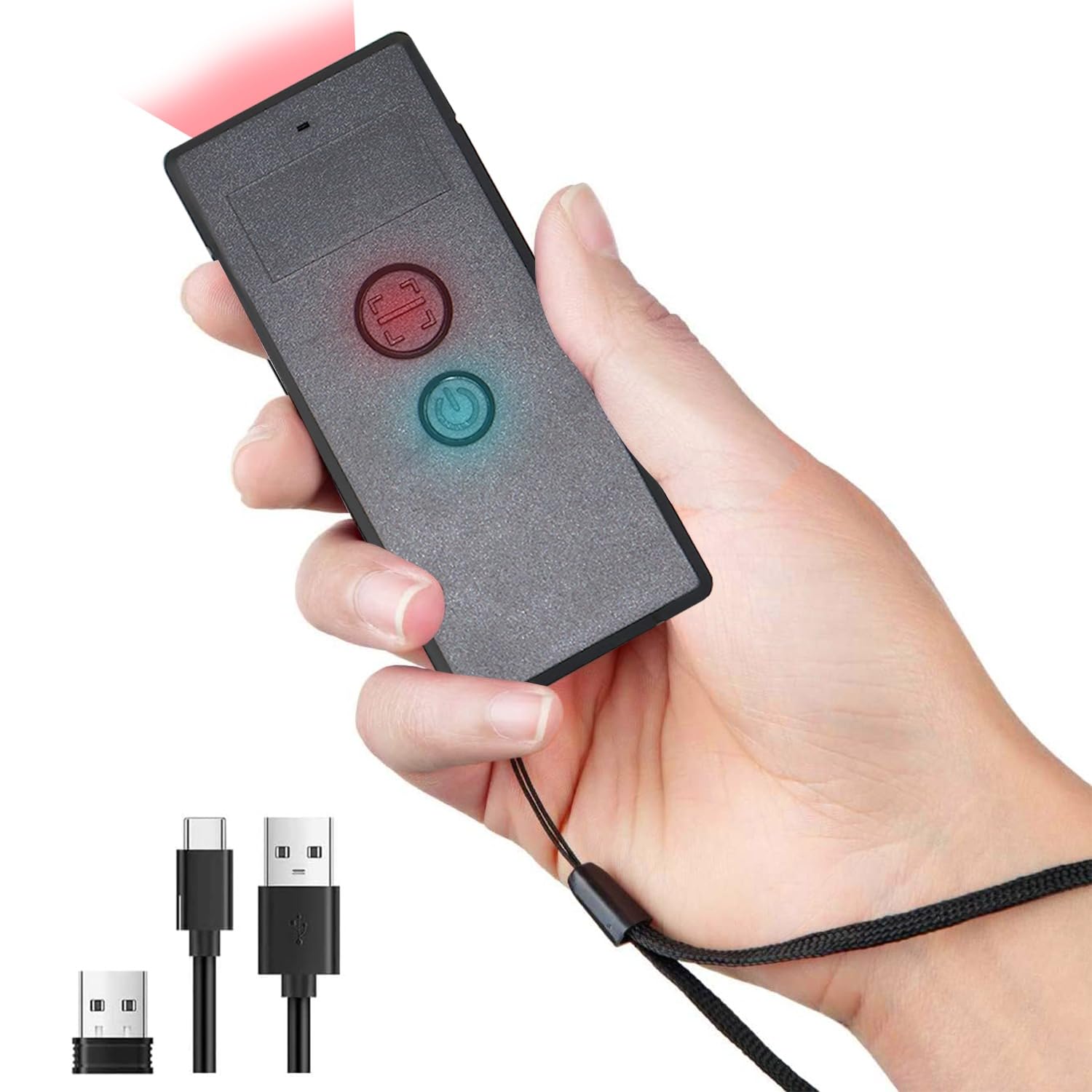
Image: The SHREYANS Mini Barcode Scanner held in a hand, alongside its 2.4G wireless USB dongle, USB-C charging cable, and USB-A adapter.
3. ምርት አብቅቷልview
The SHREYANS Mini Barcode Scanner features a compact design with intuitive controls.
- የቃኝ አዝራር፡- የአሞሌ ኮድ መቃኘትን ይጀምራል።
- የኃይል ቁልፍ፡- Turns the device on/off and controls Bluetooth pairing.
- የ LED አመልካች፡- Provides status feedback (e.g., power, connection, scan success).
- የኃይል መሙያ ወደብ; USB-C port for charging the internal battery.

Image: A close-up of the SHREYANS Mini Barcode Scanner held in a hand, highlighting its small, portable design.
4. ማዋቀር እና የግንኙነት ሁነታዎች
The scanner supports three connection modes: 2.4G Wireless, Bluetooth, and USB Wired.
4.1. 2.4G ገመድ አልባ ግንኙነት
- Insert the 2.4G wireless USB dongle into an available USB port on your computer (Desktop, Laptop).
- Power on the barcode scanner by pressing and holding the Power button until the LED indicator lights up.
- The scanner will automatically connect to the dongle. A successful connection is indicated by a specific LED pattern (refer to the LED indicator section for details).

Image: An illustration showing the three available connection modes: Bluetooth, 2.4G Wireless via USB dongle, and direct USB Wired connection.
4.2. የብሉቱዝ ግንኙነት
- ስካነሩ መብራቱን ያረጋግጡ።
- Activate Bluetooth pairing mode on the scanner (usually by holding the Power button for an extended period or scanning a specific configuration barcode). Refer to the quick start guide for the exact barcode.
- On your device (Android, iOS, Windows, macOS, Linux), go to Bluetooth settings and search for available devices.
- Select "SHREYANS Scanner" or a similar name from the list to pair.
- Once paired, the LED indicator will confirm the successful connection.
4.3. የዩኤስቢ ባለገመድ ግንኙነት
- Connect the USB-C end of the charging cable to the scanner's charging port.
- Connect the USB-A end of the cable (or use the USB-A adapter if needed) to an available USB port on your computer.
- The scanner will function as a wired device and also charge its internal battery. No additional drivers are typically required.
5. የአሠራር መመሪያዎች
5.1. ባርኮዶችን መቃኘት
- Ensure the scanner is connected to your device via one of the methods described above.
- የተቃኘው ውሂብ እንዲታይ በሚፈልጉበት የጽሑፍ አርታኢ፣ የተመን ሉህ ወይም ማንኛውንም መተግበሪያ ይክፈቱ።
- Point the scanner's laser at the barcode you wish to scan.
- Press the Scan button. A successful scan will be indicated by an audible beep and/or a change in the LED indicator.
- The scanned data will appear in the active input field on your connected device.

Image: A visual representation of the scanning process, where the scanner reads a barcode from a package and the data is synchronously uploaded to a laptop.
5.2. የሚደገፉ የባርኮድ አይነቶች
The SHREYANS Mini Barcode Scanner supports a variety of 1D and 2D barcode symbologies, including:
- 1 ዲ ባርኮዶች UPC/EAN, Code 128, Code 39, Code 93, Code 11, Interleaved 2 of 5, Industrial 2 of 5, Matrix 2 of 5, Standard 2 of 5, Codabar, MSI, GS1 DataBar, etc.
- 2 ዲ ባርኮዶች QR Code, Data Matrix, PDF417, Aztec Code, Micro PDF417, etc.

Image: Various 1D and 2D barcode types such as QR Code, Data Matrix, PDF417, Aztec Code, and Micro PDF417, demonstrating the scanner's comprehensive readability.
6. ተኳሃኝነት
The scanner is designed for broad compatibility with various devices and operating systems:
- ስርዓተ ክወናዎች; Windows (7/8/10/XP), Android, iOS/macOS, Linux.
- መሳሪያዎች፡ PC, POS systems, Laptops, Tablets, iPads, Smartphones.

Image: A graphic illustrating the scanner's high compatibility with Windows, Android, iOS/macOS, Linux, and Mac OS, connecting to PCs, laptops, tablets, and smartphones.
7. ጥገና
To ensure optimal performance and longevity of your SHREYANS Mini Barcode Scanner, follow these maintenance guidelines:
- ማጽዳት፡ Use a soft, dry, lint-free cloth to clean the scanner's exterior. For the scanning window, use a lens cleaning cloth and a mild cleaning solution if necessary. Avoid abrasive materials or harsh chemicals.
- ማከማቻ፡ ስካነሩን በቀጥታ ከፀሀይ ብርሀን እና ከከፍተኛ ሙቀት ርቆ በቀዝቃዛና ደረቅ ቦታ ያከማቹ።
- ባትሪ፡ For prolonged storage, ensure the battery is charged to approximately 50%. Recharge the battery periodically if not in use for extended periods to prevent deep discharge.
- አያያዝ፡ ስካነሩን ከመጣል ወይም ለጠንካራ ተጽእኖ ከማጋለጥ ይቆጠቡ።
8. መላ መፈለግ
በእርስዎ ስካነር ላይ ችግሮች ካጋጠሙዎት የሚከተሉትን የተለመዱ ችግሮች እና መፍትሄዎች ይመልከቱ፡
| ችግር | ሊሆን የሚችል ምክንያት | መፍትሄ |
|---|---|---|
| ስካነር አይበራም። | ዝቅተኛ ባትሪ. | Charge the scanner using the provided USB-C cable. |
| Cannot connect via 2.4G wireless. | Dongle not properly inserted or scanner not in 2.4G mode. | Ensure the dongle is fully inserted. Verify the scanner is in 2.4G wireless mode (refer to quick start guide for mode switching). |
| በብሉቱዝ መገናኘት አልተቻለም። | Scanner not in pairing mode, Bluetooth off on host device, or already paired with another device. | Put the scanner into Bluetooth pairing mode. Enable Bluetooth on your device. Forget previous pairings if necessary and re-pair. |
| ስካነር የአሞሌ ኮድ አያነብም። | Barcode damaged, incorrect angle, or scanner not configured for barcode type. | Ensure the barcode is clear and undamaged. Adjust scanning angle and distance. Check if the barcode type is enabled in the scanner's configuration (scan specific setup barcodes). |
| የተቃኘው ውሂብ በተሳሳተ መንገድ ይታያል። | Keyboard layout mismatch or scanner configuration issue. | Ensure your computer's keyboard layout matches the scanner's default or configure the scanner to match your layout. Reset scanner to factory defaults if needed. |
9. ዝርዝሮች
- ሞዴል፡ M_SRS710UB
- መጠኖች፡- 3 x 8 x 5 ሴሜ (በግምት 3.07 x 1.50 x 0.47 ኢንች)
- ክብደት፡ 50 ግ (በግምት 1.23 አውንስ)
- ግንኙነት፡ 2.4G Wireless, Bluetooth 4.1, USB Wired
- የሚደገፉ ባርኮዶች፡- 1D (UPC/EAN, Code 128, Code 39, etc.), 2D (QR Code, Data Matrix, PDF417, Aztec Code, etc.)
- ተኳኋኝነት Windows, Android, iOS/macOS, Linux (PC, POS, Laptop, Tablet, Smartphone)
- አምራች፡ Shreyans
10. ዋስትና እና ድጋፍ
For warranty information and technical support, please contact SHREYANS customer service. Details can typically be found on the product packaging or the official SHREYANS webጣቢያ.
የአምራች አድራሻ፡ 9324776246
ለተጨማሪ እርዳታ፣ ይጎብኙ SHREYANS Store on Amazon.

