1. መግቢያ
The Phomemo M950 Label Maker is a versatile, portable thermal label printer designed for both home and office use. It offers dual printing modes: direct input via its integrated keyboard and wireless printing via Bluetooth connection to a mobile application. This device utilizes thermal printing technology, eliminating the need for ink cartridges, and supports various label tape types for diverse labeling needs.
2. የደህንነት መረጃ
- Keep the device away from water and high humidity to prevent electric shock or damage.
- አይሰበስቡ ወይም መሳሪያውን እራስዎ ለመጠገን አይሞክሩ. ለእርዳታ የደንበኛ ድጋፍን ያነጋግሩ።
- Use only Phomemo-approved label tapes to ensure optimal performance and prevent damage to the print head.
- ልጆች በማይደርሱበት ቦታ ያስቀምጡ.
- መሳሪያውን በቀጥታ ለፀሀይ ብርሀን ወይም ለከፍተኛ ሙቀት ከማጋለጥ ይቆጠቡ።
- Charge the device using a compatible Type-C USB power adapter.
3. የጥቅል ይዘቶች
Please check the package contents upon unboxing. If any items are missing or damaged, contact your retailer or Phomemo customer support.
- Phomemo M950 መለያ ሰሪ
- 12mm Label Tape Roll (pre-installed or included separately)
- የዩኤስቢ ዓይነት-ሲ ባትሪ መሙያ ገመድ
- የተጠቃሚ መመሪያ (ይህ ሰነድ)
4. ምርት አብቅቷልview
Familiarize yourself with the components of your Phomemo M950 Label Maker.

Image: Phomemo M950 Label Maker showing its main features including no ink, one-touch key, keyboard editing, app editing, 203 DPI resolution, backlight support, Type-C recharge, and built-in cutter.
ቁልፍ ባህሪዎች
- የቁልፍ ሰሌዳ ግቤት፡- Integrated QWERTY keyboard for direct label creation.
- የብሉቱዝ ግንኙነት; Connects to smartphones for advanced label design via the Phomemo app.
- የሙቀት ህትመት; No ink required, uses thermal label tapes.
- የኋላ ብርሃን ማያ ገጽ፦ በዝቅተኛ ብርሃን ሁኔታዎች ውስጥ ታይነትን ያረጋግጣል.
- አብሮገነብ መቁረጫ; For clean and precise label cutting.
- ዳግም ሊሞላ የሚችል ባትሪ፡ Integrated 1200mAh battery, rechargeable via Type-C port.
5. ማዋቀር
5.1. መሣሪያውን በመሙላት ላይ
Before first use, fully charge the label maker.
- Connect the provided USB Type-C cable to the charging port on the side of the label maker.
- የኬብሉን ሌላኛውን ጫፍ ወደ ተኳሃኝ የዩኤስቢ ኃይል አስማሚ (ያልተካተተ) ወይም የኮምፒተር ዩኤስቢ ወደብ ያገናኙ።
- የኃይል መሙያ አመልካች መብራቱ የኃይል መሙያ ሁኔታን ያሳያል። ሙሉ በሙሉ ከተሞላ በኋላ ጠቋሚው ይለወጣል ወይም ይጠፋል።

Image: Phomemo M950 Label Maker highlighting the Type-C charging port and its compact dimensions.
5.2. የሌብል ቴፕ በመጫን ላይ
Ensure the device is powered off before loading or replacing tape.
- Open the tape compartment cover located on the top or back of the device.
- Insert the label tape roll with the label side facing up, ensuring it sits securely in the compartment.
- Feed the end of the label tape through the tape guide until it protrudes slightly from the output slot.
- Close the tape compartment cover firmly.
5.3. ማብራት / ማጥፋት
መሳሪያውን ለማብራት ወይም ለማጥፋት የኃይል አዝራሩን (ብዙውን ጊዜ የኃይል ምልክት ያለበት) ለጥቂት ሰከንዶች ተጭነው ይያዙት።
6. የአሠራር መመሪያዎች
The Phomemo M950 offers two primary methods for creating labels.

Image: Phomemo M950 Label Maker illustrating the two usage modes: direct printing from the keyboard and printing via a mobile device using the 'Print Master' app.
6.1. የቁልፍ ሰሌዳ ህትመት
This mode allows you to create labels directly on the device without needing a smartphone.
- አብራ፡ Turn on the label maker. The screen will illuminate.
- Type Text: Use the QWERTY keyboard to type your desired label text. The text will appear on the display.
- አብጅ፡ Use the function keys (e.g., 'Fn', 'Shift', 'Symbol', 'Caps', 'Accent') to access various customization options such as font styles, sizes, symbols, and borders. The device supports multiple languages, borders, and symbols.
- ቅድመview: Use the 'Preview' button to see how your label will look before printing.
- አትም Press the 'Print' button to print the label. The built-in cutter will automatically cut the label after printing.

Image: Phomemo M950 Label Maker showcasing its extensive features including support for 23+ languages, 103+ borders, and 790+ symbols and icons for label customization.
6.2. Bluetooth App Printing
For more advanced design options, connect your label maker to the 'Print Master' mobile app.
- መተግበሪያ ያውርዱ Download the 'Print Master' app from your mobile device's app store (App Store for iOS, Google Play for Android).
- ብሉቱዝን አንቃ፡ Ensure Bluetooth is enabled on your mobile device and the Phomemo M950.
- አገናኝ፡ Open the 'Print Master' app and follow the on-screen instructions to connect to your M950 label maker via Bluetooth.
- የንድፍ መለያ Use the app's interface to design your label. The app offers massive templates, additional fonts, borders, and icons.
- አትም Once your design is complete, tap the print icon in the app to send the label to the M950 for printing.

Image: Phomemo M950 Label Maker demonstrating the use of the 'Print Master' app with numerous templates, 270+ borders, 110+ fonts, 1500 icons, and 14+ languages for creative label design.
6.3. Adjusting Print Density
For optimal print quality, especially with ribbon tapes, adjust the print density.
- Press the 'Fn' key, then select 'Pinter Densities' (Printer Densities).
- Choose 'High' for clearer prints, particularly when using ribbon tapes.

Image: Step-by-step guide on how to set the print density to 'High' on the Phomemo M950 Label Maker for clear prints, especially for ribbon tapes.
7. ጥገና
7.1. የህትመት ጭንቅላትን ማጽዳት
Regular cleaning ensures consistent print quality.
- Turn off the label maker and open the tape compartment.
- የህትመት ጭንቅላቱን ለስላሳ፣ ያለ ልጣጭ ጨርቅ በቀስታ ይጥረጉ።ampበ isopropyl አልኮሆል የተስተካከለ።
- Allow the print head to dry completely before closing the compartment and powering on the device.
7.2. የቴፕ ማከማቻ
Store label tapes in a cool, dry place away from direct sunlight to preserve their quality and adhesive properties.
8. መላ መፈለግ
If you encounter issues with your Phomemo M950, refer to the following common problems and solutions.
| ችግር | ሊሆን የሚችል ምክንያት | መፍትሄ |
|---|---|---|
| ኃይል የለም | ባትሪ ዝቅተኛ፤ መሳሪያው ጠፍቷል | Charge the device; Press and hold power button to turn on. |
| ደካማ የህትመት ጥራት | Print head dirty; Incorrect print density; Low battery | Clean print head; Adjust print density to 'High'; Charge device. |
| Label not feeding | Tape incorrectly loaded; Tape jammed; Out of tape | Re-load tape correctly; Clear any jams; Replace tape roll. |
| የብሉቱዝ ግንኙነት አለመሳካት። | Bluetooth off; Device not paired; App issue | Ensure Bluetooth is on for both devices; Re-pair in app; Restart app/device. |
| መቁረጫ አይሰራም | Tape jammed; Cutter mechanism obstructed | Clear any tape jams; Ensure no debris is blocking the cutter. |
9. ዝርዝሮች
| ባህሪ | ዝርዝር |
|---|---|
| የሞዴል ስም | M950 |
| የምርት ስም | ፕሞሞ |
| የህትመት ቴክኖሎጂ | ሙቀት |
| የግንኙነት ቴክኖሎጂ | Bluetooth, Keyboard |
| የአታሚ ውፅዓት | ሞኖክሮም |
| ከፍተኛው የህትመት ጥራት | 203 ዲፒአይ |
| ከፍተኛ የሚዲያ መጠን | 12 ሚሜ * 4000 ሚሜ |
| ተስማሚ መሣሪያዎች | ስማርትፎኖች |
| ኃይል | 10 ዋት |
| የባትሪ ዓይነት | አብሮ የተሰራ 1200mAh Lithium-ion |
| የኃይል መሙያ ወደብ | የዩኤስቢ ዓይነት-ሲ |
| የምርት ልኬቶች | 15.2 x 5.4 x 11.2 ሴ.ሜ |
| የእቃው ክብደት | 490 ግራም |
| ቀለም | ነጭ |
| ልዩ ባህሪ | Portable, Backlight Screen, Built-in Cutter |
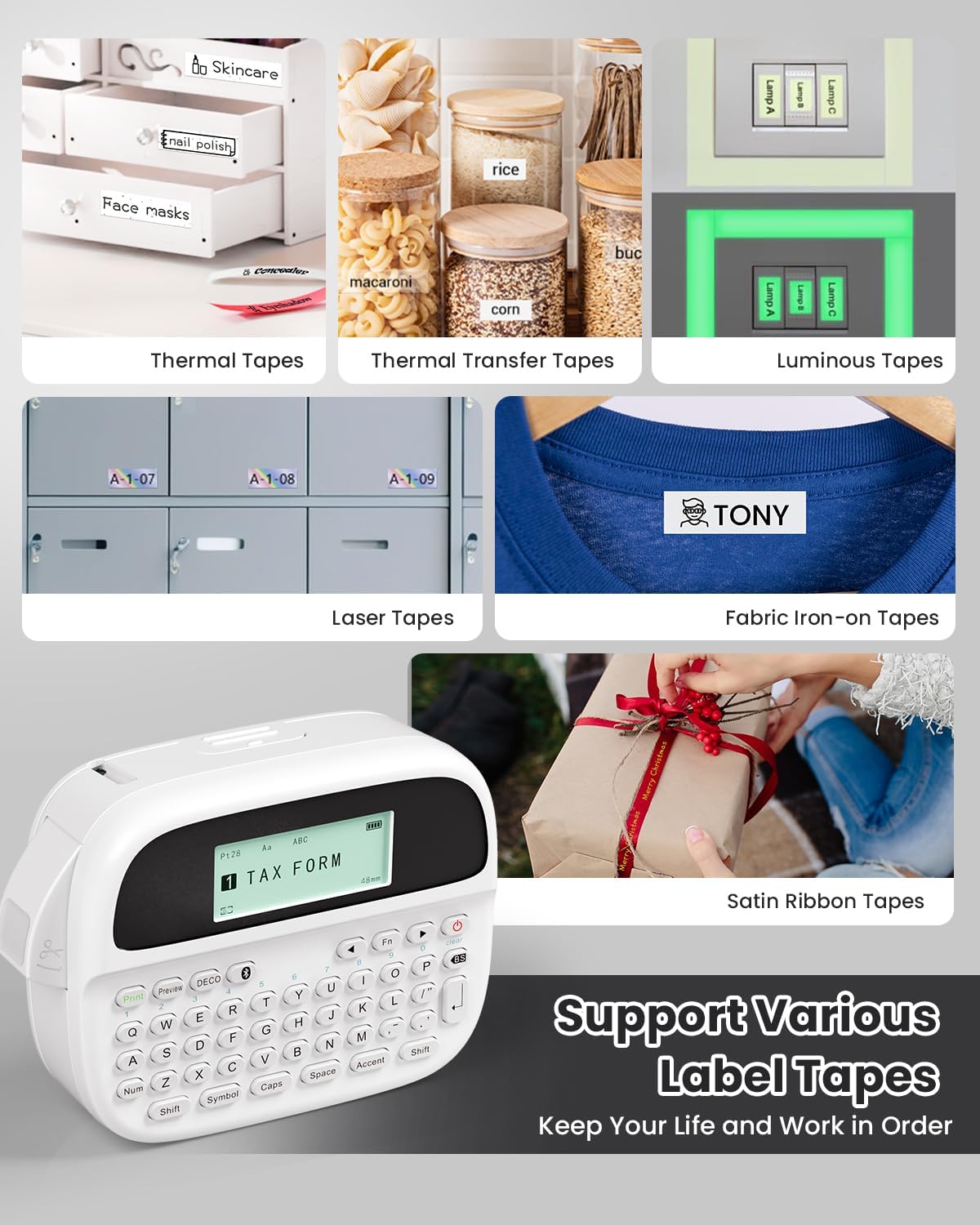
Image: Phomemo M950 Label Maker supporting various label tape types including Thermal, Thermal Transfer, Luminous, Laser, Fabric Iron-on, and Satin Ribbon tapes.

Image: Phomemo M950 Label Maker demonstrating its backlight screen feature, allowing for comfortable use even at night.
10. ዋስትና እና ድጋፍ
For warranty information, technical support, or service inquiries, please refer to the official Phomemo webጣቢያ ወይም በቀጥታ የደንበኛ አገልግሎታቸውን ያግኙ። ለዋስትና ጥያቄዎች የግዢ ደረሰኝዎን እንደ ግዢ ማረጋገጫ ያቆዩት።
ፎሞ ኦፊሴላዊ Webጣቢያ፡ Visit Phomemo Store


