1. መግቢያ
This manual provides instructions for the NYXI Striker Retro Mechanical Gaming Keyboard (Model: CA01). This keyboard features multi-device connectivity, hot-swappable switches, RGB backlighting, and a customizable display screen. It is compatible with Windows, macOS, and iOS systems.

Image 1.1: The NYXI Striker Retro Mechanical Gaming Keyboard, showcasing its GameCube-inspired design and full layout.
2. የጥቅል ይዘቶች
ሁሉም እቃዎች በጥቅሉ ውስጥ መኖራቸውን ያረጋግጡ፡-
- NYXI Striker Retro Mechanical Gaming Keyboard
- የቁልፍ ማስገቢያ
- የዩኤስቢ ገመድ (ከዩኤስቢ-ሲ ወደ ዩኤስቢ-ኤ)
- Additional Switches (5x Red, 5x Blue)
- 2.4GHz Wireless Receiver (stored in keyboard compartment)

Image 2.1: All components included with the NYXI Striker Retro Mechanical Gaming Keyboard.
3. ምርት አብቅቷልview
The NYXI Striker keyboard features a 97-key layout with several distinct components:
- ቁልፎች፡- Dual-color keycaps for a comfortable typing experience.
- መካኒካል መቀየሪያዎች; Hot-swappable switches for customization.
- RGB የኋላ ብርሃን Per-key RGB illumination with various effects.
- ማሳያ ማያ: A pixelated dot matrix screen for animations and status.
- የድምጽ ሮለር፡ A dedicated roller for audio adjustment.
- የግንኙነት መቀየሪያ፡- Located on the side/back for switching between wired, 2.4G, and Bluetooth modes.
- ዩኤስቢ-ሲ ወደብ ለገመድ ግንኙነት እና ኃይል መሙላት።
- 2.4GHz Receiver Compartment: A dedicated slot to store the wireless receiver.
- የሚስተካከሉ እግሮች; ሶስት-ሰtage tilt stands for ergonomic positioning.

ምስል 3.1: ከፍተኛ view of the keyboard, showing the full key layout and integrated display screen.

ምስል 3.2፡ የጎን ፕሮfile የቁልፍ ሰሌዳ.

Image 3.3: Location of the 2.4GHz wireless receiver compartment.

Image 3.4: Three-level adjustable tilt stand for ergonomic comfort.
4. ማዋቀር
4.1 የመጀመሪያ ደረጃ መሙላት
Before first use, connect the keyboard to a USB power source using the provided USB-C cable to ensure it is fully charged. The keyboard can be used while charging in wired mode.
4.2 የግንኙነት ሁነታዎች
The NYXI Striker keyboard supports three connection modes: Bluetooth 5.0, 2.4GHz wireless, and USB wired. Use the switch located on the keyboard to select your desired mode.
- የዩኤስቢ ገመድ ሁነታ;
- Set the mode switch on the keyboard to the wired (USB) position.
- Connect the USB-C end of the cable to the keyboard and the USB-A end to your computer.
- የቁልፍ ሰሌዳው በስርዓተ ክወናዎ በራስ-ሰር ይታወቃል።
- 2.4GHz ገመድ አልባ ሁነታ፡-
- Retrieve the 2.4GHz USB receiver from its compartment on the keyboard.
- Set the mode switch on the keyboard to the 2.4G wireless position.
- የ2.4GHz ዩኤስቢ መቀበያ በኮምፒዩተርዎ ላይ ወዳለው የዩኤስቢ ወደብ ይሰኩት።
- የቁልፍ ሰሌዳው በራስ-ሰር መገናኘት አለበት።
- ብሉቱዝ 5.0 ሁነታ:
- በቁልፍ ሰሌዳው ላይ ያለውን ሁነታ ማብሪያ / ማጥፊያ ወደ ብሉቱዝ አቀማመጥ ያቀናብሩ።
- The keyboard supports up to 5 Bluetooth channels. Press Fn + 1/2/3/4/5 to select a Bluetooth channel. The display screen will indicate the selected channel.
- የማጣመሪያ ሁነታን ለማስገባት ተጭነው ይያዙ Fn + 1/2/3/4/5 for 3-5 seconds until the indicator light flashes rapidly or the display screen shows a pairing icon.
- በመሳሪያዎ (ኮምፒውተር፣ ታብሌት፣ ስልክ) ላይ ወደ ብሉቱዝ ቅንብሮች ይሂዱ እና አዳዲስ መሳሪያዎችን ይፈልጉ።
- Select "NYXI Striker" from the list of available devices to pair.
- Once paired, the indicator light will become solid, and the display screen will confirm the connection.

Image 4.1: Compatible operating systems for the keyboard.
5. የአሠራር መመሪያዎች
5.1 ማብራት / ማጥፋት
The keyboard powers on automatically when connected via USB or when a wireless mode is selected and the battery has charge. To conserve battery, ensure the keyboard is switched off when not in use for extended periods.
5.2 በመሳሪያዎች/ሞዶች መካከል መቀያየር
To switch between connected Bluetooth devices, press Fn + 1/2/3/4/5 to select the desired paired channel. To switch between wired, 2.4G, and Bluetooth modes, use the physical switch on the keyboard.
5.3 RGB የጀርባ ብርሃን መቆጣጠሪያ
The keyboard features 22 RGB lighting modes. Use the following key combinations to control the backlighting:
- Fn + ግራ Ctrl: በተለያዩ የRGB የብርሃን ተፅዕኖዎች ውስጥ ይሽከረከሩ።
- Fn + Arrow Up/Down: የብሩህነት ደረጃዎችን ያስተካክሉ።
- Fn + Arrow Left/Right: Adjust lighting effect speed.

Image 5.1: RGB Hybrid Underglow lighting in action.
5.4 Display Screen Operation
The integrated display screen can show various animations and status indicators. Use the NYXI Driver App for advanced customization of the display screen content.
5.5 የድምጽ ሮለር
Rotate the dedicated roller on the top right of the keyboard to adjust the system volume. Pressing the roller typically mutes/unmutes audio.
6. ቁልፍ ባህሪያት
The NYXI Striker keyboard is designed with several advanced features to enhance your user experience:
- ባለብዙ መሣሪያ ግንኙነት; Supports Bluetooth 5.0, 2.4GHz wireless, and USB wired modes. It also features a built-in five-channel mode for seamless switching between multiple devices (Windows, Android, macOS, iOS, iPad systems).
- Hot-Swappable and Gasket Structure: The keyboard supports hot-swappable switches, allowing for easy replacement without soldering. Its gasket structure, constructed with PC+ABS material, provides a soft and elastic typing feel, reducing noise and improving overall acoustics.
- Personalized Aesthetics: Features 22-color RGB backlighting with various glow modes and effects. The display screen supports 4 dynamic matrix display modes, which can be customized further via software.
- NYXI Driver App - Macro Customization: A dedicated software application allows for extensive macro customization, key remapping, and lighting management. This app supports wired, 2.4G, and Bluetooth connections for flexible setup.
- የምቾት ንድፍ; Integrates a precision volume roller, anti-slip silicone pads for stability, and a three-stage tilt stand for adjustable ergonomic comfort during extended use.

Image 6.1: Gasket structure for enhanced typing experience.

Image 6.2: Hot-swappable PCB for easy switch replacement.
6.1 Using the NYXI Driver App
The NYXI Driver App provides advanced customization options for your keyboard. Download the application from the official NYXI webጣቢያ.
- ማክሮ ማበጀት፡ Create and assign complex macros to keys.
- የመብራት ቅንጅቶች Fine-tune RGB effects, colors, and animations.
- Display Screen Customization: Upload custom images or animations to the dot matrix display.

Image 6.3: NYXI Driver App interface for macro customization.
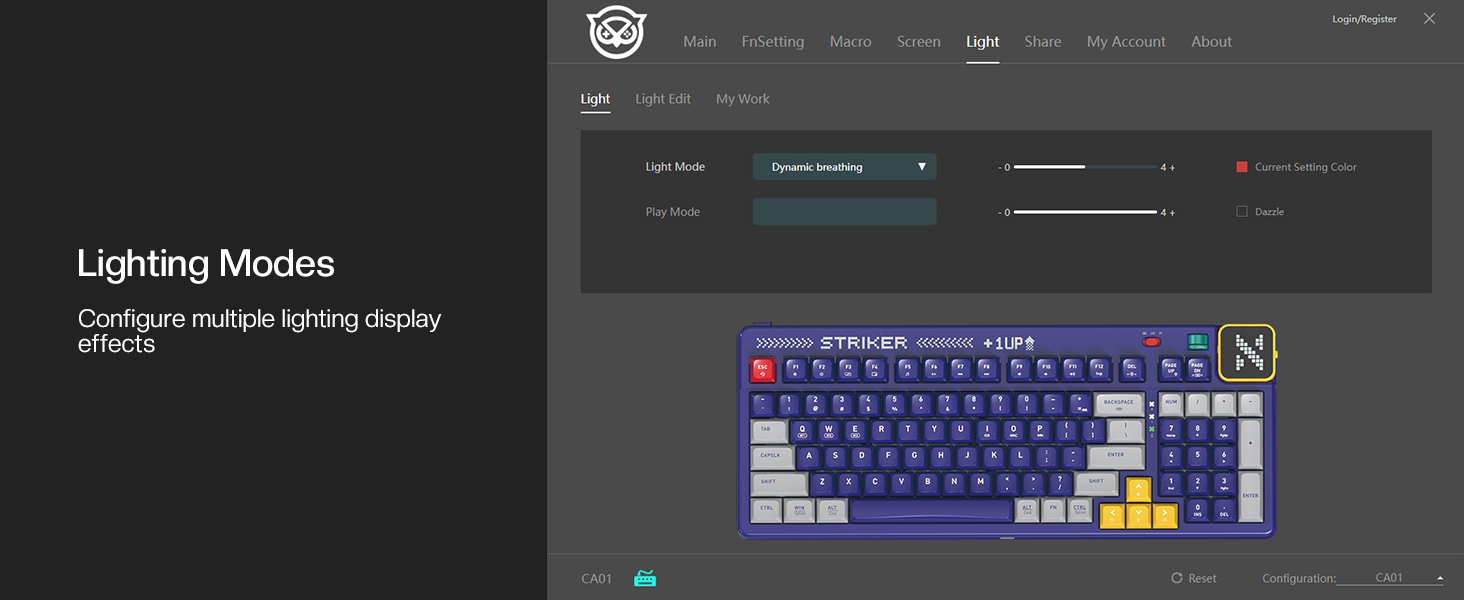
Image 6.4: NYXI Driver App interface for lighting mode configuration.

Image 6.5: NYXI Driver App interface for dot matrix screen customization.
7. ጥገና
7.1 ጽዳት
- የቁልፍ ሰሌዳውን ወለል ለማጽዳት ለስላሳ እና ደረቅ ጨርቅ ይጠቀሙ።
- For deeper cleaning, use the provided keycap puller to remove keycaps and clean dust or debris with compressed air.
- Avoid using harsh chemicals or abrasive materials that could damage the keyboard finish or keycap legends.
7.2 ማከማቻ
Store the keyboard in a cool, dry place away from direct sunlight and extreme temperatures. If storing for an extended period, ensure the keyboard is fully charged and then powered off.
8. መላ መፈለግ
- የቁልፍ ሰሌዳ ምላሽ አይሰጥም፡-
- Ensure the keyboard is powered on and the correct connectivity mode (wired, 2.4G, or Bluetooth) is selected.
- For wireless modes, check battery level. Recharge if necessary.
- For 2.4GHz, ensure the receiver is properly plugged into a USB port.
- For Bluetooth, ensure it is paired correctly and the selected channel (Fn + 1-5) matches the paired device. Try re-pairing.
- Try connecting via USB wired mode to rule out wireless issues.
- RGB lights not working/displaying correctly:
- Ensure RGB is enabled (check the NYXI Driver App if installed).
- በብርሃን ሁነታዎች ውስጥ ዑደት ያድርጉ እና በመጠቀም Fn + ግራ Ctrl.
- በመጠቀም ብሩህነትን ያስተካክሉ Fn + ቀስት ወደ ላይ.
- የማይመዘገቡ ቁልፎች፡-
- If a specific key is not working, the switch might be faulty. Utilize the hot-swappable feature to replace the switch with one of the spares provided.
- በኪፕ ክዳኑ ወይም በማብሪያ / ማጥፊያው ስር ምንም አይነት ቆሻሻ አለመኖሩን ያረጋግጡ።
- የግንኙነት ችግሮች (መዘግየት፣ መቆራረጥ);
- For wireless modes, ensure the keyboard is within range of the receiver/device and there are no significant obstructions.
- ከሌሎች የገመድ አልባ መሳሪያዎች ጣልቃገብነት ይቀንሱ።
- Ensure the keyboard's battery is sufficiently charged.
ችግሩ ከቀጠለ፣ ለተጨማሪ እርዳታ እባክዎን የዋስትና እና የድጋፍ ክፍልን ይመልከቱ።
9. ዝርዝሮች
| ባህሪ | ዝርዝር |
|---|---|
| የሞዴል ቁጥር | CA01 |
| የግንኙነት ቴክኖሎጂ | 2.4ጂ ገመድ አልባ፣ ብሉቱዝ 5.0፣ ዩኤስቢ-ሲ ገመድ አልባ |
| የቁልፍ ሰሌዳ መግለጫ | መካኒካል |
| የቁልፎች ብዛት | 97 ቁልፎች |
| ተስማሚ መሣሪያዎች | macOS, Windows 7 or later, iOS |
| ልዩ ባህሪያት | Backlit (RGB), Customizable Display Keys, Gasket Structure, Hot-Swappable |
| የቁልፍ ሰሌዳ የጀርባ ብርሃን ቀለም ድጋፍ | RGB (22 ሁነታዎች) |
| ቅጥ | NGC Retro |
| የምርት ልኬቶች | 15.32"ኤል x 6.08" ዋ x 1.3" ሸ (38.91 x 15.44 x 3.3 ሴሜ) |
| የእቃው ክብደት | 3.56 ፓውንድ (1.61 ኪ.ግ) |
| አምራች | NYXI |
10. ዋስትና እና ድጋፍ
10.1 የዋስትና መረጃ
NYXI products are covered by a limited warranty against defects in materials and workmanship. Please refer to the official NYXI website or your purchase documentation for specific warranty terms and conditions, including duration and coverage details.
10.2 የደንበኛ ድጋፍ
For technical assistance, troubleshooting, or warranty claims, please contact NYXI customer support through their official website. You may need to provide your product model number (CA01) and proof of purchase.
Thank you for choosing the NYXI Striker Retro Mechanical Gaming Keyboard.


