1. መግቢያ
Welcome to the Ninkear A15 Laptop user manual. This guide provides essential information for setting up, operating, maintaining, and troubleshooting your new Ninkear A15 laptop. Please read this manual thoroughly to ensure proper use and to maximize the performance and longevity of your device.
The Ninkear A15 is a high-performance laptop featuring an AMD Ryzen 5 5500U Hexa-core Processor, 16GB RAM, and a 512GB PCIe SSD, designed for a variety of computing tasks from daily productivity to graphic design and entertainment.
2. በሳጥኑ ውስጥ ያለው
Upon opening your Ninkear A15 Laptop package, please verify that all the following items are included:
- A15 laptop x 1
- መዳፊት x 1
- የመዳፊት ፓድ x 1
- ኃይል መሙያ x 1
3. ምርት አብቅቷልview
The Ninkear A15 laptop is engineered for efficiency and user comfort. Below are key features and components:
3.1 ቁልፍ ባህሪያት
- ኃይለኛ ፕሮሰሰር; Equipped with an AMD Ryzen 5 5500U processor, AMD Radeon graphics, 6 cores and 12 threads, with a frequency up to 4.0Ghz, suitable for various applications.
- መሳጭ ማሳያ፡- Features a 15.6-inch FHD IPS display with 1920x1080 resolution, offering a 90.3% screen-to-body ratio and a 180-degree viewing angle for clear and natural picture quality.
- የተራዘመ የባትሪ ህይወት፡ A 4350mAh battery provides up to 6 hours of daily use, making it ideal for mobile work. It supports full-function Type-C charging.
- Ample Storage & Memory: Comes with 16GB DDR4 RAM (3200Mhz) and a 512GB PCIe SSD, ensuring fast performance for professional software and multitasking.
- ለተጠቃሚ ምቹ ንድፍ፡ Includes a full digital backlit keyboard with three adjustable monochrome backlight levels (FN+F9) and a 0.5-second fingerprint unlocking feature for enhanced security and convenience.
3.2 ቪዥዋል በላይview

ፊት ለፊት view of the Ninkear A15 Laptop, showcasing በውስጡ ቄንጠኛ ንድፍ እና ማሳያ.

አበቃview of the Ninkear A15 Laptop highlighting key specifications like 15.6" IPS FHD display, AMD Ryzen 5 5500U processor, 16GB DDR4 RAM, 512GB PCIe SSD, 4350mAh battery, backlit keyboard, and Type-C full function port.

ዝርዝር view of the AMD Ryzen 5 5500U processor, emphasizing its 6 cores, 12 threads, 7nm process, and 4.0GHz max turbo frequency.
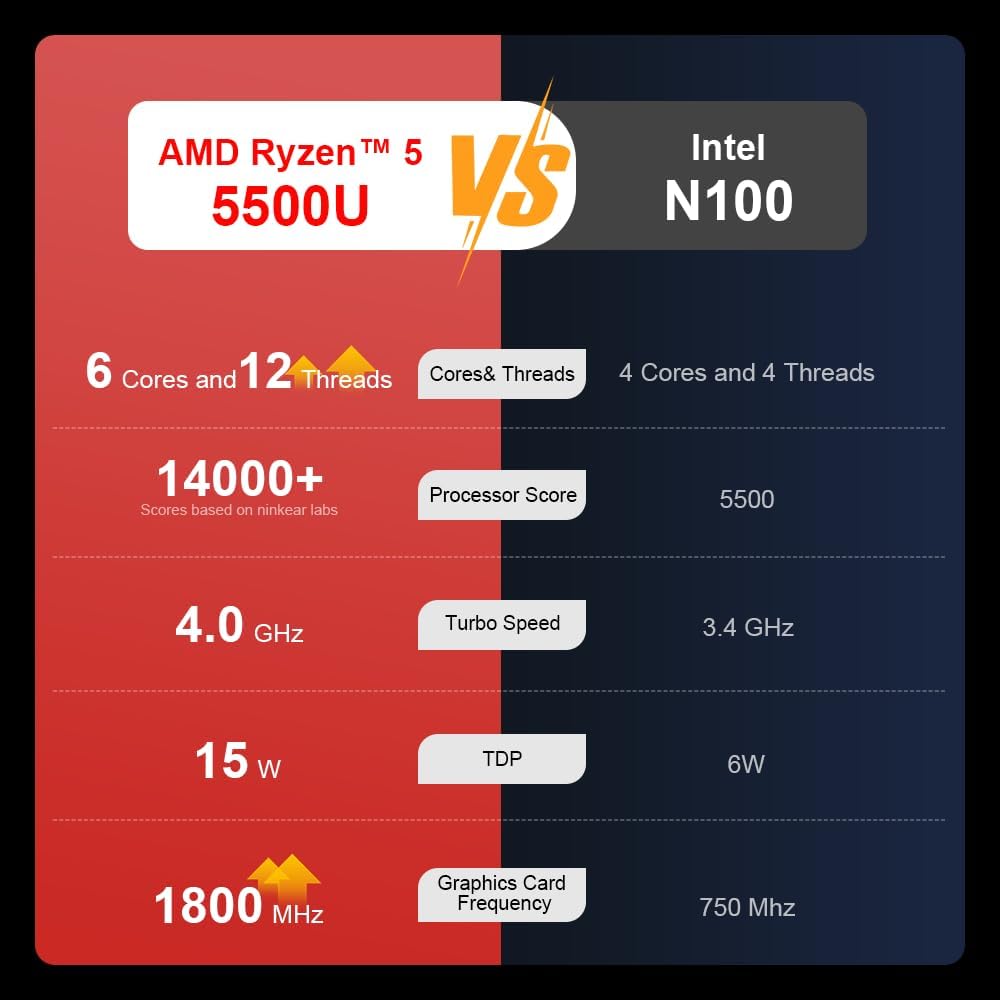
A comparison chart illustrating the performance differences between the AMD Ryzen 5 5500U and Intel N100 processors, including core/thread count, processor score, turbo speed, TDP, and graphics card frequency.

Image showing the 512GB M.2 PCIe SSD and highlighting the 3200MHz DDR4 running frequency, indicating a 20% speed improvement over 2666MHz DDR4.

The 15.6-inch IPS FHD screen of the A15, designed to deliver vibrant and accurate colors while reducing eye strain during long work hours.

Illustration of the A15 laptop's suitability for various 'recreational office' tasks, including graphic design (Ae, Ps, Ai) and gaming/entertainment.

Information about the laptop's 50.5WH high-capacity lithium-ion battery, providing up to 8 hours of local video playback and 72 hours of standby time.

A visual guide to the rich interfaces of the Ninkear A15 Laptop, including USB 3.0, USB 2.0, Headphone Jack, Charging Port, HDMI, and full-function Type-C ports.
3.3 የምርት ቪዲዮ
ይፋዊ የምርት ቪዲዮ ማሳያasing the Ninkear A15 Laptop's features, including its design, display, backlit keyboard, and various ports. This video provides a dynamic overview of the laptop's capabilities and physical attributes.
4. ማዋቀር
Follow these steps to set up your Ninkear A15 Laptop for the first time:
- ላፕቶፑን ያላቅቁ፡ ላፕቶፑን እና ሁሉንም መለዋወጫዎች ከማሸጊያው ላይ በጥንቃቄ ያስወግዱት።
- የግንኙነት ኃይል; Plug the charger into the laptop's charging port (DC-in or Type-C) and then into a power outlet.
- የመጀመሪያ ቡት፡ Open the laptop lid and press the power button (integrated with fingerprint sensor). The laptop will power on and begin the initial Windows 11 setup process.
- የዊንዶውስ 11 ማዋቀር; Follow the on-screen instructions to complete the Windows 11 setup, including selecting your region, language, connecting to Wi-Fi, and creating a user account.
- የጣት አሻራ ማዋቀር፦ During or after Windows setup, you can configure the fingerprint reader for quick and secure login.
5. የአሠራር መመሪያዎች
This section covers basic operation of your Ninkear A15 Laptop.
5.1 ማብራት / ማጥፋት እና መተኛት
- አብራ፡ የኃይል አዝራሩን ይጫኑ.
- ኃይል ዝጋ: በዊንዶውስ ውስጥ የጀምር አዝራሩን ጠቅ ያድርጉ እና ከዚያ ኃይል > ዝጋን ይምረጡ።
- የእንቅልፍ ሁኔታ: Close the lid or click the Start button, then select Power > Sleep.
5.2 የቁልፍ ሰሌዳ እና የመዳሰሻ ሰሌዳ
- የኋላ ብርሃን ቁልፍ ሰሌዳ፡- ተጫን Fn + F9 to cycle through the three levels of monochrome backlight brightness or turn it off.
- የመዳሰሻ ሰሌዳ Use the integrated touchpad for cursor control and gestures. Refer to Windows settings for touchpad customization.
- የቁጥር ቁልፍ ሰሌዳ፡ The laptop features a full digital numeric keypad for convenient data entry.
5.3 ማገናኛ ፔሪፈራል
ለውጫዊ መሳሪያዎች የተለያዩ ወደቦችን ይጠቀሙ፦
- የዩኤስቢ ወደቦች፡ Connect USB devices like external hard drives, mice, or keyboards to the USB 2.0 or USB 3.0 ports.
- ኤችዲኤምአይ: Connect to external monitors or projectors using the HDMI port.
- ዓይነት-ሲ The full-function Type-C port supports data transfer, video output, and power delivery.
- ኦዲዮ ጃክ ፦ የጆሮ ማዳመጫዎችን ወይም ውጫዊ ድምጽ ማጉያዎችን ከ3.5ሚሜ የድምጽ መሰኪያ ጋር ያገናኙ።
5.4 የማሳያ ቅንብሮች
Adjust display settings via Windows Settings > System > Display to optimize resolution, scaling, and multiple monitor setups.
6. ጥገና
Proper maintenance ensures the longevity and optimal performance of your Ninkear A15 Laptop.
- ማጽዳት፡ ስክሪኑን እና ቻሲስን ለማጽዳት ለስላሳ፣ ከላጣ ነፃ የሆነ ጨርቅ ይጠቀሙ። ለጠንካራ ምልክቶች፣ ትንሽampጨርቁን በውሃ ወይም በስክሪን ማጽጃ. ኃይለኛ ኬሚካሎችን ያስወግዱ.
- የሶፍትዌር ማሻሻያ Regularly update Windows and device drivers to ensure system stability, security, and performance.
- የባትሪ እንክብካቤ የባትሪ ዕድሜን ለማራዘም በተደጋጋሚ ባትሪውን ሙሉ በሙሉ ከመሙላት ይቆጠቡ። ለረጅም ጊዜ አገልግሎት በማይሰጥበት ጊዜ ላፕቶፑን በቀዝቃዛና ደረቅ ቦታ ያከማቹ።
- የአየር ማናፈሻ; ከመጠን በላይ ሙቀትን ለመከላከል የሊፕቶፑ ቀዳዳዎች መከልከላቸውን ያረጋግጡ። ላፕቶፑን በጠንካራ ጠፍጣፋ መሬት ላይ ይጠቀሙ።
- የውሂብ ምትኬ የውሂብ መጥፋትን ለመከላከል አስፈላጊ ውሂብዎን ወደ ውጫዊ ድራይቭ ወይም የደመና ማከማቻ በመደበኛነት ምትኬ ያስቀምጡ።
7. መላ መፈለግ
This section addresses common issues you might encounter with your Ninkear A15 Laptop.
| ችግር | ሊሆን የሚችል ምክንያት | መፍትሄ |
|---|---|---|
| ላፕቶፕ አይበራም። | ዝቅተኛ የባትሪ ወይም የኃይል አስማሚ ችግር | ቻርጀሩ በትክክል መገናኘቱን እና የኃይል መውጫው እየሰራ መሆኑን ያረጋግጡ። እንደገና ለማብራት ከመሞከርዎ በፊት ላፕቶፑ ቢያንስ ለ30 ደቂቃዎች ኃይል እንዲሞላ ይፍቀዱለት። |
| ስክሪኑ ባዶ ወይም ጥቁር ነው። | Display driver issue, external display connected, or sleep mode | Press any key or move the mouse to wake from sleep. Disconnect any external monitors. Try pressing Fn + F7 (or the key with a display icon) to switch display modes. If still blank, force shut down by holding the power button for 10 seconds, then restart. |
| Wi-Fi አይገናኝም። | Wi-Fi adapter off, incorrect password, or router issue | Check if Wi-Fi is enabled in Windows settings. Verify the Wi-Fi password. Restart your router and modem. Update Wi-Fi drivers if necessary. |
| የቁልፍ ሰሌዳ የኋላ መብራት አይሰራም | Backlight turned off or low brightness setting | ተጫን Fn + F9 repeatedly to adjust brightness or turn on the backlight. |
| ዘገምተኛ አፈጻጸም | Too many programs running, low disk space, or outdated drivers | Close unnecessary applications. Free up disk space. Run Windows Update and update drivers. Consider running a virus scan. |
8. ዝርዝሮች
Detailed technical specifications for the Ninkear A15 Laptop:
| ባህሪ | ዝርዝር መግለጫ |
|---|---|
| የምርት ስም | ኒንኬር |
| የሞዴል ስም | አ15 |
| የስክሪን መጠን | 15.6 ኢንች |
| የማያ ጥራት | 1920 x 1080 ፒክስል (FHD IPS) |
| ፕሮሰሰር | AMD Ryzen 5 5500U (2.1 GHz, 6 Cores, 12 Threads) |
| ራም | 16 ጊባ DDR4 (3200 ሜኸ) |
| ሃርድ ድራይቭ | 512 ጊባ PCIe SSD |
| ግራፊክስ ካርድ | የተዋሃደ AMD Radeon ግራፊክስ |
| ስርዓተ ክወና | ዊንዶውስ 11 |
| ቀለም | ብር |
| የእቃው ክብደት | 5 ፓውንድ |
| የምርት ልኬቶች | 14 x 9 x 0.15 ኢንች |
| ዩኤስቢ 3.0 ወደቦች | 2 |
| አማካይ የባትሪ ህይወት | Up to 6-8 hours (daily use) |
| ልዩ ባህሪያት | Backlit Keyboard, Numeric Keypad, Fingerprint Unlock, Full-function Type-C |
9. ዋስትና እና ድጋፍ
Ninkear provides a standard warranty for the A15 Laptop. Please refer to the warranty card included in your product packaging for specific terms and conditions, including warranty duration and coverage details.
For technical support, troubleshooting assistance, or warranty claims, please contact Ninkear customer service through the official website or the contact information provided with your purchase. Ensure you have your product model (A15) and purchase details ready when contacting support.
You can also visit the official Ninkear store on Amazon for additional product information and support resources: Ninkear Amazon Store


