መግቢያ
The Keychron M7 is a versatile wireless gaming optical mouse designed for optimal performance and comfort. It features tri-mode connectivity (2.4 GHz wireless, Bluetooth 5.1, and wired USB), a high-precision PixArt 3395 sensor, and a lightweight ergonomic design. This manual provides instructions for setting up, operating, maintaining, and troubleshooting your Keychron M7 mouse.

Figure 1: Keychron M7 Wireless Gaming Optical Mouse (White)
የጥቅል ይዘቶች
Please ensure all the following items are included in your Keychron M7 package:
- የ Keychron M7 ገመድ አልባ መዳፊት
- Type-C 2.4 GHz Receiver
- ዓይነት-A 2.4 GHz ተቀባይ
- ዳግም ሊሞላ የሚችል ባትሪ (ቀድሞ የተጫነ)
- USB-C to USB-A Cable (for charging and wired connection)
የምርት ባህሪያት
- ባለሶስት ሁነታ ግንኙነት፡- Seamlessly switch between 2.4 GHz wireless, Bluetooth 5.1, and wired USB connections.
- ከፍተኛ ትክክለኛነት ዳሳሽ; Equipped with the PixArt 3395 sensor, offering up to 26,000 DPI and 650 IPS for accurate tracking.
- ቀላል ክብደት ያለው Ergonomic ንድፍ; Weighing only 63 grams with an ergonomic curved design and grip patterns for comfortable extended use.
- ሊበጁ የሚችሉ አዝራሮች፡ Programmable macro buttons and settings via the Keychron Engine software.
- ረጅም የባትሪ ህይወት; Up to 70 hours of continuous use on a single charge with an 800mAh battery.
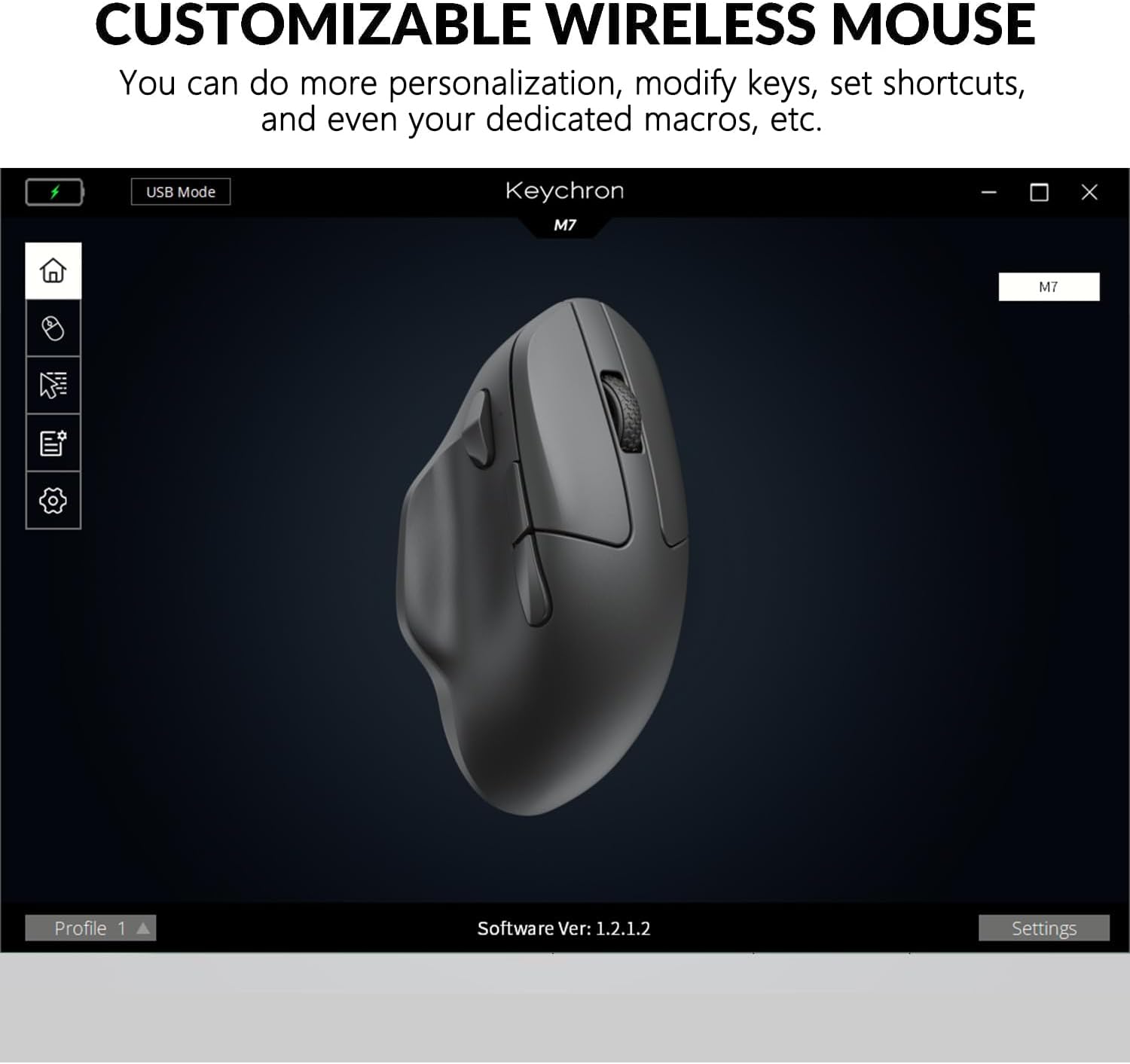
Figure 2: Keychron M7 features: 70-hour battery life and 26,000 DPI sensor.
እንደ መጀመር
1. አይጤውን በመሙላት ላይ
Before first use, it is recommended to fully charge the mouse. Connect the provided USB-C to USB-A cable to the mouse's USB-C port and the other end to a powered USB port on your computer or a USB charger. The LED indicator will show charging status.
2. መዳፊቱን በማገናኘት ላይ
The Keychron M7 offers three connection modes:
- ባለገመድ ሁነታ Connect the mouse directly to your computer using the USB-C to USB-A cable. The mouse will function immediately and charge simultaneously.
- 2.4 GHz ገመድ አልባ ሁነታ፡
- Locate the 2.4 GHz receiver (either Type-C or Type-A).
- መቀበያውን በኮምፒዩተርዎ ላይ ባለው የዩኤስቢ ወደብ ይሰኩት።
- On the bottom of the mouse, slide the switch to the 'G' (2.4 GHz) position. The mouse will automatically connect.
- ብሉቱዝ 5.1 ሁነታ:
- On the bottom of the mouse, slide the switch to the 'B' (Bluetooth) position.
- Press and hold the Bluetooth pairing button (usually located near the mode switch) until the LED indicator starts blinking, indicating pairing mode.
- On your computer, open Bluetooth settings and search for new devices. Select "Keychron M7" from the list to pair.

Figure 3: Keychron M7 2.4 GHz receivers and polling rate indicator table.
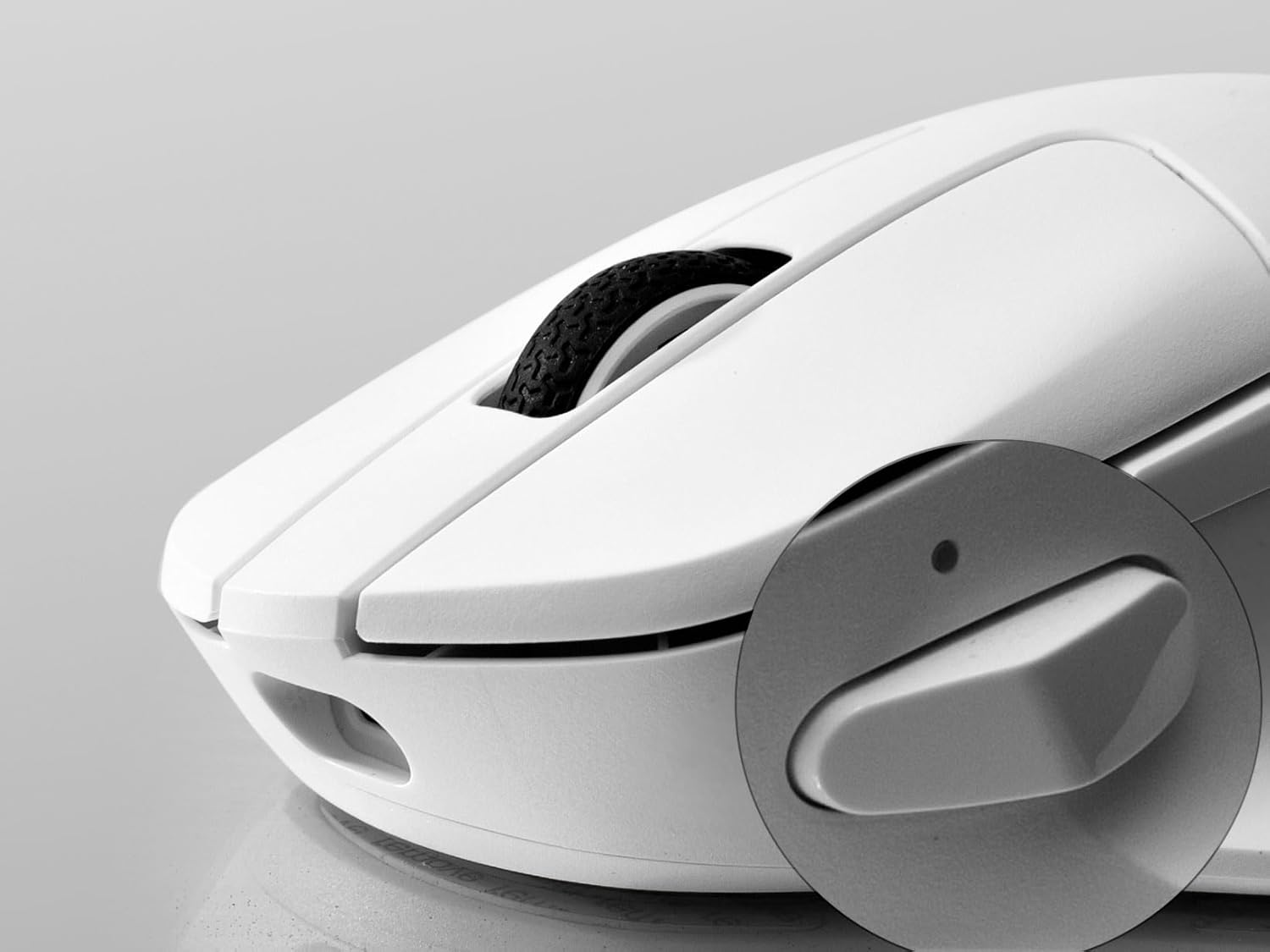
Figure 4: Mouse bottom with G/OFF/B mode switch and pairing button.
አይጤውን በመስራት ላይ
የዲፒአይ ማስተካከያ
The Keychron M7 allows for on-the-fly DPI adjustment. Use the dedicated DPI button on the bottom of the mouse to cycle through preset DPI levels. The LED indicator will change color to indicate the current DPI setting.
የድምፅ አሰጣጥ ደረጃ ማስተካከያ
In 2.4 GHz or Wired mode, you can adjust the polling rate using the 'RPT' button on the bottom of the mouse. Press this button to switch between 125 Hz (White LED), 500 Hz (Blue LED), and 1000 Hz (Red LED).
Programmable Buttons and Macros
The Keychron M7 features programmable buttons. To customize button functions, set shortcuts, or create dedicated macros, download and install the Keychron Engine software from the official Keychron website. The software also allows for professional settings like Lift-Off Distance (LOD) and further DPI customization.

Figure 5: DPI switch and macro button location.

Figure 6: Keychron Engine software interface for customization.
ጥገና
ማጽዳት
ጥሩ አፈጻጸም እና ገጽታ ለመጠበቅ፣ የኪይክሮን ኤም7 መዳፊትዎን አዘውትረው ያጽዱ። መሬቱን ለማጽዳት ለስላሳ፣ ደረቅ፣ ከላጣ ነፃ የሆነ ጨርቅ ይጠቀሙ። ለጠንካራ ቆሻሻ፣ ትንሽ ቆንጥጦampen the cloth with water or a mild electronics cleaner. Avoid using harsh chemicals or abrasive materials.
የባትሪ እንክብካቤ
The Keychron M7 uses a rechargeable Lithium Polymer battery. To prolong battery life:
- በተደጋጋሚ ባትሪውን ሙሉ በሙሉ ከመሙላት ይቆጠቡ።
- ለረጅም ጊዜ ጥቅም ላይ በማይውልበት ጊዜ አይጤውን በቀዝቃዛና ደረቅ ቦታ ያከማቹ።
- Charge the mouse using the provided cable or a certified USB charger.
መላ መፈለግ
- አይጥ ምላሽ እየሰጠ አይደለም፡- Ensure the mouse is charged. Check the mode switch on the bottom of the mouse is set correctly (G for 2.4 GHz, B for Bluetooth, or connected via cable). For wireless modes, ensure the receiver is properly plugged in or Bluetooth is paired.
- በገመድ አልባ ሁነታ ላይ መዘግየት ወይም መቆራረጥ፡ Try moving the receiver closer to the mouse. Ensure there are no strong interfering signals (e.g., other 2.4 GHz devices, Wi-Fi routers) nearby. Switch to a different USB port for the receiver.
- DPI or button issues: Ensure the Keychron Engine software is installed and updated. Check your settings within the software. Reset the mouse to factory defaults if necessary (refer to software instructions).
- የመዳፊት ጠቋሚ የተሳሳተ ነው፡ በመዳፊት ግርጌ ላይ ያለውን የኦፕቲካል ዳሳሽ ያጽዱ። መዳፊቱን ተስማሚ በሆነ ቦታ ላይ መጠቀምዎን ያረጋግጡ (የመዳፊት ፓድ ይመከራል)።
ቴክኒካዊ ዝርዝሮች
| ባህሪ | ዝርዝር መግለጫ |
|---|---|
| ሞዴል | የ Keychron M7 ገመድ አልባ መዳፊት |
| ግንኙነት | 2.4 ጊኸዝ ገመድ አልባ፣ ብሉቱዝ 5.1፣ ዩኤስቢ ገመድ ያለው |
| ዳሳሽ | PixArt 3395 የጨረር ዳሳሽ |
| የዲፒአይ ክልል | እስከ 26,000 ዲፒአይ |
| አይፒኤስ | 650 አይፒኤስ |
| ማፋጠን | 50ጂ |
| የድምጽ መስጫ ደረጃ | 125 Hz, 500 Hz, 1000 Hz (adjustable) |
| ክብደት | 63 ግራም (በግምት 2.22 አውንስ) |
| ልኬቶች (L x W x H) | 127.7 x 77.1 x 40.5 ሚሜ (4.8 x 2.95 x 1.97 ኢንች) |
| ባትሪ | 800mAh ሊቲየም ፖሊመር (እንደገና ሊሞላ የሚችል) |
| የባትሪ ህይወት | እስከ 70 ሰአታት (ነጠላ ክፍያ) |
| ተኳኋኝነት | ዊንዶውስ ፒሲ ፣ ማክ |

Figure 7: Keychron M7 mouse dimensions.
ዋስትና እና ድጋፍ
Keychron products are covered by a limited warranty against manufacturing defects. For specific warranty terms and conditions, please refer to the warranty information provided with your purchase or visit the official Keychron website. For technical support, troubleshooting assistance, or to download the Keychron Engine software, please visit the Keychron support page:


