መግቢያ
This manual provides comprehensive instructions for the setup, operation, maintenance, and troubleshooting of your Logitech G915 X Lightspeed Wireless Mechanical Gaming Keyboard. Designed for high-performance gaming and versatile connectivity, this keyboard features LIGHTSPEED wireless technology, GL mechanical switches, customizable G-keys, and LIGHTSYNC RGB lighting. Please read this manual thoroughly to ensure optimal use and longevity of your device.

ምስል፡ ከላይ ወደ ታች view of the Logitech G915 X Lightspeed Wireless Mechanical Gaming Keyboard, showcasinሙሉ አቀማመጡ እና የ RGB የጀርባ ብርሃን።
በሣጥኑ ውስጥ ያለው
Upon unboxing your Logitech G915 X Lightspeed keyboard, verify that all the following components are present:
- Logitech G915 X Lightspeed Wireless Mechanical Gaming Keyboard
- LIGHTSPEED USB Receiver
- የዩኤስቢ ማራዘሚያ
- USB-C Data/Charging Cable
- የተጠቃሚ ሰነድ (ይህ መመሪያ)

Image: All components included in the Logitech G915 X keyboard packaging, including the keyboard, USB-A to USB-C cable, USB extender, and USB wireless receiver.
ማዋቀር
የመነሻ ኃይል መሙላት
ለመጀመሪያ ጊዜ ከመጠቀምዎ በፊት የቁልፍ ሰሌዳውን ሙሉ በሙሉ መሙላት ይመከራል።
- Connect the supplied USB-C data/charging cable to the USB-C port on the keyboard (located on the top edge).
- Connect the other end of the cable (USB-A) to a powered USB port on your computer or a USB wall adapter.
- The battery indicator light on the keyboard will show charging status. A full charge typically takes approximately 4 hours.
የቁልፍ ሰሌዳውን በማገናኘት ላይ
The G915 X offers three connectivity options: LIGHTSPEED Wireless, Bluetooth, and Wired USB.

Image: Close-up of the Logitech G915 X keyboard's connectivity buttons (LIGHTSPEED, Bluetooth, Wired) located above the F5-F8 keys.
LIGHTSPEED Wireless (Recommended for Gaming)
- Locate the LIGHTSPEED USB receiver. For optimal signal, use the USB extender to position the receiver closer to the keyboard.
- Plug the LIGHTSPEED USB receiver into an available USB-A port on your computer.
- On the keyboard, slide the power switch to the ON position (located on the top right).
- Press the LIGHTSPEED button (indicated by a wireless signal icon) on the keyboard. The indicator light above the button will turn solid cyan when connected.
የብሉቱዝ ግንኙነት
- የቁልፍ ሰሌዳ መብራቱን ያረጋግጡ።
- Press and hold the Bluetooth button (indicated by a Bluetooth icon) on the keyboard until the indicator light above it starts blinking blue rapidly. This indicates pairing mode.
- On your computer or device, navigate to Bluetooth settings and select "G915 X" from the list of available devices.
- The indicator light will turn solid blue when successfully paired.
ባለገመድ ዩኤስቢ ሁነታ
- Connect the USB-C data/charging cable to the keyboard and the USB-A end to your computer.
- የቁልፍ ሰሌዳው በራስ-ሰር ወደ ባለገመድ ሁነታ ይቀየራል እና ኃይል መሙላት ይጀምራል።
የአሠራር መመሪያዎች
ቁልፍ ባህሪዎች አልፈዋልview
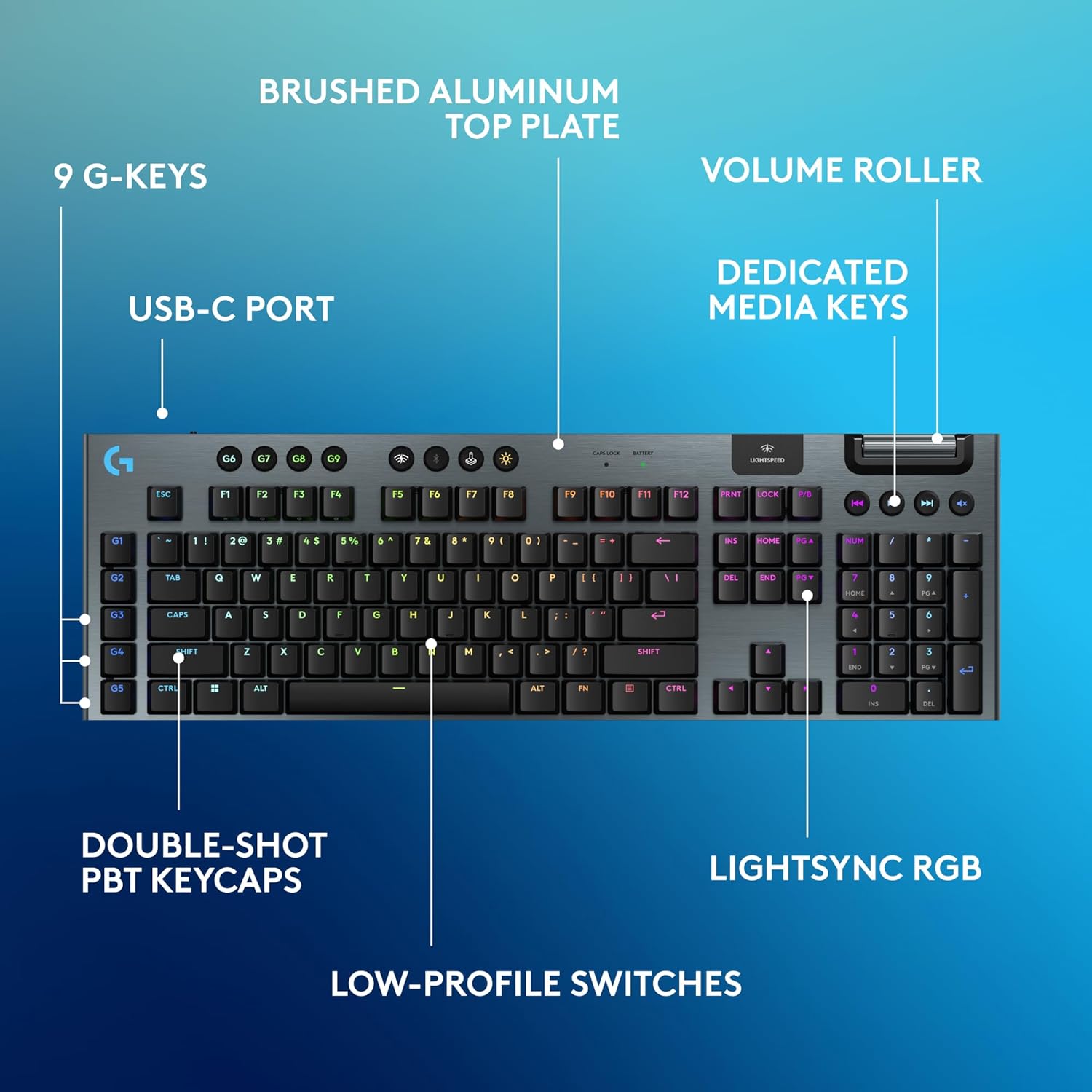
Image: Diagram highlighting key features of the Logitech G915 X keyboard, including G-keys, USB-C port, double-shot PBT keycaps, low-profile switches, brushed aluminum top plate, volume roller, dedicated media keys, and LIGHTSYNC RGB.
- GL Mechanical Switches: ዝቅተኛ-ፕሮfile switches designed for speed, precision, and comfort with a 1.3mm actuation point.
- LIGHTSPEED Wireless: Pro-grade wireless technology for ultra-fast and reliable connection.
- ብሉቱዝ፡ For connecting to other devices that support Bluetooth.
- የተወሰኑ የሚዲያ ቁልፎች፡ Control audio and video playback with ease.
- የድምጽ ሮለር፡ Smoothly adjust audio volume.
- LIGHTSYNC RGB: Customizable per-key RGB lighting with approximately 16.8 million colors.
- G-Keys (G1-G5): Five dedicated programmable macro keys on the left side of the keyboard.
- Double-Shot PBT Keycaps: Durable keycaps resistant to wear and shine.
Customizing with G HUB Software
To unlock the full potential of your G915 X keyboard, download and install the Logitech G HUB software from the official Logitech website. G HUB allows for extensive customization.
- G-Key Programming: Assign custom macros, commands, or system functions to the G1-G5 keys. You can create multiple profiles ለተለያዩ ጨዋታዎች ወይም መተግበሪያዎች.
- LIGHTSYNC RGB Customization: Personalize lighting effects, colors, and animations. Sync lighting with other Logitech G devices.
- የጨዋታ ሁኔታ፡ Disable specific keys (e.g., Windows key) during gaming to prevent accidental interruptions.
- KEYCONTROL: Set up to 15 functions per key for advanced control.

Image: Screenshot of the Logitech G HUB software interface showing options for customizing commands and assigning functions to G-keys on the G915 X keyboard.
Media Controls and Volume
Dedicated media controls and a volume roller are located on the top right of the keyboard for quick access.
- የድምጽ ሮለር፡ Roll up to increase volume, roll down to decrease.
- Media Buttons:
- የቀድሞ ትራክ
- ተጫወት/ ለአፍታ አቁም
- ቀጣይ ትራክ
- ድምጸ-ከል አድርግ
የባትሪ አስተዳደር
The Logitech G915 X keyboard provides up to 36 hours of continuous battery life with lighting enabled. Battery life may vary based on usage and lighting intensity.
- የባትሪ አመልካች፡- A dedicated battery indicator light is located near the LIGHTSPEED logo on the top right. It changes color to indicate battery level.
- በመሙላት ላይ፡ Connect the USB-C cable to the keyboard and a powered USB port. You can continue to use the keyboard in wired mode while it charges.
- የኃይል ቁጠባ; The keyboard will enter a low-power state after a period of inactivity to conserve battery.
ጥገና
ትክክለኛው ጥገና የቁልፍ ሰሌዳዎን ረጅም ጊዜ እና አፈፃፀም ያረጋግጣል.
- የማጽጃ ቁልፎች; ለስላሳ፣ ከቆሸሸ ነፃ የሆነ ጨርቅ በትንሹ ተጠቀምampበውሃ ወይም ለስላሳ የጽዳት መፍትሄ. ኃይለኛ ኬሚካሎችን ያስወግዱ.
- Removing Dust/Debris: Use compressed air to clear dust and debris from between the keycaps and switches.
- የወለል ጽዳት; Wipe the aluminum top plate with a soft, dry cloth.
- ማከማቻ፡ ለረጅም ጊዜ ጥቅም ላይ በማይውሉበት ጊዜ፣ የቁልፍ ሰሌዳውን ከፀሐይ ብርሃን በቀጥታ ራቅ ባለ ደረቅና ቀዝቃዛ ቦታ ያስቀምጡት።
መላ መፈለግ
If you encounter issues with your Logitech G915 X keyboard, refer to the following common troubleshooting steps.
| ችግር | ሊሆን የሚችል መፍትሄ |
|---|---|
| የቁልፍ ሰሌዳ ምላሽ አይሰጥም (ገመድ አልባ) |
|
| የብሉቱዝ ግንኙነት ችግሮች |
|
| ቁልፎች አለመመዝገብ ወይም ድርብ መተየብ |
|
| የ RGB መብራት አይሰራም ወይም የተሳሳተ ነው። |
|
| G-keys or macros not working |
|
ዝርዝሮች
| ባህሪ | ዝርዝር |
|---|---|
| የሞዴል ቁጥር | 920-012670 |
| ግንኙነት | LIGHTSPEED Wireless (2.4 GHz RF), Bluetooth, Wired USB-C |
| የመቀየሪያ አይነት | GL Tactile Mechanical Switches (Low-Profile) |
| እንቅስቃሴ ማድረጊያ ነጥብ | 1.3 ሚ.ሜ |
| ጠቅላላ የጉዞ ርቀት | 3.2 ሚ.ሜ |
| የቁልፍ ሰሌዳዎች | ድርብ-ሾት PBT |
| ማብራት | LIGHTSYNC RGB (Per-key customizable) |
| የፕሮግራም ቁልፎች | 5 dedicated G-keys, up to 15 functions per key via KEYCONTROL |
| የባትሪ ህይወት | Up to 36 hours (with lighting) |
| የኃይል መሙያ ጊዜ | በግምት. 4 ሰዓታት |
| ልኬቶች (LxWxH) | 18.7 x 5.91 x 0.87 ኢንች (47.5 x 15 x 2.2 ሴሜ) |
| ክብደት | 2.38 ፓውንድ (1.08 ኪ.ግ) |
| ቁሳቁስ | የአሉሚኒየም የላይኛው ንጣፍ |
| የስርዓተ ክወና ተኳኋኝነት | ፒሲ ፣ ማክ ኦኤስ |
ዋስትና እና ድጋፍ
Logitech products are designed for durability and performance. For information regarding warranty coverage, technical support, and frequently asked questions, please visit the official Logitech support webጣቢያ.
የሎጌቴክ ድጋፍ Webጣቢያ፡ https://support.logi.com/
ለተጨማሪ ጥበቃ፣ ግዢውን ያስቡበትasing an extended protection plan available at the time of purchase.


