መግቢያ
This manual provides essential information for setting up, operating, maintaining, and troubleshooting your Lenovo ThinkPad T490 laptop. The ThinkPad T490 is a 14-inch laptop designed for productivity, featuring an Intel Core i7-8665U processor, 16GB DDR4 RAM, and a 1TB NVMe SSD. It comes pre-installed with Windows 11 Pro and includes a 1080p Full HD touchscreen display, USB-C Thunderbolt 3, HDMI, and an integrated webካም.
በአግባቡ ጥቅም ላይ እንዲውል እና የመሳሪያዎን አፈጻጸም እና ረጅም ጊዜ ለማሳደግ ይህንን መመሪያ በደንብ ያንብቡ።
በሣጥኑ ውስጥ ያለው
Upon unboxing your Lenovo ThinkPad T490, verify that the following items are included:
- Lenovo ThinkPad T490 ላፕቶፕ
- የኤሲ ኃይል አስማሚ
ማዋቀር
1. የኃይል አስማሚን ማገናኘት
- Connect the AC power adapter to the USB-C power port on your laptop.
- የኃይል ገመዱን ወደ ግድግዳ መውጫ ይሰኩት.
- Allow the battery to charge sufficiently before first use, or use it while connected to power.
2. የመጀመሪያ የኃይል ማብራት እና የዊንዶውስ 11 ማዋቀር
- የላፕቶፑን ክዳን ይክፈቱ.
- የኃይል ቁልፉን ይጫኑ፣ ይህም ብዙውን ጊዜ በቁልፍ ሰሌዳው የላይኛው ቀኝ ጥግ ላይ ይገኛል።
- የቋንቋ ምርጫን፣ የአውታረ መረብ ግንኙነትን እና የተጠቃሚ መለያ መፍጠርን ጨምሮ የዊንዶውስ 11 ፕሮ የመጀመሪያ ዝግጅትን ለማጠናቀቅ የማያ ገጽ ላይ መመሪያዎችን ይከተሉ።
3. Port Identification
Familiarize yourself with the various ports and connectors on your ThinkPad T490:
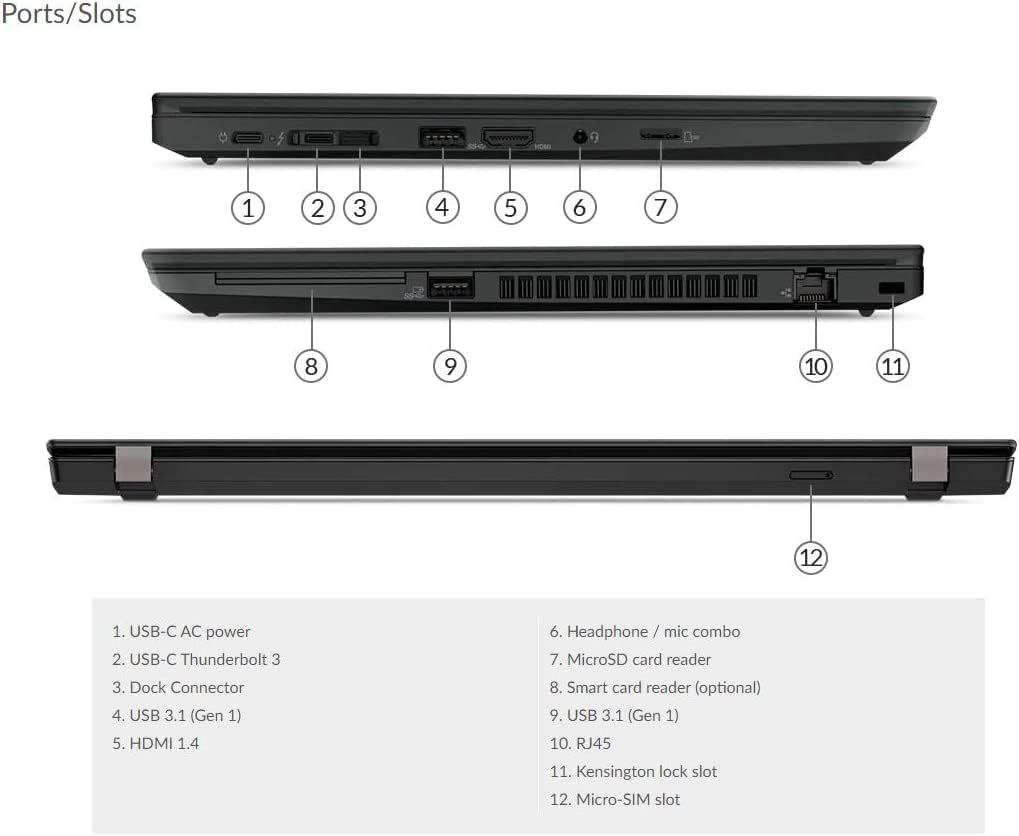
Detailed diagram illustrating the location and type of each port and slot on the ThinkPad T490, including USB-C, HDMI, USB 3.1, RJ45, and more.
- 1. USB-C AC power: የኃይል አስማሚውን ለማገናኘት.
- 2. USB-C Thunderbolt 3: ከፍተኛ ፍጥነት ያለው የውሂብ ማስተላለፍ፣ የቪዲዮ ውፅዓት እና የኃይል አቅርቦት።
- 3. Dock Connector: For connecting to a compatible docking station.
- 4. USB 3.1 (Gen 1): ለውጫዊ መሳሪያዎች መደበኛ የዩኤስቢ ወደብ።
- 5. HDMI 1.4: ከውጭ ማሳያዎች ጋር ለመገናኘት.
- 6. Headphone / mic combo: ለድምጽ ግብአት/ውፅዓት።
- 7. MicroSD card reader: የማይክሮ ኤስዲ ማህደረ ትውስታ ካርዶችን ለማንበብ።
- 8. Smart card reader (optional): For smart card authentication.
- 9. USB 3.1 (Gen 1): ሌላ መደበኛ የዩኤስቢ ወደብ።
- 10. RJ45: ለገመድ የአውታረ መረብ ግንኙነት የኢተርኔት ወደብ።
- 11. Kensington lock slot: For securing the laptop with a compatible lock.
- 12. Micro-SIM slot: For mobile broadband connectivity (if equipped).
ላፕቶፑን በመስራት ላይ
1. የኃይል አስተዳደር
- አብራ፡ የኃይል አዝራሩን ይጫኑ.
- የእንቅልፍ ሁኔታ: ሽፋኑን ይዝጉ ወይም የኃይል አዝራሩን በአጭሩ ይጫኑ.
- ዝጋ፡ የዊንዶውስ ጀምር አዝራሩን ጠቅ ያድርጉ፣ ከዚያ ፓወር > ዝጋ የሚለውን ጠቅ ያድርጉ።
- እንደገና ጀምር፥ Click the Windows Start button, then Power > Restart.
2. የቁልፍ ሰሌዳ እና የግቤት መሳሪያዎች
- የቁልፍ ሰሌዳ፡ Use the integrated keyboard for typing. Function keys (Fn) combined with F1-F12 provide additional controls (e.g., volume, brightness).
- የትራክፖይንት፡ The red pointing stick in the center of the keyboard allows for precise cursor control. Use the three buttons below the spacebar for left-click, right-click, and scroll functions.
- የመዳሰሻ ሰሌዳ The multi-touch touchpad below the keyboard supports gestures for navigation and control.
- የንክኪ ማያ ገጽ፡ Interact directly with the display using touch gestures for navigation and input.
3. የውጭ መሳሪያዎችን ማገናኘት
- የዩኤስቢ መሣሪያዎች፡- Connect USB drives, mice, or keyboards to the USB 3.1 ports.
- ውጫዊ ማሳያ Use the HDMI port or a USB-C Thunderbolt 3 adapter to connect an external monitor or projector.
- የድምጽ መሳሪያዎች፡- Plug headphones or external speakers into the headphone/mic combo jack.
- አውታረ መረብ፡ Connect an Ethernet cable to the RJ45 port for a wired internet connection.
- ብሉቱዝ፡ Enable Bluetooth in Windows settings to pair with wireless devices like headphones or mice.
4. Webካሜራ እና ማይክሮፎን
የተቀናጀው webcam and microphone are located at the top of the display. They are ready for use with video conferencing applications and voice recording. Ensure the camera shutter (if present) is open for video calls.
ጥገና
1. ላፕቶፑን ማጽዳት
- ስክሪን፡ ለስላሳ፣ ከቆሸሸ ነፃ የሆነ ጨርቅ በትንሹ ተጠቀም መampበውሃ ወይም በስክሪን ማጽጃ የታሸገ። ፈሳሽ በቀጥታ በስክሪኑ ላይ አይረጩ።
- የቁልፍ ሰሌዳ እና ሲasing: ለስላሳ እና ደረቅ ጨርቅ ይጠቀሙ. ለግትር ቆሻሻ, ትንሽ መamp ለስላሳ የሳሙና መፍትሄ ያለው ጨርቅ ጥቅም ላይ ሊውል ይችላል, ይህም ፈሳሽ ወደ ክፍት ቦታዎች ውስጥ እንደማይገባ ያረጋግጣል.
- ወደቦች፡ አቧራውን ወደቦች ለማፅዳት የታመቀ አየር ይጠቀሙ።
2. የባትሪ እንክብካቤ
- በተደጋጋሚ ባትሪውን ሙሉ በሙሉ ከመሙላት ይቆጠቡ።
- ለረጅም ጊዜ ጥቅም ላይ ካልዋለ ላፕቶፑን በቀዝቃዛና ደረቅ ቦታ ያከማቹ።
- ለተመቻቸ የባትሪ ጤንነት፣ ለረጅም ጊዜ ለከፍተኛ ሙቀት መጋለጥን ያስወግዱ።
3. የሶፍትዌር ዝመናዎች
የስርዓት መረጋጋትን፣ ደህንነትን እና አፈጻጸምን ለማረጋገጥ የዊንዶውስ ዝመናዎችን በመደበኛነት ያረጋግጡ እና ይጫኑ። ወደ ሂድ ቅንብሮች> የዊንዶውስ ዝመና ዝመናዎችን ለማስተዳደር.
4. የማከማቻ አስተዳደር
በየጊዜው እንደገናview እና አላስፈላጊውን ሰርዝ files to maintain optimal performance of your 1TB NVMe SSD. Utilize Windows Disk Cleanup or Storage Sense features.
መላ መፈለግ
ይህ ክፍል ከእርስዎ ThinkPad T490 ጋር ሊያጋጥሙዎት የሚችሉ የተለመዱ ችግሮችን ይዳስሳል።
1. ላፕቶፕ እየበራ አይደለም
- የኤሲ አስማሚው ከሁለቱም ከላፕቶፕ እና ከሚሰራ የኃይል ማከፋፈያ ጋር ደህንነቱ በተጠበቀ ሁኔታ መገናኘቱን ያረጋግጡ።
- ሌላ መሳሪያ በመጫን የኃይል ማከፋፈያው የሚሰራ መሆኑን ያረጋግጡ።
- ባትሪው ሙሉ በሙሉ ከጠፋ፣ ለማብራት ከመሞከርዎ በፊት ቢያንስ ለ30 ደቂቃዎች እንዲሞላ ይፍቀዱለት።
2. Screen Issues (No Display, Flickering)
- Adjust the screen brightness using the function keys (Fn + F5/F6).
- Connect an external monitor to the HDMI port to check if the issue is with the laptop's internal display or the graphics output.
- ላፕቶፑን እንደገና ያስጀምሩ.
3. Wi-Fi or Bluetooth Connectivity Problems
- Ensure Wi-Fi or Bluetooth is enabled in Windows settings.
- የWi-Fi ችግሮች ሲከሰቱ ራውተርዎን/ሞደምዎን እንደገና ያስጀምሩ።
- የአውታረ መረብ አስማሚ ነጂዎችን በመሣሪያ አስተዳዳሪ በኩል ያዘምኑ።
- Forget and reconnect to the Wi-Fi network or re-pair the Bluetooth device.
4. ቀርፋፋ አፈጻጸም
- ከበስተጀርባ የሚሰሩ አላስፈላጊ መተግበሪያዎችን ዝጋ።
- ከፍተኛ ሲፒዩ ወይም ራም የሚወስዱ ሂደቶች ካሉ የተግባር አስተዳዳሪን ያረጋግጡ።
- ዊንዶውስ እና ሾፌሮች ወቅታዊ መሆናቸውን ያረጋግጡ።
- Run a disk cleanup and defragmentation (for HDD, though NVMe SSDs don't require defragging).
ዝርዝሮች
Key technical specifications for the Lenovo ThinkPad T490:
| ባህሪ | ዝርዝር መግለጫ |
|---|---|
| የሞዴል ስም | T490 |
| የስክሪን መጠን | 14 ኢንች |
| የማያ ጥራት | 1920 x 1080 ፒክሰሎች (ሙሉ ኤችዲ) |
| ፕሮሰሰር | ኢንቴል ኮር i7-8665U |
| ራም | 16 ጊባ DDR4 |
| ማከማቻ | 1 ቴባ NVMe SSD |
| ግራፊክስ ካርድ | የተዋሃዱ ኢንቴል ግራፊክስ |
| ስርዓተ ክወና | ዊንዶውስ 11 ፕሮ |
| የገመድ አልባ ግንኙነት | 802.11ac, 802.11n, Bluetooth |
| የምርት ልኬቶች (LxWxH) | 0.7 x 8.94 x 12.95 ኢንች |
| ቀለም | ጥቁር |
ዋስትና እና ድጋፍ
This Lenovo ThinkPad T490 is a renewed product. Renewed products are fully functional and come with generic or original accessories and packaging. For specific warranty details and support, please refer to the seller's policy or contact the seller directly. Typically, renewed products come with a limited warranty or return period, such as the 90-day return policy mentioned for this product.
For technical assistance or service inquiries, please reach out to the vendor from whom you purchased this renewed laptop. They will be able to provide specific support related to your purchase.


