መግቢያ
This manual provides essential instructions for setting up, operating, maintaining, and troubleshooting your Canon PIXUS TS3730 A4 Inkjet Multifunction Printer. Please read this manual thoroughly before using the product to ensure correct and safe operation. Keep this manual for future reference.

Figure 1: Canon PIXUS TS3730 A4 Inkjet Multifunction Printer (Black)
1. የማዋቀር መመሪያ
1.1 ማሸግ እና የመጀመሪያ አቀማመጥ
Carefully remove the printer from its packaging. Ensure all protective tapes and packing materials are removed from the exterior and interior of the printer. Place the printer on a stable, flat surface with adequate space around it for ventilation and operation.
1.2 የኃይል ግንኙነት
- የቀረበውን የኤሌክትሪክ ገመድ ከአታሚው የኃይል ግብዓት ጋር ያገናኙ።
- የኃይል ገመዱን ሌላኛውን ጫፍ ወደ ግድግዳ መውጫ ይሰኩት.
- አታሚውን ለማብራት የኃይል አዝራሩን ይጫኑ.
1.3 የቀለም ካርቶጅ መትከል
The Canon PIXUS TS3730 uses BCI-365 (Black) and BCI-366 (Color) series ink cartridges. Follow these steps to install them:
- Open the printer's top cover to access the cartridge holder.
- Remove the new ink cartridges from their packaging. Be careful not to touch the electrical contacts or print nozzles.
- ጥቁር ካርትሬጅን ወደ ግራ ማስገቢያው ያስገቡ እና የቀለም ካርትሬጅውን ወደ ትክክለኛው ማስገቢያው እስኪገቡ ድረስ ያስገቡ።
- የላይኛውን ሽፋን ይዝጉ። አታሚው የመጀመሪያ የማዋቀር ሂደት ያከናውናል።

Figure 2: Ink cartridge installation area with BCI-365 and BCI-366 cartridges.
1.4 የወረቀት ጭነት
This printer features a rear paper tray. To load paper:
- Open the rear paper tray cover.
- Gently slide the paper guides to the edges.
- Load up to 60 sheets of A4 plain paper (or other supported media) into the tray, print side facing up.
- የወረቀት መመሪያዎቹን ከወረቀቱ ክምር ጋር እንዲገጣጠሙ ያስተካክሉ።

Figure 3: Rear paper feed tray with paper loaded.
1.5 የሶፍትዌር ጭነት እና የአውታረ መረብ ግንኙነት
To use the printer's full functionality, install the drivers and software on your computer or connect via Wi-Fi.
1.5.1 Driver Installation (for Computer)
Download the latest drivers and software from the official Canon webጣቢያ. ለመጫን የማያ ገጽ ላይ መመሪያዎችን ይከተሉ።
1.5.2 የ Wi-Fi ግንኙነት
The printer supports Wireless LAN. You can connect it to your home network using the printer's 1.5-inch LCD panel for setup or via WPS (Wi-Fi Protected Setup) if your router supports it. Refer to the on-screen instructions on the printer's display for detailed steps.
2. የአሠራር መመሪያዎች
2.1 መሰረታዊ ማተሚያ
To print a document or photo from your computer:
- አታሚው መብራቱን እና ከኮምፒዩተርዎ ወይም አውታረ መረብዎ ጋር መገናኘቱን ያረጋግጡ።
- ለማተም የሚፈልጉትን ሰነድ ወይም ፎቶ ይክፈቱ።
- ይምረጡ አትም ከመተግበሪያው ምናሌ (ለምሳሌ ፣ File > ማተም)።
- Choose your Canon PIXUS TS3730 printer from the list.
- Adjust print settings (paper size, print quality, color/grayscale) as needed.
- ጠቅ ያድርጉ አትም.
2.2 ሰነዶችን መቅዳት
የአታሚውን የቁጥጥር ፓነል በመጠቀም ቅጂ ለመስራት፦
- የሰነዱን ሽፋን አንስተው ሰነዱን በስካነር መስታወት ላይ ፊት ለፊት አስቀምጡት። ከአሰላለፍ ምልክቱ ጋር አስተካክሉት።
- የሰነዱን ሽፋን በቀስታ ይዝጉ።
- በአታሚው የቁጥጥር ፓነል ላይ፣ ይምረጡ ቅዳ.
- Use the navigation buttons to select copy settings (e.g., number of copies, color or black & white).
- የሚለውን ይጫኑ ጀምር button (Color or Black) to begin copying.
2.3 ሰነዶችን መቃኘት
አንድን ሰነድ ወደ ኮምፒውተርዎ ለመቃኘት፦
- ሰነዱን በስካነር መስታወት ላይ ፊት ለፊት አስቀምጠው።
- በኮምፒውተርዎ ላይ የፍተሻ ሶፍትዌሩን ይክፈቱ (ለምሳሌ፣ Canon IJ Scan Utility)።
- የእርስዎን የአታሚ ሞዴል ይምረጡ።
- Choose the desired scan settings (document type, resolution, destination folder).
- ጠቅ ያድርጉ ቅኝትየተቃኘው ምስል ወደ ኮምፒውተርዎ ይቀመጣል።
2.4 ከሞባይል መሳሪያዎች ማተም
The Canon PIXUS TS3730 supports printing from smartphones and tablets via Wi-Fi. Download the Canon PRINT Inkjet/SELPHY app from your device's app store.
- ተንቀሳቃሽ መሣሪያዎ ከአታሚዎ ጋር ከተመሳሳዩ የWi-Fi አውታረ መረብ ጋር መገናኘቱን ያረጋግጡ።
- Open the Canon PRINT Inkjet/SELPHY app.
- ከመተግበሪያው ውስጥ ለማተም የሚፈልጉትን ሰነድ ወይም ፎቶ ይምረጡ።
- Adjust print settings as required.
- መታ ያድርጉ አትም.
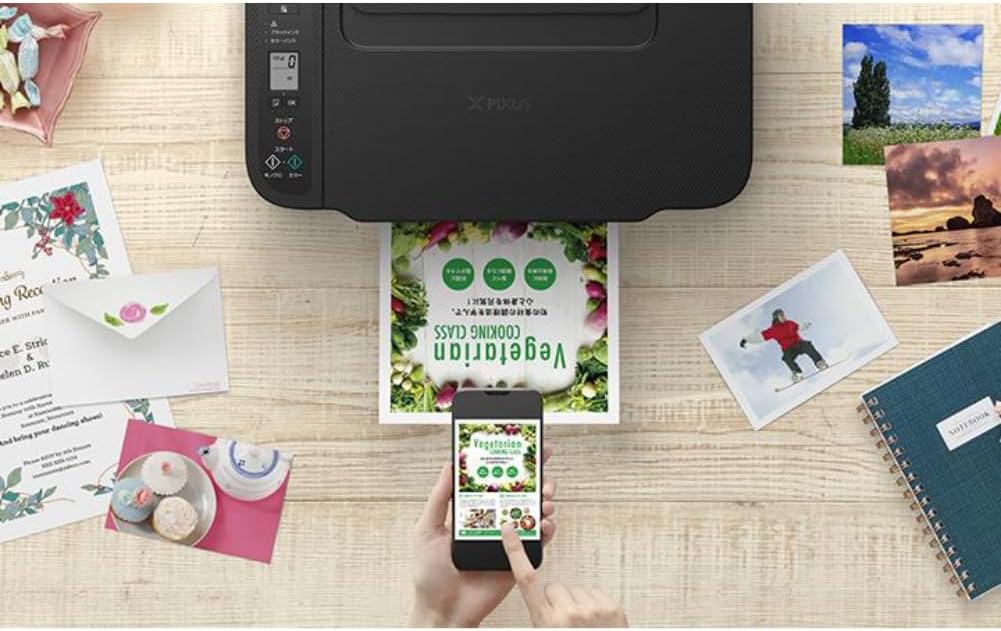
Figure 4: Printing a document wirelessly from a smartphone.
3. ጥገና
3.1 የቀለም ካርትሬጅ መተካት
When an ink cartridge runs low or is empty, replace it promptly to maintain print quality. Refer to section 1.3 for installation steps. Use genuine Canon BCI-365/366 series cartridges for optimal performance.
3.2 ማተሚያውን ማጽዳት
አዘውትሮ ማጽዳት የህትመት ጥራትን ለመጠበቅ እና የአታሚውን ዕድሜ ያራዝመዋል።
- የውጭ ጽዳት; የአታሚውን ውጫዊ ገጽታ ለስላሳ, መamp፣ ከጥጥ ነፃ የሆነ ጨርቅ። ገላጭ ማጽጃዎችን ወይም ፈሳሾችን አይጠቀሙ.
- የህትመት ጭንቅላት ማጽዳት; የህትመት ጥራት ከቀነሰ (ለምሳሌ፣ ክር፣ የጎደሉ ቀለሞች)፣ የህትመት ጭንቅላትን ከአታሚው የጥገና ምናሌ ወይም በኮምፒተርዎ ላይ ባለው የአታሚ ሾፌር በኩል ማጽዳት ያከናውኑ።
- የወረቀት መንገድ ጽዳት፡ If paper jams occur frequently or paper feed is inconsistent, clean the paper path using the utility in the printer driver or by following instructions on the printer's LCD panel.
4. መላ መፈለግ
ይህ ክፍል ሊያጋጥሙዎት የሚችሉ የተለመዱ ጉዳዮችን ይመለከታል።
4.1 አታሚ ምላሽ አይሰጥም
- አታሚው መብራቱን እና የኤሌክትሪክ ገመዱ ደህንነቱ በተጠበቀ ሁኔታ መገናኘቱን ያረጋግጡ።
- Check the Wi-Fi connection. Ensure the printer and your device are on the same network.
- ሁለቱንም አታሚውን እና ኮምፒተርዎን/ሞባይል መሳሪያዎን እንደገና ያስጀምሩ።
- ትክክለኛው አታሚ በመተግበሪያዎ የህትመት መገናኛ ውስጥ መመረጡን ያረጋግጡ።
4.2 ደካማ የህትመት ጥራት
- የቀለም ደረጃውን ይፈትሹ እና ባዶ ወይም ዝቅተኛ ካርትሬጅዎችን ይተኩ።
- ከአታሚው የጥገና ምናሌ የህትመት ጭንቅላትን ማጽዳት እና የአፍንጫ አፍንጫ ፍተሻ ያድርጉ።
- ለህትመት ቅንጅቶችዎ ተገቢውን ወረቀት እየተጠቀሙ መሆንዎን ያረጋግጡ።
- በአታሚ ሾፌርዎ ውስጥ ያሉት የህትመት ጥራት ቅንጅቶች በትክክል መዘጋጀታቸውን ያረጋግጡ።
4.3 የወረቀት ጃም
- ማተሚያውን ያጥፉ እና ይንቀሉት.
- Carefully open all covers and gently remove any jammed paper. Avoid tearing the paper.
- Ensure paper is loaded correctly in the rear tray and the paper guides are adjusted.
- ማንኛውንም የውጭ ነገር ከወረቀት መንገዱ ያስወግዱ።
- ሁሉንም ሽፋኖች ይዝጉ፣ አታሚውን ይሰኩ እና ያብሩት።
5. ዝርዝሮች
| ባህሪ | ዝርዝር መግለጫ |
|---|---|
| የሞዴል ስም | PIXUS TS3730 |
| ተግባራት | ያትሙ፣ ይቅዱ፣ ይቃኙ |
| የህትመት ቴክኖሎጂ | Inkjet |
| ከፍተኛው የህትመት ጥራት (ቀለም) | 4800 x 1200 ዲፒአይ |
| ከፍተኛ የህትመት ፍጥነት (ሞኖክሮም) | 7.7 ገጾች / ደቂቃ |
| ከፍተኛ የህትመት ፍጥነት (ቀለም) | 4 ገጾች / ደቂቃ |
| የቀለም አይነት | 4-color (Dye/Pigment Hybrid Ink) |
| ተኳሃኝ የቀለም ካርትሬጅ | BCI-365 (Black), BCI-366 (Color) series |
| ከፍተኛው የወረቀት መጠን | A4 |
| የወረቀት ምግብ | Rear paper tray (Max 60 sheets A4 plain paper) |
| Duplex ማተሚያ | አይ |
| ግንኙነት | ዋይ ፋይ |
| ማሳያ | 1.5-ኢንች LCD ፓነል |
| መጠኖች (ወ x D x H) | 43.5 x 32.7 x 14.5 ሴ.ሜ |
| ክብደት | 5.11 ኪ.ግ |
| የተካተቱ አካላት | Inkjet Cartridges (may vary by region/retailer) |
6. ዋስትና እና ድጋፍ
6.1 የምርት ዋስትና
This product comes with a limited warranty. Please refer to the warranty card included with your product or visit the official Canon webለክልልዎ የተወሰኑ የዋስትና ውሎች እና ሁኔታዎች ጣቢያ።
6.2 የደንበኛ ድጋፍ
For technical assistance, driver downloads, or further inquiries, please visit the official Canon support website or contact Canon customer service in your region. Support contact information can typically be found on the Canon webጣቢያ ወይም ከአታሚዎ ጋር በቀረበው ሰነድ ውስጥ።


