1. መግቢያ
This user manual provides comprehensive instructions for the setup, operation, maintenance, and troubleshooting of your Thomson 27-inch QHD Gaming Monitor (Model: M27QG5Y14). This monitor is designed to deliver a superior visual experience with its QHD resolution, 180Hz refresh rate, and IPS panel technology, making it ideal for gaming and multimedia applications.

ምስል 1.1፡ ፊት view of the Thomson 27-inch QHD Gaming Monitor, showcasing its sleek design and display area.
2. የደህንነት መረጃ
እባክዎ መቆጣጠሪያውን ከመጠቀምዎ በፊት ሁሉንም የደህንነት መመሪያዎች በጥንቃቄ ያንብቡ። ይህንን መመሪያ ለወደፊት ማጣቀሻ ያቆዩት።
- የኃይል ምንጭ፡- ከሞኒተሩ ጋር አብሮ የሚመጣውን የኃይል አስማሚ ብቻ ይጠቀሙ። የኃይል መውጫው በትክክል መሬት ላይ መሆኑን ያረጋግጡ።
- የአየር ማናፈሻ; የአየር ማናፈሻ ክፍተቶችን አይዝጉ። ከመጠን በላይ ሙቀትን ለመከላከል በቂ የአየር ፍሰት እንዲኖር በሞኒተሩ ዙሪያ በቂ ቦታ ይፍቀዱ።
- ፈሳሽ እና እርጥበት; ሞኒተሩን ከውሃ፣ ከዝናብ ወይም ከመጠን በላይ እርጥበት ያርቁ። በፈሳሽ የተሞሉ ነገሮችን በማኒየሩ ላይ አያስቀምጡ።
- ማጽዳት፡ Disconnect the power cable before cleaning. Use a soft, dry cloth. Do not use liquid cleaners or aerosol cleaners.
- አቀማመጥ፡- Place the monitor on a stable, flat surface. Avoid placing it in direct sunlight or near heat sources.
- አያያዝ፡ ማሳያውን በጥንቃቄ ይያዙት። ከመውደቅ ወይም ለጠንካራ ተጽእኖ ከማጋለጥ ይቆጠቡ።
- አገልግሎት መስጠት፡ መቆጣጠሪያውን እራስዎ ለማገልገል አይሞክሩ. ሁሉንም አገልግሎቶች ብቁ ለሆኑ የአገልግሎት ሰራተኞች ያመልክቱ።
3. የጥቅል ይዘቶች
ሁሉም እቃዎች በጥቅሉ ውስጥ መኖራቸውን ያረጋግጡ. ማንኛቸውም ነገሮች ከጠፉ ወይም ከተበላሹ፣ ቸርቻሪዎን ያነጋግሩ።
- Thomson 27-inch QHD Gaming Monitor
- መቆሚያ (መሠረት እና አንገት) ተቆጣጠር
- የኃይል አስማሚ እና የኃይል ገመድ
- HDMI ገመድ
- DisplayPort (DP) Cable (may vary by region)
- ዩኤስቢ-ቢ ወደ ዩኤስቢ-ኤ ገመድ (ለዩኤስቢ መገናኛ ተግባር)
- የተጠቃሚ መመሪያ (ይህ ሰነድ)
- ለመቆሚያ ስብሰባ ብሎኖች
4. ማዋቀር
4.1. የክትትል መቆሚያውን ማገጣጠም
- ሞኒተሩን ከማሸጊያው በጥንቃቄ ያስወግዱት እና ጭረቶችን ለመከላከል ለስላሳ እና ንጹህ በሆነ ቦታ ላይ ያድርጉት።
- የተሰጡትን ዊንጮችን በመጠቀም የቆመውን አንገት ወደ መቆጣጠሪያ ፓነል ያያይዙት።
- Attach the stand base to the stand neck and secure it with the designated screw.
- Once assembled, carefully lift the monitor and place it on a stable desk or table.

Image 4.1: Monitor dimensions and stand assembly overview. The monitor measures approximately 61 cm wide, 54 cm high (with stand), and 24 cm deep (with stand).
4.2. ተቆጣጣሪውን ማገናኘት
አስፈላጊዎቹን ገመዶች ከሞኒተሩ የግቤት ወደቦች ጋር ያገናኙ። የወደብ ቦታዎችን ለማየት ከታች ያለውን ምስል ይመልከቱ።
- የኃይል ግንኙነት; Connect the power adapter to the "DC IN" port on the monitor, then plug the power cable into a power outlet.
- የቪዲዮ ግቤት
- Connect an HDMI cable from your computer's graphics card to an "HDMI 2.1" port on the monitor.
- Alternatively, connect a DisplayPort (DP) cable from your computer's graphics card to a "DP 1.2" port on the monitor.
- የዩኤስቢ መገናኛ፡ To enable the monitor's USB 3.0 ports, connect a USB-B cable from the "USB 3.0 B" port on the monitor to a USB-A port on your computer.
- የድምጽ ውፅዓት፡- Connect headphones or external speakers to the "Earphone Plug" (3.5mm audio jack) for audio output.

Image 4.2: Rear panel of the monitor displaying the various input and output ports for connectivity.
4.3. Ergonomic ማስተካከያዎች
የመቆጣጠሪያው ማቆሚያ የእርስዎን ለማመቻቸት የተለያዩ ማስተካከያዎችን ይፈቅዳል viewምቾት;
- ዘንበል Adjust the screen's vertical angle (up or down).
- ማወዛወዝ፡ ማያ ገጹን በአግድም (ግራ ወይም ቀኝ) ያሽከርክሩ።
- ምሰሶ፡ ለቁም ሁነታ ማያ ገጹን 90 ዲግሪ አሽከርክር viewing
- የከፍታ ማስተካከያ; ሞኒተሩን ወደሚፈልጉት የአይን ደረጃ ከፍ ያድርጉት ወይም ዝቅ ያድርጉት።
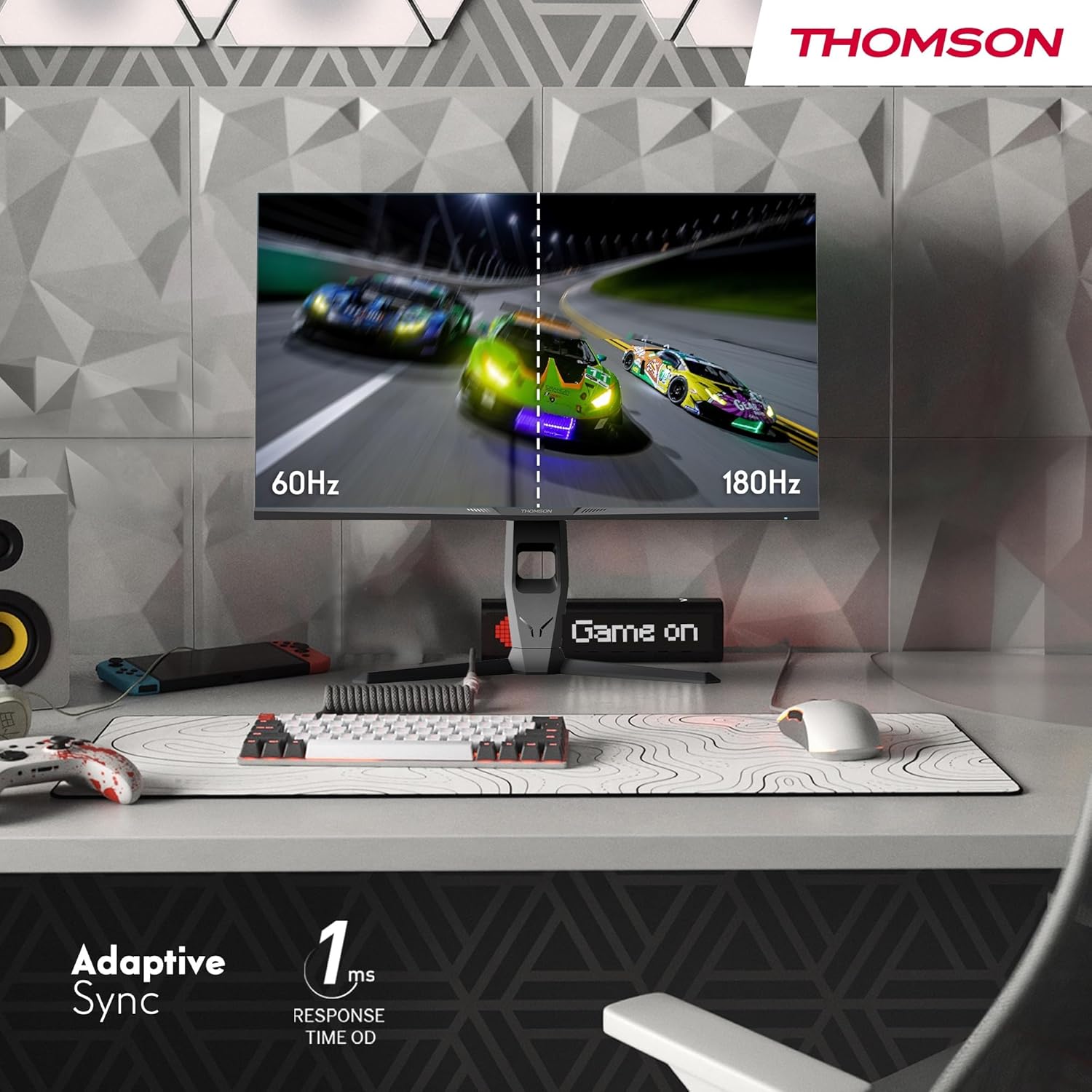
Image 4.3: Demonstrations of the monitor's ergonomic capabilities, including tilt, swivel, and pivot for optimal viewing ማዕዘኖች.
4.4. VESA ማፈናጠጥ
The monitor is compatible with VESA 100x100mm mounting standards. To mount the monitor on a wall or an alternative stand, remove the original stand and attach the VESA-compatible mount (sold separately) using appropriate screws.
5. የአሠራር መመሪያዎች
5.1. ማብራት / ማጥፋት
ለማብራት ወይም ለማጥፋት፣ አብዛኛውን ጊዜ በማሳያው ጀርባ ወይም ግርጌ ላይ የሚገኘውን የኃይል አዝራሩን ይጫኑ። ማሳያው ሲበራ የኃይል አመልካች መብራቱ ይበራል።
5.2. በስክሪን ላይ ማሳያ (OSD) ምናሌ
The OSD menu allows you to adjust various monitor settings. Use the joystick or buttons (location may vary) on the monitor to navigate the menu.
- የሥዕል ቅንጅቶች ብሩህነት፣ ንፅፅር፣ ጥርት ያለነት፣ የቀለም ሙቀት እና ጋማ ያስተካክሉ።
- የቀለም ቅንጅቶች Fine-tune RGB levels, saturation, and hue.
- የግቤት ምርጫ፡- በኤችዲኤምአይ እና በ DisplayPort ግብዓቶች መካከል በእጅ ይቀያይሩ።
- ኦዲዮ፡ Adjust volume for built-in speakers or headphone output.
- የ OSD ቅንብሮች፡- Change OSD language, transparency, and timeout.
- የጨዋታ ቅንብሮች፡- Access features like Adaptive Sync, response time (OD), and crosshair overlays.
5.3. የጨዋታ ባህሪያት
- 180Hz የማደሻ መጠን፡- Provides smoother motion and reduced input lag, especially beneficial for fast-paced games. Ensure your graphics card and cable support this refresh rate.
- 1ms Response Time (OD): Minimizes motion blur and ghosting for clear, crisp images during rapid movements.
- የሚለምደዉ ማመሳሰል፡ Synchronizes the monitor's refresh rate with your graphics card's frame rate, eliminating screen tearing and stuttering. Enable this feature in the OSD menu and your graphics card control panel.

Image 5.1: Visual comparison illustrating the difference between 60Hz and 180Hz refresh rates, highlighting the smoother motion provided by the higher refresh rate, alongside the Adaptive Sync feature.
5.4. የአይን እንክብካቤ ባህሪያት
- ፀረ-ፍሊከር ቴክኖሎጂ; Reduces screen flickering, which can cause eye strain during prolonged use.
- ዝቅተኛ ሰማያዊ ብርሃን ሁነታ: Filters out harmful blue light emissions to protect your eyes and reduce fatigue. This mode can be activated through the OSD menu.
- ፀረ-ነጸብራቅ ማያ ገጽ፦ The matte screen surface minimizes reflections from ambient light, providing clear visuals without distraction.

Image 5.2: Depiction of the monitor's eye comfort features, including an anti-glare screen and technologies like Anti-Flicker and Low Blue Light for reduced eye strain.
5.5. RGB Ambient Lighting
The monitor features integrated RGB ambient lighting on the rear. This lighting can be customized via the OSD menu to enhance your gaming environment or match your setup's aesthetics.
6. ጥገና
6.1. ተቆጣጣሪውን ማጽዳት
- ስክሪን፡ ስክሪኑን በቀስታ ለስላሳ እና ከተሸፈነ ጨርቅ ይጥረጉ። ለግትር ምልክቶች፣ በትንሹ መampen the cloth with water or a specialized screen cleaner (ensure it's safe for LCD/IPS panels) and wipe gently. Never spray liquid directly onto the screen.
- Casing: ተቆጣጣሪውን ለማጽዳት ለስላሳ ደረቅ ጨርቅ ይጠቀሙ ሐasinሰ. ገላጭ ማጽጃዎችን ወይም ፈሳሾችን ከመጠቀም ይቆጠቡ።
- ከማጽዳትዎ በፊት ሁልጊዜ የኃይል ገመዱን ያላቅቁ.
6.2. ማከማቻ
ሞኒተሩን ረዘም ላለ ጊዜ ካስቀመጠ ሁሉንም ገመዶች ያላቅቁ ፣ በዋናው ማሸጊያው ውስጥ ያሽጉ (ካለ) እና ከፀሀይ ብርሀን እና ከፍተኛ የሙቀት መጠን ርቆ በቀዝቃዛና ደረቅ ቦታ ያከማቹ።
7. መላ መፈለግ
ይህ ክፍል ሊያጋጥሙዎት የሚችሉ የተለመዱ ጉዳዮችን ይመለከታል። ችግሩ ከቀጠለ የደንበኛ ድጋፍን ያነጋግሩ።
| ችግር | ሊሆን የሚችል ምክንያት | መፍትሄ |
|---|---|---|
| ኃይል የለም | የኃይል ገመድ አልተገናኘም፤ የኃይል መውጫው ችግር አለበት፤ መቆጣጠሪያው ጠፍቷል። | Ensure power cable is securely connected. Test the power outlet. Press the monitor's power button. |
| ምንም ምልክት የለም / ባዶ ማያ | Video cable not connected; Incorrect input selected; Computer not outputting signal. | Check HDMI/DP cable connections. Select the correct input source via OSD. Ensure computer is on and outputting video. |
| Distorted image / Flickering | Incorrect resolution/refresh rate; Faulty cable; Graphics driver issue. | Set display resolution to 2560x1440 and refresh rate to 180Hz. Try a different video cable. Update graphics drivers. |
| ከድምጽ ማጉያዎች/ከጆሮ ማዳመጫዎች ምንም ድምጽ የለም | Volume too low; Audio cable not connected; Incorrect audio output selected on PC. | Increase monitor volume via OSD. Ensure headphones/speakers are connected. Select monitor as audio output device in PC settings. |
8. ዝርዝሮች
Detailed technical specifications for the Thomson M27QG5Y14 monitor.
| ባህሪ | ዝርዝር መግለጫ |
|---|---|
| የምርት ስም | ቶምሰን |
| ሞዴል | M27QG5Y14 |
| የስክሪን መጠን | 27 ኢንች |
| የፓነል ዓይነት | አይፒኤስ |
| ጥራት | 2560 x 1440 (QHD) |
| የማደስ ደረጃ | 180 Hz |
| የምላሽ ጊዜ | 1 Millisecond (OD) / 5 Milliseconds (GtG) |
| ብሩህነት | 350 ናይትስ |
| የንፅፅር ሬሾ | 1200፡1 |
| Viewማእዘን | 178 ዲግሪዎች (አግድም/ቋሚ) |
| ቀለም ጋሙት | 120% sRGB |
| የኤችዲአር ድጋፍ | HDR10 (10-bit) |
| አስማሚ ማመሳሰል | አዎ |
| ግንኙነት | 2x HDMI 2.1, 1x DisplayPort 1.2, 1x USB 3.0 Type-B (upstream), 3x USB 3.0 Type-A (downstream), 1x Earphone Plug (3.5mm) |
| አብሮ የተሰሩ ስፒከሮች | Yes (2x2W) |
| VESA ተራራ ተኳኋኝነት | 100x100 ሚሜ |
| የምርት ልኬቶች (ከቆመበት ጋር) | 61 x 54 x 24 ሴሜ (ወ x H x D) |
| ክብደት (ከቆመበት ጋር) | 7.3 ኪ.ግ |
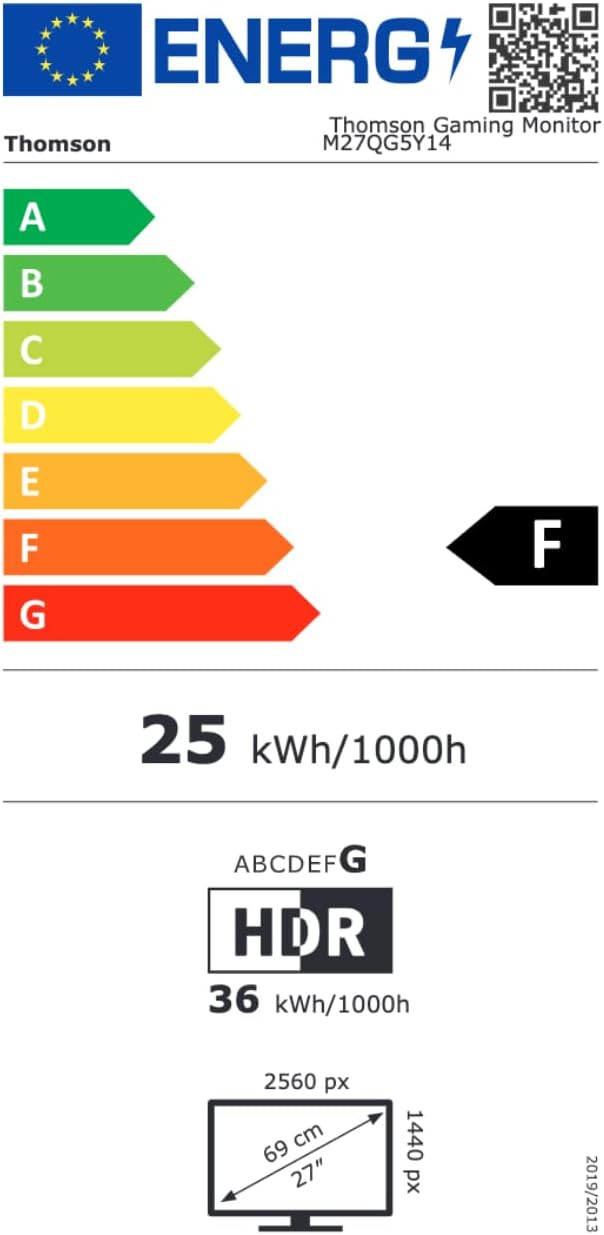
Image 8.1: EU Energy Label for the Thomson M27QG5Y14 monitor. For more details, visit the EPREL ዳታቤዝ.
9. ዋስትና እና ድጋፍ
Thomson products are designed for reliability and performance. This monitor typically comes with a የ 3 ዓመት ዋስትና ከተገዛበት ቀን ጀምሮ የማምረቻ ጉድለቶችን ይሸፍናል. ለዋስትና ጥያቄዎች እባክዎ የግዢ ማረጋገጫዎን ያቆዩ።
For technical assistance, troubleshooting beyond this manual, or warranty inquiries, please contact Thomson customer support or your local retailer. Refer to the official Thomson website or your product packaging for specific contact details.
You can also visit the official Thomson store on Amazon for more information: Thomson Store.


