1. መግቢያ
The RØDECaster Video is an all-in-one video and audio production console designed to provide intuitive control over content creation. It integrates powerful video switching, recording, and production capabilities with a professional audio mixer, streamlining workflows for studio productions, video podcasts, interviews, and live event streaming with broadcast quality.
2. በሳጥኑ ውስጥ ያለው
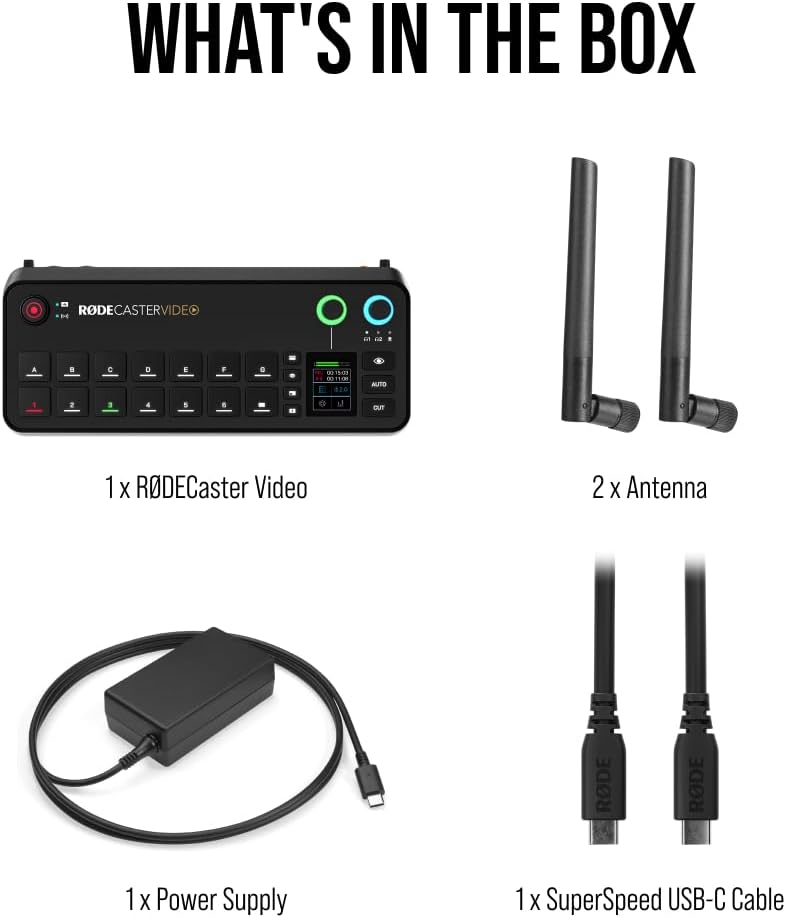
Carefully unpack your RØDECaster Video and ensure all components are present:
- 1 x RØDECaster Video Unit
- 1 x RØDECaster External Video Antenna
- 2 x ውጫዊ አንቴና
- 1 x RØDECaster Video Power Supply
- 1 x SuperSpeed USB-C Cable (2m)
- 1 x SC27 Cable
3. ቁልፍ ባህሪያት
- Multi-Source Video Switching: Seamlessly switch between up to six video sources (4x HDMI and 2x USB) and seven fully customizable multi-source scenes with dedicated buttons.
- ፕሮፌሽናል ኦዲዮ በይነገጽ፡ Features two studio-grade Neutrik combo jacks with ultra-low-noise, high-gain Revolution Preamps for pristine audio from XLR microphones, instruments, or other audio sources.
- Integrated Production Tools: Access media playback, graphic overlays, automatic chroma keying, transitions, and multi-source scene creation directly from the front panel.
- Versatile Streaming & Recording: Stream directly to major platforms via Wi-Fi or Ethernet, or to streaming software via USB. Record directly to an external USB storage device, including isolated (ISO) recording for post-editing flexibility.
- Innovative Workflow Enhancements: Utilize Inspect Mode for safely previewing an input and intelligent auto-switching for seamless hands-free switching of video sources and scenes based on audio inputs.


4. የማዋቀር መመሪያ
4.1 የመጀመሪያ ግንኙነት
- የኃይል ግንኙነት; Connect the provided power supply to the 15V 2A USB PD port on the rear of the RØDECaster Video. Plug the power cable into a suitable power outlet.
- የዩኤስቢ-ሲ ግንኙነት፡- Use the SuperSpeed USB-C cable to connect the RØDECaster Video to your computer for streaming, recording, and software control.
- የኤተርኔት ግንኙነት (አማራጭ) For direct streaming or network control, connect an Ethernet cable to the Ethernet port.
- የአንቴና መጫኛ; Attach the two external antennas to the designated ports on the unit for wireless connectivity.
4.2 Video Input Setup
Connect your video sources (cameras, computers, etc.) to the HDMI and USB video input ports on the RØDECaster Video. The unit supports up to 4 HDMI and 2 USB video inputs.
4.3 Audio Input Setup
Connect your microphones or instruments to the Neutrik combo jacks (XLR or 1/4" TRS) on the rear of the unit. The Revolution Preamps will ensure high-quality audio capture.
4.4 Initial Power-Up & Firmware Update
Upon first power-up, follow the on-screen prompts to select your language and perform any necessary firmware updates. It is recommended to keep your device's firmware up-to-date for optimal performance and new features.
5. የአሠራር መመሪያዎች
5.1 መሰረታዊ ቁጥጥሮች
- የንክኪ ማያ Navigate menus, adjust settings, and manage scenes via the integrated touch screen.
- ፋደርስ፡ Control the audio levels of individual input channels.
- ሮታሪ መቆጣጠሪያዎች፡- Adjust headphone monitoring levels and other parameters as assigned.
- የወሰኑ አዝራሮች፡- Utilize buttons for quick access to chroma keying, media playback, graphics, and transitions.
5.2 Scene-Based Switching
The RØDECaster Video allows you to create and switch between up to seven customizable multi-source scenes. Each scene can combine different video inputs, graphic overlays, and audio configurations. Use the dedicated scene buttons for instant transitions.
5.3 Media Playback & Graphics
Load media (images, video clips) and graphic overlays onto the device's internal storage or an external USB drive. Use the dedicated buttons to trigger playback and display graphics during your production.
5.4 Streaming & Recording
Initiate direct streaming to platforms configured via Wi-Fi or Ethernet. For recording, ensure an external USB storage device is connected. The RØDECaster Video supports isolated (ISO) recording for individual video and audio tracks, providing flexibility for post-production.
5.5 Intelligent Auto-Switching
Enable intelligent auto-switching to automatically transition between video sources based on active audio inputs, allowing for hands-free operation during live productions.
6. ግንኙነት
The RØDECaster Video offers extensive connectivity options:
- የቪዲዮ ግብዓቶች 4x HDMI, 2x USB-C
- የድምፅ ግብዓቶች 2x Neutrik Combo Jacks (XLR/1/4" TRS) with Revolution Preamps
- የድምጽ ውጤቶች ፦ 2x Headphone outputs, 2x 1/4" TRS line outputs
- Data & Network: 2x USB-C (for computer/storage), Ethernet port, MicroSD card slot, Wi-Fi, Bluetooth
- ደህንነት፡ Kensington መቆለፊያ ማስገቢያ
7. ዝርዝሮች
| ባህሪ | ዝርዝር |
|---|---|
| የሞዴል ቁጥር | አርሲቪ |
| የእቃው ክብደት | 2.81 ፓውንድ (1275 ግራም) |
| የምርት ልኬቶች | 30.59 x 13.25 x 6.14 ኢንች |
| ቀለም | ጥቁር |
| ተስማሚ መሣሪያዎች | አንድሮይድ፣ ዊንዶውስ፣ አይኦኤስ፣ ማክኦኤስ |
| የማገናኛ አይነት | XLR, 1/4" TRS, USB-C |
| የሰርጦች ብዛት | 6 |
| የኃይል ምንጭ | ባለገመድ ኤሌክትሪክ |
| የግንኙነት ቴክኖሎጂ | HDMI, USB, XLR |
8. ጥገና
- ማጽዳት፡ Use a soft, dry cloth to clean the exterior of the RØDECaster Video. Avoid abrasive cleaners or solvents.
- የጽኑዌር ዝማኔዎች ፦ Regularly check the Rode website for firmware updates to ensure optimal performance and access to new features. Follow the instructions provided by Rode for safe updating.
- ማከማቻ፡ መሳሪያውን በማይጠቀሙበት ጊዜ ከፀሐይ ብርሃን እና ከፍተኛ የሙቀት መጠን ርቆ ቀዝቃዛና ደረቅ ቦታ ያስቀምጡ።
9. መላ መፈለግ
- ኃይል የለም፡ Ensure the power supply is correctly connected to the unit and a working power outlet. Check the power button on the rear of the unit.
- ምንም የቪዲዮ ግቤት የለም፡ Verify that HDMI and USB video sources are properly connected and outputting a signal. Check cable integrity.
- የድምጽ ግብዓት የለም፡ Confirm XLR/TRS cables are securely connected. Ensure phantom power is enabled for condenser microphones if required. Check input levels on the touch screen.
- የመልቀቂያ ጉዳዮች፡- Check Wi-Fi or Ethernet connection. Verify streaming platform settings and stream key.
- የመቅዳት ችግሮች፡- Ensure an external USB storage device is connected and has sufficient free space. Check recording settings on the touch screen.
10. ዋስትና እና ድጋፍ
The RØDECaster Video comes with a manufacturer's warranty. For detailed warranty information, please refer to the documentation included with your product or visit the official Rode website. For technical support, troubleshooting assistance, or service inquiries, please contact Rode customer support directly.


