መግቢያ
This manual provides essential information for the setup, operation, maintenance, and troubleshooting of your Onn 22 inch 1080P 100 Hz FHD LED Monitor. Please read this guide thoroughly before using the product to ensure optimal performance and safety.
The Onn 22 inch FHD LED Monitor is designed for a variety of applications, offering a vivid 1920x1080 resolution, a 100Hz refresh rate, and a 6.5ms response time for efficient performance. Its slim profile and T-shaped base are ideal for saving desk space.
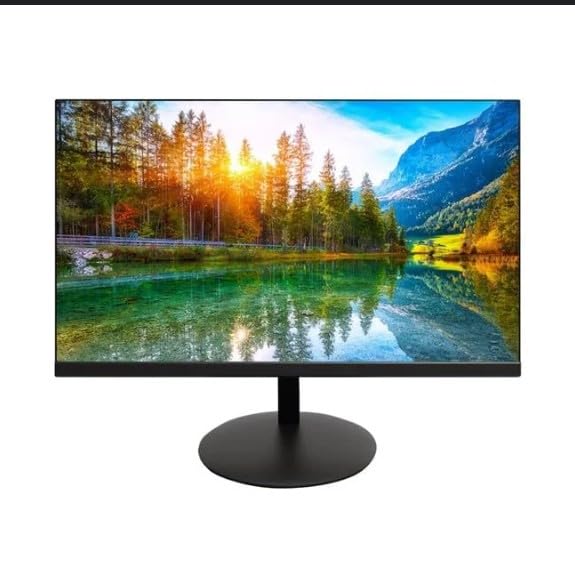
The image shows the Onn 22 inch FHD LED Monitor, highlighting its 100Hz refresh rate and 1080p resolution. The monitor features a slim design and a T-shaped base.
የማዋቀር መመሪያዎች
- ማሸግ፡ Carefully remove the monitor and all accessories from the packaging. Ensure all components are present: monitor, T-shaped base, HDMI cable, and power adapter.
- ማቆሚያውን ማገጣጠም; Attach the T-shaped base to the monitor. The design is screw-less for easy assembly. Ensure it is securely fastened.
- ከአንድ መሣሪያ ጋር መገናኘት;
The monitor supports both HDMI and VGA inputs. Connect the provided HDMI cable from your computer's HDMI output to the HDMI IN port on the monitor. Alternatively, use a VGA cable for VGA input.

This image displays the rear panel of the Onn monitor, illustrating the available input ports: HDMI IN, VGA IN, and the DC 12V power input. These ports are essential for connecting the monitor to a computer or other devices.
- የኃይል ግንኙነት; Connect the power adapter to the DC 12V input port on the monitor, then plug the adapter into a power outlet.
- መቆጣጠሪያውን ማስተካከል; The monitor is capable of swivel, tilt, rotation, and height adjustment. Adjust the screen to your preferred viewለ ergonomic ምቾት አንግል።
- ባለሁለት ማሳያ ማዋቀር፡- This monitor is suitable for a fully functioning dual monitor setup. Connect a second monitor using the appropriate cables and configure your operating system's display settings.
የአሠራር መመሪያዎች
- ማብራት/ማጥፋት፡ Press the power button, usually located on the bottom or back of the monitor, to turn it on or off.
- የግቤት ምርጫ፡- If the monitor does not automatically detect the input source, use the On-Screen Display (OSD) menu buttons to manually select between HDMI and VGA inputs.
- OSD ሜኑ አሰሳ፡- Use the physical buttons on the monitor (typically on the back or bottom edge) to navigate the OSD menu. This allows you to adjust settings such as brightness, contrast, color temperature, and input source.
- የጥራት እና የማደስ ፍጥነት፡ The monitor supports a native resolution of 1920x1080 at a 100Hz refresh rate. Ensure your computer's display settings are configured to these specifications for the best visual experience.
- የሚለምደዉ ማመሳሰል፡ The monitor features Adaptive Sync for gaming, which helps to reduce screen tearing and stuttering. Ensure this feature is enabled in your graphics card settings if supported.
ጥገና
- ማያ ገጹን ማጽዳት; ስክሪኑን በቀስታ ለስላሳ እና ከተሸፈነ ጨርቅ ይጥረጉ። ለግትር ምልክቶች፣ በትንሹ መampen the cloth with water or a non-abrasive, monitor-specific cleaning solution. Avoid spraying liquids directly onto the screen.
- ሲን ማጽዳትasing: መቆጣጠሪያውን ለማጽዳት ለስላሳ ደረቅ ጨርቅ ይጠቀሙ ሐasing. Do not use strong detergents or solvents, as they may damage the finish.
- የአየር ማናፈሻ; ከመጠን በላይ ሙቀትን ለመከላከል የመቆጣጠሪያው የአየር ማናፈሻ ክፍተቶች አለመዘጋታቸውን ያረጋግጡ።
- ማከማቻ፡ ረዘም ላለ ጊዜ ጥቅም ላይ በማይውልበት ጊዜ መቆጣጠሪያውን በቀጥታ ከፀሀይ ብርሀን እና ከከፍተኛ ሙቀት ርቆ በቀዝቃዛና ደረቅ ቦታ ያከማቹ።
መላ መፈለግ
- ኃይል የለም፡
- የኤሌትሪክ ገመዱ ከሁለቱም ሞኒተሪው እና ከኃይል ማመንጫው ጋር ደህንነቱ በተጠበቀ ሁኔታ መገናኘቱን ያረጋግጡ።
- የኃይል ማመንጫው በትክክል እየሰራ መሆኑን ያረጋግጡ.
- ምንም ምልክት የለም፡
- የቪዲዮ ገመድ (HDMI ወይም VGA) ከሞኒተሩ እና ከኮምፒዩተሩ ጋር በጥብቅ መገናኘቱን ያረጋግጡ።
- ትክክለኛውን የግቤት ምንጭ በሞኒተሩ OSD ምናሌ በመጠቀም ይምረጡ።
- ኮምፒውተርዎ መብራቱን እና በእንቅልፍ ሁነታ ላይ አለመሆኑን ያረጋግጡ።
- የማያ ገጽ ብልጭ ድርግም ማለት ወይም ደካማ የምስል ጥራት፦
- የቪዲዮ ገመዱን ለጉዳት ወይም ለላላ ግንኙነት ያረጋግጡ።
- Adjust the resolution and refresh rate settings on your computer to match the monitor's specifications (1920x1080, 100Hz).
- በ OSD ሜኑ በኩል የመቆጣጠሪያ ቅንብሮችን ወደ ፋብሪካ ነባሪዎች ዳግም ያስጀምሩ።
- ምላሽ የማይሰጡ አዝራሮች፡-
- Unplug the monitor from the power outlet, wait for 30 seconds, and then plug it back in.
If problems persist, please refer to the support information provided in the "Support and Warranty" section.
ዝርዝሮች
| የምርት ስም | ኦን |
| የሞዴል ቁጥር | 100140681 |
| የሞዴል ስም | ኦቲቶ |
| የስክሪን መጠን | 21.5 ኢንች |
| የማሳያ ዓይነት | ኤልኢዲ፣ ኤልሲዲ |
| ጥራት | 1920 x 1080 (ኤፍኤችዲ 1080 ፒ) |
| የማደስ ደረጃ | 100 Hz |
| የምላሽ ጊዜ | 6.5 ሚሊሰከንዶች |
| የሃርድዌር በይነገጽ | HDMI, VGA |
| ልዩ ባህሪያት | የከፍታ ማስተካከያ |
| Viewማእዘን | 160 ዲግሪዎች |
| ምጥጥነ ገጽታ | 16፡9 |
| የምርት ልኬቶች | 49.2 x 20 x 37.2 ሴሜ; 3.24 ኪ.ግ |
ድጋፍ እና ዋስትና
For technical support, product inquiries, or warranty information, please visit the official Onn support webጣቢያ ወይም የደንበኛ አገልግሎታቸውን ያነጋግሩ።
- ኦፊሴላዊ ድጋፍ Webጣቢያ፡ onnsupport.ca
- ዋስትና፡- Specific warranty details may vary by region and purchase date. Please refer to the documentation included with your product or visit the support webበጣም ወቅታዊ የዋስትና መረጃ ለማግኘት ጣቢያ.


