መግቢያ
Thank you for choosing the CRUA 27-inch 4K UHD 144Hz IPS Gaming Monitor. This monitor is designed to deliver an immersive visual experience with its high resolution, fast refresh rate, and vibrant color reproduction. This manual provides essential information for the proper installation, operation, and maintenance of your new monitor. Please read it thoroughly before use and retain it for future reference.
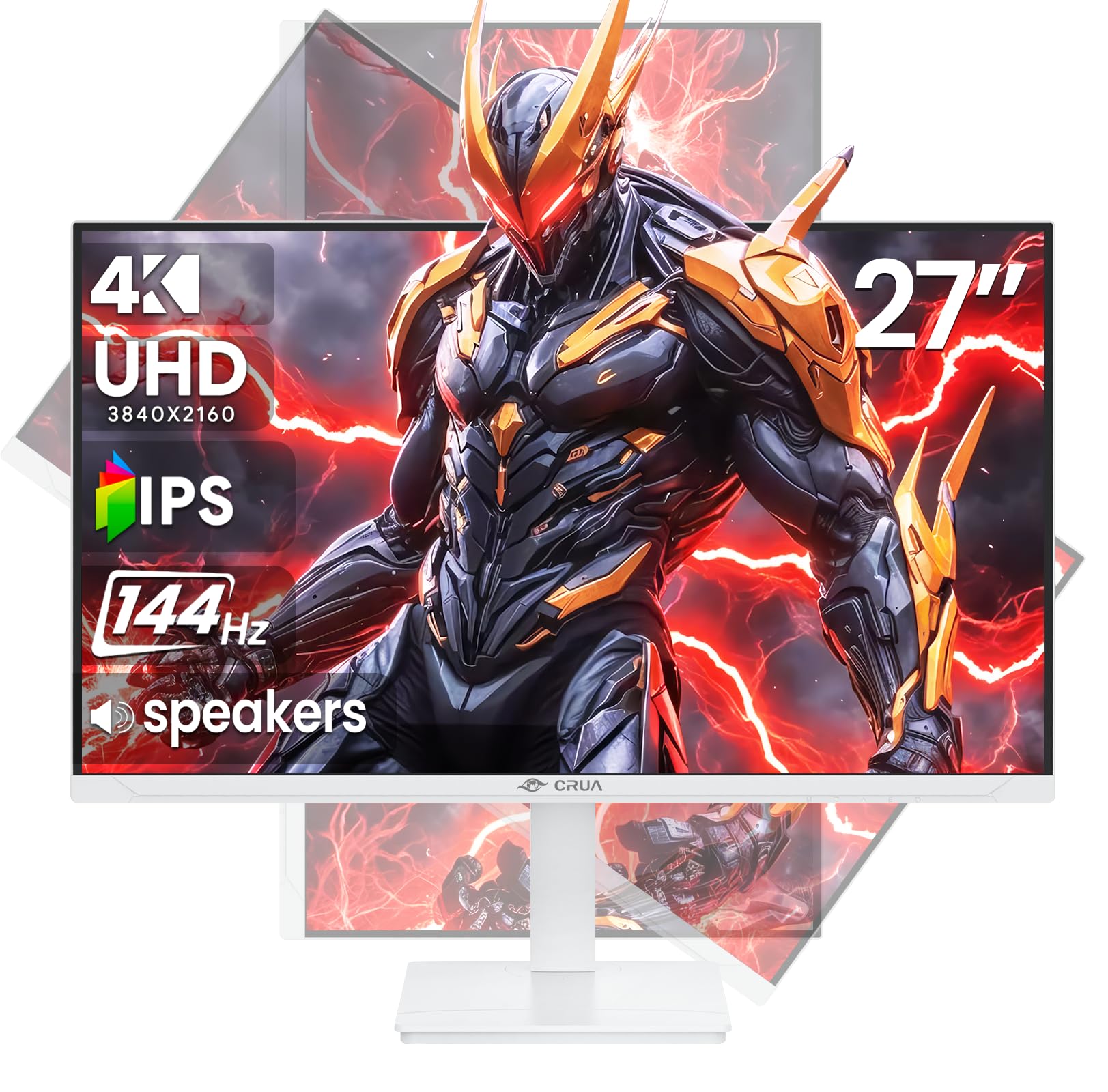
ምስል፡ ፊት ለፊት view of the CRUA 27-inch 4K UHD 144Hz IPS Gaming Monitor.
በሣጥኑ ውስጥ ያለው
እባክዎ የጥቅልዎን ይዘት ያረጋግጡ። ማንኛቸውም ነገሮች ከጠፉ ወይም ከተበላሹ፣ ቸርቻሪዎን ያነጋግሩ።
- 27-ኢንች ማሳያ
- ዲፒ ኬብል
- Base and Support
- የተጠቃሚ መመሪያ
- የኃይል አቅርቦት
የምርት ባህሪያት
- 27" 4K Display with IPS Panel: Experience ultra-clear visuals with a 3840x2160P resolution.
- 144Hz የማደሻ መጠን፡- Enjoy fluid and sharp motion, ideal for competitive gaming and fast-paced content.
- 120% sRGB የቀለም ትክክለኛነት፡ Delivers rich and accurate tones with 350cd/m² brightness and 1000:1 high-contrast.
- አብሮ የተሰሩ ስፒከሮች፡- Provides clear audio for daily use.
- Full Ergonomic Adjustment: Features height, pivot, tilt, and rotation adjustments for optimal viewing ማዕዘኖች.
- በርካታ የግንኙነት አማራጮች፡- Equipped with 2x HDMI 2.1 and 2x DP 1.4 ports.
- የ AMD FreeSync ድጋፍ፡ Synchronizes the monitor's refresh rate with your GPU for tear-free gaming.
- ግድግዳ ሊገጣጠም የሚችል; Supports VESA 75mm x 75mm wall mounts for flexible installation.
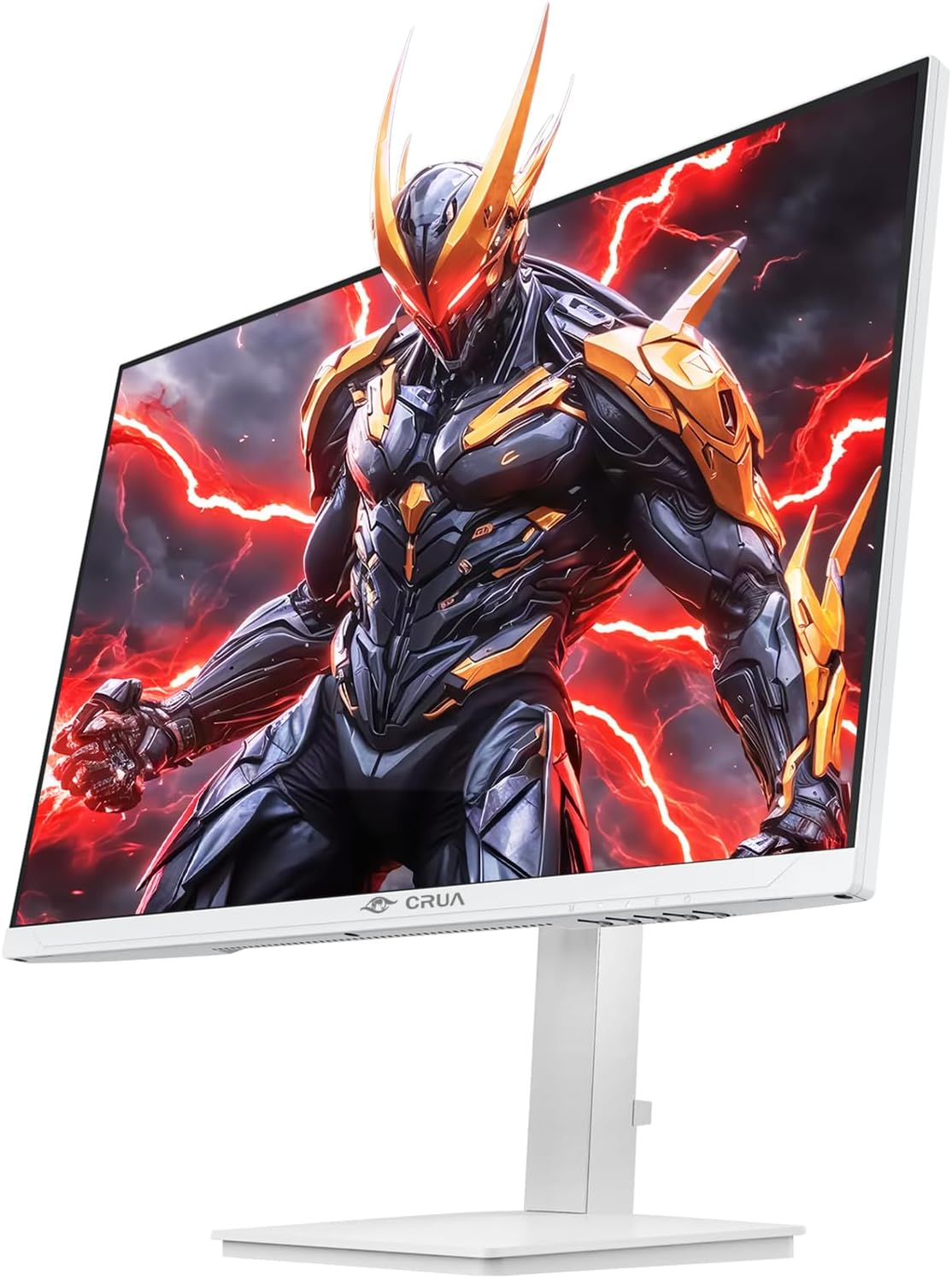
ምስል፡ ፊት ለፊት view of the CRUA 27-inch 4K UHD 144Hz IPS Gaming Monitor displaying a game scene.

ምስል: የኋላ view of the CRUA 27-inch 4K UHD 144Hz IPS Gaming Monitor showing the stand and RGB lighting.

ምስል: የኋላ view of the CRUA 27-inch 4K UHD 144Hz IPS Gaming Monitor highlighting the input ports (2x DP 1.4, 2x HDMI 2.1, and 3.5mm Audio Port).

Image: Diagram illustrating the adjustable height (110mm), tilt (-5° to +15°), swivel (±30°), and pivot (90°) features of the CRUA 27-inch 4K UHD 144Hz IPS Gaming Monitor.
የማዋቀር መመሪያዎች
1. መቆሚያውን መሰብሰብ
- መቆጣጠሪያውን በጥንቃቄ ያስወግዱ እና ከማሸጊያው ውስጥ ክፍሎችን ይቁሙ.
- የማቆሚያውን አንገት ወደ መቆጣጠሪያ ፓነል ያያይዙት. ደህንነቱ በተጠበቀ ሁኔታ ወደ ቦታው ጠቅ ማድረጉን ወይም ከቀረበ በዊንች መያያዙን ያረጋግጡ።
- Attach the base to the stand neck, securing it with the thumb screw or other fasteners.
- የተሰበሰበውን ማሳያ በተረጋጋ እና ጠፍጣፋ መሬት ላይ ያድርጉት።
2. ግድግዳ መለጠፍ (አማራጭ)
The monitor supports VESA 75mm x 75mm wall mounts. Remove the stand before attaching a compatible wall mount bracket (not included). Follow the instructions provided with your wall mount.
3. ገመዶችን ማገናኘት
- ኃይል፡- Connect the power supply to the monitor's power input and then to a power outlet.
- የቪዲዮ ግቤት Connect one end of the provided DP cable (or an HDMI cable) to the corresponding port on your computer's graphics card and the other end to a DP 1.4 or HDMI 2.1 port on the monitor.
- የድምጽ ውፅዓት (ከተፈለገ) If using external speakers or headphones, connect them to the 3.5mm audio jack on the monitor.
4. የመጀመሪያ ኃይል-በ
Press the power button on the monitor. The monitor should automatically detect the input signal. If not, you may need to manually select the input source using the OSD menu.
የአሠራር መመሪያዎች
1. ማብራት / ማጥፋት
እሱን ለማብራት ወይም ለማጥፋት በተቆጣጣሪው ላይ የሚገኘውን የኃይል ቁልፍ ተጫን።
2. የOSD ምናሌ አሰሳ
The On-Screen Display (OSD) menu allows you to adjust various monitor settings. Navigate the menu using the joystick or buttons typically located on the back or bottom of the monitor.
- የOSD ምናሌን ለመክፈት ጆይስቲክ/ቁልፍን ይጫኑ።
- Move the joystick up/down or use corresponding buttons to navigate through menu options.
- ጆይስቲክን ወደ ግራ/ቀኝ ያንቀሳቅሱ ወይም እሴቶችን ለማስተካከል ወይም ንዑስ ምናሌዎችን ለማስገባት ተጓዳኝ ቁልፎችን ይጠቀሙ።
- ምርጫዎችን ለማረጋገጥ ወይም ከንዑስ ምናሌዎች ለመውጣት ጆይስቲክ/አዝራሩን እንደገና ይጫኑ።
3. የግቤት ምንጭ ምርጫ
If the monitor does not automatically detect the correct input, open the OSD menu, navigate to "Input Source," and select the active input (e.g., HDMI1, HDMI2, DP1, DP2).
4. የማሳያ ቅንብሮችን ማስተካከል
በ OSD ምናሌ ውስጥ፣ የሚከተሉትን ቅንብሮች ማበጀት ይችላሉ፦
- ብሩህነት/ንፅፅር፡ አጠቃላይ የብርሃን እና የንፅፅር ደረጃዎችን ያስተካክሉ።
- የቀለም ቅንጅቶች የቀለም ሙቀት፣ ጋማ እና የግለሰብ RGB እሴቶችን በጥሩ ሁኔታ ያስተካክሉ።
- የምስል ጥራት Select preset modes (e.g., Standard, Game, Movie) or customize sharpness and dynamic contrast.
- የመፍትሄ እና የማደስ መጠን፡ Ensure your computer's display settings match the monitor's native 4K UHD (3840x2160P) resolution and 144Hz refresh rate for optimal performance.
- AMD FreeSync፡ Enable FreeSync in the OSD menu and your graphics card control panel for adaptive synchronization.
5. የድምጽ ቅንብሮች
Adjust the volume of the built-in speakers or connected external audio devices through the OSD menu's audio section. You can also mute the audio if desired.
6. Ergonomic ማስተካከያዎች
ማሳያውን ወደ እርስዎ ምርጫ ያስተካክሉት። viewአቀማመጥ;
- ቁመት፡- ተቆጣጣሪውን በቆመበት ቀስ ብለው ይግፉት ወይም ይጎትቱት።
- ዘንበል Tilt the screen forward or backward.
- ማወዛወዝ፡ ተቆጣጣሪውን በመሠረቱ ላይ ወደ ግራ ወይም ቀኝ አሽከርክር።
- ምሰሶ፡ Rotate the screen 90 degrees for vertical orientation.
ጥገና
ማያ ገጹን ማጽዳት
- ከማጽዳትዎ በፊት ሁል ጊዜ መቆጣጠሪያውን ያጥፉ እና የኃይል ገመዱን ያላቅቁ።
- ለስላሳ፣ ከቆሸሸ ነፃ የሆነ ጨርቅ በትንሹ ተጠቀም መampበውሃ ወይም በልዩ ማያ ገጽ ማጽጃ የታሸገ።
- ማጽጃውን በቀጥታ በስክሪኑ ላይ አይረጩ።
- የማጣሪያውን ገጽ ሊጎዱ ስለሚችሉ ሻካራ ማጽጃዎችን፣ አልኮል ወይም አሞኒያ ላይ የተመሰረቱ መፍትሄዎችን ከመጠቀም ይቆጠቡ።
አጠቃላይ እንክብካቤ
- መቆጣጠሪያውን በቀጥታ ከፀሀይ ብርሀን ፣ ከሙቀት ምንጮች እና ከመጠን በላይ አቧራ ያርቁ።
- ከመጠን በላይ ሙቀትን ለመከላከል በመቆጣጠሪያው ዙሪያ በቂ የአየር ዝውውርን ያረጋግጡ.
- ከባድ ነገሮችን በተቆጣጣሪው ወይም በኬብሉ ላይ አታስቀምጡ።
- ስክሪኑን በሹል ነገሮች ከመንካት ይቆጠቡ።
መላ መፈለግ
| ችግር | ሊሆን የሚችል መፍትሄ |
|---|---|
| በማያ ገጹ ላይ ምንም ምስል የለም |
|
| ከድምጽ ማጉያዎች ድምፅ የለም |
|
| የምስል ብልጭ ድርግም ወይም ማዛባት |
|
| ምላሽ የማይሰጡ አዝራሮች |
|
For further assistance, please refer to the CRUA support webጣቢያ ወይም የደንበኛ አገልግሎትን ያነጋግሩ።
ዝርዝሮች
| ባህሪ | ዝርዝር |
|---|---|
| የሞዴል ቁጥር | CR270E |
| የስክሪን መጠን | 27 ኢንች |
| ጥራት | 4ኬ ዩኤችዲ (3840 x 2160 ፒክስል) |
| የማደስ ደረጃ | 144Hz |
| የፓነል ዓይነት | አይፒኤስ |
| ምጥጥነ ገጽታ | 16፡9 |
| ቀለም ጋሙት | 120% sRGB |
| ብሩህነት | 350 ካንዴላ (ሲዲ/ሜ²) |
| የንፅፅር ሬሾ | 1000፡1 |
| ግንኙነት | 2x DP 1.4, 2x HDMI 2.1, 1x 3.5mm Audio Jack |
| አስማሚ ማመሳሰል | AMD FreeSync |
| Ergonomics | Height, Pivot, Tilt, Rotate Adjustable |
| የግድግዳ ተራራ | VESA 75 ሚሜ x 75 ሚሜ |
| አብሮ የተሰሩ ስፒከሮች | አዎ |
| የምርት ልኬቶች | 2.5 x 24 x 14 ኢንች |
| የእቃው ክብደት | 11.38 ፓውንድ |
ዋስትና እና ድጋፍ
CRUA provides high-quality computer monitors and premium services. For warranty information, technical support, or any questions regarding your monitor, please visit the official CRUA website or contact their customer service team. Details can typically be found on the product packaging or the CRUA brand store on Amazon.
የእውቂያ መረጃ፡- Refer to your purchase documentation or the CRUA official webበጣም ወቅታዊ የድጋፍ እውቂያ ዝርዝሮችን ለማግኘት ጣቢያ።


