1. መግቢያ
Thank you for choosing the Hama WK-300 Multi-Device Wireless Keyboard. This compact office keyboard is designed for wireless control of computers, smartphones, and tablets, offering versatile connectivity via Bluetooth or a 2.4 GHz radio connection with a USB-A receiver. It allows simultaneous connection to up to three devices, providing a seamless experience for various tasks.
2. የደህንነት መመሪያዎች
- መሣሪያውን አይክፈቱ ወይም ከተበላሸ ወደ ሥራው አይቀጥሉ.
- ምርቱን እራስዎ ለመጠገን ወይም ለመጠገን አይሞክሩ. ማንኛውንም የአገልግሎት ስራ ብቁ ለሆኑ ባለሙያዎች ይተዉት።
- ምርቱን ከቆሻሻ, እርጥበት እና ከመጠን በላይ ሙቀትን ይጠብቁ እና በደረቁ አካባቢዎች ብቻ ይጠቀሙ.
- ይህንን ምርት ልክ እንደ ሁሉም የኤሌክትሪክ ምርቶች, ህጻናት በማይደርሱበት ቦታ ያስቀምጡት.
- የኤሌክትሮኒክስ መሳሪያዎችን መጠቀም በማይፈቀድባቸው ቦታዎች ምርቱን አይጠቀሙ.
- በአካባቢው በሚተገበሩ ደንቦች መሰረት የማሸጊያ እቃዎችን ወዲያውኑ ያስወግዱ.
3. የጥቅል ይዘቶች
እባክህ ጥቅሉ የሚከተሉትን ነገሮች እንደያዘ አረጋግጥ።
- 1 Hama WK-300 Multi-Device Wireless Keyboard
- 1 USB-A Receiver (typically stored in the battery compartment)
- 1 የመመሪያ መመሪያ
ማስታወሻ፡- AAA batteries are required for operation and are not included in the package.
4. ማዋቀር
4.1 የባትሪ ጭነት
- የባትሪውን ክፍል በቁልፍ ሰሌዳው ስር ያግኙት።
- የባትሪውን ክፍል ክዳን ይክፈቱ.
- አንድ የ AAA ባትሪ ያስገቡ፣ ትክክለኛውን የፖላራይቲ (+/-) ያረጋግጡ።
- የባትሪውን ክፍል ደህንነቱ በተጠበቀ ሁኔታ ይዝጉ።
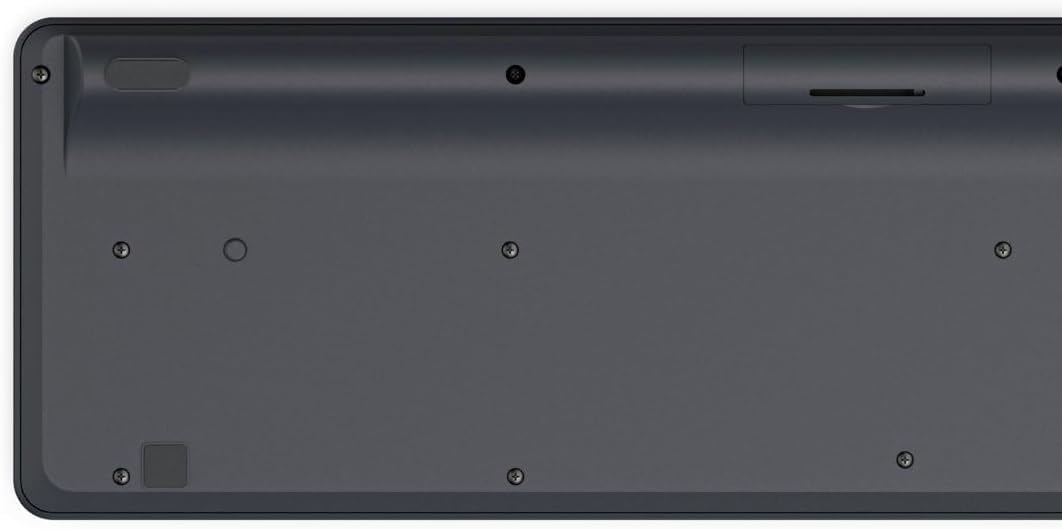
Image: Underside of the Hama WK-300 keyboard, illustrating the battery compartment and the storage slot for the USB receiver.
4.2 ከመሳሪያዎች ጋር መገናኘት
The Hama WK-300 keyboard supports connection to up to three devices simultaneously via 2.4 GHz radio (channel 1) and Bluetooth (channels 2 and 3).
4.2.1 2.4 GHz Radio Connection (Channel 1)
- Remove the USB-A receiver from its storage slot in the battery compartment.
- Plug the USB-A receiver into a free USB port on your computer.
- Switch the keyboard to channel 1 (usually indicated by a switch or button on the keyboard). The keyboard should automatically connect to your computer.
4.2.2 Bluetooth Connection (Channels 2 & 3)
- Switch the keyboard to either channel 2 or channel 3.
- Press and hold the pairing button (refer to keyboard layout for exact location, often combined with the channel switch) until the indicator light flashes, signifying pairing mode.
- On your device (smartphone, tablet, computer), go to Bluetooth settings and search for new devices.
- Select "Hama WK-300" from the list of available devices to complete the pairing process.
4.3 በመሳሪያዎች መካከል መቀያየር
To switch between connected devices, simply press the corresponding channel button (1, 2, or 3) on the keyboard. The keyboard will instantly connect to the selected device.
5. የቁልፍ ሰሌዳውን መስራት
5.1 Basic Typing Functions
The Hama WK-300 features a QWERTY layout with quiet keys, ensuring a comfortable and undisturbed typing experience. Simply begin typing after connecting to your device.

ምስል፡ ከላይ ወደ ታች view of the Hama WK-300 keyboard, highlighting its 90% layout and key functions, including the Fn key for multimedia controls.
5.2 Multimedia Functions (Fn Keys)
The F keys (F1-F12) have secondary assignments for multimedia control. To activate these functions, press and hold the Fn key simultaneously with the desired F key. This allows for quick control of media playback, volume, and other system functions without navigating through system settings.
5.3 AI Assist Button
The dedicated Assist button activates a cross-program AI assistant, enhancing productivity by providing quick access to intelligent features.
5.4 ኃይል ቆጣቢ
The keyboard is battery-operated and designed for efficiency, making it ideal for mobile use. It will enter a low-power state after a period of inactivity to conserve battery life.
6. ጥገና
6.1 የቁልፍ ሰሌዳውን ማጽዳት
To clean your keyboard, ensure it is turned off and disconnected from any devices. Use a soft, lint-free cloth slightly dampened with water or a mild cleaning solution. Avoid excessive moisture and abrasive cleaners. Do not immerse the keyboard in water.
6.2 የባትሪ መተካት
When the keyboard's performance diminishes or it stops responding, it may be time to replace the AAA battery. Follow the battery installation steps outlined in Section 4.1.
7. መላ መፈለግ
- የቁልፍ ሰሌዳ አልተገናኘም: Ensure the keyboard has fresh batteries and is switched to the correct channel (1 for 2.4 GHz, 2 or 3 for Bluetooth). For Bluetooth, ensure the keyboard is in pairing mode and your device's Bluetooth is enabled. For 2.4 GHz, ensure the USB receiver is properly inserted into your device.
- ምላሽ የማይሰጡ ቁልፎች፡- Check battery level. If using 2.4 GHz, try plugging the USB receiver into a different USB port. If using Bluetooth, try re-pairing the keyboard with your device.
- የማያቋርጥ ግንኙነት; Ensure there are no strong interference sources nearby (e.g., other wireless devices, large metal objects). Try moving closer to your device.
- የመልቲሚዲያ ቁልፎች አይሰሩም: መጫኑን ያረጋግጡ Fn key simultaneously with the desired F key.
8. ዝርዝሮች
| የምርት ስም | ሃማ |
| የሞዴል ቁጥር | 182641 |
| ቀለም | ጥቁር |
| ግንኙነት | 2.4 GHz Radio (USB-A receiver), Bluetooth (2 channels) |
| የመሳሪያዎች ብዛት | Up to 3 simultaneous devices |
| የቁልፍ ሰሌዳ አቀማመጥ | QWERTY |
| የምርት ልኬቶች (LxWxH) | 16 x 43.8 x 2.6 ሴንቲሜትር |
| የእቃው ክብደት | 447 ግ |
| ባትሪዎች ያስፈልጋሉ። | 1 AAA ባትሪ (አያካትትም) |
9. ዋስትና
The Hama WK-300 Multi-Device Wireless Keyboard comes with a የ 5 ዓመት ዋስትና. Please retain your proof of purchase for warranty claims. For detailed warranty terms and conditions, refer to the official Hama webጣቢያ ወይም የደንበኛ ድጋፍን ያነጋግሩ።
10. ድጋፍ
For further assistance, technical support, or to inquire about spare parts, please contact Hama customer service. You can find contact information on the official Hama webጣቢያ (www.hama.com) ወይም በአከባቢዎ ቸርቻሪ በኩል።


