1. መግቢያ
This manual provides essential information for setting up, operating, and maintaining your HP OMEN 31.5 inch UHD 144Hz Smart Gaming Monitor. This monitor is designed to deliver an immersive visual experience with its 4K UHD display, high refresh rate, and smart features.
Key features include a 4K UHD (3840 x 2160) IPS panel, 144Hz refresh rate, VESA DisplayHDR 400, 1ms GtG response time with Overdrive, and NVIDIA G-SYNC compatibility. It also offers smart functionalities for streaming and multi-device connectivity.
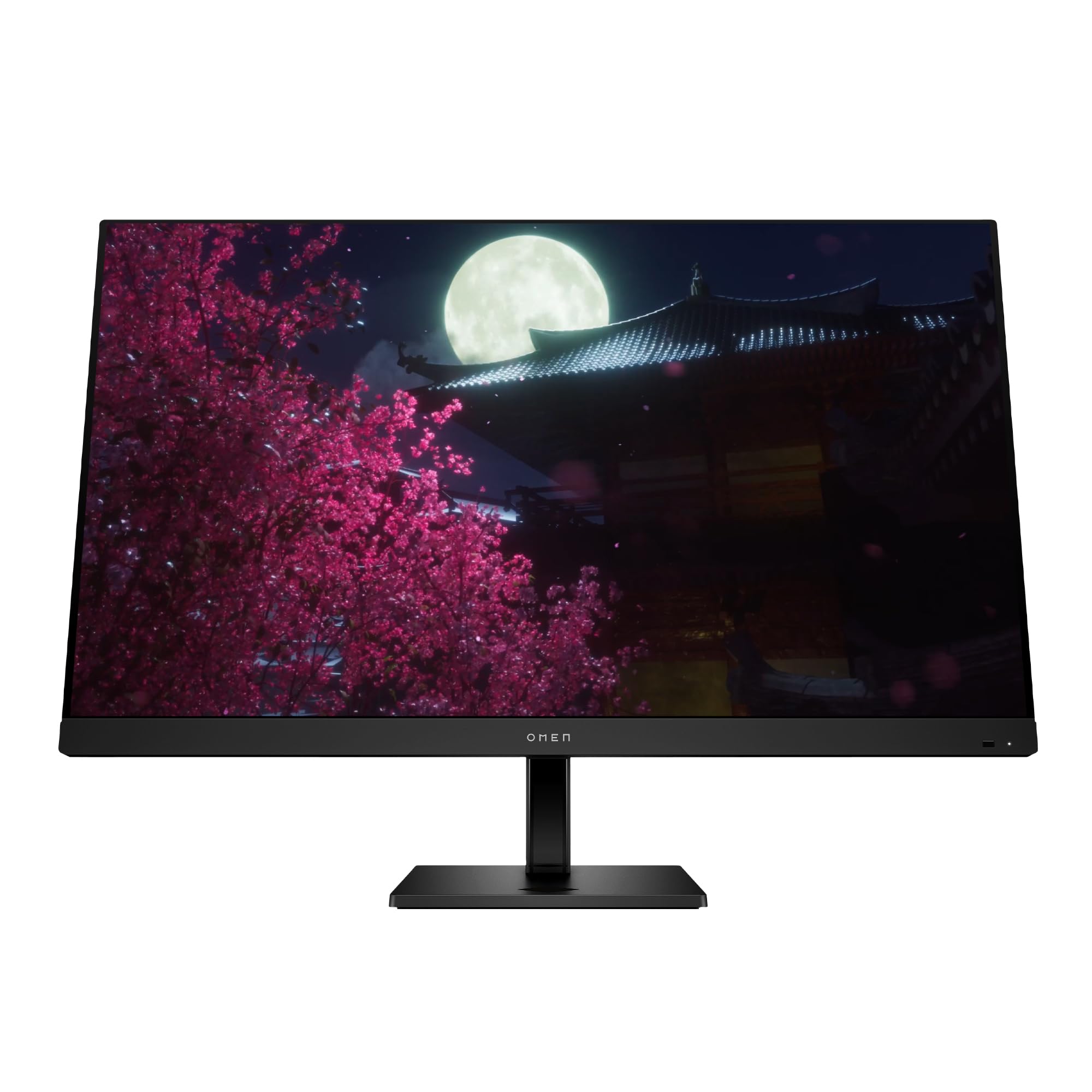
Image 1.1: The HP OMEN 31.5 inch UHD 144Hz Smart Gaming Monitor, highlighting its 4K UHD display, VESA DisplayHDR 400, integrated 3W speakers, and NVIDIA G-SYNC compatibility.
2. በሳጥኑ ውስጥ ያለው
ማዋቀሩን ከመጀመርዎ በፊት ሁሉም ክፍሎች በማሸጊያው ውስጥ መኖራቸውን ያረጋግጡ።
- HP OMEN 31.5 inch UHD 144Hz Smart Gaming Monitor
- መቆሚያ (መሠረት እና አንገት) ተቆጣጠር
- DisplayPort ገመድ
- HDMI ገመድ
- የዩኤስቢ ዓይነት-C ወደ ዓይነት-C ገመድ
- የኤሲ የኃይል ገመድ
- IR and Bluetooth remote control
- 2 x AAA ባትሪዎች (ለርቀት መቆጣጠሪያ)
- የኬብል መያዣ
- ፈጣን ማዋቀር ፖስተር
- Documentation (including Warranty card)

Image 2.1: Visual representation of the items included in the product packaging, such as the monitor, cables, remote, and documentation.
3. ማዋቀር
3.1 የሞኒተሪ ስታንድ ማሰባሰብ
- መቆጣጠሪያውን በጥንቃቄ ያስወግዱ እና ከማሸጊያው ውስጥ ክፍሎችን ይቁሙ.
- የቆመ አንገትን ከተቆጣጣሪው ፓኔል ጋር ያያይዙት፣ ደህንነቱ በተጠበቀ ሁኔታ ወደ ቦታው ጠቅ ማድረጉን ያረጋግጡ።
- Attach the stand base to the stand neck, tightening any screws if necessary.
- የተሰበሰበውን ማሳያ በተረጋጋ እና ጠፍጣፋ መሬት ላይ ያድርጉት።
3.2 ተቆጣጣሪውን ማገናኘት
አስፈላጊዎቹን ገመዶች ከሞኒተሩ እና ከኮምፒውተርዎ ወይም ከሌሎች መሳሪያዎችዎ ጋር ያገናኙ።
- ኃይል፡- የኤሲ ገመዱን ከሞኒተሩ የኃይል ግብዓት እና ከዚያም ከግድግዳ መውጫ ጋር ያገናኙ።
- የቪዲዮ ግቤት Connect either the DisplayPort cable, HDMI cable, or USB Type-C cable from your computer/device to the corresponding port on the monitor. The monitor supports 2 HDMI 2.1 ports, 1 DisplayPort 1.4, and 1 USB Type-C port.
- የዩኤስቢ መሣሪያዎች፡- Connect USB peripherals to the 2 USB 2.0 Type-A ports on the monitor.
- የድምጽ ውፅዓት፡- If desired, connect external speakers or headphones to the 3.5 mm Audio Jack (Audio Out).
- አውታረ መረብ፡ For smart features, connect an Ethernet cable to the RJ-45 port (100 Mbps, for Android TV OS use only).

Image 3.1: The rear panel of the monitor, illustrating the location of the 2 HDMI 2.1 ports, USB Type-C port, 2 USB 2.0 Type-A ports, 3.5 mm Audio Jack, DisplayPort 1.4, and RJ-45 port.
3.3 የመነሻ ኃይል በርቷል
- ሁሉም ገመዶች ደህንነቱ በተጠበቀ ሁኔታ መገናኘታቸውን ያረጋግጡ።
- Press the power button on the monitor or use the remote control to turn on the monitor.
- Follow any on-screen prompts for initial setup, such as language selection and network connection for smart features.
4. ሞኒተሩን መስራት
4.1 Basic Controls and OSD Navigation
The monitor can be controlled using the physical buttons located on the monitor or the included IR and Bluetooth remote control. The On-Screen Display (OSD) menu allows you to adjust various settings.
- Use the remote control's directional buttons to navigate the OSD menu.
- Press the 'OK' or 'Enter' button to select an option.
- Use the 'Back' or 'Exit' button to return to the previous menu or exit the OSD.
4.2 የማሳያ ቅንብሮች እና ባህሪያት
የእርስዎን ያመቻቹ viewየሚከተሉትን ቅንብሮች በማስተካከል የልምድ ልምድ፡
- ጥራት፡ The monitor supports 4K UHD (3840 x 2160) resolution. Ensure your connected device is configured to output at this resolution for optimal clarity.
- የማደስ መጠን፡ Set your device's display settings to 144Hz for smooth motion and responsive gameplay.
- VESA ማሳያ ኤችዲአር 400፡ Enable HDR settings on your device and in the monitor's OSD for enhanced contrast and color depth in compatible content.
- ከNVIDIA G-SYNC ጋር ተኳሃኝ፡ For NVIDIA graphics card users, enable G-SYNC in your NVIDIA Control Panel to synchronize the monitor's refresh rate with your GPU's frame rate, reducing screen tearing and stuttering.
- Dolby Vision እና Dolby Atmos፡- Experience enhanced visuals and immersive audio with Dolby support. Ensure your content and connected devices are compatible.
- የ HP Eye Ease ከ Eyesafe ማረጋገጫ ጋር: This feature reduces blue light emissions to help minimize eye strain during extended use, without compromising color accuracy.

Image 4.1: The monitor features HP Eye Ease with Eyesafe Certification, designed to provide comfortable viewing by reducing blue light while maintaining color quality.
4.3 ብልጥ ባህሪያት እና ግንኙነት
The OMEN 32x monitor offers advanced smart functionalities:
- ባለብዙ-View: Split your screen to display content from two different sources simultaneously. For example, use a wired connection on one side and wireless casting on the other.
- Multi-Platform Streamer Honors: Stream content directly from your screen to multiple platforms. Refer to the monitor's smart OS interface for configuration.
- Shared Keyboard/Mouse (KB/M): Easily switch your keyboard and mouse control between multiple connected devices, simplifying your setup.
- Home Panel Integration: Control smart home devices like lights and thermostats, view doorbell notifications, and full-screen camera feeds directly from the monitor's home panel.

Image 4.2: The monitor's capability to live stream to multiple platforms and utilize a split-screen Multi-View feature for enhanced multitasking.

Image 4.3: The monitor's smart home panel, allowing control of lights, temperature, and displaying doorbell notifications and full-screen camera views.
4.4 Ergonomic ማስተካከያዎች
ሞኒተሩን ለተመቻቸ ያስተካክሉት። viewምቾት;
- የከፍታ ማስተካከያ; The stand allows for a 100mm height adjustment range.
- ዘንበል The monitor can be tilted from -5° to +20° to find your preferred viewአንግል።

Image 4.4: Illustration of the monitor's ergonomic adjustments, including its tilt range (-5° to +20°) and 100mm height adjustable range.
5. ጥገና
5.1 መቆጣጠሪያውን ማጽዳት
- ከማጽዳትዎ በፊት ሁልጊዜ መቆጣጠሪያውን ያጥፉ እና የኤሌክትሪክ ገመዱን ያላቅቁ።
- ለስላሳ፣ ከቆሸሸ ነፃ የሆነ ጨርቅ በትንሹ ተጠቀም መampበውሃ የታሸገ ወይም የማይበላሽ የስክሪን ማጽጃ።
- ማጽጃውን በቀጥታ በስክሪኑ ላይ አይረጩ።
- ጨካኝ ኬሚካሎችን፣ መሟሟቶችን ወይም ጠለፋ ቁሳቁሶችን ከመጠቀም ይቆጠቡ፣ ምክንያቱም እነዚህ ስክሪኖችን ወይም ጨረሮችን ሊጎዱ ይችላሉ።asing.
5.2 አጠቃላይ እንክብካቤ
- ከባድ ነገሮችን በተቆጣጣሪው ወይም በኬብሉ ላይ ከማስቀመጥ ይቆጠቡ።
- በሞኒተሩ ላይ የአየር ማናፈሻ ክፍተቶችን አይዝጉ።
- ተቆጣጣሪውን በቀጥታ ከፀሀይ ብርሀን, ከሙቀት ምንጮች እና ከመጠን በላይ እርጥበት ያርቁ.
6. መላ መፈለግ
በእርስዎ ማሳያ ላይ ችግሮች ካጋጠሙዎት የሚከተሉትን የተለመዱ መፍትሄዎች ይመልከቱ፡
| ችግር | ሊሆን የሚችል መፍትሄ |
|---|---|
| ኃይል የለም | Ensure the power cable is securely connected to both the monitor and a working power outlet. Check if the power button is pressed. |
| ምንም ምልክት የለም / ባዶ ማያ | Verify that the video cable (DisplayPort, HDMI, or USB-C) is correctly connected to both the monitor and your computer. Ensure the correct input source is selected in the monitor's OSD menu. Try restarting your computer. |
| የምስል ብልጭ ድርግም ወይም ማዛባት | Check the video cable for damage. Ensure your graphics drivers are up to date. Adjust the refresh rate in your computer's display settings. Disable G-SYNC temporarily to see if the issue persists. |
| ቀለሞች የተሳሳቱ ናቸው | Adjust color settings in the OSD menu. Perform a factory reset of the monitor settings. Ensure your graphics card color settings are correctly configured. |
| የርቀት መቆጣጠሪያ አይሰራም | Check and replace the AAA batteries. Ensure there are no obstructions between the remote and the monitor's IR receiver. Re-pair the Bluetooth remote if necessary. |
If the problem persists after trying these solutions, contact HP customer support.
7. ዝርዝሮች
| ባህሪ | ዝርዝር |
|---|---|
| የሞዴል ቁጥር | 99Z68AA#ABA |
| የስክሪን መጠን | 31.5 ኢንች |
| የፓነል ዓይነት | አይፒኤስ |
| ጥራት | 4 ኪ UHD (3840 x 2160) |
| የማደስ ደረጃ | 144Hz |
| የምላሽ ጊዜ | 1ms GtG (ከኦቨርድራይቭ ጋር) |
| የኤችዲአር ድጋፍ | VESA ማሳያ ኤችዲአር 400 |
| የጂ-ሲንክ ተኳሃኝነት | NVIDIA G-SYNC ተኳሃኝ |
| የንፅፅር ሬሾ | 1000፡1 |
| ብሩህነት | 400 ኒት (ከፍተኛ) |
| ViewAngles ውስጥ | 178° (H) / 178° (V) |
| ተናጋሪዎች | Four integrated 3W speakers |
| የቪዲዮ ማስገቢያ ወደቦች | 2 x HDMI 2.1, 1 x DisplayPort 1.4, 1 x USB Type-C |
| የዩኤስቢ ወደቦች | 2 x USB 2.0 Type-A (Battery Charging 1.2) |
| የድምጽ ውፅዓት | 3.5 ሚሜ ኦዲዮ ጃክ |
| የአውታረ መረብ ወደብ | 1 x RJ-45 (100 Mbps, for Android TV OS only) |
| Ergonomics | Height adjustable (100mm), Tilt (-5° to +20°) |
| ልኬቶች (WxDxH) | 28.11 x 9.58 x 16.93 ኢንች (ከቁም ጋር) |
| ክብደት | 23.3 ፓውንድ (ከቁም ጋር) |
| ቀለም | ጥቁር |
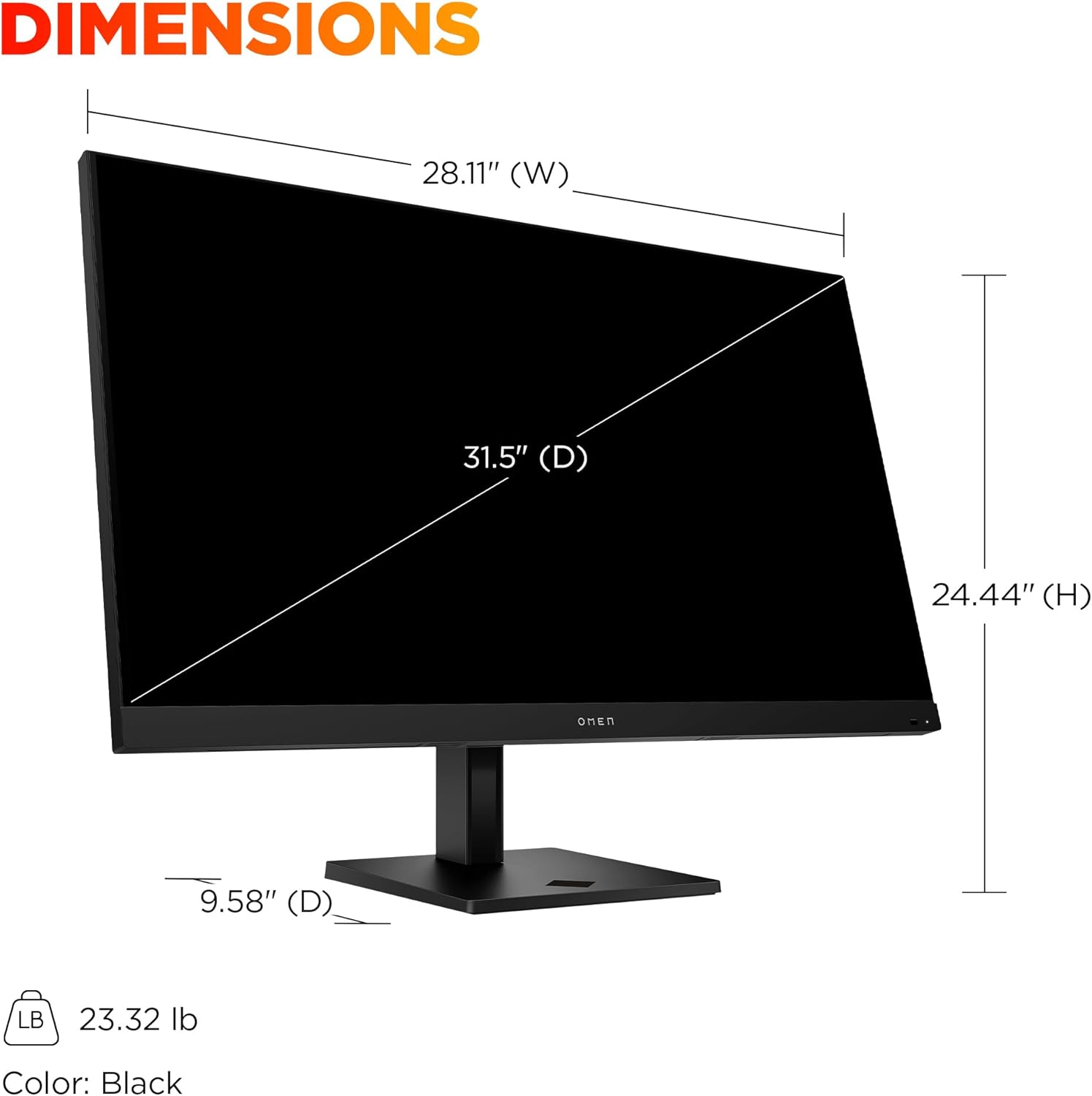
Image 7.1: Detailed dimensions of the HP OMEN 31.5 inch monitor, including width, height, and depth, along with its weight.
8. ዋስትና እና ድጋፍ
8.1 የዋስትና መረጃ
This HP OMEN monitor comes with a የHP 3-ዓመት የተወሰነ ዋስትና. Please refer to the warranty card included in your product packaging for full terms and conditions. Keep your proof of purchase for warranty claims.
8.2 የደንበኛ ድጋፍ
For technical assistance, troubleshooting beyond this manual, or warranty service, please contact HP customer support. You can find support contact information on the official HP website or through the documentation provided with your monitor.
Online resources, drivers, and FAQs may also be available on the የ HP ድጋፍ webጣቢያ.