1. መግቢያ
This manual provides comprehensive instructions for setting up, operating, and maintaining your Logitech MK250 Bluetooth Wireless Keyboard and Mouse Combo. This combo offers a reliable and efficient wireless solution for your computing needs, compatible with Windows and macOS operating systems. Please read this manual thoroughly before using your new device.

Image: The Logitech MK250 Bluetooth Wireless Keyboard and Mouse Combo.
2. የጥቅል ይዘቶች
ሁሉም እቃዎች በጥቅልዎ ውስጥ መኖራቸውን ያረጋግጡ፡-
- ሎጌቴክ MK250 ገመድ አልባ የቁልፍ ሰሌዳ
- Logitech M196 ገመድ አልባ መዳፊት
- 2 AAA Batteries (pre-installed in keyboard)
- 1 AA Battery (pre-installed in mouse)
- የተጠቃሚ ሰነድ

Image: Contents of the Logitech MK250 combo package, showing the keyboard, mouse, and included batteries.
3. ማዋቀር
3.1. የባትሪ ጭነት
The keyboard requires 2 AAA batteries and the mouse requires 1 AA battery. These are typically pre-installed. Remove the battery pull tabs before first use.
- የባትሪውን ክፍል በቁልፍ ሰሌዳው እና በመዳፊት ታችኛው ክፍል ላይ ያግኙት።
- የክፍሉን ሽፋን ይክፈቱ.
- Remove the protective pull tab(s) if present.
- Ensure batteries are correctly oriented according to the polarity indicators (+/-).
- የባትሪውን ክፍል ደህንነቱ በተጠበቀ ሁኔታ ይዝጉ።
3.2. የብሉቱዝ ማጣመር
The Logitech MK250 combo connects via Bluetooth, eliminating the need for a USB receiver.
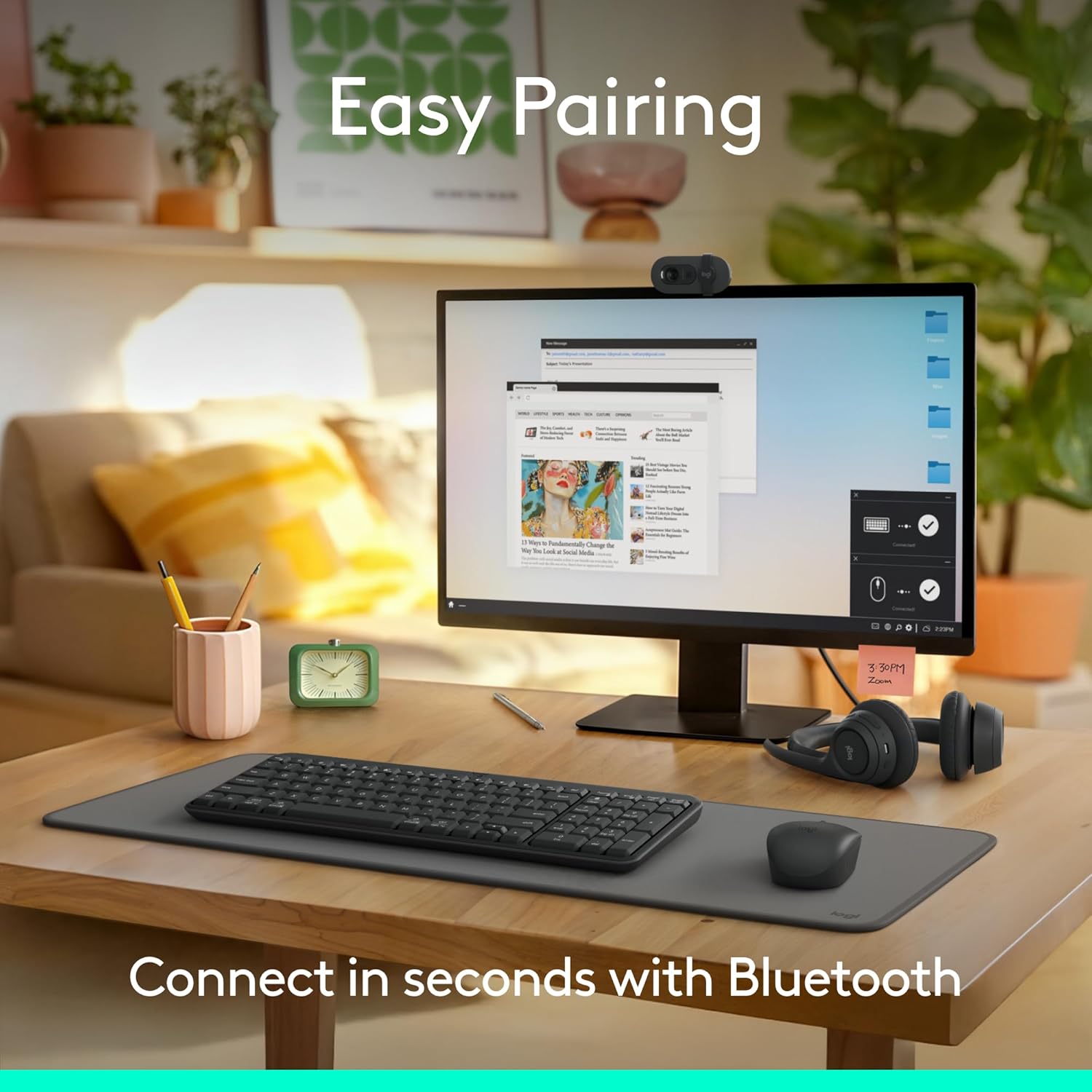
Image: A workspace demonstrating the easy pairing process of the Logitech MK250 combo.
3.2.1. Keyboard Pairing
- Turn on the keyboard using the ON/OFF switch located on the underside.
- Press and hold the Bluetooth pair button on the underside of the keyboard for 3 seconds until the LED indicator starts blinking rapidly.
- On your computer (Windows or macOS), navigate to Bluetooth settings.
- Select "Add a device" or "Bluetooth & other devices".
- Choose "Bluetooth" and wait for "Logitech MK250 Keyboard" to appear in the list of available devices.
- Click on "Logitech MK250 Keyboard" to initiate pairing. Follow any on-screen prompts, such as entering a code.
- Once paired, the LED indicator on the keyboard will stop blinking and remain solid for a few seconds, then turn off to conserve power.

ምስል፡ ዝርዝር view of the keyboard's underside, highlighting the Bluetooth pairing button.
3.2.2. Mouse Pairing
- Turn on the mouse using the ON/OFF switch on its underside.
- Press and hold the pairing button (often labeled with a Bluetooth symbol or similar) on the underside of the mouse for 3 seconds until the LED indicator starts blinking.
- On your computer, in the same Bluetooth settings, wait for "Logitech MK250 Mouse" or "Logitech M196" to appear.
- Click on the mouse name to pair.
- The LED indicator will stop blinking upon successful connection.

Image: Underside of the mouse, indicating the pairing button and battery compartment.
4. የአሠራር መመሪያዎች
4.1. የቁልፍ ሰሌዳ ባህሪያት
- Compact Layout with Numpad: The keyboard features a space-saving design while retaining a full numeric keypad and essential function keys.
- Deep-Profile ቁልፎች፡- Designed for comfortable and familiar typing experience.
- የሚስተካከሉ የዘንበል እግሮች; Located on the underside, these allow you to adjust the keyboard angle for ergonomic comfort.
- Handy F-key Shortcuts: Access media controls, volume, and other functions directly from the F-keys.

Image: User's hands demonstrating comfortable typing on the keyboard.

Image: The compact keyboard and mouse combo on a desk, showing its space-saving benefits.
4.2. የመዳፊት ባህሪያት
- አሻሚ ንድፍ; The mouse is shaped to comfortably fit both left and right hands.
- ለስላሳ ክትትል፦ Provides precise and responsive cursor control.
- የታመቀ መጠን፡ Ideal for portability and use in various environments.
5. ጥገና
5.1. ማጽዳት
የቁልፍ ሰሌዳዎን እና መዳፊትዎን ለማጽዳት፦
- Ensure both devices are turned off.
- ለስላሳ፣ ከቆሸሸ ነፃ የሆነ ጨርቅ በትንሹ ተጠቀም መampበውሃ ወይም በተፈቀደ የኤሌክትሮኒክስ ማጽጃ የተገጠመለት።
- Avoid excessive moisture and do not spray cleaners directly onto the devices.
- The keyboard features a spill-resistant design, meaning it can withstand minor liquid spills. However, it is not waterproof. In case of a spill, immediately turn off the keyboard, disconnect it, and allow it to dry completely before reuse.

Image: The keyboard demonstrating its spill-resistant capabilities.
5.2. የባትሪ መተካት
አፈጻጸሙ ሲቀንስ ወይም የባትሪው ዝቅተኛ መጠን (ካለ) ሲበራ ባትሪዎቹን ይተኩ።
- Keyboard: 2 AAA batteries (approximately 12-month battery life).
- Mouse: 1 AA battery (approximately 12-month battery life).
- Follow the battery installation steps in Section 3.1.
- በአካባቢያዊ ደንቦች መሰረት የቆዩ ባትሪዎችን በሃላፊነት ያስወግዱ.
6. መላ መፈለግ
6.1. የግንኙነት ጉዳዮች
- መሳሪያ አለመገናኘት;
- Ensure both the keyboard and mouse are turned on.
- Verify that Bluetooth is enabled on your computer.
- Re-initiate pairing mode on the keyboard/mouse and re-scan for devices on your computer.
- የባትሪውን ደረጃ ይፈትሹ እና አስፈላጊ ከሆነ ይተኩ.
- Move the devices closer to your computer to rule out range issues.
- የሚቆራረጥ ግንኙነት;
- Ensure there are no other strong wireless signals or devices causing interference (e.g., Wi-Fi routers, other Bluetooth devices).
- Update your computer's Bluetooth drivers.
- ኮምፒተርዎን እንደገና ያስጀምሩ.
6.2. የቁልፍ ሰሌዳ/አይጥ ምላሽ አይሰጥም
- የባትሪ ደረጃዎችን ይፈትሹ.
- መሣሪያው መብራቱን ያረጋግጡ።
- If connected, try turning the device off and on again.
- For the mouse, ensure the optical sensor is clean and unobstructed.
7. ዝርዝሮች
| የምርት ስም | ሎጊቴክ |
| የሞዴል ስም | MK250 Keyboard & Mouse |
| የንጥል ሞዴል ቁጥር | 920-013510 |
| የግንኙነት ቴክኖሎጂ | ብሉቱዝ |
| ተስማሚ መሣሪያዎች | ላፕቶፕ, የግል ኮምፒውተር, ጡባዊ |
| የስርዓተ ክወና ተኳኋኝነት | Chrome OS, Windows 10/11 or later, macOS 12 or later |
| የቁልፍ ሰሌዳ የባትሪ አይነት | 2 x AAA (ተካቷል) |
| የመዳፊት የባትሪ አይነት | 1 x AA (ተካትቷል) |
| የተገመተው የባትሪ ህይወት | 12 months (keyboard and mouse) |
| የምርት ልኬቶች (LxWxH) | 18.03 x 5.98 x 1.73 inches (Combo Package) |
| የእቃው ክብደት | 1.53 pounds (Combo Package) |
| ቁሳቁስ | Plastic parts made with minimum 66% (mouse) and 64% (keyboard) recycled materials. |

Image: The Logitech MK250 combo highlighting its construction from recycled materials.
8. ዋስትና እና ድጋፍ
Logitech products are manufactured to high quality standards and are backed by a limited hardware warranty. For detailed warranty information, please refer to the warranty card included with your product or visit the official Logitech webጣቢያ.
For technical support, frequently asked questions, and driver downloads, please visit the Logitech support webጣቢያ፡


