1. መግቢያ
This manual provides instructions for the setup, operation, maintenance, and troubleshooting of your CRUA 27-inch 240Hz QHD IPS Gaming Monitor. This monitor features a 2560x1440 QHD resolution, a 240Hz refresh rate, an IPS panel for wide viewing angles, AMD FreeSync support, a blue light filter for eye protection, and built-in speakers. Please read this manual thoroughly before using the product.
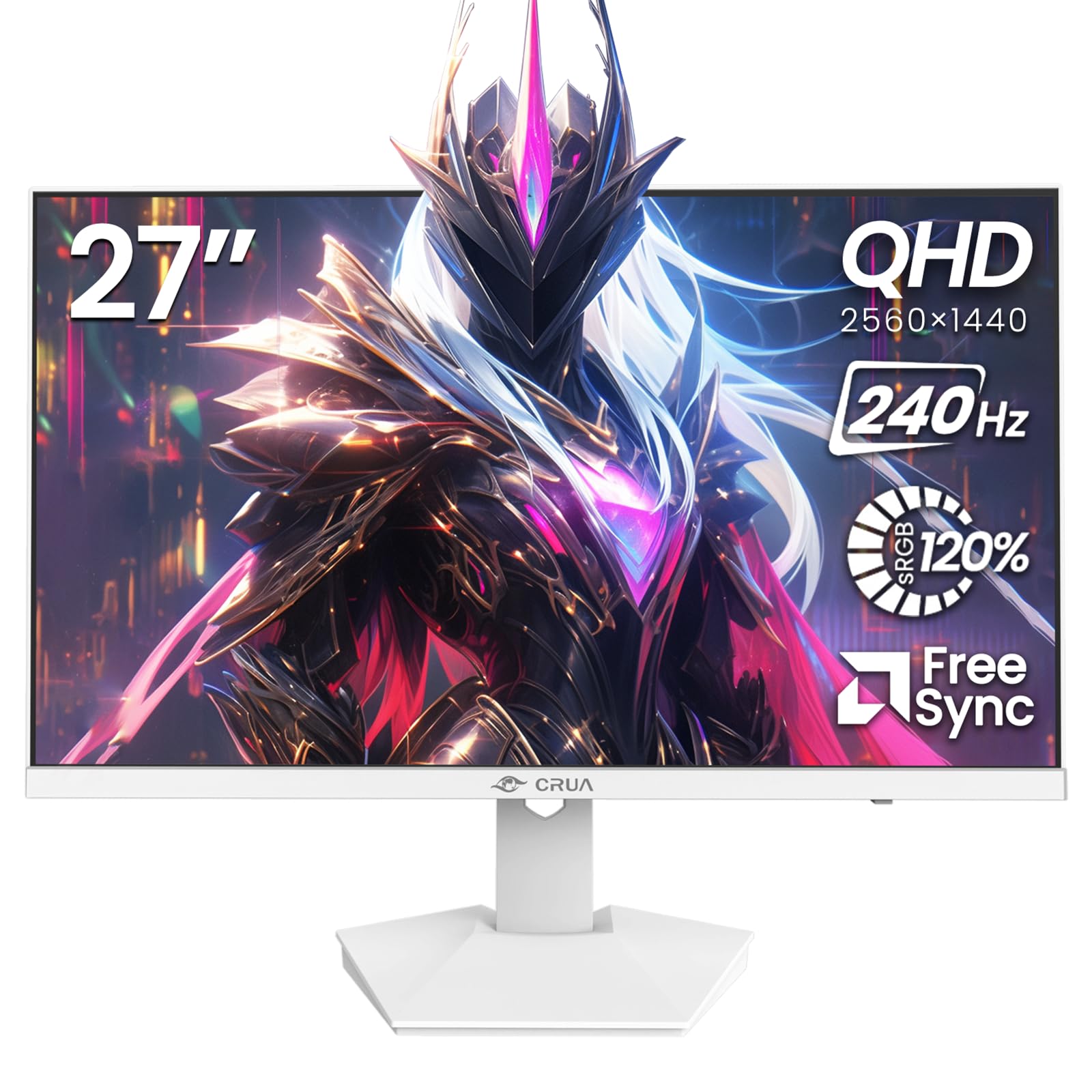
ምስል፡ ፊት ለፊት view of the CRUA 27-inch 240Hz QHD IPS Gaming Monitor.
2. የጥቅል ይዘቶች
ሁሉም እቃዎች በጥቅሉ ውስጥ መኖራቸውን ያረጋግጡ፡-
- CRUA 27-inch 240Hz QHD IPS Gaming Monitor
- መቆሚያ (መሠረት እና አንገት) ተቆጣጠር
- የኃይል አስማሚ እና ገመድ
- HDMI ገመድ
- DisplayPort (DP) ገመድ
- የተጠቃሚ መመሪያ (ይህ ሰነድ)
3. ማዋቀር
3.1 ቋሚ ስብሰባ
- ተቆጣጣሪውን በጥንቃቄ ከማሸጊያው ላይ ያስወግዱት, ጭረቶችን ለመከላከል ለስላሳ እና ንጹህ ቦታ ላይ ፊቱን ያስቀምጡት.
- የማቆሚያውን አንገት ወደ መቆጣጠሪያ ፓነል ያያይዙት. ደህንነቱ በተጠበቀ ሁኔታ ወደ ቦታው ጠቅ ማድረጉን ያረጋግጡ።
- Attach the stand base to the stand neck. Tighten any screws if provided.
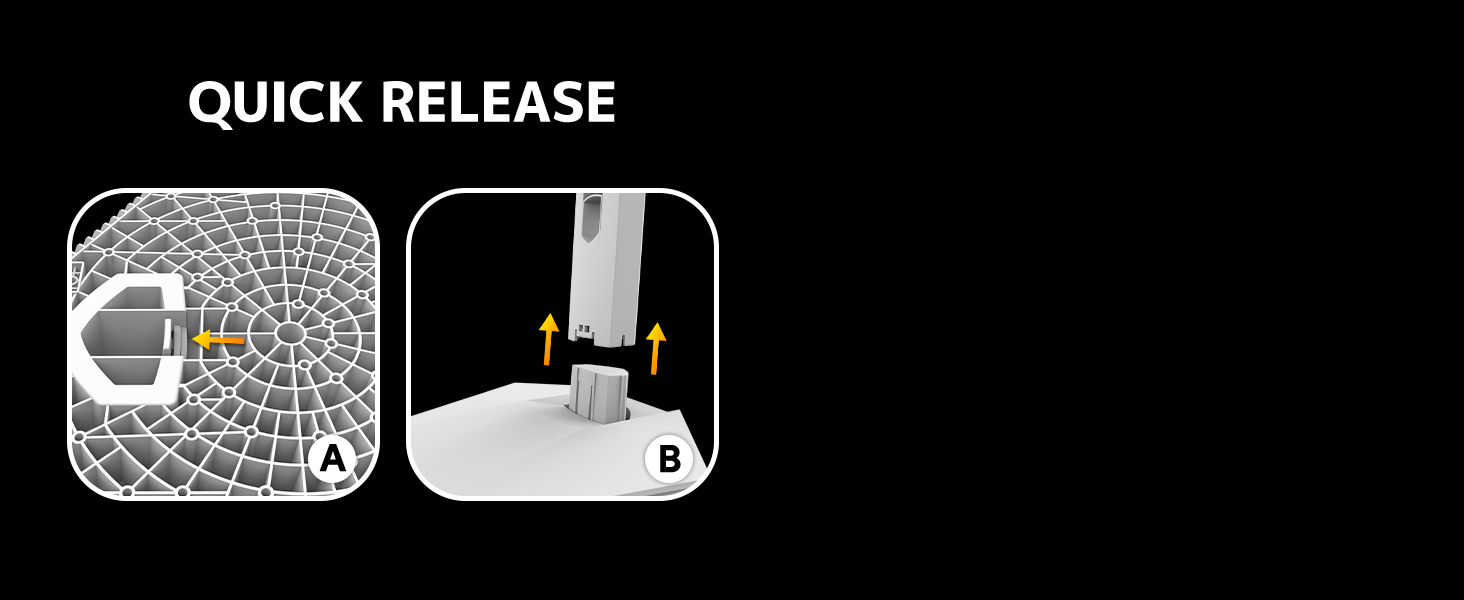
Image: Diagram illustrating the quick release stand assembly.
3.2 ግድግዳ መትከል (አማራጭ)
The monitor supports VESA wall mounting (75mm x 75mm). To wall mount:
- ስቶኑን ከሞኒተሩ ላይ ያውጡት። አስቀድሞ ተያይዟል።
- ተገቢውን ዊንጮች በመጠቀም ከ VESA ጋር የሚስማማ የግድግዳ መጫኛ ቅንፍ (ያልተካተተ) ከሞኒተሩ ጋር ያያይዙ።
- ደህንነቱ በተጠበቀ ሁኔታ ለመጫን ከግድግዳዎ ጋር የተሰጡትን መመሪያዎች ይከተሉ።

ምስል: የኋላ view of the monitor showing VESA mount points (75x75mm) and built-in speakers.
3.3 ከኮምፒዩተር ጋር መገናኘት
ከሚከተሉት ዘዴዎች ውስጥ አንዱን በመጠቀም ማሳያውን ከኮምፒዩተርዎ ጋር ያገናኙ፡
- ዲስፓርትፎርድ (DP 1.4): For optimal performance, especially at 240Hz QHD resolution, use the included DisplayPort cable.
- ኤችዲኤምአይ (ኤችዲኤምአይ 2.0)፦ Use an HDMI cable for QHD resolution at up to 144Hz.
የኃይል አስማሚውን ከሞኒተሩ የኃይል ግብዓት ጋር ያገናኙትና ከዚያ ወደ ኃይል መውጫ ይሰኩት።

ምስል: የኋላ view of the monitor displaying the input ports, including HDMI and DisplayPort.
4. የአሠራር መመሪያዎች
4.1 ማብራት / ማጥፋት
Press the power button located on the back of the monitor to turn it on or off. The power button may resemble a joystick for OSD navigation.
4.2 የማያ ገጽ ላይ ማሳያ (OSD) ምናሌ
The OSD menu allows you to adjust various monitor settings. Use the joystick-like button on the back of the monitor to navigate the menu:
- አዝራሩን ይጫኑ; የ OSD ምናሌን ይከፍታል።
- ወደ ላይ/ወደታች ውሰድ፦ በምናሌ አማራጮች ውስጥ ይዳስሳል።
- ወደ ግራ/ቀኝ ውሰድ፡- Adjusts selected settings or enters sub-menus.
- እንደገና ይጫኑ ፦ ምርጫን ያረጋግጣል ወይም ከንዑስ ምናሌ ይወጣል።
4.3 የማሳያ ቅንብሮች
በ OSD ምናሌ ውስጥ፣ የሚከተሉትን ማስተካከል ይችላሉ፦
- ብሩህነት/ንፅፅር፡ አጠቃላይ የብርሃን እና የንፅፅር ጥምርታ ያስተካክሉ።
- የቀለም ቅንጅቶች Fine-tune color temperature, hue, and saturation. The monitor offers 120% sRGB color coverage for accurate and vibrant visuals.
- የግቤት ምንጭ፡- በኤችዲኤምአይ እና በ DisplayPort ግብዓቶች መካከል በእጅ ይምረጡ።

Image: Details on true color accuracy, including 120% sRGB, 8-bit color depth, and 16.7 million colors.
4.4 የጨዋታ ባህሪያት
- የማደስ መጠን፡ The monitor supports up to 240Hz refresh rate for smooth motion. Ensure your graphics card and cable support this rate.
- AMD FreeSync፡ Enable FreeSync in the OSD menu and on your AMD graphics card settings to eliminate screen tearing and stuttering.

Image: Visual comparison demonstrating the smoothness of 240Hz refresh rate versus 60Hz.

Image: Illustrates the effect of Adaptive Sync (FreeSync) on reducing screen tearing and stuttering.
4.5 የዓይን መከላከያ
The monitor includes a built-in blue light filter to reduce eye strain during extended use. This feature can be enabled or adjusted through the OSD menu.
5. ጥገና
የማሳያዎን አፈጻጸም እና ገጽታ ለመጠበቅ፡-
- ማያ ገጹን ማጽዳት; ስክሪኑን በቀስታ ለስላሳ እና ከተሸፈነ ጨርቅ ይጥረጉ። ለጠንካራ ምልክቶች፣ በቀጥታ በስክሪኑ ላይ ሳይሆን በጨርቁ ላይ የሚተገበረውን ተቆጣጣሪ-ተኮር የጽዳት መፍትሄ ይጠቀሙ።
- ሲን ማጽዳትasing: ተቆጣጣሪውን ለማጽዳት ለስላሳ ደረቅ ጨርቅ ይጠቀሙ ሐasinሰ. ገላጭ ማጽጃዎችን ወይም ፈሳሾችን ያስወግዱ።
- ኃይል ዝጋ: ከማጽዳትዎ በፊት ሁልጊዜ መቆጣጠሪያውን ያጥፉ እና ከኃይል ማሰራጫው ያላቅቁት።
6. መላ መፈለግ
| ችግር | ሊሆን የሚችል ምክንያት | መፍትሄ |
|---|---|---|
| በማያ ገጹ ላይ ምንም ምስል የለም | Monitor is off or not receiving signal. | Ensure power cable is connected and monitor is on. Check video cable connection (HDMI/DP) to both monitor and computer. Select correct input source via OSD. |
| የምስል ብልጭ ድርግም ማለት ወይም መቀደድ | FreeSync not enabled or incompatible settings. | Enable FreeSync in the monitor OSD and your graphics card control panel. Ensure your graphics card drivers are up to date. |
| Poor picture quality (blurry, incorrect colors) | Incorrect resolution, color settings, or faulty cable. | Set display resolution to 2560x1440. Adjust brightness, contrast, and color settings in the OSD. Try a different video cable. |
| ከአብሮገነብ ድምጽ ማጉያዎች ምንም ድምፅ የለም። | Volume too low, incorrect audio output selected. | Increase monitor volume via OSD. Ensure the monitor is selected as the audio output device in your computer's sound settings. |
| የሞቱ ፒክስሎች | የማምረት ጉድለት. | Refer to warranty information for pixel policy. Contact customer support if within warranty. |
7. ዝርዝሮች
| ባህሪ | ዝርዝር መግለጫ |
|---|---|
| የሞዴል ቁጥር | CR270I |
| የስክሪን መጠን | 27 ኢንች |
| የፓነል ዓይነት | አይፒኤስ |
| ጥራት | 2560 x 1440 (QHD) |
| የማደስ ደረጃ | 240Hz |
| ምጥጥነ ገጽታ | 16፡9 |
| ቀለም ጋሙት | 120% sRGB |
| ብሩህነት | 300 ሲዲ/ሜXNUMX |
| የንፅፅር ሬሾ | 1000፡1 |
| Viewማእዘን | 178° (አግድም/አቀባዊ) |
| የቪዲዮ ግብዓቶች | ኤችዲኤምአይ 2.0፣ ዲስፖት ማሳያ 1.4 |
| ኦዲዮ | አብሮ የተሰሩ ስፒከሮች |
| VESA ተራራ | 75 ሚሜ x 75 ሚሜ |
| የምርት ልኬቶች | 1.78 x 24 x 14 ኢንች |
| የእቃው ክብደት | 12.62 ፓውንድ |
8. ዋስትና እና ድጋፍ
CRUA provides high-quality computer monitors and premium services. If you have any questions or require assistance, please contact CRUA customer support. Refer to your purchase documentation for specific warranty terms and contact information.


