1. መግቢያ
Thank you for choosing the NEWYES Sync Pen 4. This smart pen and electronic notebook system allows you to instantly digitize your handwritten notes, drawings, and memos. This manual provides detailed instructions on how to set up, operate, and maintain your device to ensure optimal performance and a seamless digital note-taking experience.
2. የጥቅል ይዘቶች
እባክዎን ጥቅሉን ለሚከተሉት ነገሮች ያረጋግጡ፡
- NEWYES Sync Pen 4 (x1)
- Smart Notebook (x1)
- Dedicated Pad (included only with digital pad set)
- Notebook Refills (x5)
- Electronic Pen Refills (x2)
- የዩኤስቢ ገመድ (x1)
- ማጽጃ ጨርቅ (x1)
- መመሪያ መመሪያ (x1)

ምስል፡ አልቋልview of the NEWYES Sync Pen 4 package contents.
3. ምርት አብቅቷልview
3.1 ቁልፍ ባህሪያት
- Real-time Digitalization: Instantly converts handwritten notes to digital text via the NEWYES app.
- Erasable Ink & Reusable Notebook: Use erasable ink with the dedicated notebook. Notes can be erased with a damp cloth or heat, allowing for over 500 uses per page.
- Offline Data Synchronization: The pen stores notes offline (up to 1000 A4 pages) and syncs when connected to your smart device.
- Multi-language OCR: Recognizes handwriting in over 73 languages, including mathematical elements and musical notation.
- Replay & Voice Recording: Replay the writing process and record audio simultaneously. This feature is useful for reviewing meetings or lectures.
- High Performance & Accuracy: Features OCR technology for 360-degree free writing recognition with 99% accuracy.
- ረጅም የባትሪ ህይወት; Approximately 9 hours of continuous use on a single charge.
- Convenient Note Search & Management: Search notes by keywords or tags በመተግበሪያው ውስጥ።
- One-Click Save & Share: Easily save and share notes in various formats (PDF, image, GIF, MP4 with audio) via social media or email.
3.2 ክፍሎች

ምስል፡ ዝርዝር view of the Sync Pen 4, highlighting its dimensions and charging port.
- የብዕር መጠኖች፡- 158mm length.
- የዩኤስቢ ባትሪ መሙላት፡ Charges in less than 1.5 hours, provides 9 hours of working time, and up to 300 days standby.
- Ergonomic Pen Holder: Designed for comfort, weighing only 20g with a 1cm diameter.
- Erasable Ink: SyncPen uses erasable ink; notes can be erased with a damp ጨርቅ.
- የኦሲአር ተግባር፡ Built-in motion tracking sensor converts handwriting to digital text.
4. ማዋቀር
4.1 Charging the Sync Pen 4
Before first use, fully charge the Sync Pen 4 using the provided USB cable. Connect the USB cable to the pen's charging port and a power source. The indicator light will show charging status.
4.2 Installing the NEWYES App
- Download the "NEWYES" app from your device's app store (iOS or Android).
- መለያ ለመፍጠር ወይም ለመግባት መተግበሪያውን ይክፈቱ እና በስክሪኑ ላይ ያሉትን መመሪያዎች ይከተሉ።
4.3 Pairing the Sync Pen 4 with the App
- በእርስዎ ዘመናዊ መሣሪያ ላይ ብሉቱዝ መንቃቱን ያረጋግጡ።
- Open the NEWYES app.
- Turn on the Sync Pen 4 by pressing the power button (or it may automatically turn on when you start writing).
- Within the app, navigate to the device pairing section (usually found in settings or by tapping a pen icon).
- Select your Sync Pen 4 from the list of available devices to pair.
- Once paired, the pen's indicator light will confirm connection, and the app will display a connected status.
5. የአሠራር መመሪያዎች
5.1 Real-time Digitalization
With the Sync Pen 4 paired and the app open, any notes or drawings you make on the dedicated smart notebook will be instantly digitized and displayed on your smart device screen.

Image: The Sync Pen 4's core features, including real-time digitalization.

Image: Real-time synchronization of handwritten notes to a smartphone.
5.2 Using the Erasable Notebook
The special paper in the NEWYES smart notebook allows for repeated use. To erase notes:
- Damp ጨርቅ፡ Gently wipe the page with a damp cloth to remove ink.
- ሙቀት፡ Apply heat (e.g., from a hairdryer) to the page, and the ink will disappear.

Image: Methods for erasing notes from the reusable smart notebook.
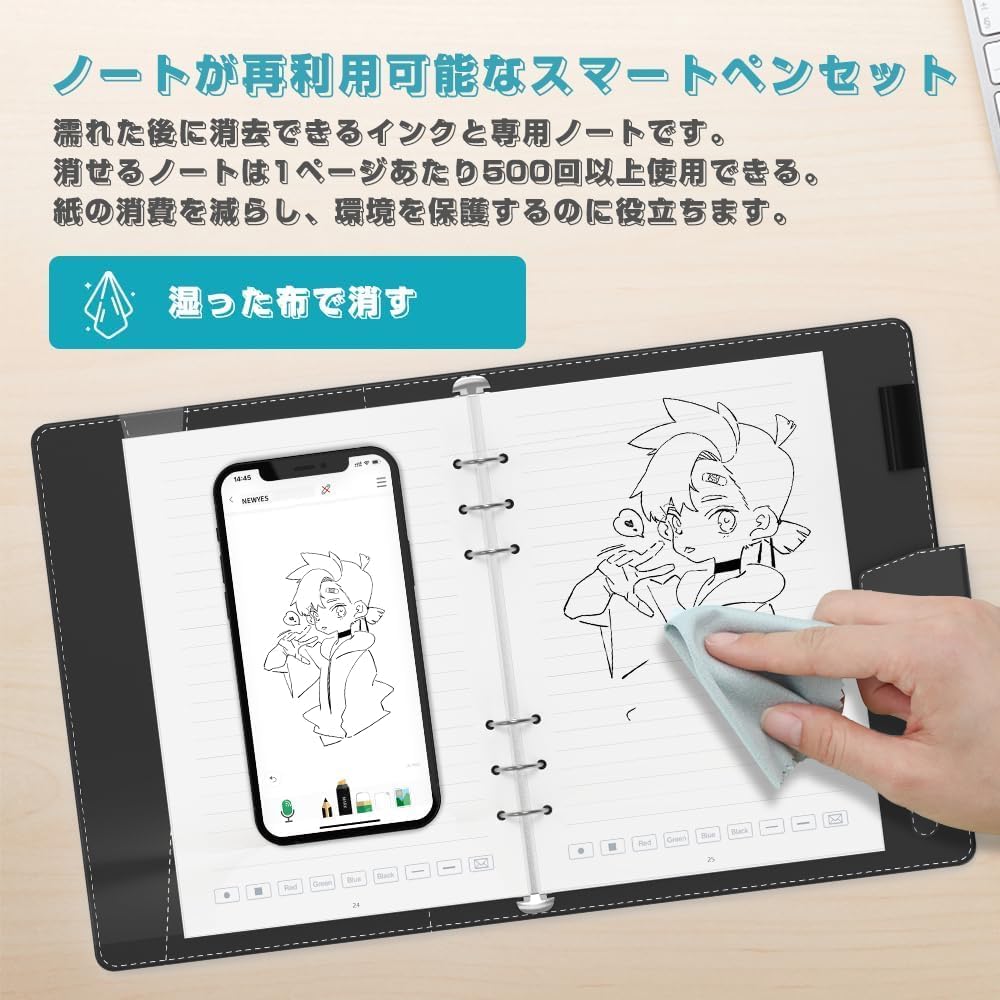
Image: Erasing notes with a wet cloth.
5.3 Offline Mode and Synchronization
The Sync Pen 4 can store notes internally when not connected to your device. To synchronize these offline notes:
- Ensure your Sync Pen 4 is charged and powered on.
- Open the NEWYES app on your paired smart device.
- The app will automatically detect and transfer any stored offline data from the pen. A progress indicator will show the synchronization status.
Video: Demonstrates the real-time synchronization and offline data transfer capabilities of the Sync Pen 4.
5.4 OCR (Optical Character Recognition)
The app's OCR function converts your handwritten notes into editable digital text. It supports over 73 languages and can recognize complex elements like mathematical formulas and musical notation.
- After writing, open the note in the NEWYES app.
- Tap the OCR icon (often represented by a text or scan symbol).
- The app will process your handwriting and display the converted text. You can then copy, edit, or share this text.

Image: Handwriting and formula recognition features of the NEWYES app.

ምስል፡ ዘጸample of OCR converting handwritten text and math to digital format.
5.5 የድምጽ ቀረጻ እና መልሶ ማጫወት
The Sync Pen 4 allows you to record audio while taking notes. This creates a synchronized record of your writing and spoken words.
- In the NEWYES app, start a new note or open an existing one.
- Tap the microphone icon to begin voice recording.
- As you write, the audio will be recorded and linked to your strokes.
- To play back, open the note and tap the playback icon. You can adjust the playback speed.
Video: Demonstrates the voice recording and synchronized playback feature while writing notes.
5.6 Note Management and Sharing
The NEWYES app provides tools for organizing and sharing your digital notes.
- ፈልግ፡ Use keywords or tags to quickly find specific notes.
- ድርጅት፡ Categorize notes using custom tags.
- ማጋራት፡ Export notes in PDF, image, GIF, or MP4 (with audio) formats. Share directly to social media platforms (Facebook, WhatsApp, Instagram, Twitter) or via email.

Image: Note management interface with search and organization options.
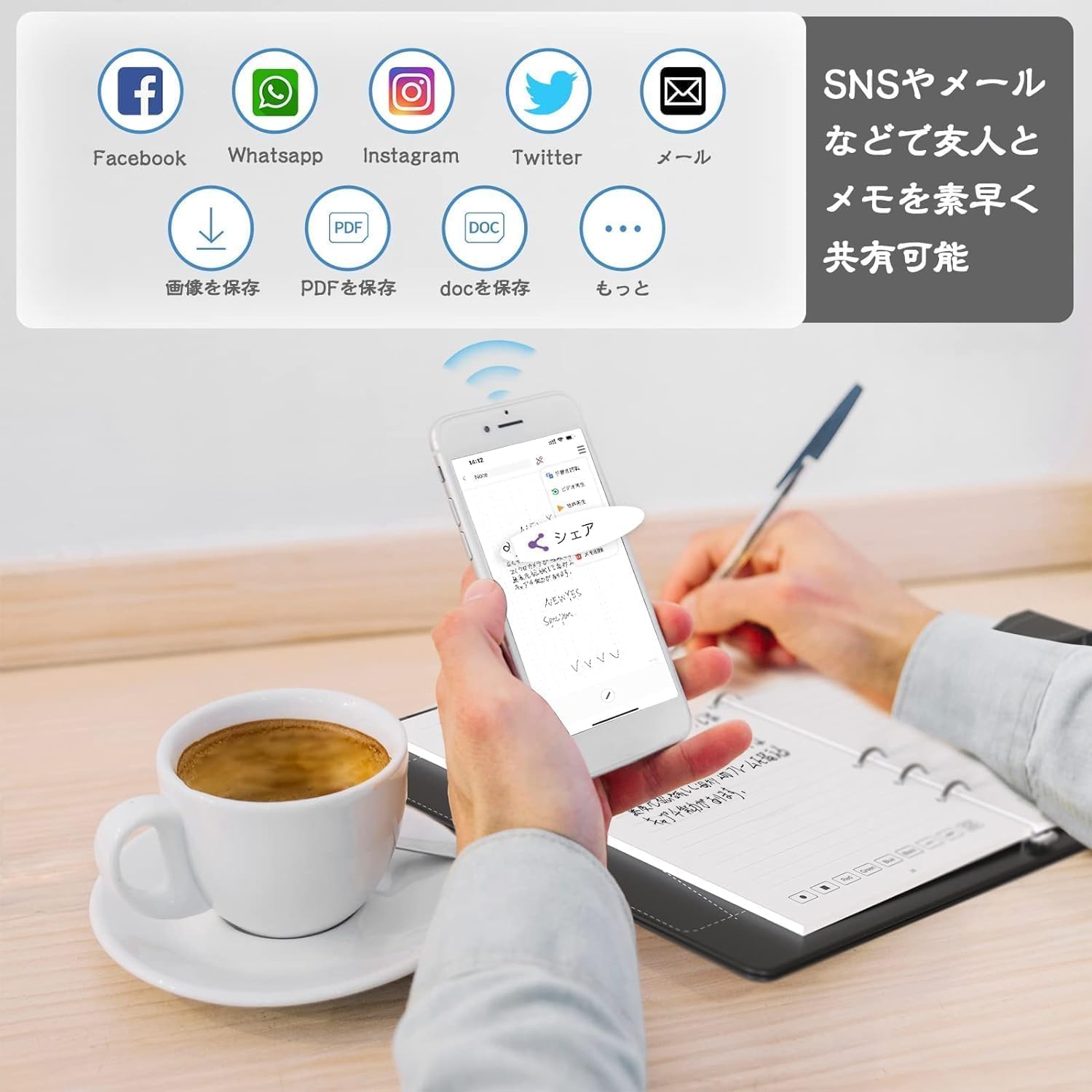
Image: Sharing options for digital notes.
6. ጥገና
6.1 ማስታወሻ ደብተር ማጽዳት
To maintain the reusability of your smart notebook, regularly clean the pages after use. Use the provided cleaning cloth or a damp cloth to wipe away ink. Ensure the page is dry before writing again.
6.2 Replacing Pen Refills
When the ink runs out, replace the pen refill with a NEWYES erasable ink refill. Gently pull out the old refill and insert a new one until it clicks into place.
6.3 የሶፍትዌር ዝመናዎች
Periodically check the NEWYES app for software updates. Updates often include new features, performance improvements, and bug fixes. Ensure your device is connected to the internet to download and install updates.
7. መላ መፈለግ
| ችግር | ሊሆን የሚችል ምክንያት | መፍትሄ |
|---|---|---|
| Pen not connecting to app | Bluetooth off, pen battery low, app not open, pen not powered on. | Ensure Bluetooth is on, charge the pen, open the app, and power on the pen. Try re-pairing the device. |
| Handwriting not digitizing in real-time | Pen not connected, writing outside the designated area, app not in note-taking mode. | Verify pen connection. Ensure you are writing on the dedicated smart notebook. Check app settings. |
| Notes not syncing from offline mode | Pen not connected to app, insufficient app storage. | Connect the pen to the app. Ensure your smart device has enough storage space. |
| Ink not erasing completely | Insufficient moisture on cloth, ink has been on the page for too long, non-erasable ink used. | Use a sufficiently damp cloth. For stubborn marks, try applying gentle heat. Ensure you are using NEWYES erasable ink refills. |
| OCR accuracy is low | Unclear handwriting, unsupported language, complex layout. | Write clearly and legibly. Check if the language is supported by the OCR feature. Simplify complex layouts for better recognition. |
8. ዝርዝሮች
| ባህሪ | ዝርዝር |
|---|---|
| የምርት ስም | አዲስዬ |
| የሞዴል ቁጥር | AP1002-5002-7D-J |
| የምርት ልኬቶች | 29.5 x 28.7 x 5.8 ሴ.ሜ |
| የእቃው ክብደት | 1.12 ኪ.ግ |
| ቀለም | Sync Pen 4 Electronic Memo Pad Included |
| የባትሪ አጠቃቀም | No (This refers to disposable batteries; the device uses a rechargeable battery.) |
| ሌሎች ተግባራት | የውሃ መከላከያ |
| ጭብጥ | መጽሐፍ |
| የሉህ መጠን | A5 |
| የሽፋን ቁሳቁስ | ፖሊዩረቴን (PU) |
| Ruling Type | የተሰለፈ |
| የእቃዎች ብዛት | 1 |
| Product Use/Application | Office, Memo Taking, School |
9. ዋስትና እና ድጋፍ
For warranty information, technical support, or customer service inquiries, please refer to the contact information provided on the NEWYES official webድህረ ገጽ ወይም የምርት ማሸጊያ። የግዢ ደረሰኝዎን ለዋስትና ጥያቄዎች ያስቀምጡ።


